[Work Automation Using Free MS RPA] Power Automate Desktop - Excel Automation
If you have completed the basic and essential lectures to understand Power Automate Desktop, now you will learn the most frequently used Excel automation flow in your work through hands-on practice so that you can automate more in your actual work.
Using Power Automate Desktop Excel Automation Templates
Create and save Excel in Power Automate Desktop
Add and rename a sheet to an Excel file
Create an Excel file with values entered in Power Automate Desktop
Copy Internet data to create an Excel file and save it
Copy Excel data and save it to a notepad file
Copy only the data that meets the conditions from Excel and save it to a notepad file
Create a new file by copying only the desired columns from an existing Excel file
Open an existing Excel file and calculate the empty sales average value
Insert Good/Bad according to sales value in empty column of existing Excel file
Update specific columns in current file by referencing values from another Excel file
Merge two Excel files into one new Excel file, attach the file, and automatically send it by email
Copy only the necessary columns from a specific file, create a new Excel, create a sheet with today's date, paste the values, and save it.
Work Less, Do More Start automating your work with free tools 🤖
Have you taken the RPA transfer course? I recommend that you start from the basics and then take this course!
Power Automate Desktop isThis is Microsoft's RPA tool. Introducing variables and learning grammar from the beginning seemed overwhelming, but the basic course introduced installation, menus, and screens. By following along and automating tasks, I was able to overcome my preconceived notions of difficulty and reduce my resistance.
In the Essentials course, I learned about variables and grammar in Power Automate Desktop to better automate my work. Of course, you can start with the Essentials course and then move on to the Basics course, depending on your preference!
Power Automate Desktop? 🧐
With the implementation of a digital office environment due to COVID-19, Robotic Process Automation (RPA) has begun replacing previously simple tasks. RPA is now performing a wide range of repetitive tasks, such as collecting and analyzing data for use in business processes. The processing speed is incomparably faster than human labor, and the reduced risk of errors is boosting corporate competitiveness.
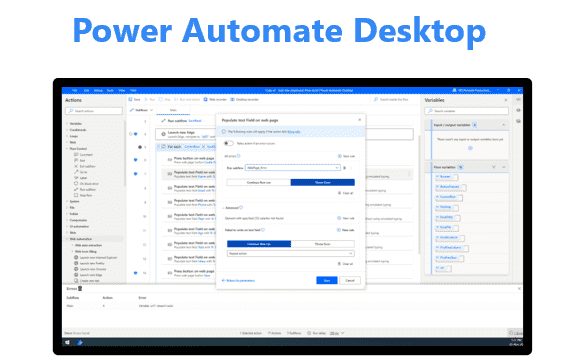
Power Automate, Microsoft's RPA tool, is a workflow service that uses desktop flows and UI-based automation to connect existing and new systems and help reduce repetitive tasks.
We've made Power Automate Desktop available for free , with over 400 pre-loaded actions for automating desktop-centric workflows . You can create and use automation flows for free, automating tasks across the various applications you use for work.
Learn through practice Microsoft Power Automate Desktop Welcome to the lecture!
Learn things like this📚
Warming Up with an Excel Automation Template
Start Excel
Find and replace values in Excel
Run Excel and extract the table
Create and save a new Excel file, add sheets, and rename them.
Create an Excel file with entered values in Power Automate Desktop
Copy Internet data and save it to an Excel file
Copy Excel data and save it to a Notepad file
Copy only the data that meets the conditions from Excel and save it in Notepad.
Create a new file by copying only the desired columns from an existing Excel file.
Open an existing Excel file and calculate the empty sales average value.
Insert Good/Bad values based on sales values into an empty column in an existing Excel file.
Update a specific column in the current file by referencing values from another Excel file.
Business Utilization Scenarios
Automatically send email by merging two Excel files
Copy only the necessary columns from a specific file, create a new Excel sheet, paste the values, and save.
What you need for the lecture✒️
Microsoft 365 or Microsoft free account, school account
Microsoft Excel (1-month free trial available)
Power Automate Desktop (free)
PC with internet access
headset or speakers
Reference lecture 📑
This course is designed to provide hands-on experience in automating tasks using Power Automate Desktop . If you would like to learn automation using Power Automate Web , please refer to the lecture below.
RPA Series 🦾
Preview Q&A 💬
Q. Do I need to purchase a license to attend the lecture?
Power Automate Desktop is free. It's available to anyone running Windows 10 or later.
Excel is paid. If it's installed on your PC, you can use it. If not, you can sign up for a one-month trial of Microsoft 365 and use it for free for one month.
Q. Do I need any prior knowledge to take the course?
You must have Power Automate Desktop installed!
Q. Is it possible to do this even if I don't know anything about coding or development?
Yes, the lectures are structured so that you can do it if you follow along slowly, one by one.
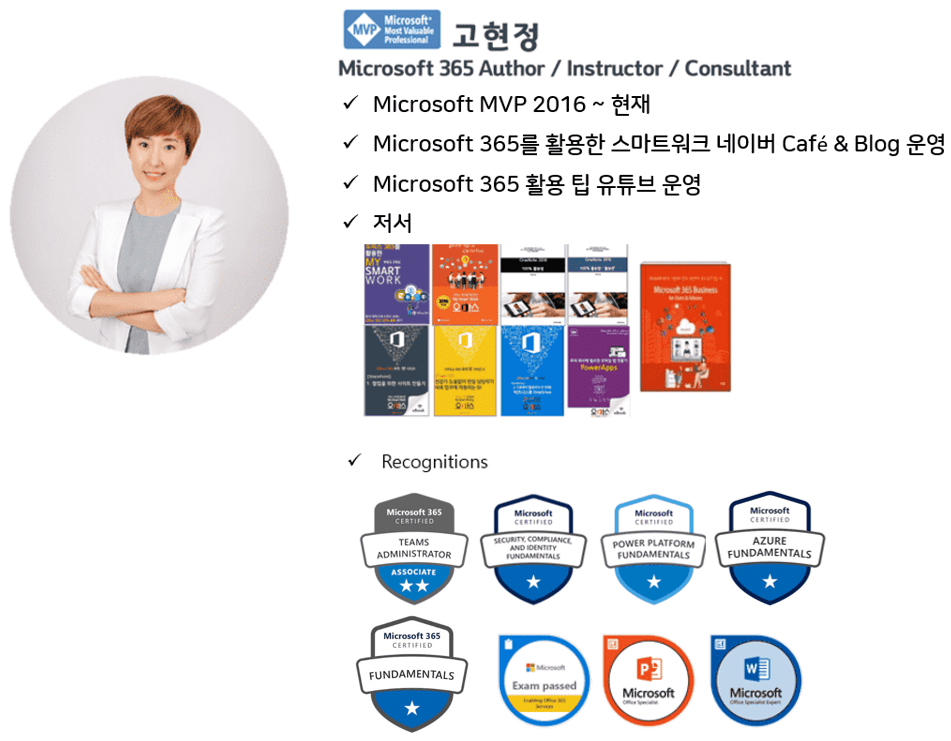
Introducing the knowledge sharer 🙋♀️
Recommended for these people
Who is this course right for?
For those curious about Power Automate Desktop
Anyone who wants to automate their work
Anyone who wants to automate Excel tasks
Anyone who wants to experience MS RPA
Anyone who wants to automate their work through free RPA
Need to know before starting?
I'll teach you from the basics, but you'll need to install Power Automate Desktop!
Hello This is
2,510
Learners
276
Reviews
164
Answers
4.5
Rating
45
Courses
반갑습니다! Microsoft 365 전문가 "오마스"입니다. Microsoft 365 전문가가 여러분이 보다 쉽게 스마트하게 업무를 할 수 있도록 돕겠습니다.
오마스의 강사를 소개합니다!!
고현정 강사 Microsoft MVP (Microsoft 365 Apps&Services, 2016 ~ 현재)






![[최신버전 업데이트] 프로일잘러가 되기 위한 프로젝트 및 할 일 관리 - MS PlannerCourse Thumbnail](https://cdn.inflearn.com/public/courses/336001/cover/9368db08-c64b-42ca-8ad1-e7a872bffc0e/336001.jpg?f=avif&w=420)


![[무료 MS RPA를 활용한 업무 자동화] Power Automate Desktop - 반복되는 일 자동화하기Course Thumbnail](https://cdn.inflearn.com/public/courses/332826/cover/fd9d8667-48a8-4d2e-b27d-1154f66df679/332826.png?f=avif&w=420)


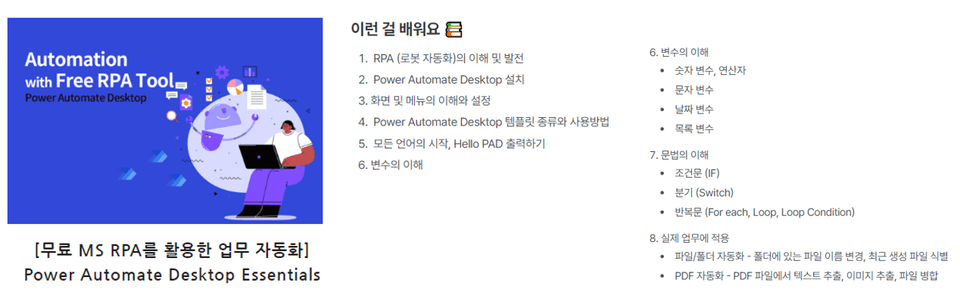
![[무료 MS RPA를 활용한 업무 자동화] Power Automate Desktop EssentialsCourse Thumbnail](https://cdn.inflearn.com/public/courses/329655/cover/8364da63-535b-4613-9b02-3dcdfc21791d/329655-eng.png?f=avif&w=420)

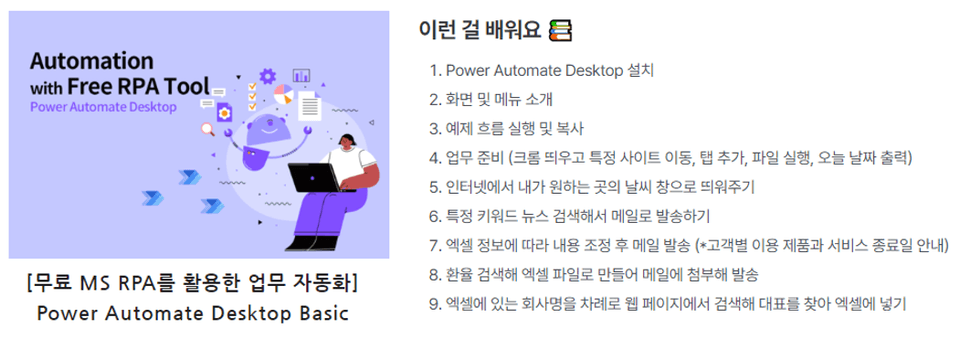
![[무료 MS RPA를 활용한 업무 자동화] Power Automate Desktop BasicCourse Thumbnail](https://cdn.inflearn.com/public/courses/329047/cover/35cb417d-cd84-47f8-a20f-653724b03a77/329047-eng.png?f=avif&w=420)

![[SharePoint] Microsoft List로 우리 회사 송금 요청 시스템 만들기Course Thumbnail](https://cdn.inflearn.com/public/courses/328904/cover/97b383cf-91c5-4cc1-b126-ed9e3fdbef7f/328904-eng.png?f=avif&w=420)


![업무 자동화 [엑셀 분석작업의 모든것]Course Thumbnail](https://cdn.inflearn.com/public/courses/329293/cover/dffc3baf-1c4d-4130-867b-628a4fd7b042/데이터분석(인프런).jpg?f=avif&w=420)
![3일만에 끝내는 [ITQ 엑셀 A 한방에 합격하기]Course Thumbnail](https://cdn.inflearn.com/public/courses/329652/cover/b44e11b6-a47e-4993-86ea-a85da9836bb5/329652-eng.png?f=avif&w=420)


![[국내 최초] ChatGPT × Word 실무 활용법: 누구나 쉽게 만드는 각종 문서 자동화Course Thumbnail](https://cdn.inflearn.com/public/files/courses/338227/cover/01k0rxg0k0xk9q6vefywa4qnbn?f=avif&w=420)


![[80:20 법칙] 3시간 완성 n8nCourse Thumbnail](https://cdn.inflearn.com/public/files/courses/339168/cover/01k8dvcwzq67vj7tdmdn5mvafz?f=avif&w=420)


![[입문자를 위한] Power BI로 시작하는 데이터 시각화Course Thumbnail](https://cdn.inflearn.com/public/courses/327055/cover/455b54c1-3e63-439b-9b60-5d12e12bc303/PowerBI-001)
