Illustrator 2025: Easy to Learn for Everyone
comt
Start learning Illustrator, an attractive graphic design program, and create your own amazing designs!

Beginner
Illustrator
Learn & Master Premiere 2025 Basics Easily [Subtitles Provided]
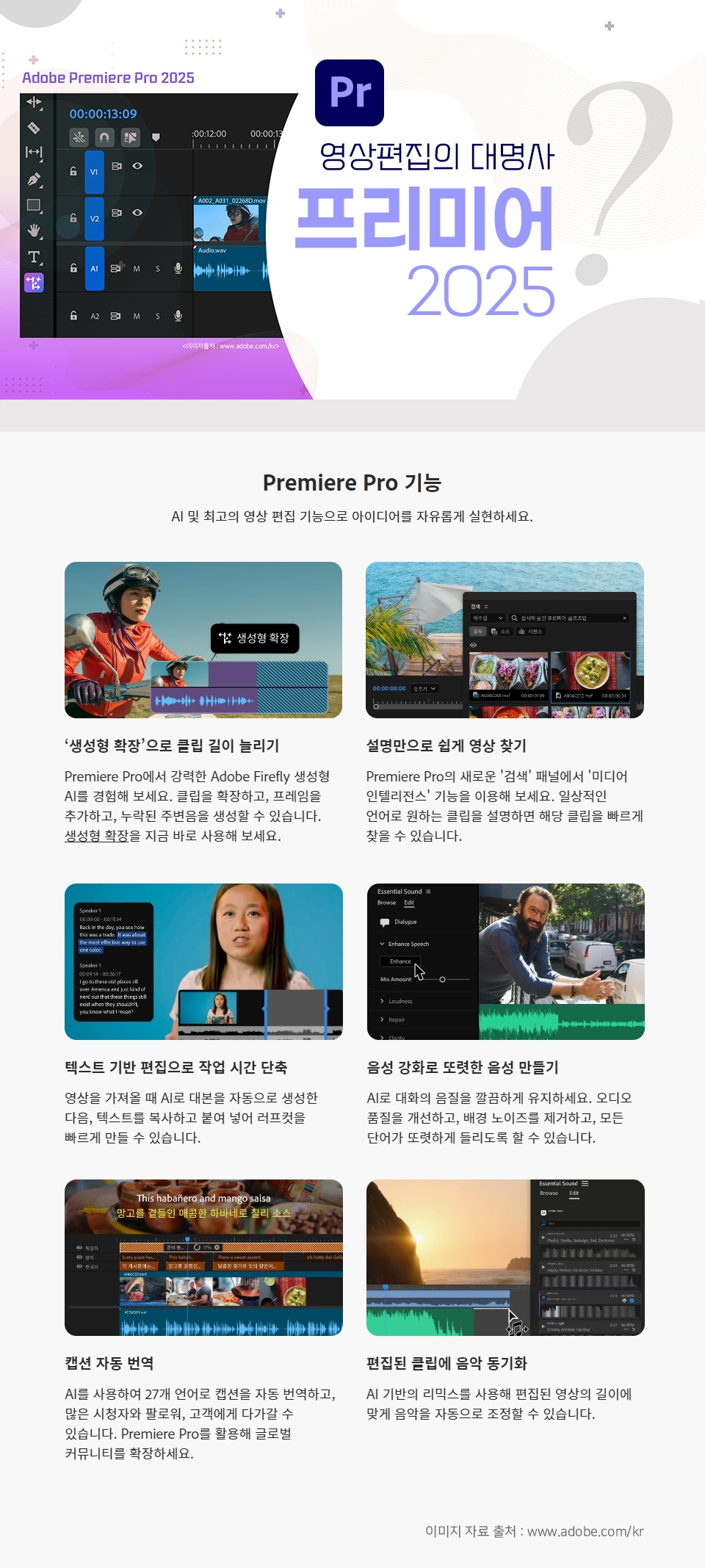
You will understand the digital concepts and frames of video editing.
Learn to install Premiere and necessary apps.
Learn project concepts, creation, and saving.
I can use Premier and do video editing.

Edit and trim your videos, add transitions, mix audio,
Create vibrant titles.
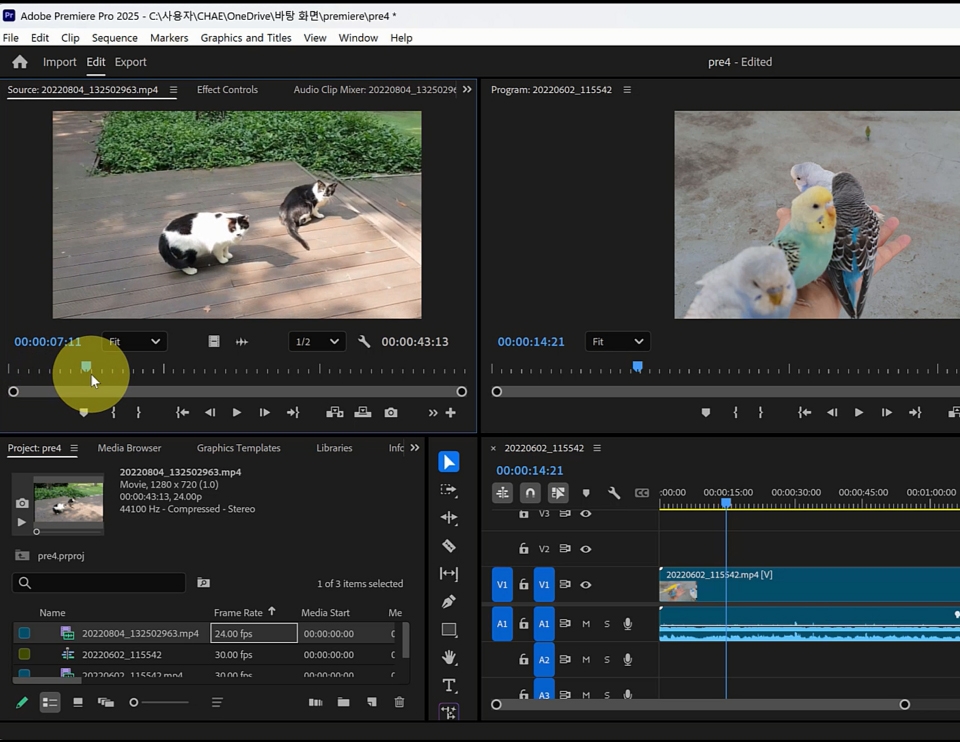
Take a look at the basic working environment
Check information in source files
To import
Learn the time units of video
Select the required section of the source from the source window and import it
Understanding the Playhead
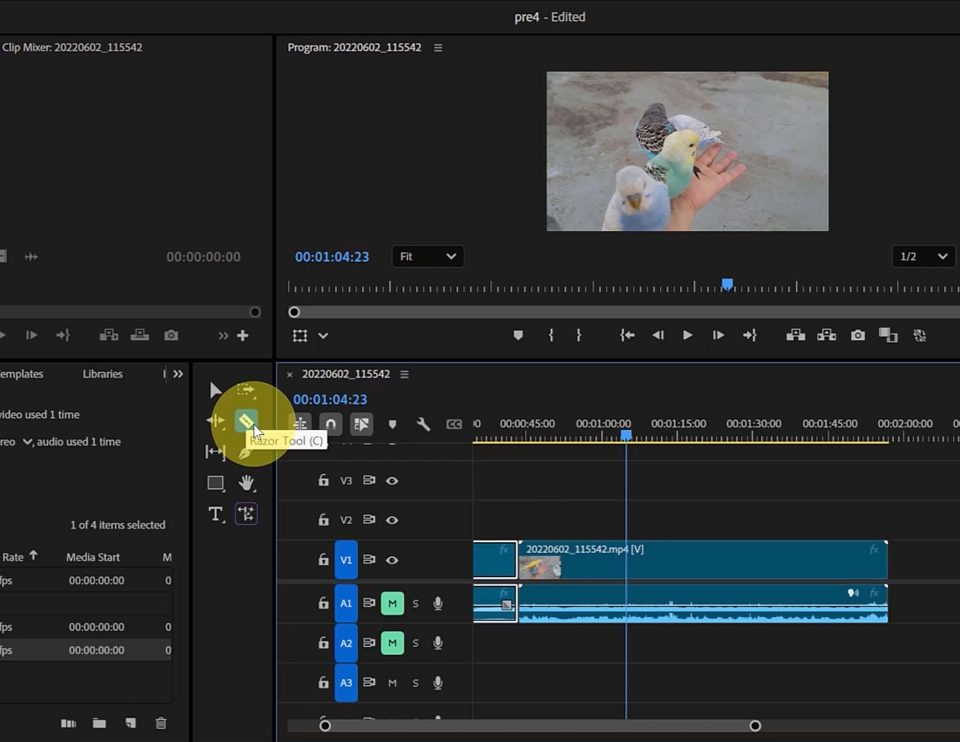
With the Razor tool
How to use the selection tool
Adjust the window size of the work screen
Selection tool /
Razor tool
Track Selection Forward tool
Track Selection Backward tool
Play from the very front of the track
Position the playhead precisely between clips
Move 1 frame and 5 frames /
Move track
Trim the front and back of a clip in the timeline
Ripple Edit tool /
Rolling Edit tool
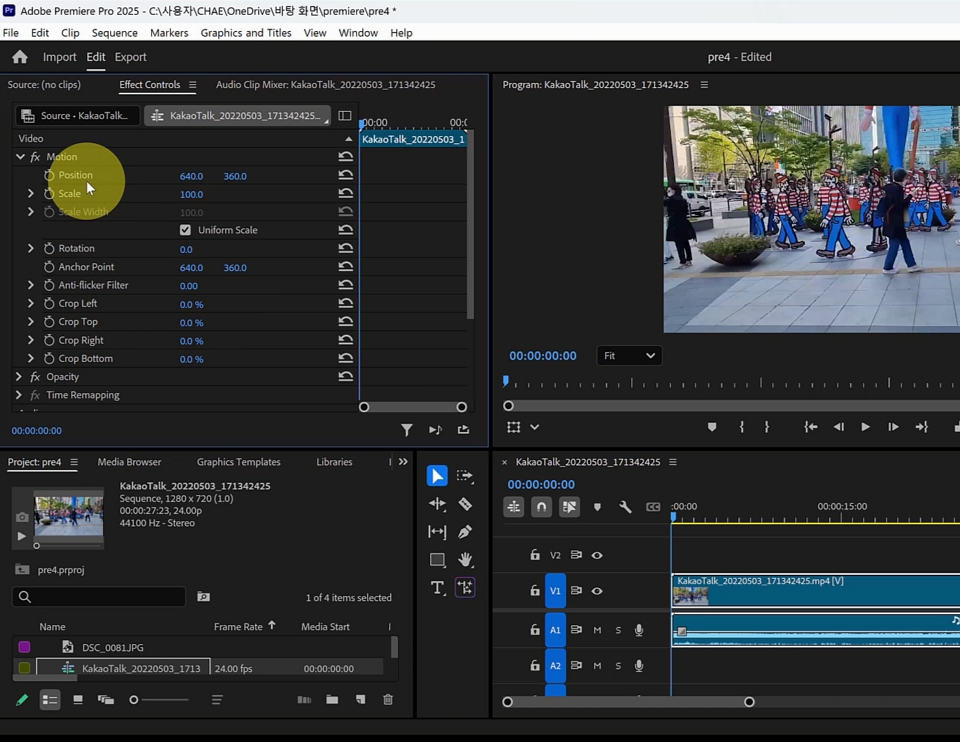
Create a Sequence identical to the source in the program window
Adjusting Position, Scale, and Rotation in the Effect Control window
Set up a Workspace that suits your task
Make clip control points visible in the Program window
Grab and transform clips directly in the Program window
Positioning multiple clips on one screen
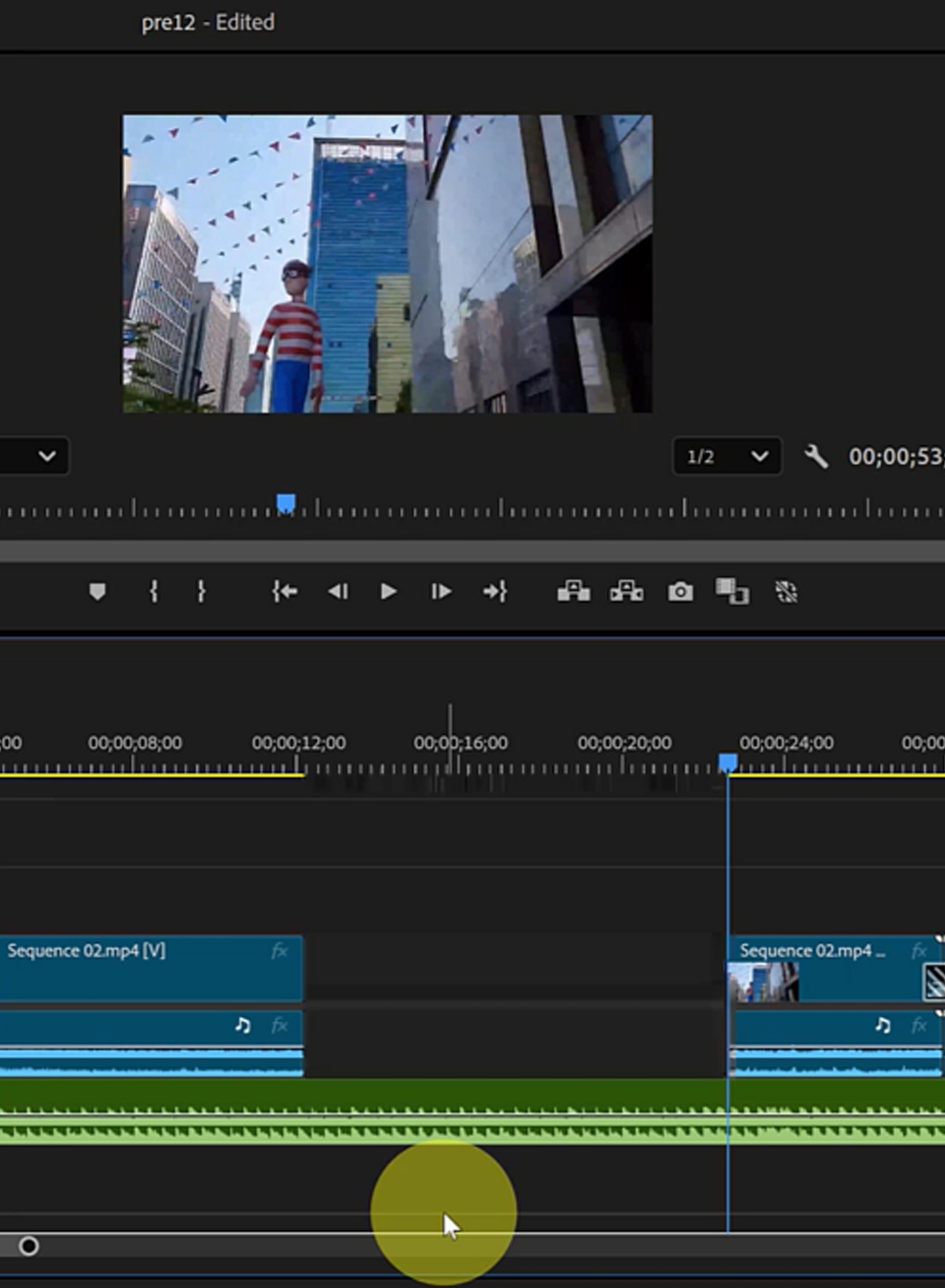
Create a working folder on your desktop and save the source
File name and save
Import source files with Import
Create a Sequence by placing the source on the timeline
Bringing the source to the timeline
Mute audio
Adjusting the scale of a clip
Import audio into the timeline
Adjust the length of video and sound
Applying scene transitions
Editing cuts with the Razor tool
Select the desired area as Work Area
Default settings for files exported as video
Export to video with Export
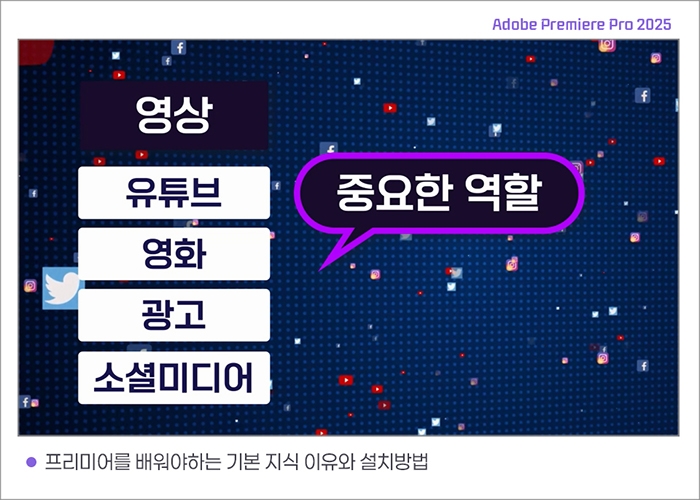
Basic knowledge reasons why you should learn Premiere
Why You Should Learn Premiere
Premier Applications and Benefits
Create and save a new file
Getting started with Premiere
How to install Premiere
How to subscribe to Premier
How to install Korean and English versions
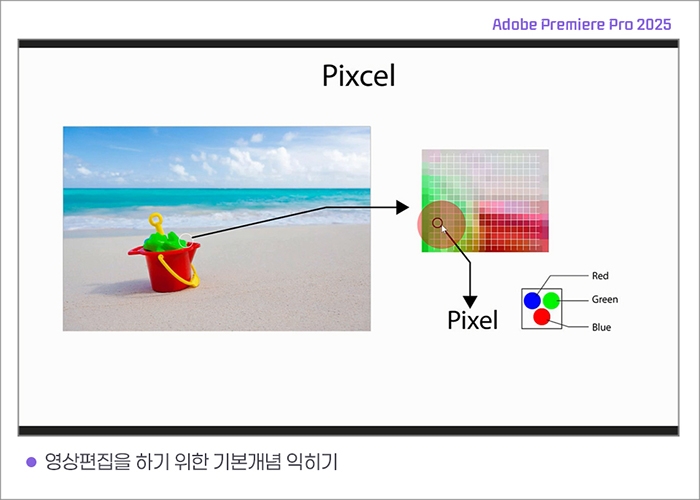
Learn the basic concepts of video editing
The concept of pixels
Composition of pixels
What is resolution and what are the types of resolution?
Pixel pitch
The concept of ppi
How to check basic information of a video in file properties
Why import after checking the resolution of the source to be edited
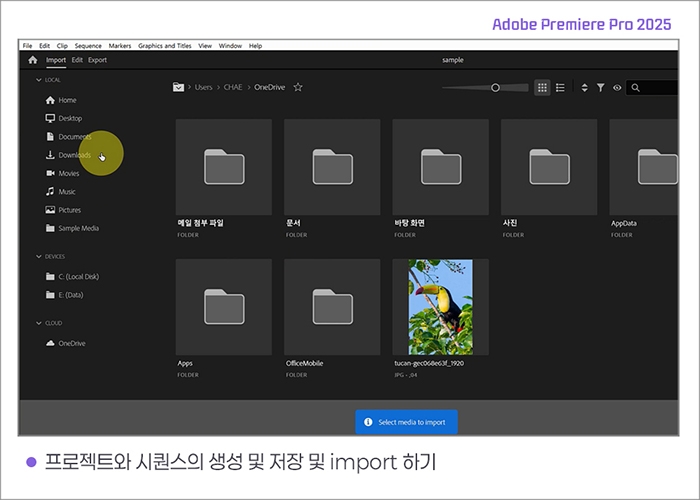
Creating, saving, and importing projects and sequences
Create a new project
Difference between project and sequence
Creating projects and sequences
Create a sequence using the source file imported through import
Add source files to the timeline
Separating sequences and source files in the project window
Save the project file and
Auto save
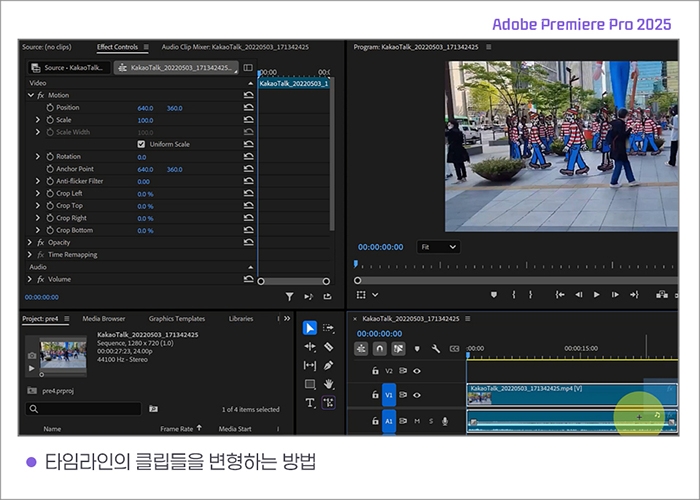
How to transform clips in the timeline
Create a Sequence identical to the source in the program window
Adjusting Position, Scale, and Rotation in the Effect Control window
Set up a Workspace that suits your task
Make clip control points visible in the Program window
Grab and transform clips directly in the Program window
Positioning multiple clips on one screen
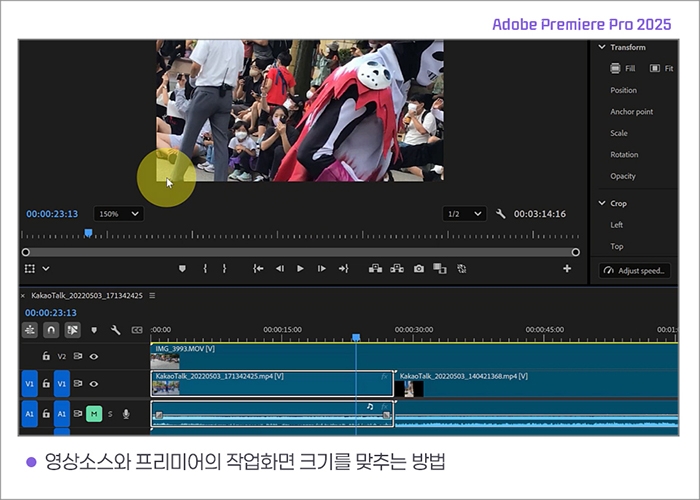
Learn how to make sources of various sizes and ratios and work with the same size
Zoom in and out to view tasks in the Program window
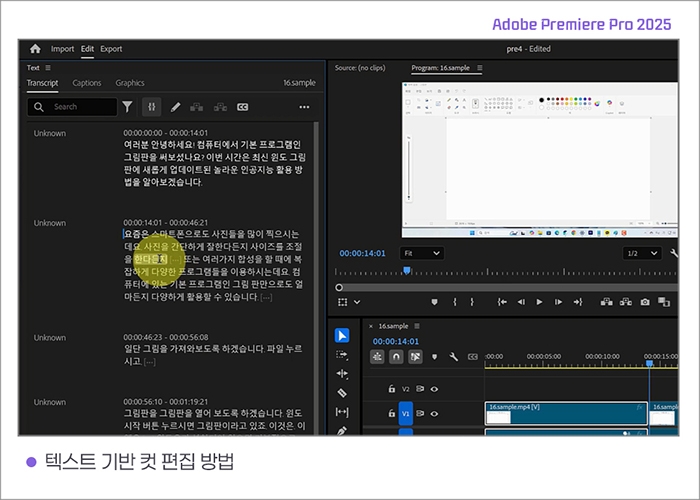
Change your workspace to Text-Based Editing
Convert audio from a video to text using the Transcribe feature in the Text window
Change the language to Korean in Preferences
Remove silent interval /
Edit as text /
Copy and move sections as text /
Remove the chaff
After launching Premiere, press Ctrl+F12.
When the console window appears, click on the three lines right next to the console text at the top of the console window.
Press the button.
Click Debug Database View in the pop-up menu.
Then, a list of various English words will appear. In the magnifying glass search box at the top,
Type language and search
Delete ko_KR on the right side of ApplicationLanguage and enter en_US, then press
If you re-run the rime
The English Premiere will launch again.
A variety of features to help you edit
Adjusting the opacity of a clip using Opacity in the Effect Control window
Match the size of your clips and sequences using Scale to Frame Size
Use Fill Frame to frame a clip with a different aspect ratio than the sequence.
Fit to
Open the Effect window
Use Auto Reframe to bring the subject into view by clipping a larger sequence than the subject.
Place
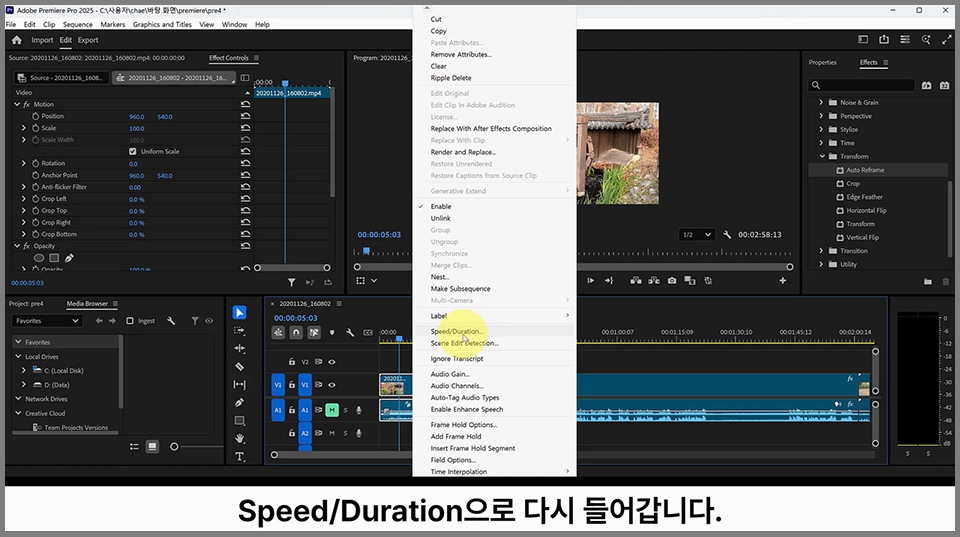
Control the speed of a video and play it back in reverse using Seed Duration
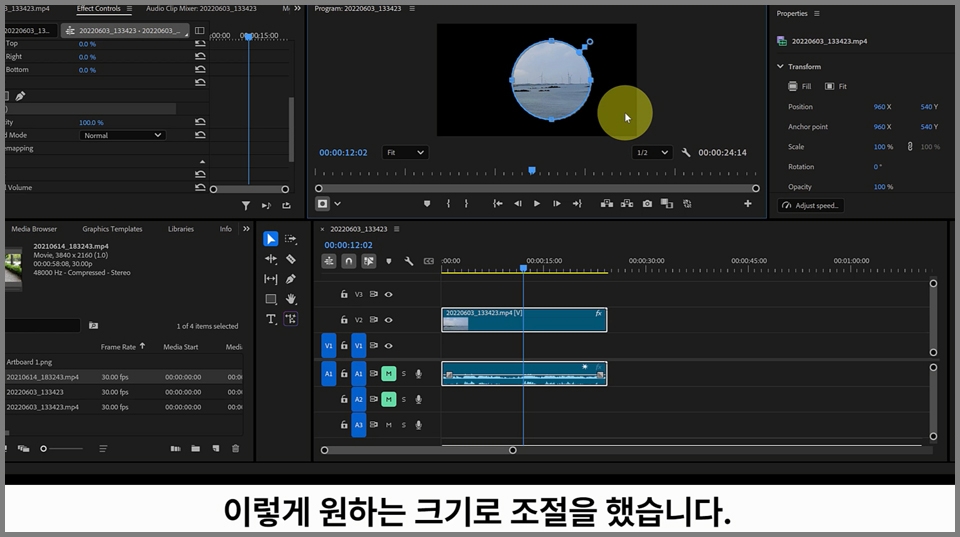
Mastering Premiere's Mask Feature
Creating a Shape Mask in the Effect Controls of a Clip
Understanding Masks
Place another clip under the mask clip
Create multiple masks and move them around
Changing the shape of the mask
Clear Mask
Applying transparency to mask borders
Add color mad under the mask clip
Operating System and Version (OS): Windows 10 (64-bit) version 22H2 or later or Windows 11
Processor (minimum): Intel 6th generation or later CPU or AMD Ryzen 1000 series or later CPU.
AVX2 (Advanced Vector Extensions 2) support required
Processor (Recommended): Intel 11th generation or later CPU with Quick Sync or
AMD Ryzen 3000 series/Threadripper 3000 series or higher CPU
Memory: 8GB (standard), 32GB (recommended)
For detailed system requirements (MAC environment, etc.), please refer to Adobe Premiere Pro .
You can download the source from Lesson 1 and download it separately.
Lesson materials are not provided.
Who is this course right for?
People who want to learn video editing
Those who dream of being YouTubers
Those who want to try editing the videos I filmed
Need to know before starting?
It's good to know image editing programs like Photoshop.
It's good to try combining photo and video shooting.

Career Verified
1,927
Learners
172
Reviews
4
Answers
4.8
Rating
37
Courses
Back when Apple's MAC computers made it possible to design even better.
It's already been well over 25 years since I first started teaching Adobe Photoshop and Illustrator at the academy~~^^
I remember the days when, instead of calling the instructors Teacher Eom, Teacher Ha, and Teacher Gu, we used to call them Eom-T and Gu-T.
Together with those teachers, we started using ComTee as an abbreviation for Computer Teacher!
I will continue to be a "Computer Teacher" who works hard to share knowledge for all those who are learning.
Thank you!!
Thank you!!
Together with everyone, we've come to use "Com-T" as a shorthand for Computer Teacher! We will continue to be a Computer Teacher that works hard to share knowledge for all learners. Thank you!!
Together with everyone, we've come to use "Com-T" as a shorthand for Computer Teacher! We will continue to be a Computer Teacher that works hard to share knowledge for all learners. Thank you!!
All
20 lectures ∙ (3hr 47min)
Course Materials:
All
9 reviews
5.0
9 reviews

Reviews 1
∙
Average Rating 5.0
Reviews 1
∙
Average Rating 5.0
Reviews 1
∙
Average Rating 5.0
Reviews 1
∙
Average Rating 5.0
Reviews 1
∙
Average Rating 5.0
Check out other courses by the instructor!
Explore other courses in the same field!

![InDesign 2024 Basics to Practical Use Master Course [Subtitles Included]Course Thumbnail](https://cdn.inflearn.com/public/courses/333362/cover/91faa49d-01d6-4fc6-90a0-d339c5dbfe65/333362.jpg?w=420)