Illustrator 2026 Core Mastery for Beginners
comt
Learn Illustrator, an attractive graphic design program, and start creating your own amazing designs~

Beginner
Illustrator
Anyone can easily learn the latest version of Photoshop 2026 with subtitles.
10 learners
Level Beginner
Course period 3 months
Understanding Photoshop and the Basic Workspace
How to install Photoshop 2025
Understanding Resolution and Color Modes
How to use various tools in Photoshop
Concepts of Selection, Movement, and Basic Shortcuts
Understanding the core concept of Layers in Photoshop
How to use the rectangle and various selection tools
Understanding Layer Masks: An Essential Photoshop Feature
Mastering the Basics of Portrait and Photo Retouching
Filter function for applying effects to images
How to use the core AI retouching tools in Photoshop
How to use generative AI in Photoshop
Photoshop 2026 Master Class
No matter how much AI advances, a human touch is absolutely necessary.
To make the desired modifications, a program for editing images is absolutely necessary.
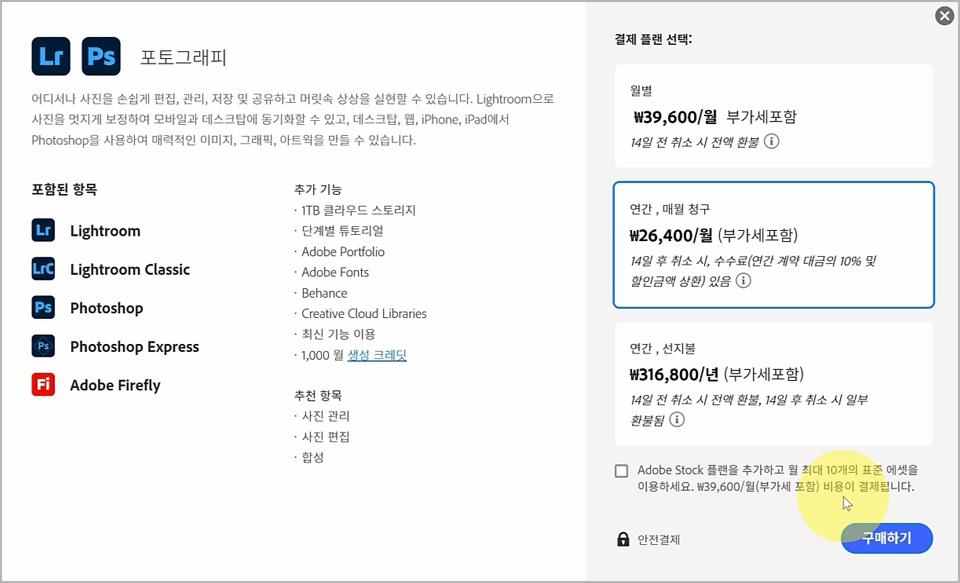
Select a subscription plan on the Adobe website.
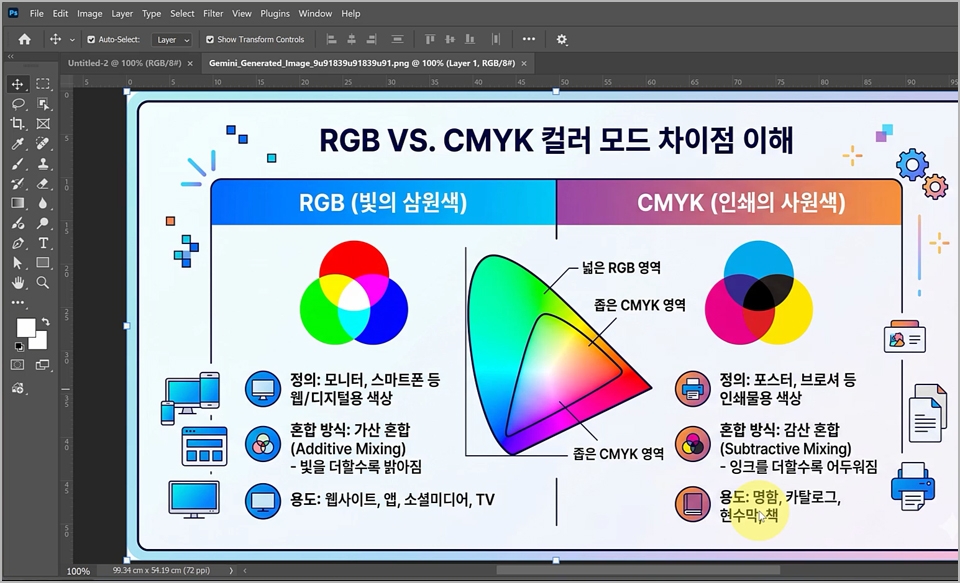
You need to know the difference between RGB and CMYK.
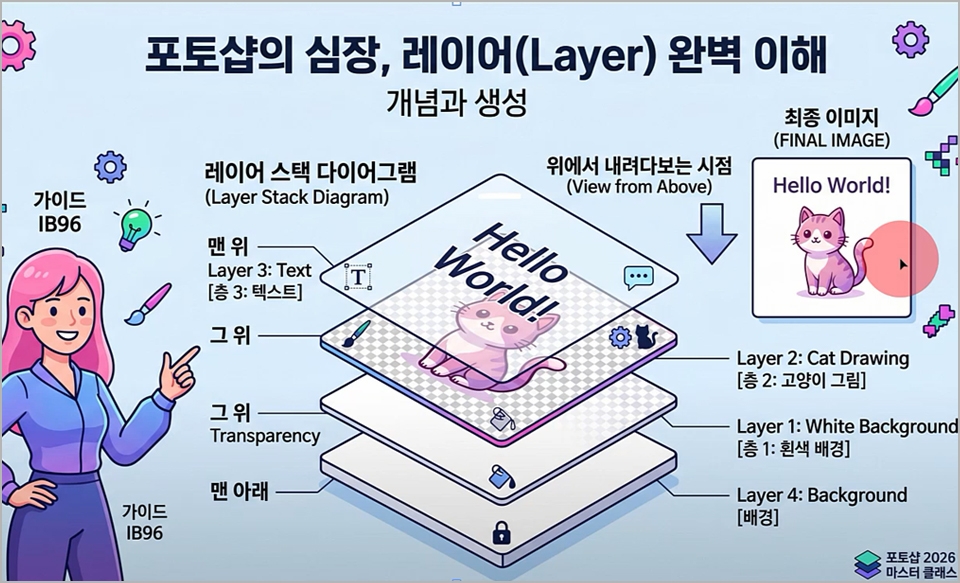
Explains the reasons for using layers and how to use them.
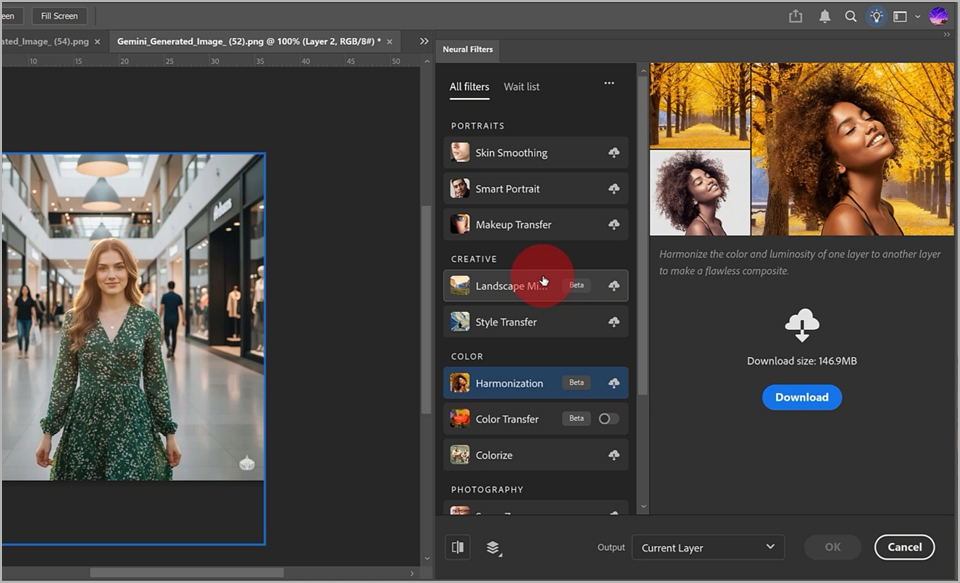
Learn how to generate images using prompts.
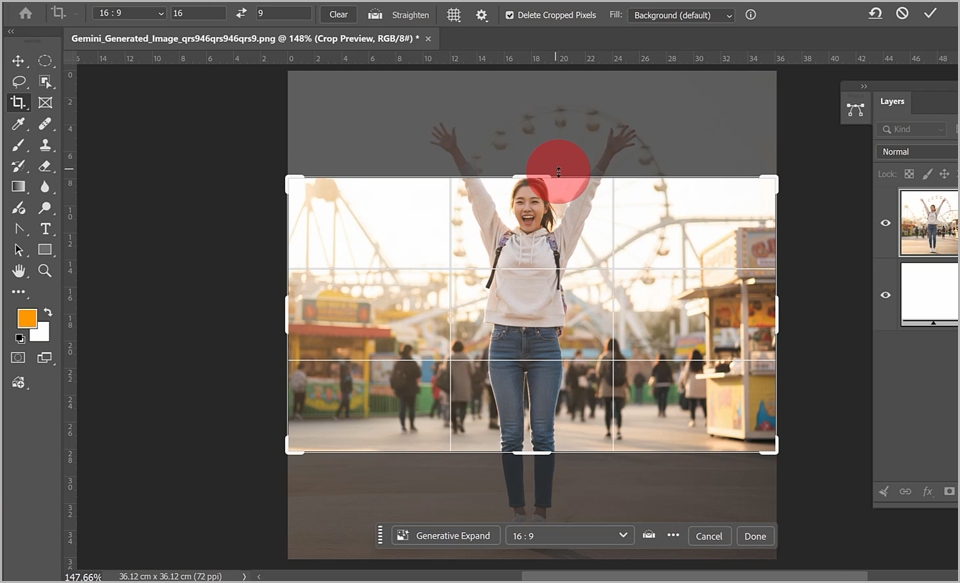
Expanding images using the Crop Tool
Smart Removal Tool: Remove Tool
Increasing resolution using Generative Upscale
Those who need to do graphic-related work
Those who want to create SNS thumbnails
Those who want to do photo editing
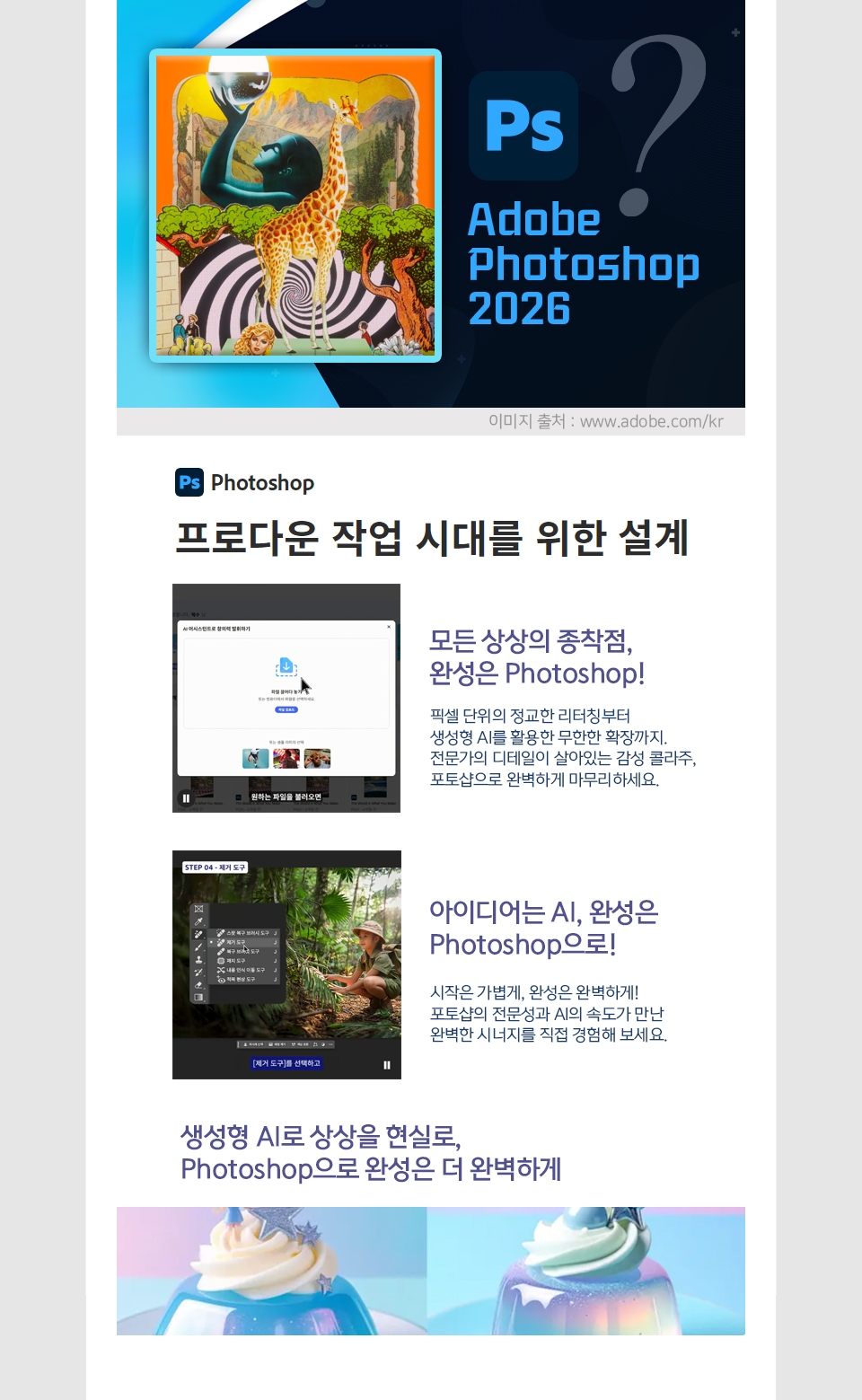
Photoshop Workspace and Environment Optimization
New File and Open
document preset and opening a new canvas
Differences between Korean and English versions of Photoshop
Taking a closer look at the workspace
(Menu, Panel, Tool Palette, Workspace, etc.)
Adjusting panels and creating a workspace that suits you
Configuring unit settings and screen brightness in preferences
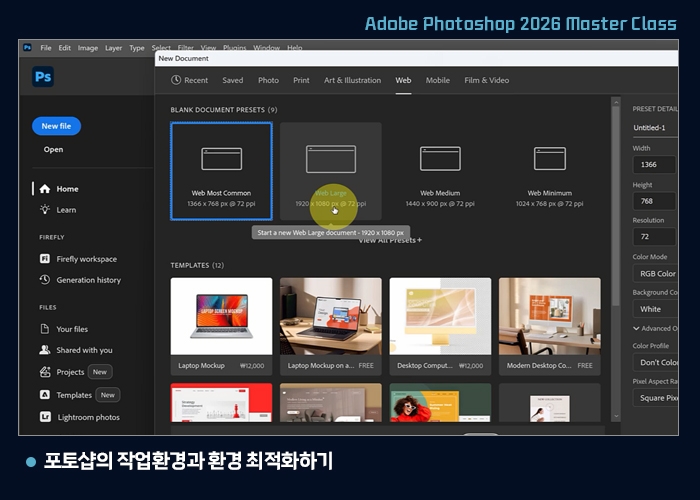
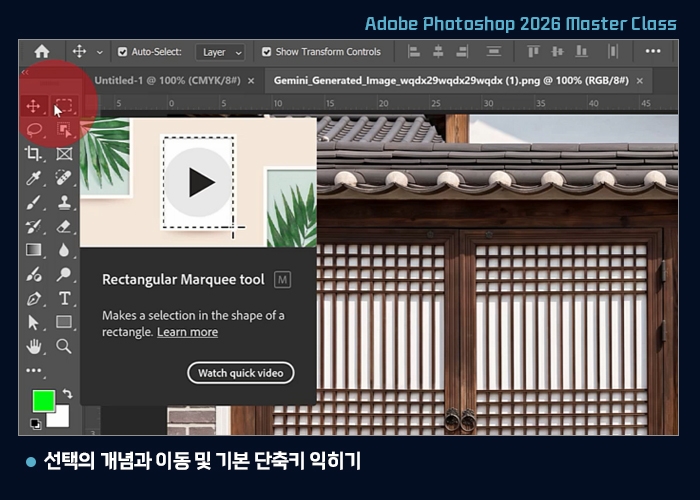
Understanding the Concept of Selection, Movement, and Basic Shortcuts
Understanding the concept of selection
How to select using the rectangular and elliptical marquee tools
How to move a selection area
Moving selected images with the Move Tool
Utilizing various functions of Shift and Alt shortcuts
Mastering Various Selection Tools in Photoshop
Rectangular and Elliptical Marquee Tools
Lasso Tool
Polygonal Lasso Tool
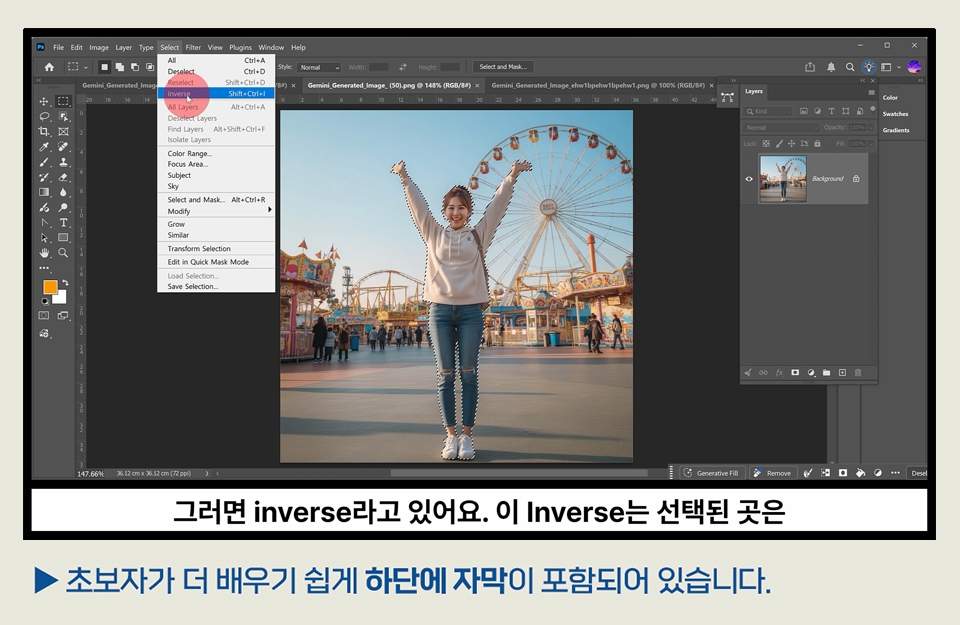
Selection methods using selection tools and shortcuts
Zooming in and out of images with the Zoom Tool
Object Selection Tool
Creating examples using selection tools
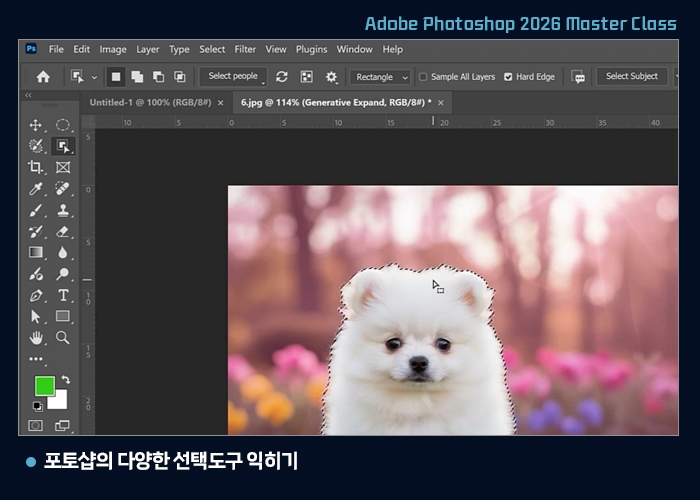
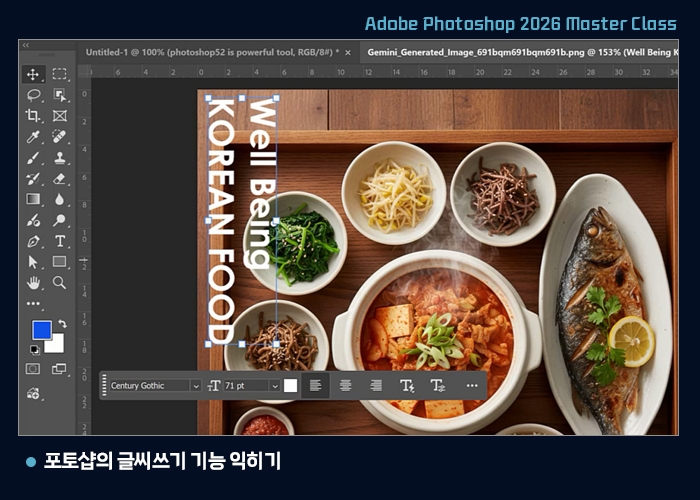
Learning Photoshop's text writing features
Selecting the Type Tool
Text adjustment functions in the Task bar
Text adjustment functions in the Control panel
Move the text position freely and adjust the size using the Move Tool
Understanding text layers
Exploring the options in the Character panel
Example of adding text to an image
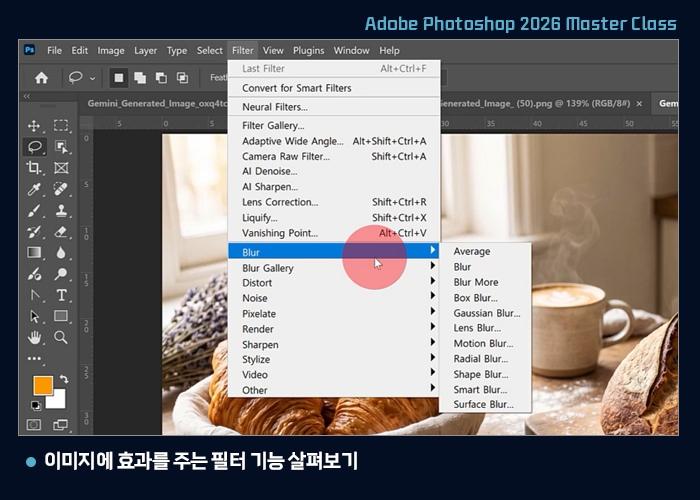
Exploring filter functions that apply effects to images
Out-of-focus image using Gaussian Blur
Blur Gallery
Add Noise
Mosaic
Sharpen
Creating bright and radiant photos using
Gaussian Blur and layers
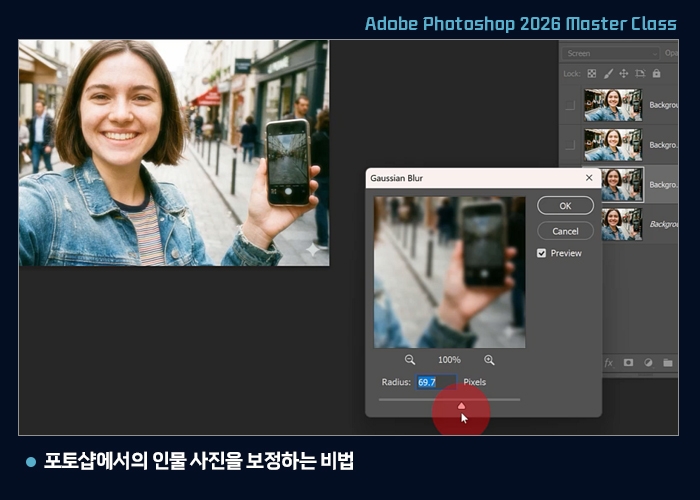
Secrets to retouching portraits in Photoshop
Secrets to removing facial blemishes
Blur, Layers, and Brightness Adjustment
Correction secrets using Opacity and modes
Photoshop can be used by subscribing through the Adobe website (https://www.adobe.com/kr/).
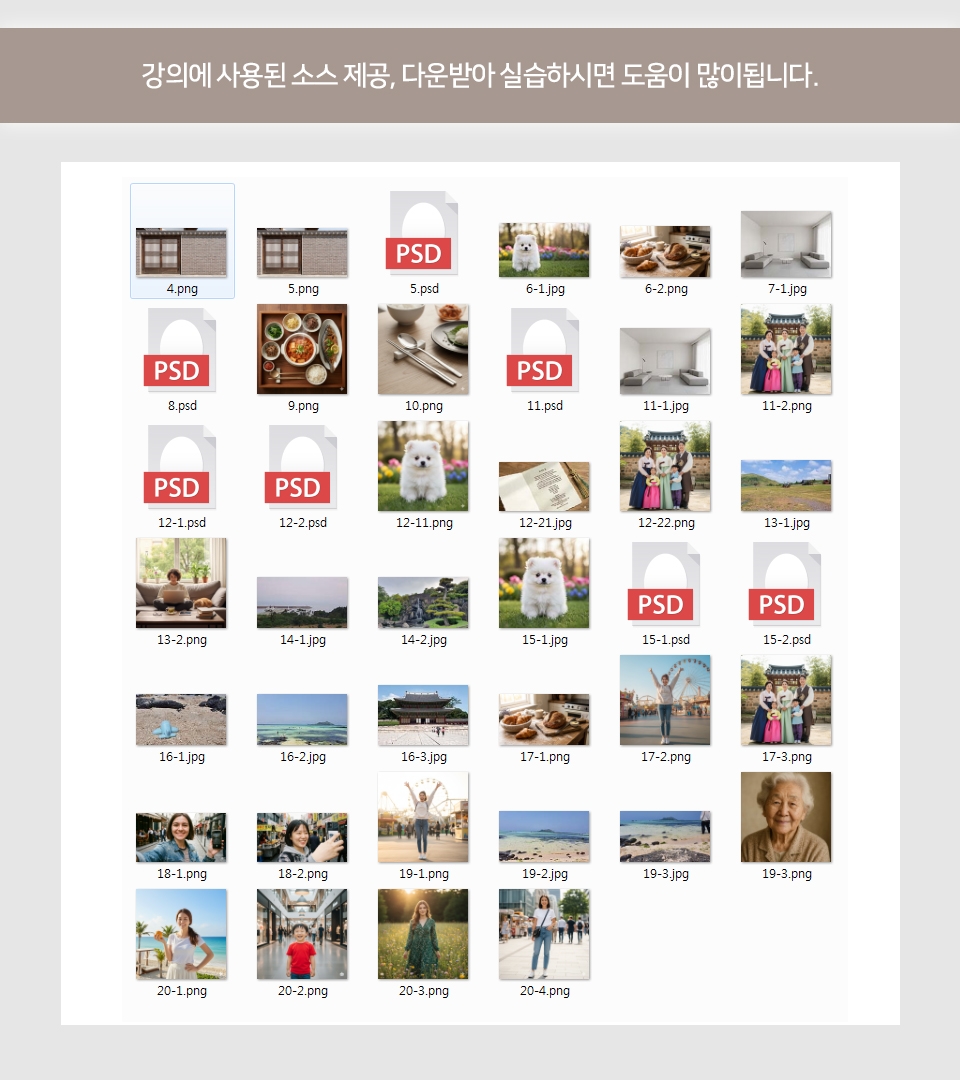
You can download the class materials in Lesson 1: The Necessity of Photoshop 2026, Workspace, and Installation Method.
Who is this course right for?
Those who want to learn Photoshop
Those who want to utilize the latest version of Photoshop
People working in the photography industry
Those who want to learn essential design programs
Those who want to create cool thumbnails for YouTube
Need to know before starting?
Not at all~ Anyone can learn it right away.

Career Verified
1,900
Learners
164
Reviews
4
Answers
4.8
Rating
36
Courses
Back when Apple's MAC computers made it possible to design even better.
It's already been well over 25 years since I first started teaching Adobe Photoshop and Illustrator at the academy~~^^
I remember the days when, instead of calling the instructors Teacher Eom, Teacher Ha, and Teacher Gu, we used to call them Eom-T and Gu-T.
Together with those teachers, we started using ComTee as an abbreviation for Computer Teacher!
I will continue to be a "Computer Teacher" who works hard to share knowledge for all those who are learning.
Thank you!!
Thank you!!
Together with everyone, we've come to use "Com-T" as a shorthand for Computer Teacher! We will continue to be a Computer Teacher that works hard to share knowledge for all learners. Thank you!!
Together with everyone, we've come to use "Com-T" as a shorthand for Computer Teacher! We will continue to be a Computer Teacher that works hard to share knowledge for all learners. Thank you!!
All
20 lectures ∙ (4hr 9min)
Course Materials:
All
2 reviews
Check out other courses by the instructor!
Explore other courses in the same field!
Limited time deal ends in 2 days
$37,730.00
30%
$41.80
![InDesign 2024 Basics to Practical Use Master Course [Subtitles Included]Course Thumbnail](https://cdn.inflearn.com/public/courses/333362/cover/91faa49d-01d6-4fc6-90a0-d339c5dbfe65/333362.jpg?w=420)








![[Vibe Coding] No coding knowledge needed! Practical planning and marketing automation implemented just as you envision itCourse Thumbnail](https://cdn.inflearn.com/public/files/courses/343702/cover/01m0bw7ftw0a710nyfxba59aky?w=420)
![[Instruction Provided] Sam Altman's Claude Practical Setup: Creating an Efficient AI AssistantCourse Thumbnail](https://cdn.inflearn.com/public/files/courses/341569/cover/01kmh9frekfcfekxh6bnbq9ygv?w=420)



![[AI Techniques for Time Creation] ElevenLabs from Basics to Advanced: Streamline Tedious Recording and Accelerate Productivity in Your Main Job and Side HustleCourse Thumbnail](https://cdn.inflearn.com/public/files/courses/340580/cover/01kftrjgqh88sbf425rbn5hn9v?w=420)