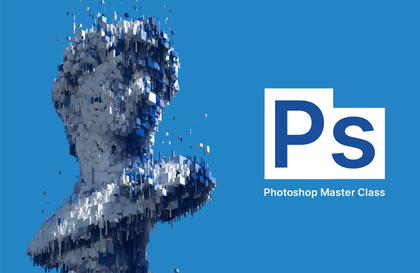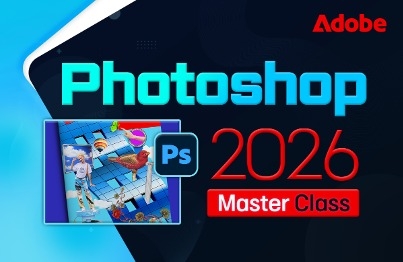
Photoshop 2026 Master Class Course: From Basics to Practical Skills
comt
Anyone can easily learn the latest version of Photoshop 2026 with subtitles included.

Beginner
Photoshop, Photography, AI
Anyone can easily learn the latest version of Photoshop 2025 with subtitles.
84 learners
Level Beginner
Course period 5 months
Reviews from Early Learners
5.0
letgo04
Thank you for extending the course so I could complete it. You explained the key points cleanly and concisely, making it easy to understand. Thank you.
5.0
꿈냥이
I learned so much because you taught the vast content of Photoshop in such a systematic and easy-to-understand way. Thank you! I highly recommend this to others!
5.0
quasar4344
I like the lecture.
Understanding Photoshop and Its Basic Workspace
How to Install Photoshop 2025
Understanding the Difference Between Vectors and Bitmaps and Resolution
The Concept of Selecting and Moving in Photoshop
Understanding Layers and Color Modes
How to Use Photoshop’s Basic Tools
Image Retouching and Color Adjustment Using Photoshop
How to Use Clipping Masks and Composite Images
How to Use the Image Clone and Erase Functions
Understanding and Using the Pen Tool, Paths Palette, and Shapes
Learn the basic features of the latest version, Photoshop 2025, along with the concept of image resolution, the difference between bitmap and vector formats—which many people find confusing
—and how RGB and CMYK colors are structured.
To make good use of Photoshop, you need to use layers and masks appropriately so you can freely composite photos,
retouch images, and use color.
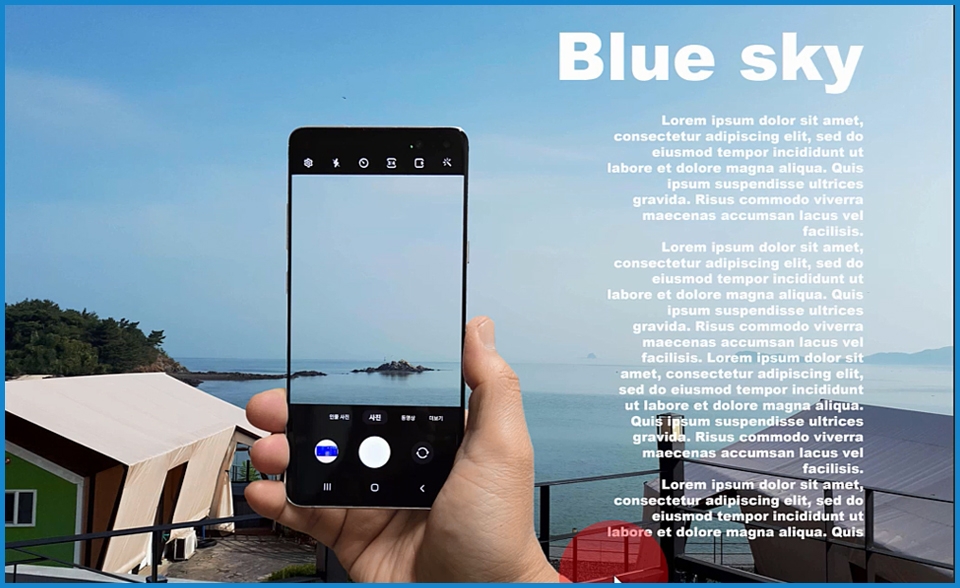
Learn the very basics of Photoshop through examples, including the concept of selections, selecting desired areas, copying and moving between images, writing text, and
writing text in designated areas.
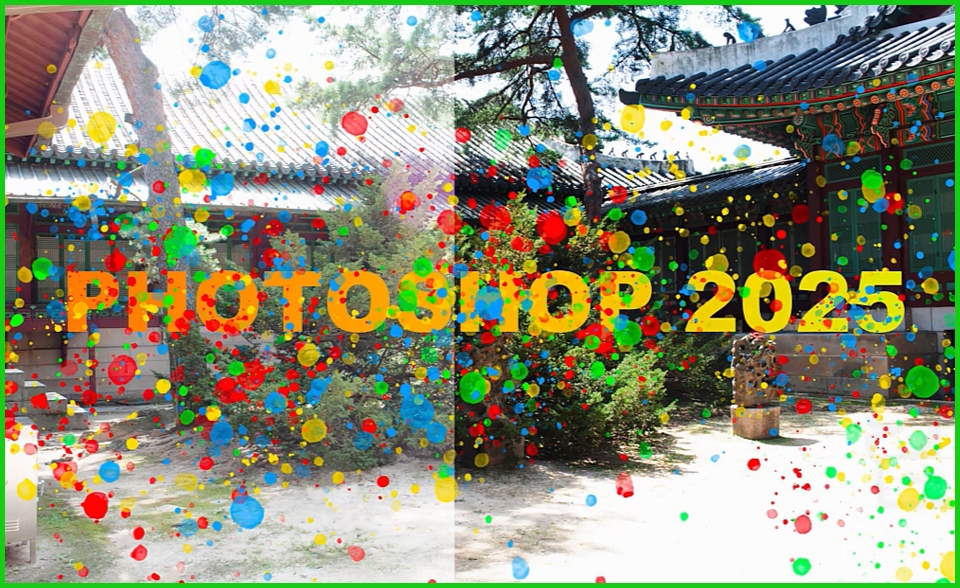
Learn how to use layers, invert selections, and use the Clone Stamp tool through examples,
Installing and using brushes, using gradients,
and selecting objects on layers
Review of the entire basic course.
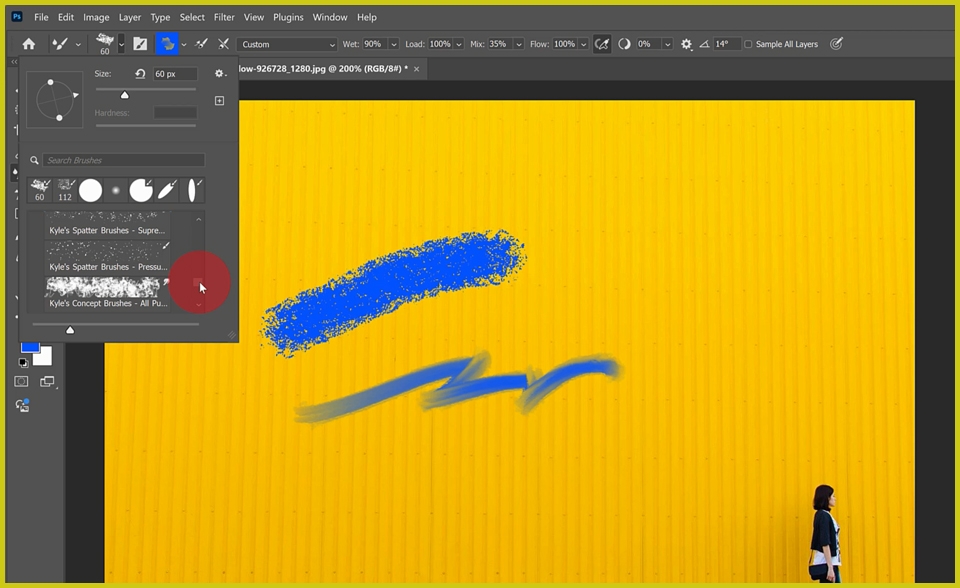
You can create and download a variety of brushes.
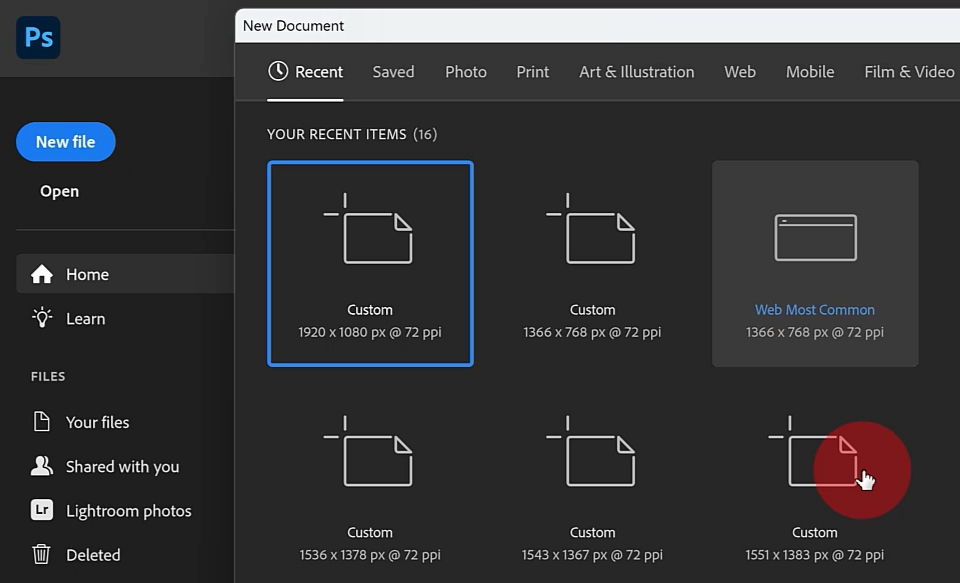
You can create various templates for print, web, and more.
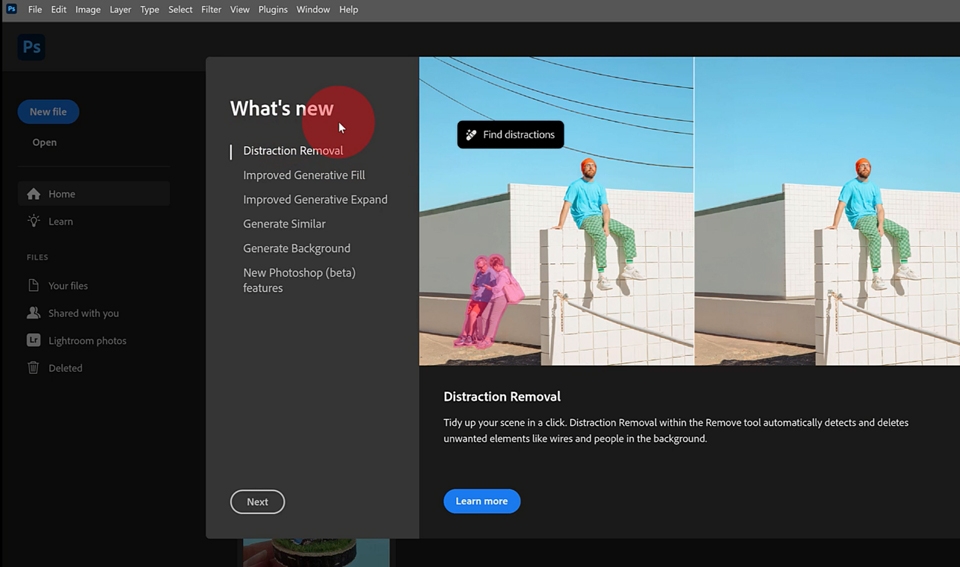
Understanding Photoshop, Its Basic Workspace, and Installation
Why you should learn Photoshop
Where Photoshop is used
Launching Photoshop for the first time
Photoshop's basic workspace
Installing Photoshop
Setting Up the Photoshop 2025 Workspace and Learning the Basic Tools
Setting Up the Workspace
Setting the Positions of Panels and the Tools Palette
Arrange the tools however you like
Merging tabs and
Hide Tool Thumbnails
Hide the contextual task bar
Adjusting screen brightness
Zoom, Zoom Out, and Hand Tools
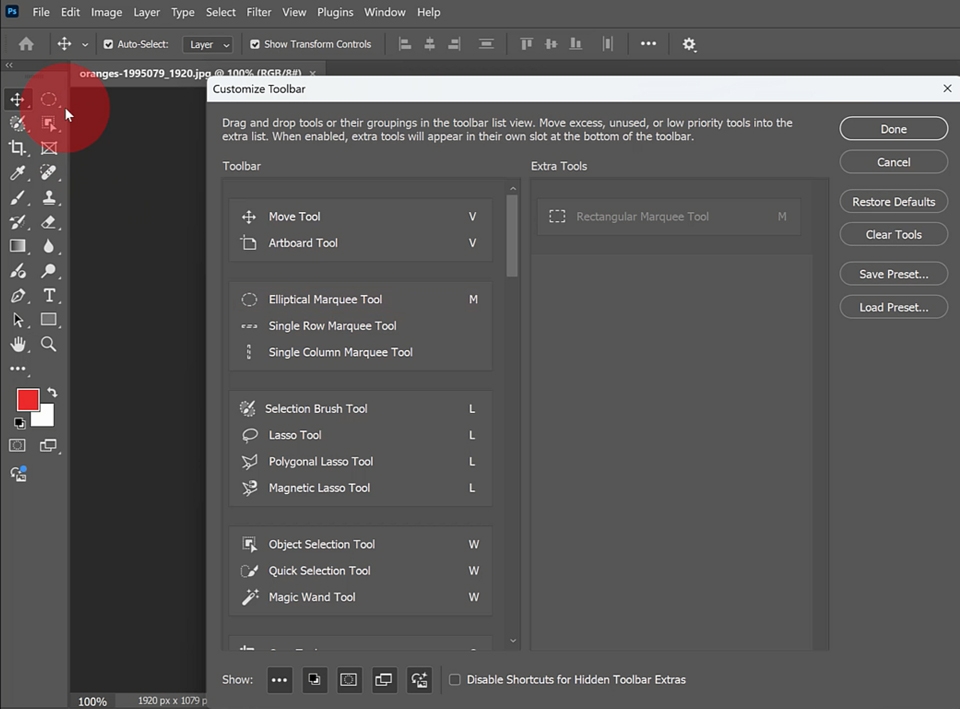
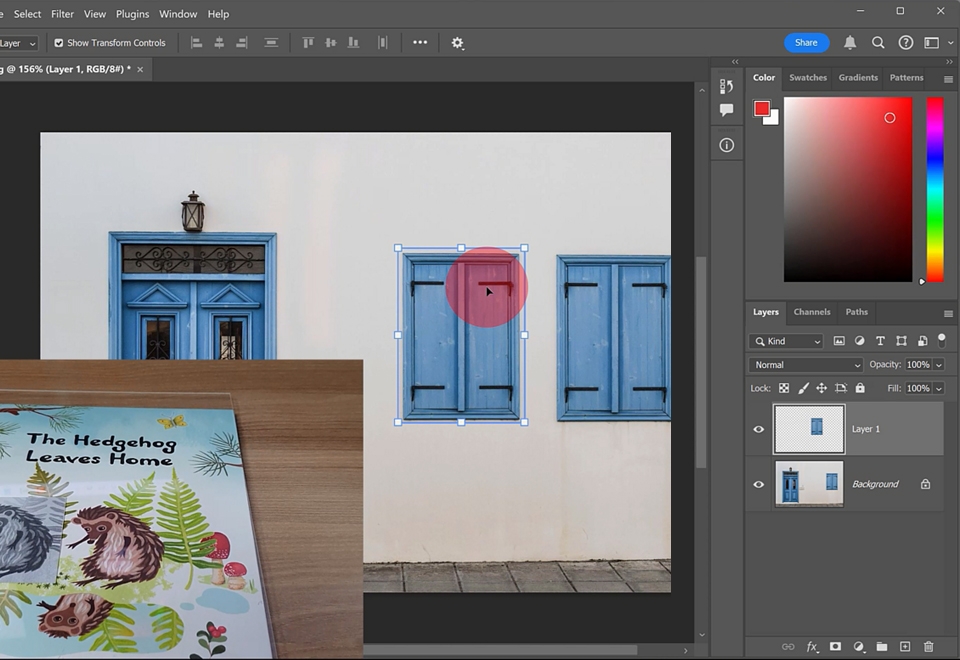
Understanding Layers and Basic Usage
Detach the Layers panel
Reset the image using the Revert function
Copy (Copy) and Paste (Paste)
Understanding the Concept of Layers
Selecting Layers
Resizing a Layer’s Image
Understanding selection and movement concepts and how to save files
Opening a submenu from the Tools window
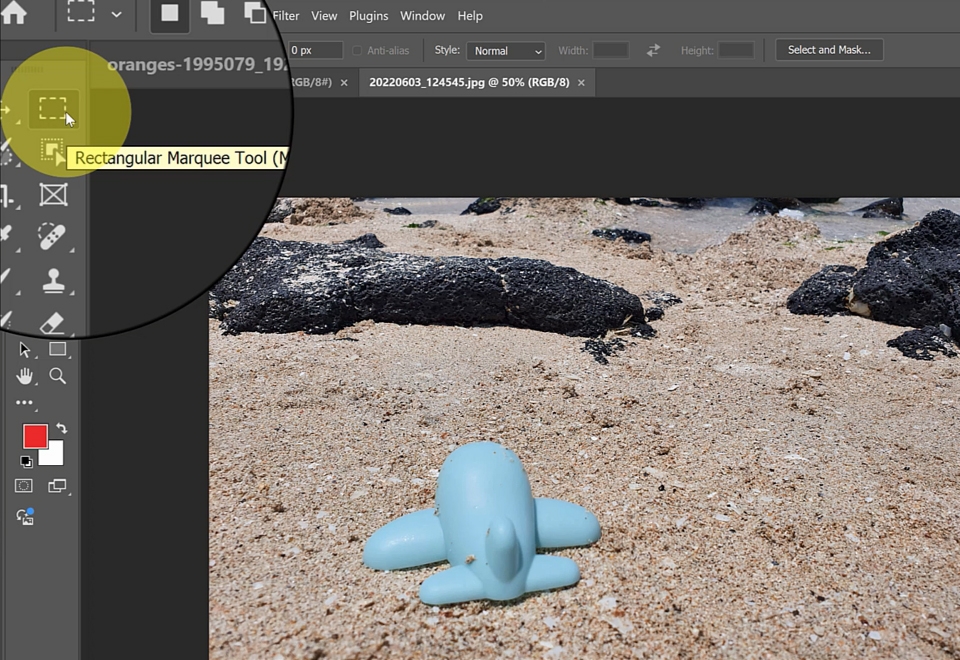
Rectangular Marquee Tool and Elliptical Marquee Tool
Understanding the Concept of Selection
Move a selected area using the Move tool
Deselecting in Photoshop
How to Move and Copy
Saving and Compressing
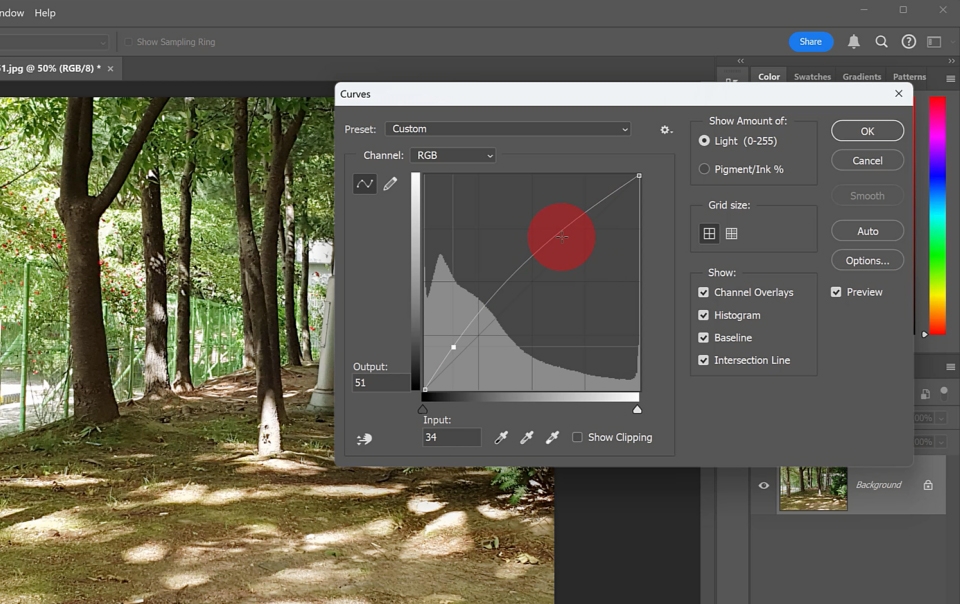
Various ways to adjust images using Curves
How to Read the Curve Graph
Using the Levels Function in Curves
Increase image brightness and
Decrease
Increase or decrease the brightness of parts of an image
Adjusting the Brightness Differently for Different Parts of an Image
Adjusting image size and the Crop function
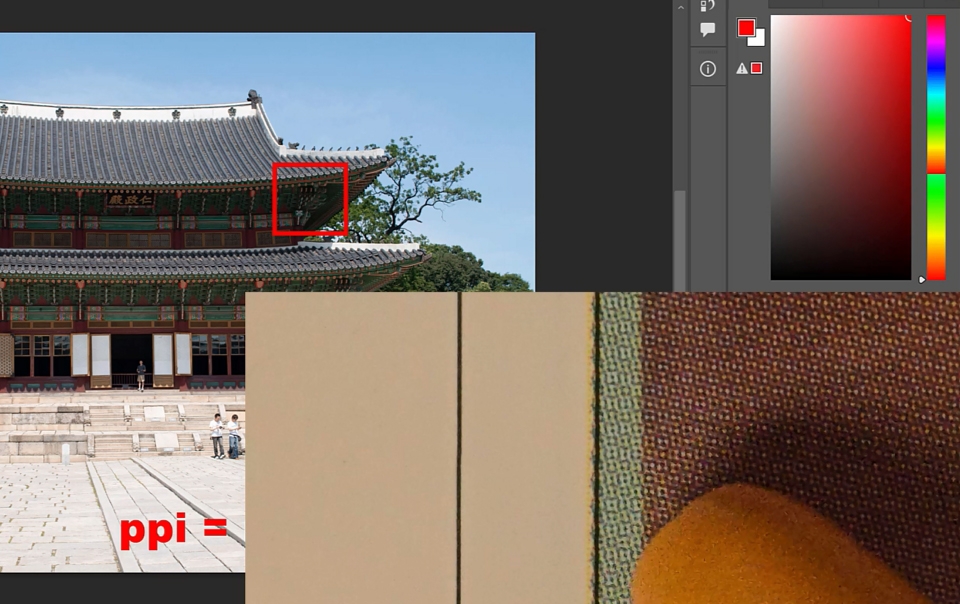
Check the image size and ppi in the workspace
Understanding the concept of ppi
Image Size menu
Change the ppi and adjust the size
Crop to trim the image
Understanding the concept of pixel count
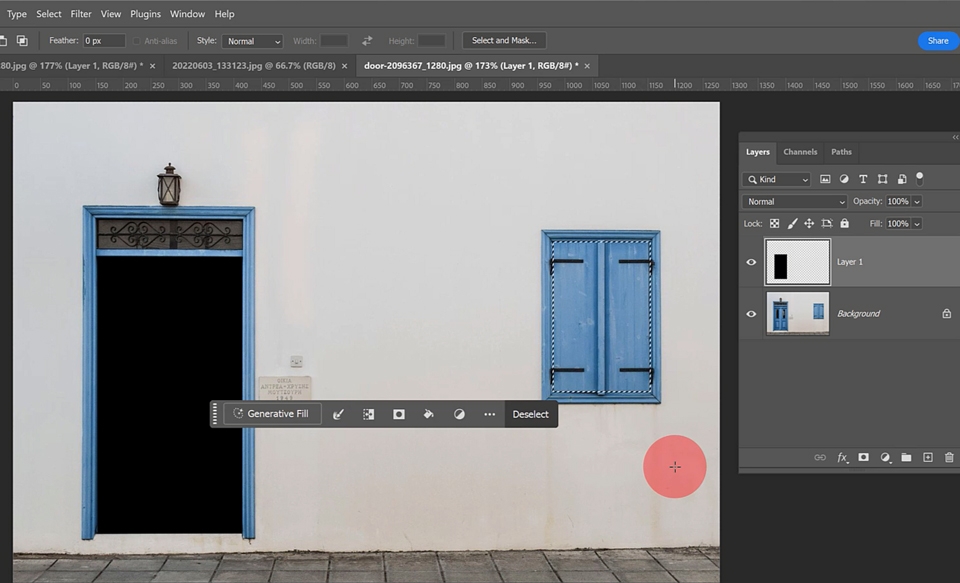
Learn clipping masks and how to composite images
How to Apply an Image Clipping Mask in a Layer
Editing a Clipped Image
Clip to Multiple Areas
Download free images from pixabay.com
How to use image duplication and deletion features
Duplicating part of an image using the Clone Stamp Tool
Clone to another layer
Clone an Image onto Another Image
Tips for Erasing Parts of an Image
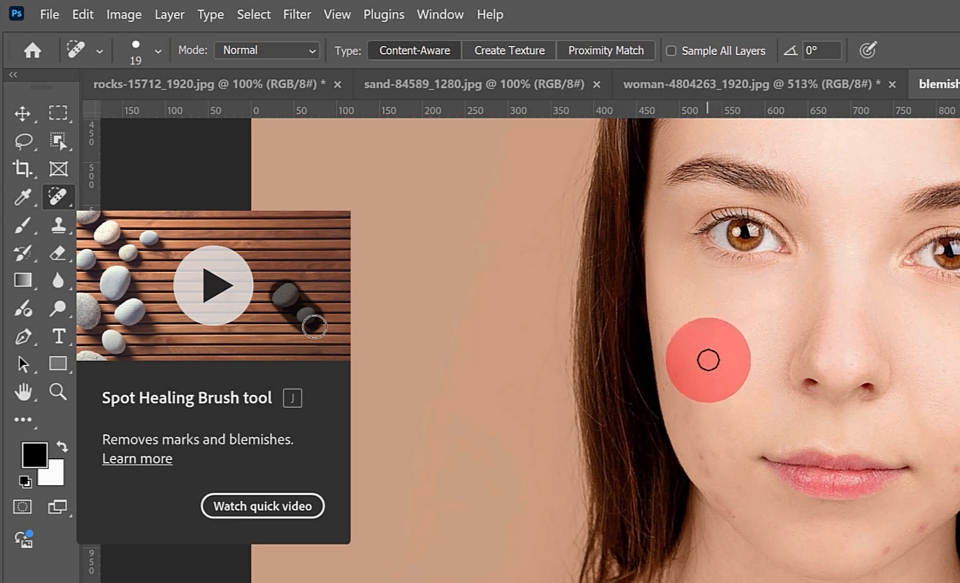
Removing Facial Blemishes with the Clone Stamp Tool
Perfectly Erasing Parts of an Image with the Spot Healing Brush
Erase part of an image from another layer using the Spot Healing Brush
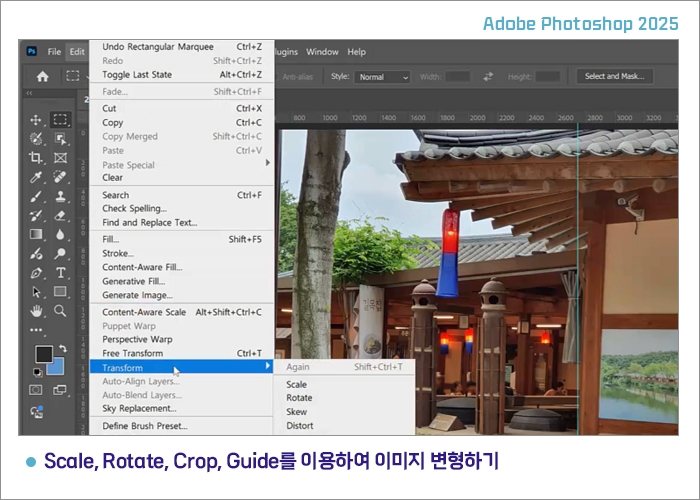
Transforming Images with Scale, Rotate, Crop, and Guides
Bring out the ruler and create guides
Rotate and enlarge or shrink the image using Transform/Scale and Rotate
Rotating and Resizing Images Using Keyboard Shortcuts
Setting the Background Color
Crop tool로 이미지 자르기
Adjusting Image Size in Edit/Image Size
Rotating an Image via Edit/Image Rotation
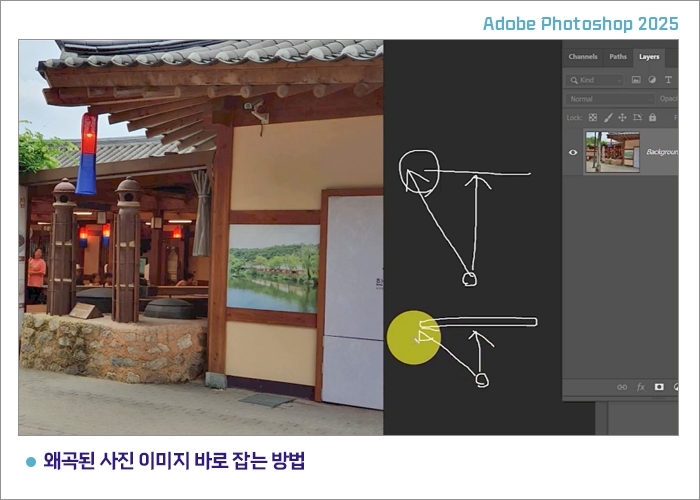
How to Correct a Distorted Photo Image
Straightening Distorted Images Using Skew, Distort, and Rotate
Select All shortcut: Ctrl+A
Set a reference using guide lines
Crop으로 자르기
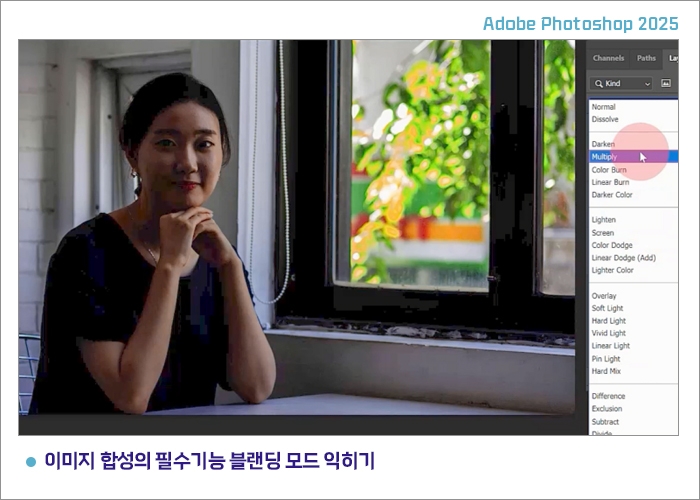
Learn the essential image compositing feature: blending modes
Understanding how Multiply, Screen, and Overlay work
Understand Darken, Multiply, and Color Burn
Understanding Lighten, Screen, and Color Dodge
Understand Soft Light, Overlay, and Hard Light
Applying Gaussian Blur from the Filter menu
Applying Blending Modes to Portrait Photos
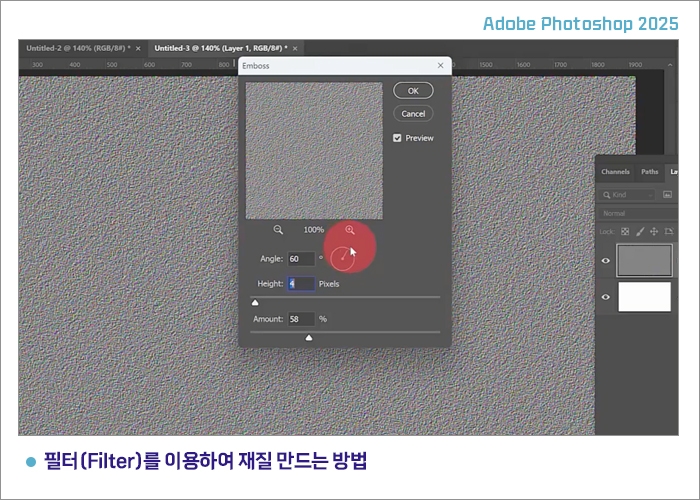
How to create textures using filters
Creating a Wood Texture
Noise Filter, Single Clum Marque Tool, Sclae, Hue/Saturation,
Gaussian Blur, Motion Blur
Creating textures such as ground, cement, and leather
Noise Filter, Emboss Filter, Blending Mode, Hue/Saturation, Apply Opacity to a Layer, Apply Color Overlay Style
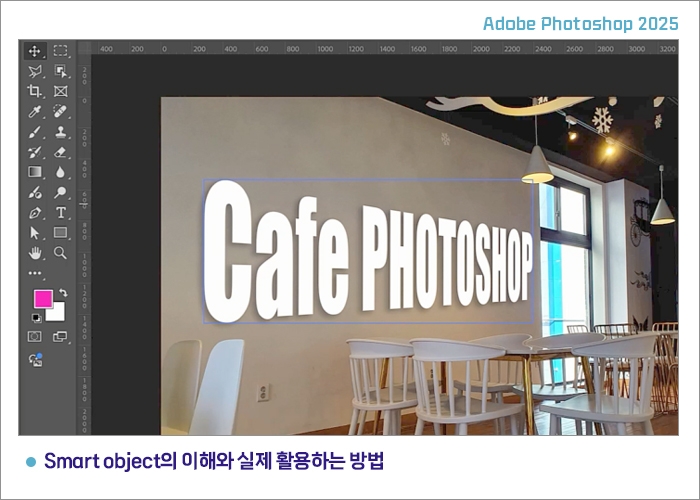
Understanding Smart Objects and How to Use Them in Practice
Create a text layer and convert it into a Smart Object
Distorting with Distort
Rasterize: Converting a Font into an Image
Understanding PSB Files
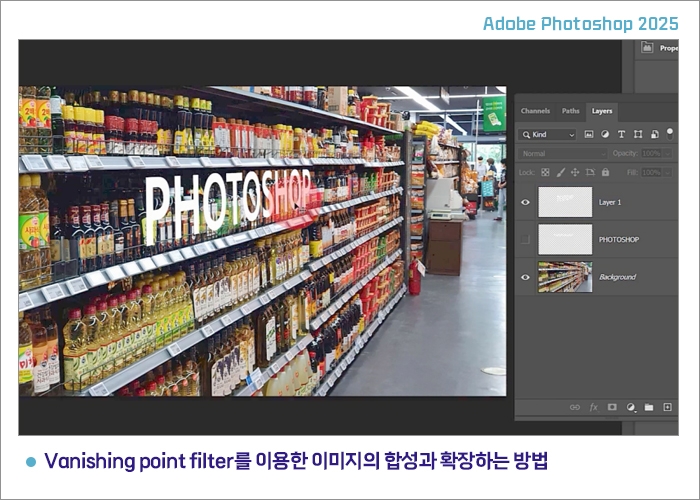
How to composite and extend images using the Vanishing Point Filter
Transforming text into an image using Rasterize
Selecting a layer object with Ctrl+Layer Click
After launching Vanishing, import the copied object
Placing the Object Imported from Vanishing
Transform the Area for Compositing in the Vanishing Point Filter
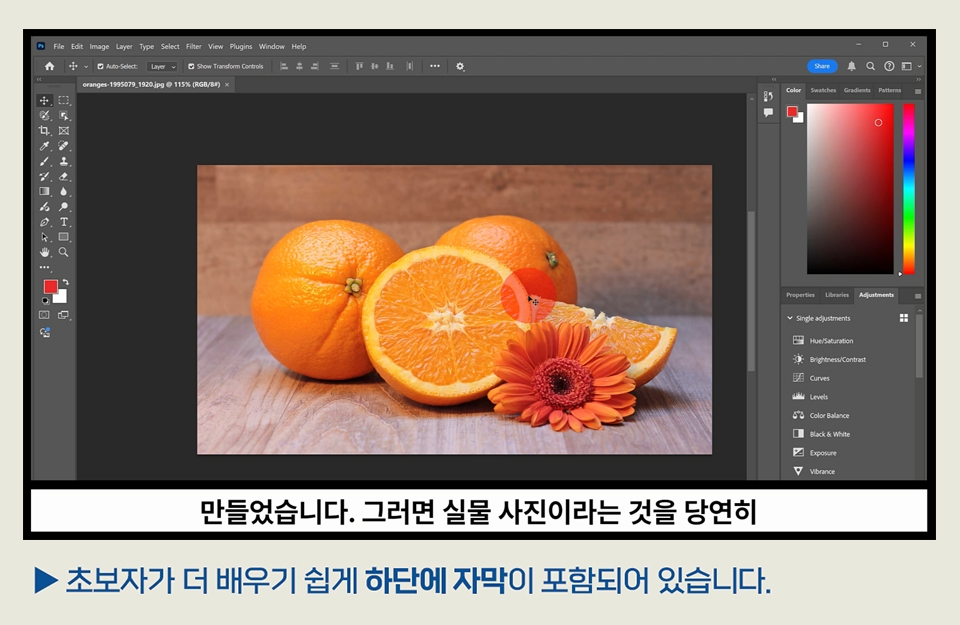
Adobe Photoshop 2025 is available through a cloud-based subscription on the Adobe website.
The course source files can be downloaded in Section 0.
Files not included in the example folder (image search on Pixabay.com)
(You can find the corresponding images by searching for the terms below on pixabay.com.)
2.orange,
4.leaf,
5.door, window,
15.yellow,
17.woman
Downloaded files may not be redistributed, and for other example images, please use the
images contained in each folder.
The source files for the Photoshop lessons are available for download in Section 3.
Who is this course right for?
Those who want to learn Photoshop
Those who want to use the latest version of Photoshop
People who work in photography-related fields
Those who want to learn essential design programs
Those of you who want to create awesome thumbnails for YouTube
Need to know before starting?
No~ Anyone can learn it right away.

Career Verified
1,942
Learners
173
Reviews
4
Answers
4.8
Rating
38
Courses
Back when Apple's MAC computers made it possible to design even better.
It's already been well over 25 years since I first started teaching Adobe Photoshop and Illustrator at the academy~~^^
I remember the days when, instead of calling the instructors Teacher Eom, Teacher Ha, and Teacher Gu, we used to call them Eom-T and Gu-T.
Together with those teachers, we started using ComTee as an abbreviation for Computer Teacher!
I will continue to be a "Computer Teacher" who works hard to share knowledge for all those who are learning.
Thank you!!
Thank you!!
Together with everyone, we've come to use "Com-T" as a shorthand for Computer Teacher! We will continue to be a Computer Teacher that works hard to share knowledge for all learners. Thank you!!
Together with everyone, we've come to use "Com-T" as a shorthand for Computer Teacher! We will continue to be a Computer Teacher that works hard to share knowledge for all learners. Thank you!!
All
40 lectures ∙ (7hr 55min)
Course Materials:
All
9 reviews
4.9
9 reviews

Reviews 16
∙
Average Rating 5.0
Reviews 1
∙
Average Rating 5.0
Reviews 10
∙
Average Rating 5.0
Edited
5
Thank you for extending the course so I could complete it. You explained the key points cleanly and concisely, making it easy to understand. Thank you.
Thank you for taking the time to write a course review. I've extended it for one more month. Please take your time and review it repeatedly step by step.
Reviews 6
∙
Average Rating 4.7
Reviews 1
∙
Average Rating 5.0
Check out other courses by the instructor!
Explore other courses in the same field!


![InDesign 2024 Basics to Practical Use Master Course [Subtitles Included]Course Thumbnail](https://cdn.inflearn.com/public/courses/333362/cover/91faa49d-01d6-4fc6-90a0-d339c5dbfe65/333362.jpg?w=420)