
Illustrator 2026 Core Mastery for Beginners
comt
$41.80
Beginner / Illustrator
Learn Illustrator, an attractive graphic design program, and start creating your own amazing designs~

Beginner
Illustrator

Learn Premiere, a leading video editing program that allows you to edit footage you’ve shot into the format you want, adjust the sound, and create your own distinctive videos.
You will learn the digital concepts and frames of video editing.
You can learn the basic knowledge and concepts needed for video production.
You will learn how to create sequences and perform basic cut editing.
Learn the concepts of projects and how to create and save them.
You can create animations with keyframes and motion control.
You will learn about video scene transition effects and the Effect feature.
Learn the basics of audio and how to remove noise.
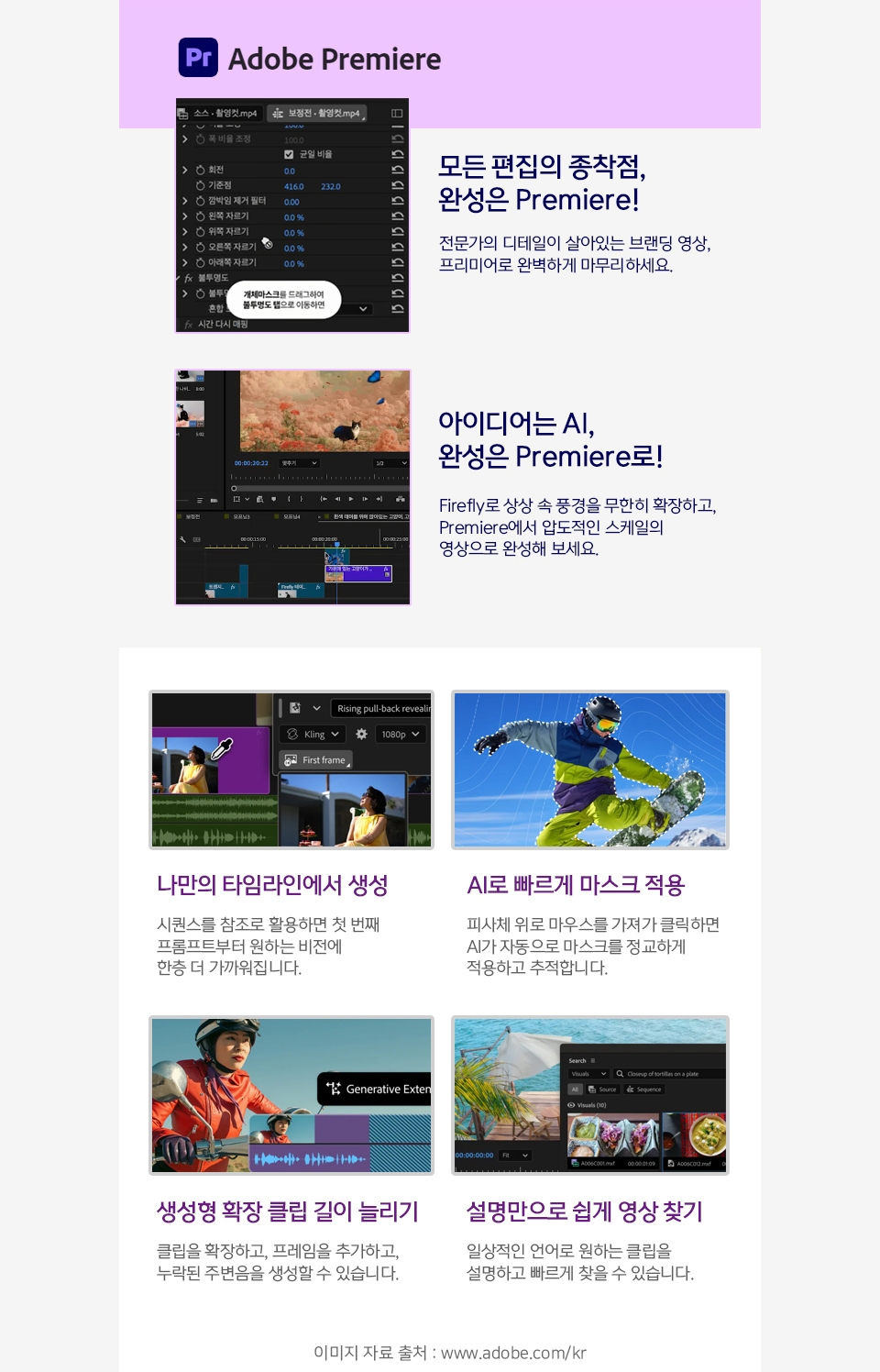
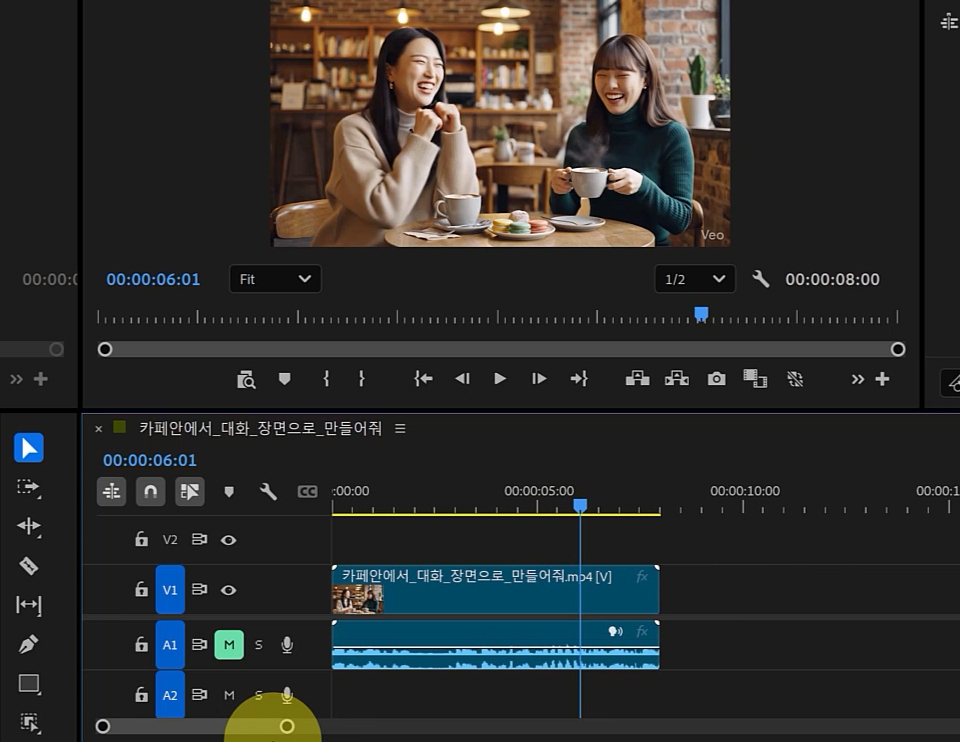
Import Media: Importing video
Adjusting panels and
Learn the three basic panels
Understand the difference between a project and a sequence
Sequence Setting Basics
Working in a new sequence
Learn the basic keyboard shortcuts
Basic editing with the Razor tool
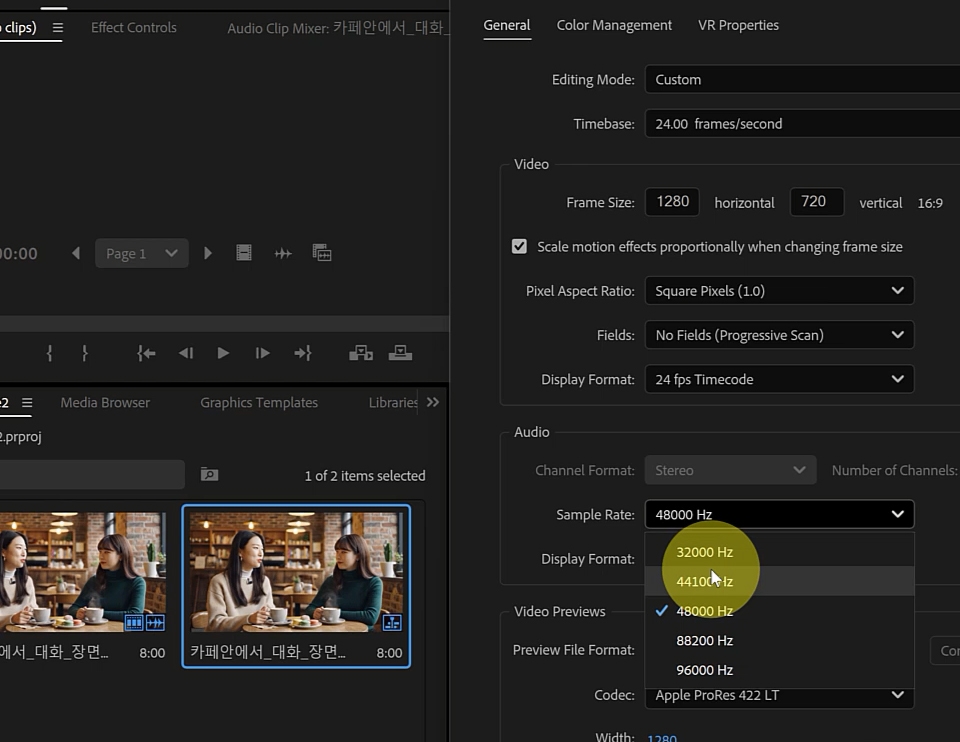
Create a sequence by placing source clips on the timeline and check the settings
Learn the sequence settings
Understanding pixels, frame rates, and codecs
Understanding pixel aspect ratios and frame sizes
The difference between saving as a project file and as a video
Audio Quality Settings
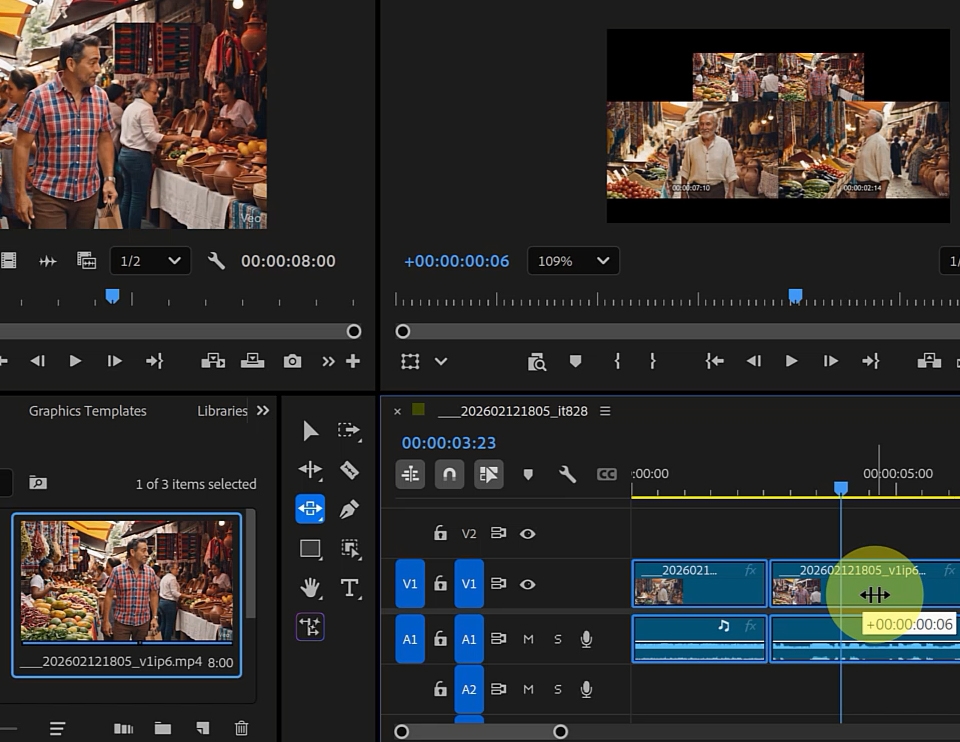
Selection Tool
Track Selection Forward, Track Selection Backward Tool
Ripple Edit, Rolling Edit Tool
Rate Stretch Tool
Slip Tool
Razor Tool
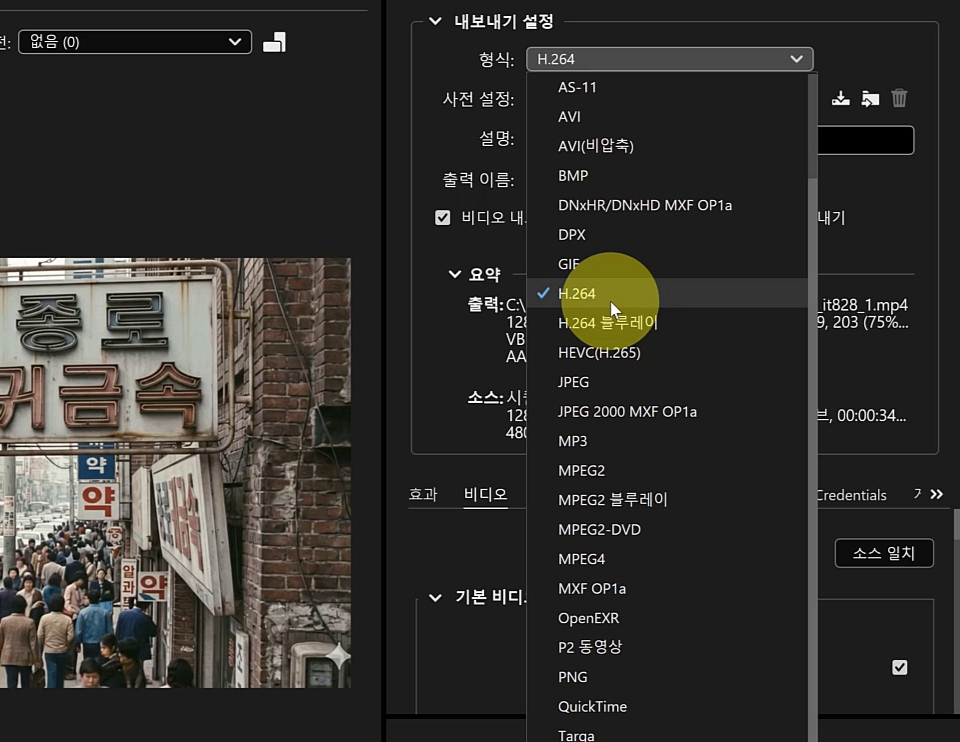
Create a sequence identical to the original source
How to Save Projects and Tips
Understanding How Premiere Projects Are Saved
Gather all files related to the project in one place using Project Manager
Rendering in Export
Setting up Media Encoder
Rendering in Media Encoder
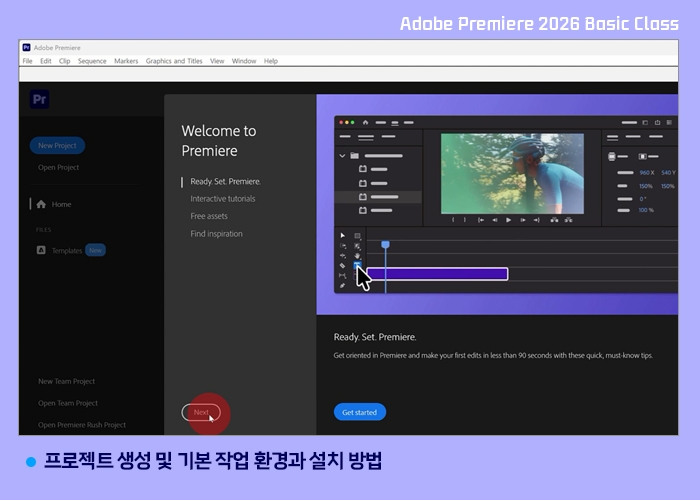
Premiere Start Screen Layout
Create a New Project
Premiere’s Workspace
Importing the Video to Work On
Enable Auto-Save
Installing Premiere
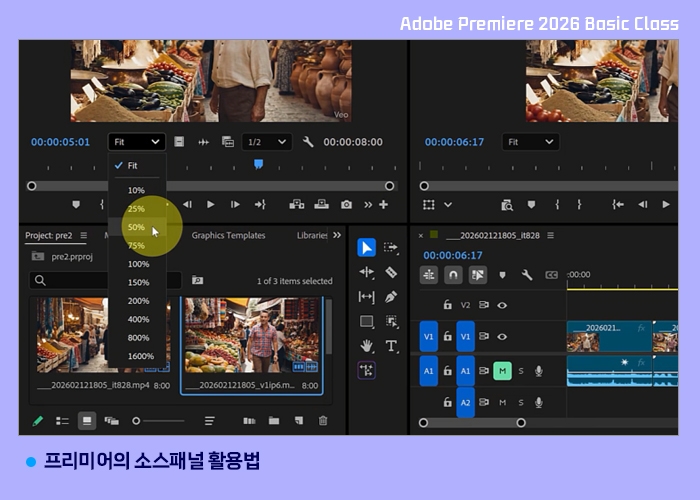
Import the source video and open it in the Source panel
Select the section to import into the timeline using Mark In and Mark Out.
Position the time marker at the boundary using Snap
Difference Between Insert and Overwrite
Import source footage to a precise position using time units
Adjusting the Video Size in the Source and Program Panels
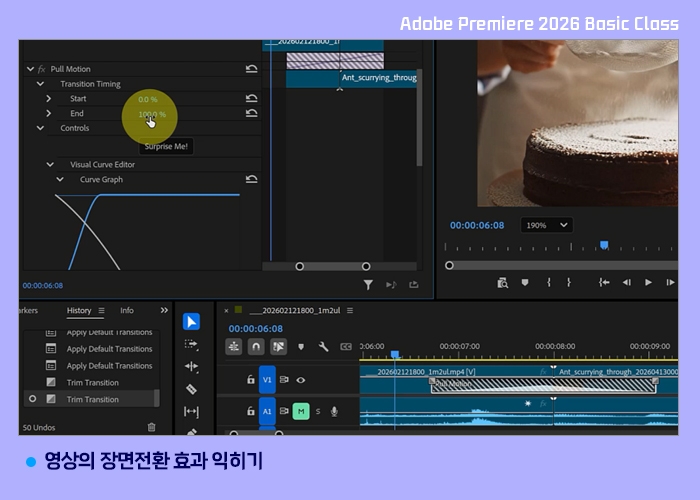
Understanding Scene Transition Effects
Select Video Transition in the Effect panel
Changing the workspace to Effect
Applying a scene transition effect between clips
Adjusting the Duration of a Scene Transition Effect
Learn the Basic Scene Transition Effects
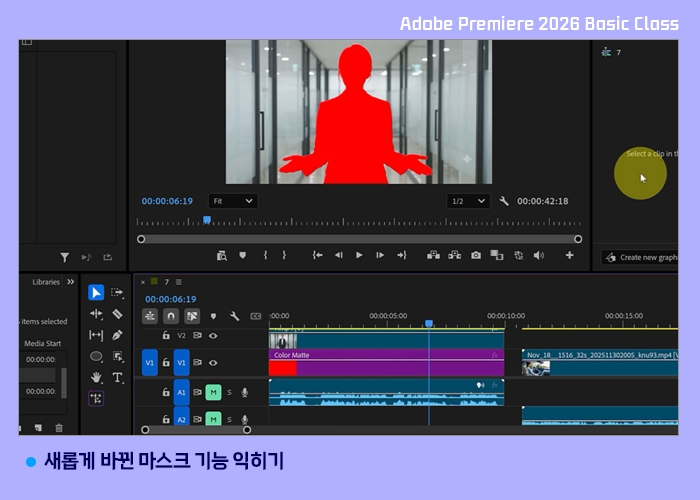
Understanding the Concept of Masks
Types of masks in the Tool Palette
How to Apply a Mask
Applying a mask to a moving object with the Mask Tool
Understanding Tracker
Track a Moving Object with Tracker and Apply It to the Video
Invert the Mask
Create a Blank Canvas with Colormate
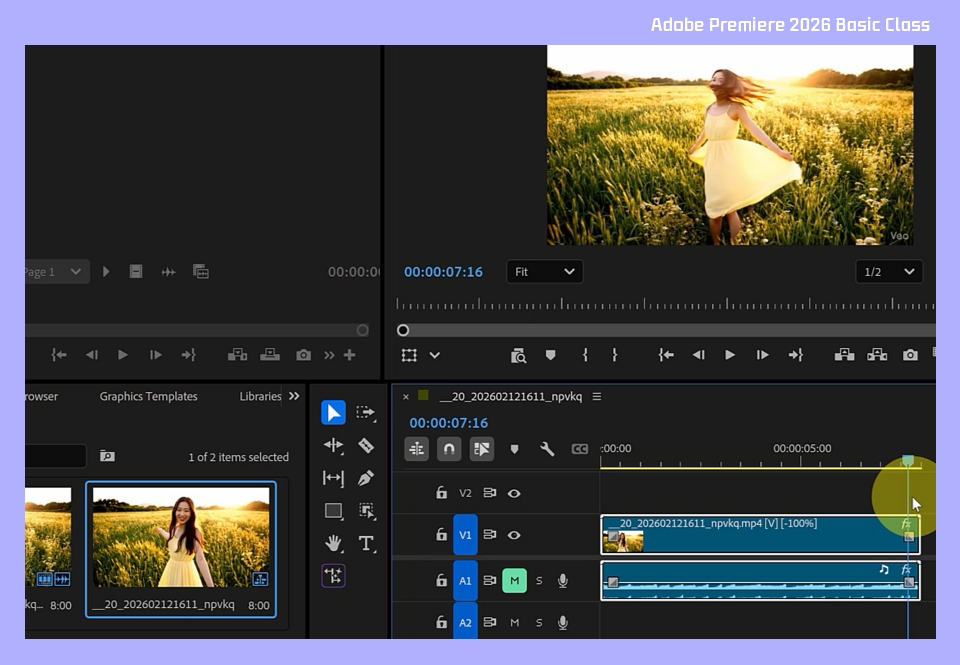
Adjusting the speed in Speed/Duration
Reverse playback with Reverse Speed
Smooth the video using Optical Flow when increasing the speed
Applying various speed changes within a clip using Time Remapping in the timeline
Separate the video and audio using Unlink
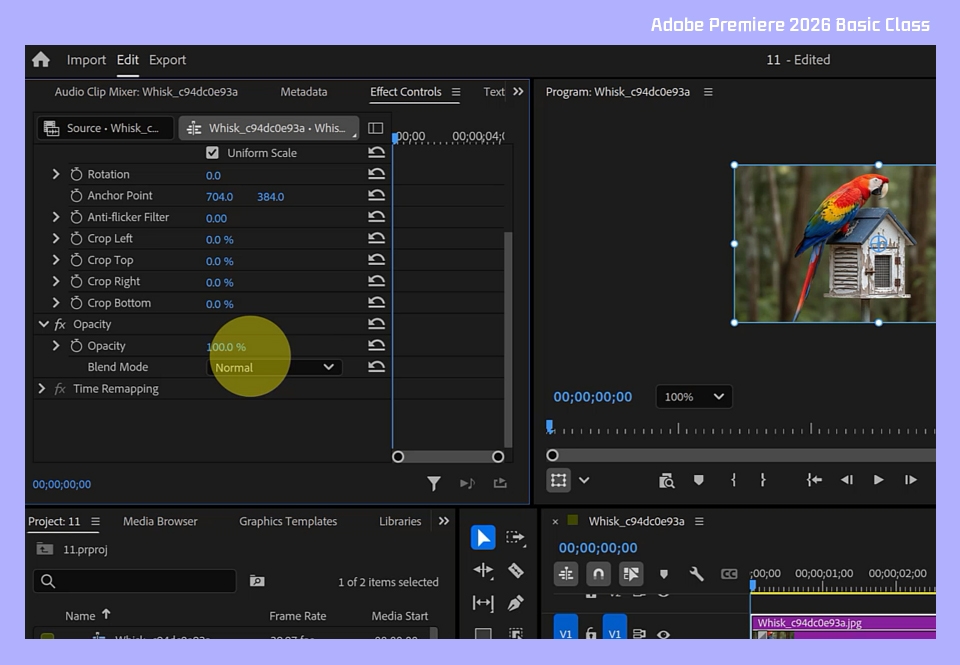
Open the Effect Control Panel
Exploring the Basic Menus, Such as Motion and Opacity
Understanding the Position, Scale, Rotation, and Anchor Point menus
Show the video’s control points
How to Use Opacity
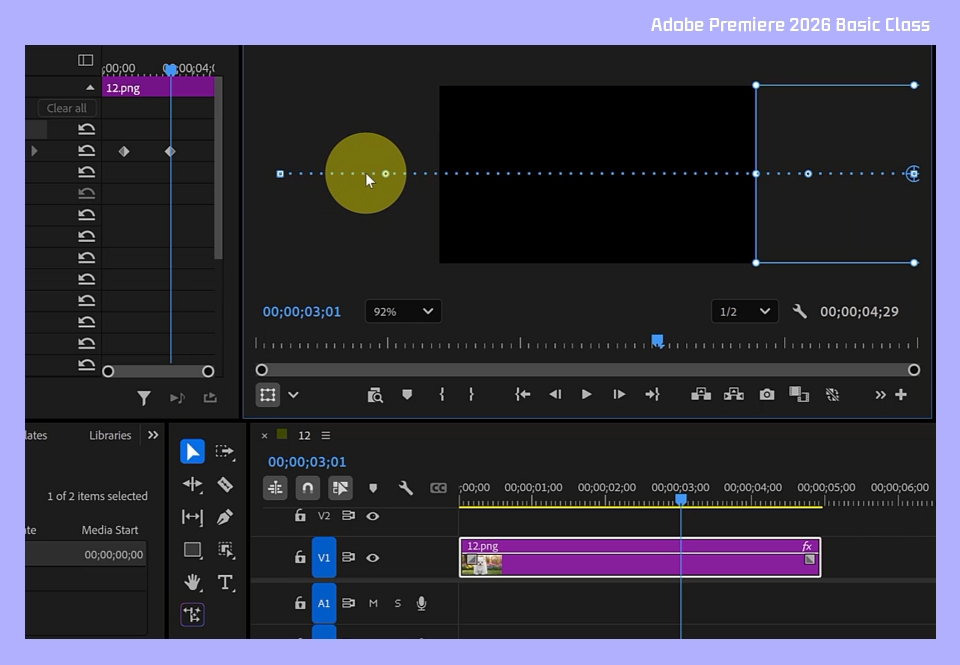
Learn the Basics of Position Animation
Understanding Keyframes and Creating Keyframes
Creating an animation using keyframes
Practice Basic Animation
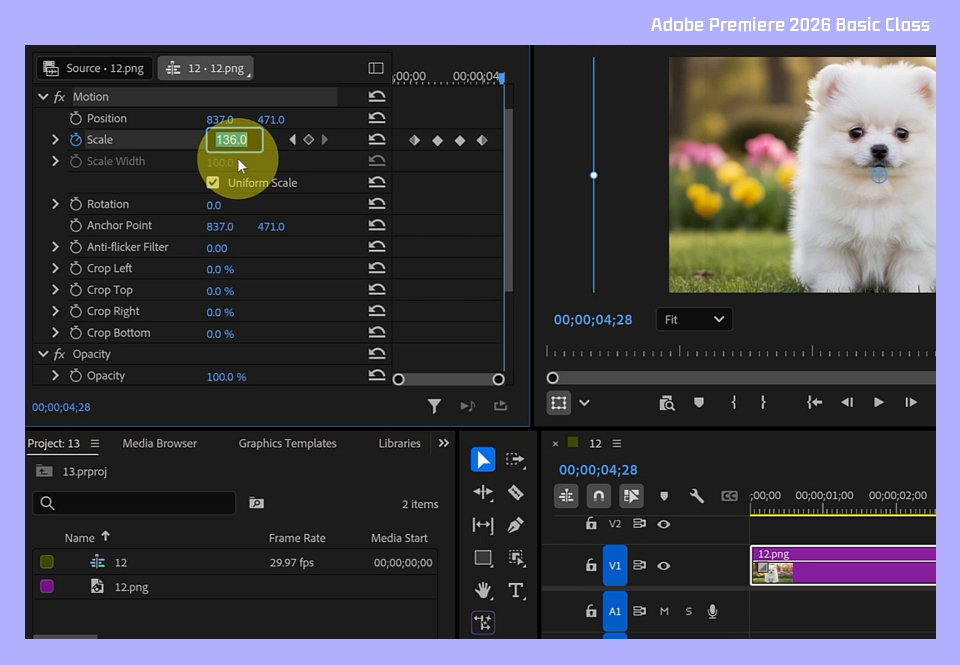
Scale animation using keyframes
Rotation animation using keyframes
Opacity animation using keyframes
Key
Crop Animation Using Frames
Creating an animation with multiple effects applied simultaneously
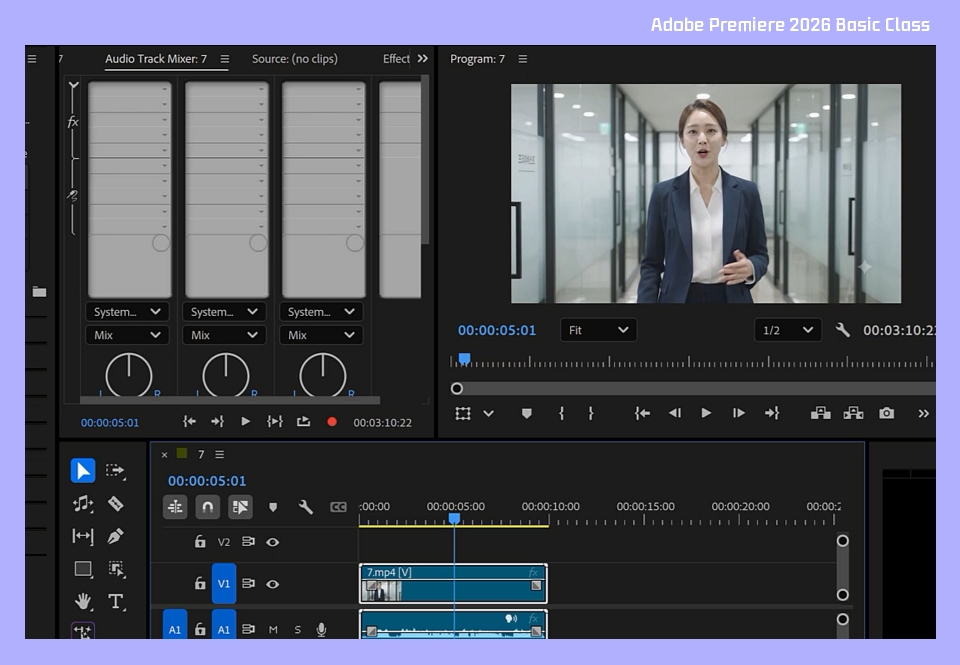
Learn the AI Remix Tool
Create a gradually decreasing volume using a fade-out
Use the Remix Tool in the Tools panel to shorten and rearrange the background music.
Reset using Clear Audio type in the Essential Sound panel
Automatically Adjusting Dialogue Volume Levels with Generate Keyframe
You can practice using the program through a subscription on the Adobe website.
Software version: Illustrator 2025
Operating system and version (OS): Windows 10 (64-bit), version 22H2 or later, or Windows 11
Minimum processor: Intel 6th-generation or later CPU, or AMD Ryzen 1000 series or later CPU.
AVX2 (Advanced Vector Extensions 2) support required
Processor (recommended): Intel 11th-generation or later CPU with Quick Sync, or
AMD Ryzen 3000 series/Threadripper 3000 series or later CPU
Memory: 8GB (minimum), 32GB (recommended)
For detailed system requirements (including the Mac environment), please refer to Adobe Premiere.
You can download the source files in Lesson 1, and the videos used in the course were either generated using AI or filmed directly.
Separate
No course materials will be provided.
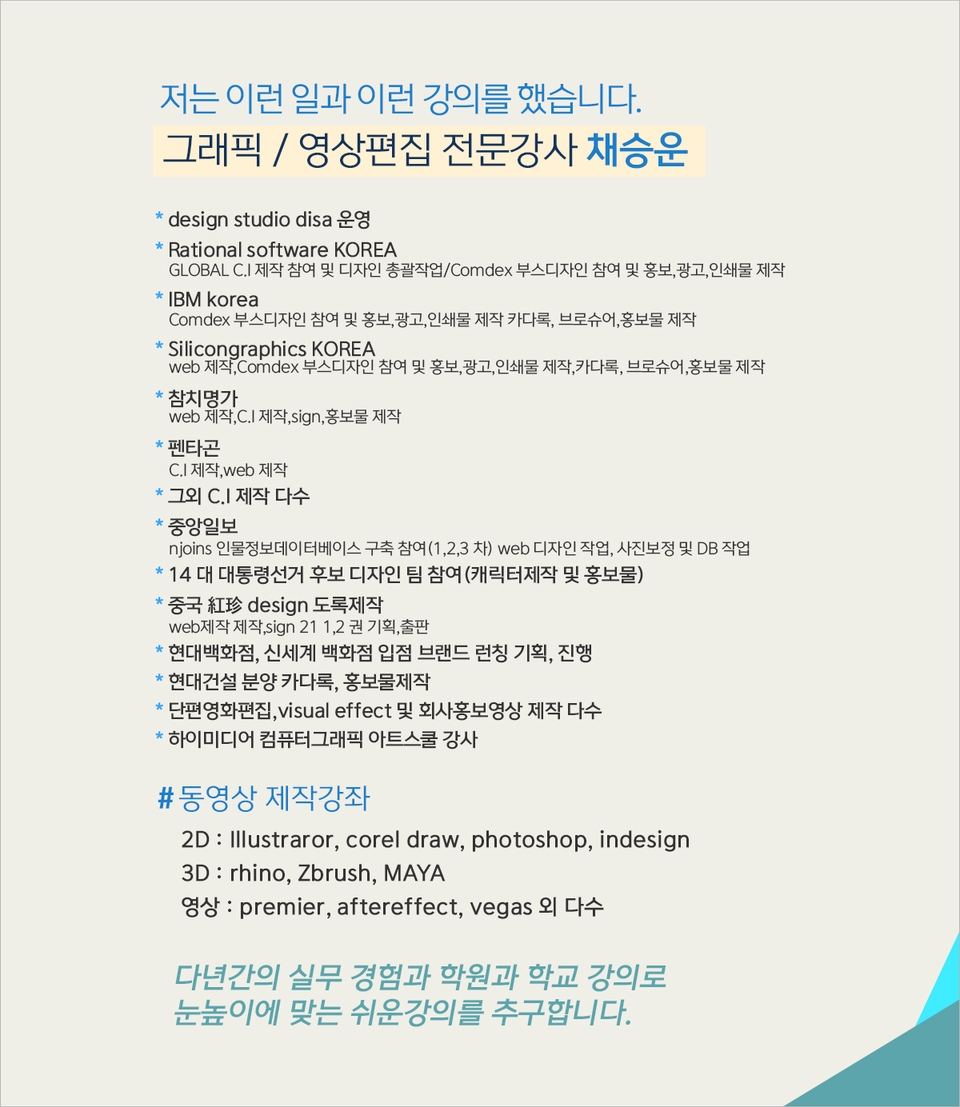
Who is this course right for?
Those who want to learn video editing
Those who dream of becoming YouTubers
Those who want to try editing videos they filmed themselves
Need to know before starting?
It would be good if you are familiar with an image editing program like Photoshop.
It would be good to do photography and video shooting together.

Career Verified
1,941
Learners
172
Reviews
4
Answers
4.8
Rating
38
Courses
Back when Apple's MAC computers made it possible to design even better.
It's already been well over 25 years since I first started teaching Adobe Photoshop and Illustrator at the academy~~^^
I remember the days when, instead of calling the instructors Teacher Eom, Teacher Ha, and Teacher Gu, we used to call them Eom-T and Gu-T.
Together with those teachers, we started using ComTee as an abbreviation for Computer Teacher!
I will continue to be a "Computer Teacher" who works hard to share knowledge for all those who are learning.
Thank you!!
Thank you!!
Together with everyone, we've come to use "Com-T" as a shorthand for Computer Teacher! We will continue to be a Computer Teacher that works hard to share knowledge for all learners. Thank you!!
Together with everyone, we've come to use "Com-T" as a shorthand for Computer Teacher! We will continue to be a Computer Teacher that works hard to share knowledge for all learners. Thank you!!
All
20 lectures ∙ (4hr 5min)
Check out other courses by the instructor!
Explore other courses in the same field!
Limited time deal
$37,730.00
30%
$41.80

![InDesign 2024 Basics to Practical Use Master Course [Subtitles Included]Course Thumbnail](https://cdn.inflearn.com/public/courses/333362/cover/91faa49d-01d6-4fc6-90a0-d339c5dbfe65/333362.jpg?w=420)
![[Introduction] Creating 'Modern' Videos with Premiere ProCourse Thumbnail](https://cdn.inflearn.com/public/courses/331365/cover/6e05e745-5da4-4b5c-8f91-42b8c3a8fceb/배너 (영어).jpg?w=420)