inflearn logo
inflearn logo

Create a team site for collaboration with SharePoint

For each team, each project, and even for internal employees or external collaboration partners, a team site is absolutely necessary for collaboration. However, it is difficult to build a team site for collaboration every time, not to mention the cost, time, and management, so we use cafes such as Naver or Daum, or rent Band or other services. You can create various sites for collaboration through Microsoft's SharePoint. Learn how to do it through the lecture!

(4.8) 9 reviews

99 learners

Level Beginner

Course period 3 months

MS-Office
MS-Office
SharePoint
SharePoint
MS-Office
MS-Office
SharePoint
SharePoint
날개 달린 동전

Course 추천하고 성장과 수익을 만들어 보세요!

날개 달린 동전

Marketing Partners

Course 추천하고 성장과 수익을 만들어 보세요!

Reviews from Early Learners

Reviews from Early Learners

4.8

5.0

김태은

80% enrolled

Get to know M365 better

5.0

jhong

100% enrolled

You explain it very well

5.0

naeun.lee

100% enrolled

It was a very informative lecture. Thank you!

What you will gain after the course

  • How to build a team site with SharePoint

  • Differences between communication sites and team sites

  • Understanding SharePoint

  • How to Create a Team Site for Collaboration with SharePoint

  • How to use the created collaboration site

  • How to share your team site and set permissions

SharePoint, a space where you can collaborate both internally and with external partners!


As a company's operations progress, close collaboration is required across teams, departments, and projects. This collaboration occurs not only among internal employees but also with external staff and partners.

However, much of the data created through such important collaboration exists unmanaged in various places, including NAS, personal external hard drives, portal drives, personal computers, and USB drives.

Despite being important, data is exposed to potential threats, such as being shared or copied without proper authorization. To address this issue, efforts are being made to build collaborative websites. However, cost, management, and maintenance challenges make this difficult, leading many to resort to using free cafes, bands, and other services. This leads to further data mismanagement, exposing data to security threats, loss, and damage, and making collaboration even more difficult.

Microsoft's SharePoint is a service that solves these problems in one fell swoop and helps you create team sites for collaboration.

Streamline your work processes by sharing files, data, news, and resources with your colleagues through collaborative team sites built in SharePoint, allowing you to manage all your team's work within one site. Simply create a site and collaborate easily and securely across PCs, Macs, and mobile devices without any additional work.

In this course, you will learn how to create a team site for collaboration using SharePoint and invite the right people to collaborate with you .


What will you learn? ✒️


What you will learn in this course ✏️

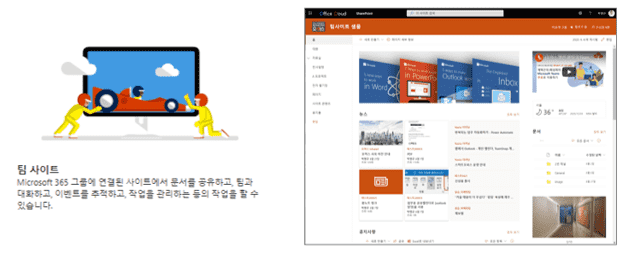
In this lecture, we will use the team site feature of SharePoint to create a team site for collaboration.

1. Overview
1) Course Introduction
2) Understanding SharePoint


2. Practice by following along

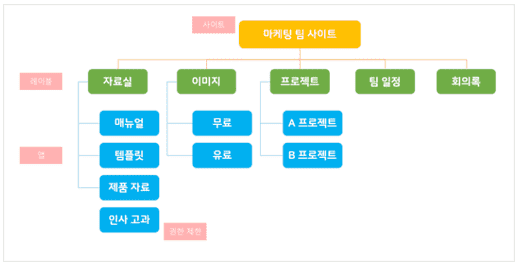
▲ The team site with the structure above is constructed in the following order.

1) Create a team site
2) Add apps and configure the menu
3) Designing the site
4) Create a news post
5) Configure the home screen
6) Invite members and set permissions

3. Using the site
1) General use
2) Additional Uses


Tools covered in the lecture ⭐

Recommended for
these people

Who is this course right for?

  • Anyone who needs a team site for collaboration with permissions set up

  • People who need team collaboration

  • Anyone who wants to create a SharePoint site

  • Anyone who needs a replacement site for their team file server

  • Anyone who wants to manage data permissions

  • For those who want to manage permissions by staff and users

  • Anyone who needs to create a team site for collaboration as a team leader

Need to know before starting?

  • I'll tell you from the beginning! If you follow along step by step, you'll soon have a collaboration site for your team!

Hello
This is omas

2,634

Learners

294

Reviews

165

Answers

4.6

Rating

47

Courses

Nice to meet you! We are "Omas", Microsoft 365 experts.
As Microsoft 365 experts, we will help you work more easily and smartly.

Introducing Omas's instructors!!

Instructor Hyunjung Ko
Microsoft MVP (Microsoft 365 Apps & Services, 2016 – Present)


Official Blog & Café


YouTube


Books 

  • Microsoft 365 Business for Users & Admins

  • OMAS: My Smart Work using Office 365

  • Office 365 Quick Guide Series 1. Creating a SharePoint Site for Collaboration

  • Office 365 Quick & Easy Series 2. BI that business users can apply to work immediately without expert help

  • Office 365 Quick & Easy Series 3. From Basics to Advanced All at Once! OneDrive for Business

  • Office 365 Quick Series 4. Creating mobile apps your company needs: PowerApps

  • Office 365 in SMBs: My Smart Work using Office 365

  • Using OneNote 2016! - Basic Edition

  • OneNote 2016 Utilization! - Advanced Guide

  • Female office workers, never do this! A cheerful look at how to succeed in your professional life by thinking outside the box.


Recognitions

  • MS-102 - Microsoft 365 Certified: Administrator Expert

  • MS-100 - Microsoft 365 Identity and Services

  • Teams Meetings and Meeting Rooms Technical Assessment

  • MS-700 - Microsoft 365 Certified: Teams Administrator Associate

  • MS-900 - Microsoft 365 Certified: Fundamentals

  • AZ-104 - MS Azure Administrator Associate

  • AZ-900 - Microsoft Certified: Azure Fundamentals

  • SC-900 - Microsoft Certified: Security, Compliance, and Identity Fundamentals

  • PL-900 - Microsoft Certified: Power Platform Fundamentals

  • Exam 347: Enabling Office 365 Services

  • Microsoft Office Specialist Word 2016 Expert

  • Microsoft Office Specialist PowerPoint 2016 Core

  • Certificate of Qualification. Presentation Speech 1st  Level

Other Qualifications

  • Presentation Speech Level 1 (Korea Vocational Skills Certification Association, Ministry of Employment and Labor)

  • CS Instructor Level 1 (Korea Vocational Competency Assessment Association, Ministry of Trade, Industry and Energy)

  • e-Learning Senior Consultant (Korea U-Learning Association)

  • e-Learning Instructor Level 2 (Korea U-Learning Association)

  • Computer Science Teacher Certificate (Minister of Education)

  • Lifelong Education Specialist Level 2 (Seoul University of Buddhism and Culture)

More

Curriculum

All

10 lectures ∙ (2hr 1min)

Published: 
Last updated: 

Reviews

All

9 reviews

4.8

9 reviews

  • preman67170191님의 프로필 이미지
    preman67170191

    Reviews 2

    Average Rating 5.0

    5

    30% enrolled

    • eunjungjo6873님의 프로필 이미지
      eunjungjo6873

      Reviews 1

      Average Rating 5.0

      5

      60% enrolled

      • taeeunkim127123님의 프로필 이미지
        taeeunkim127123

        Reviews 1

        Average Rating 5.0

        5

        80% enrolled

        Get to know M365 better

        • omas
          Instructor

          Wow! I'm glad we became familiar with each other~ 😊 Fighting!

      • jhong5299님의 프로필 이미지
        jhong5299

        Reviews 2

        Average Rating 5.0

        5

        100% enrolled

        You explain it very well

        • omas
          Instructor

          Wow!!! Thank you for the encouraging comment!!! Have a nice day! 😁😁

      • eureka01246358님의 프로필 이미지
        eureka01246358

        Reviews 5

        Average Rating 4.8

        4

        100% enrolled

        It was great. I would like to see more detailed lectures on integrating with Teams, specifically regarding Power Apps & Automate, as mentioned in the final part of the course.

        • omas
          Instructor

          Thank you for sharing your valuable feedback! To focus on SharePoint team site configuration and collaboration features, this course only covered Power Apps and Power Automate at a basic integration level. As you mentioned, there is a high demand for expanded learning on the Power Platform, so I have created separate courses for Power Apps and Power Automate. Please check those out! If you plan to take those courses, please send your details (such as your Inflearn account and name) to omas@ocl.co.kr so I can identify you, and I will issue a 20% discount coupon! 😃 I will continue to strive to create courses that can be immediately applied in practice. Thank you once again for your valuable opinion!

      omas's other courses

      Check out other courses by the instructor!

      Similar courses

      Explore other courses in the same field!

      $34.10