Photoshop 2025 Easy Basic Functions Mastery for Everyone
comt
Subtitled latest Photoshop 2025, easily learned by all.
Beginner
Photoshop, Photography
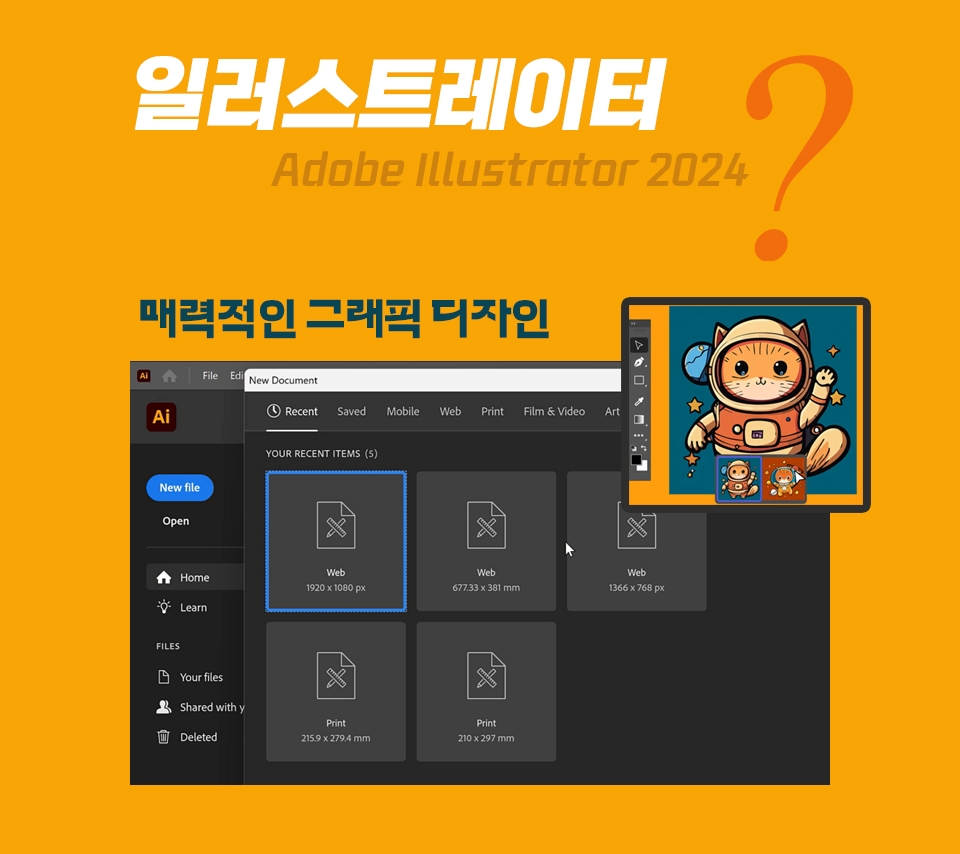
Learn Illustrator, an attractive graphic design program, and start creating your own wonderful designs!


How to Use Illustrator
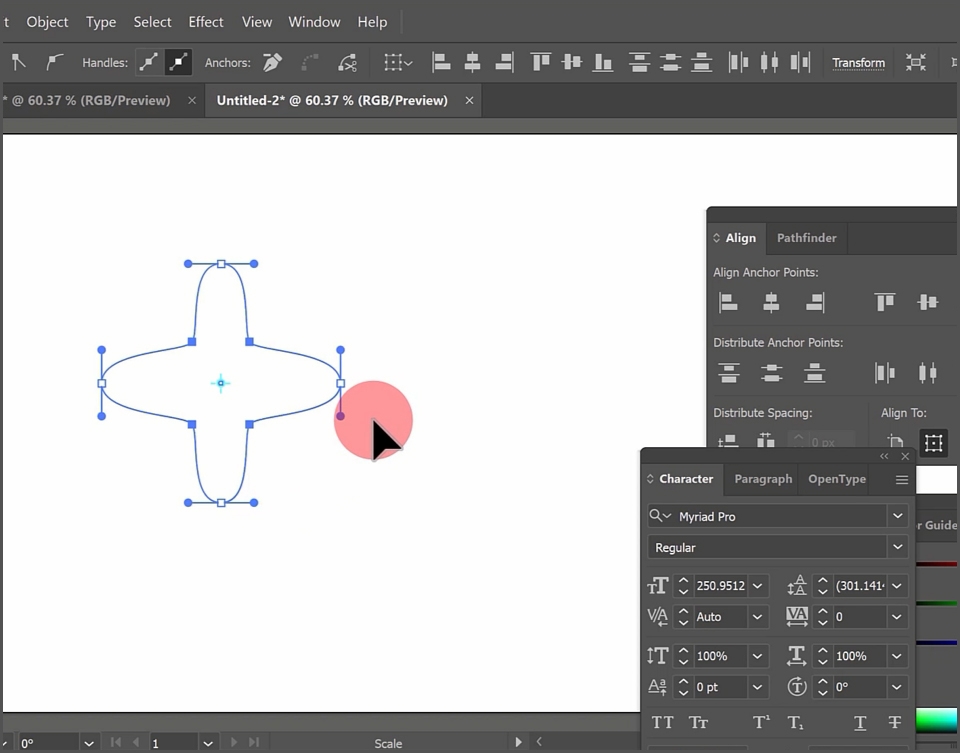
How to use the Pen Tool
Advantages of the vector method
By combining lines, shapes and colours, we can create compelling designs that can be used in any size, from smartphone screens to outdoor billboards.
Design an illustration.
Communicate your message visually and simply. Find fonts that work well in Illustrator and create promotional materials, posters,
You can design infographics, etc.
Union (Unite) Unite Unite ) that combines shapes
Minus Front (removing objects)
Intersect to remove overlapping parts
Exclude, leaving only the overlapping parts
Swap the up and down positions of objects
Splitting overlapping shapes with the divide function
Cut a shape into lines using the divide function
Draw a rectangle, shift function, rotate, copy function
Pathfinder merge
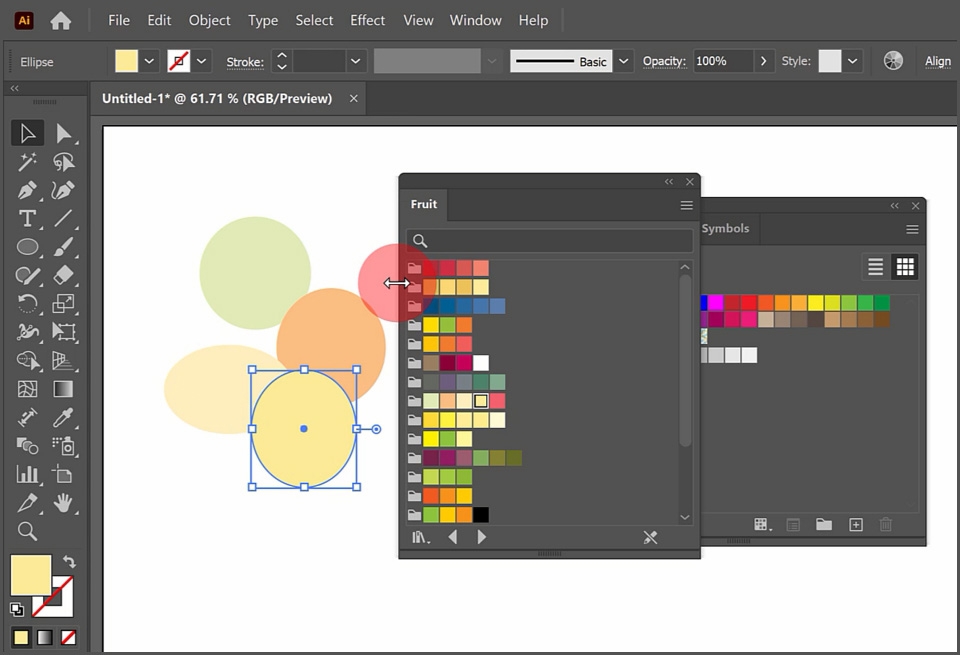
Using swatch colors and symbols
Tilting an object with the shear function
Using Smart Guide and Snap Features
With group function
arrange function
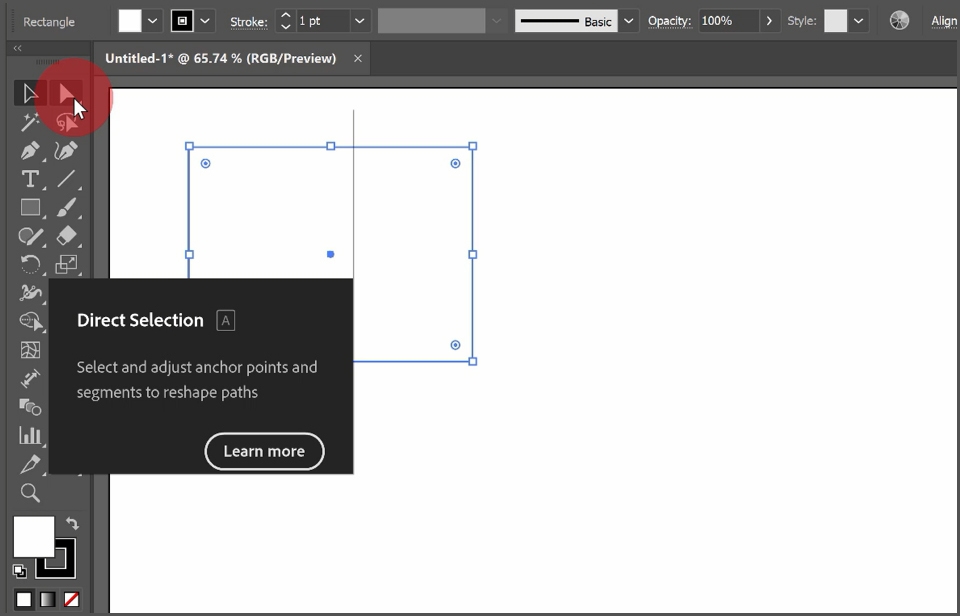
Direct selection tool and
Enter and edit text
Applying a gradient
Open the gradient palette
Transforming the applied gradient
Change color, add color, remove color,
Changing the shape and direction of the gradient
Expressing a ball with a gradient
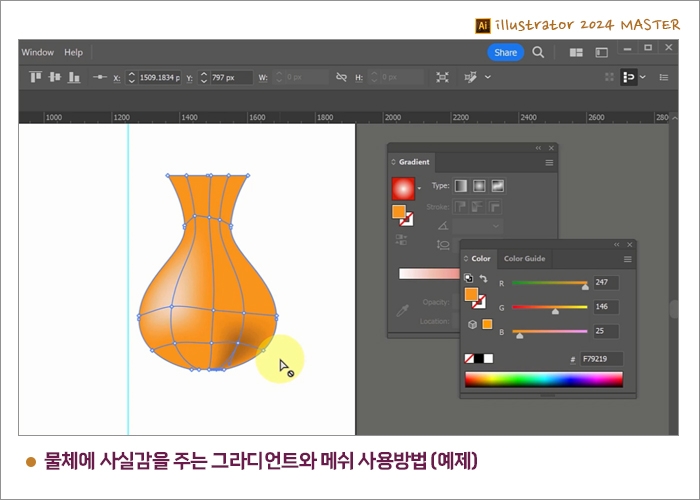
Create mesh application points
How to apply color to mesh points
Expressing realism with mesh
Expressing a bottle as a mesh
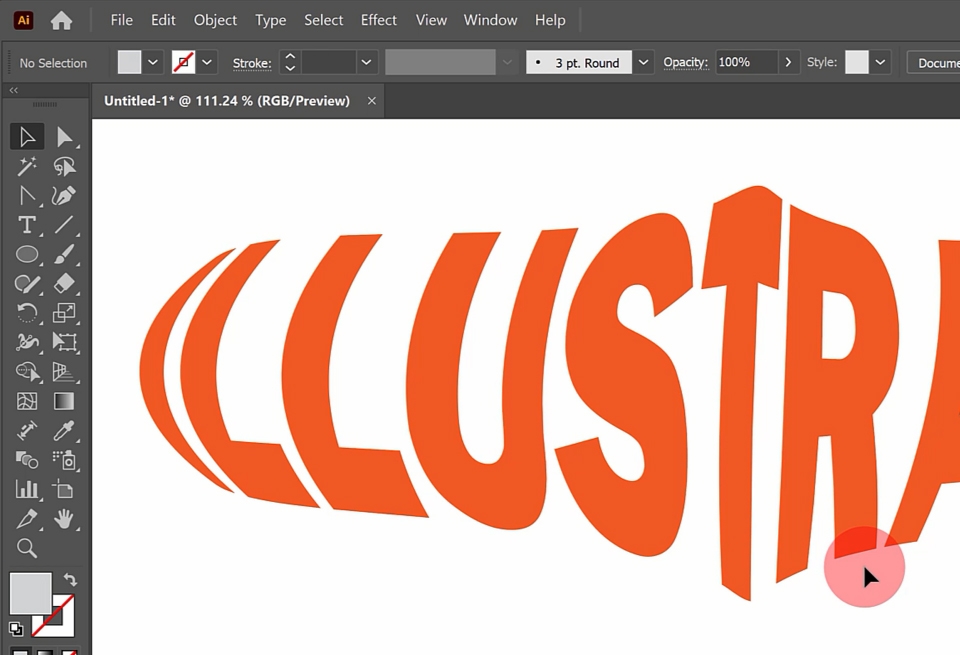
make with warp
Change the shape of the transformation with style
Transform into bend and distortion values
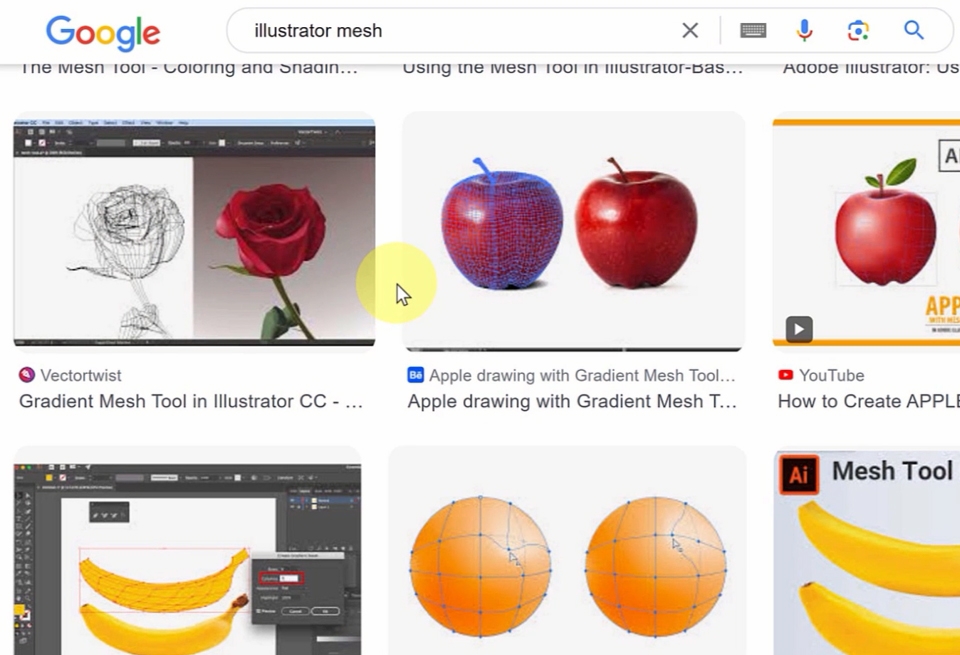
make with mesh
Specify the mesh generation value and each point
Move and transform text
Release it with release
make with top object
Transform text to the shape of the object on top
Transforming objects with the direct selection tool
Selection tool and basic shape tool
Draw a rectangle tool
Resize shapes and round corners
Selection tool and simultaneous selection method
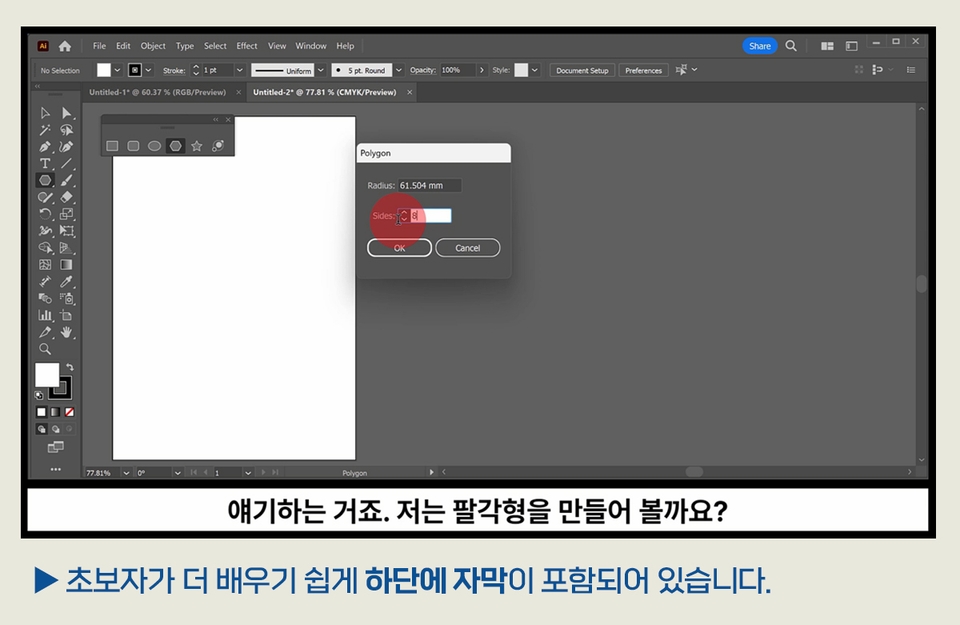
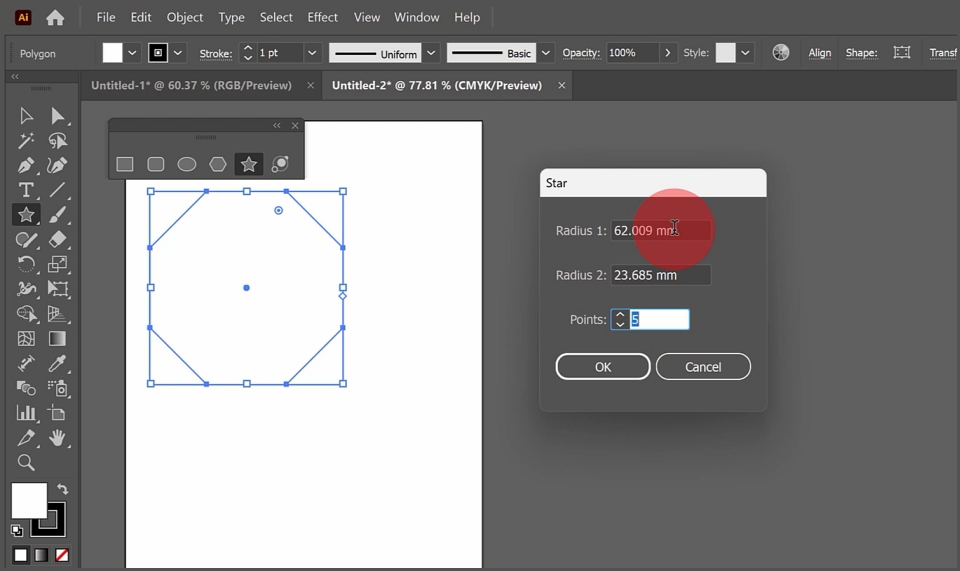
How to use the circle tool, polygon tool, and star tool
Drawing shapes using the shift and option keys
Various methods and ways to use
How to use the illustrator pen tool
Use the Direct Selection Tool
Drawing straight lines and straight shapes using the pen tool
Transforming shapes with the direct selection tool
Drawing a curve using the pen tool
Adjusting handles with the direct selection tool
Connect with open shape pen tool
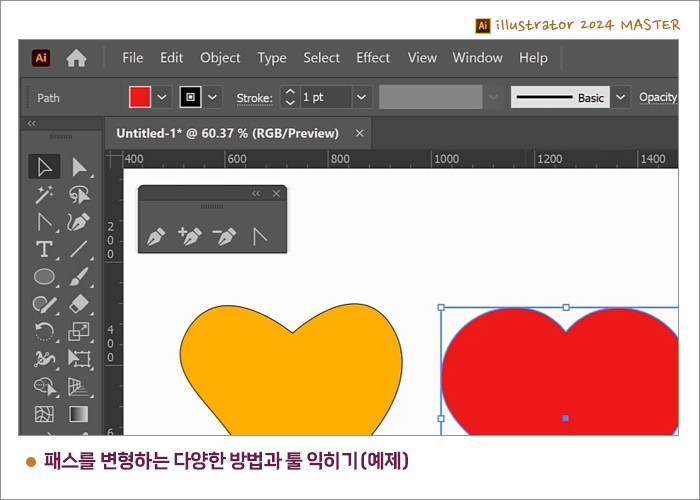
Learn different methods and tools to transform your passes.
Adjust, add, remove, and bend handles directly with the selection tool on the basic shape's toint
Add or remove points
Connecting lines with the pen tool
Take out the ruler
Remove, move, and erase guides
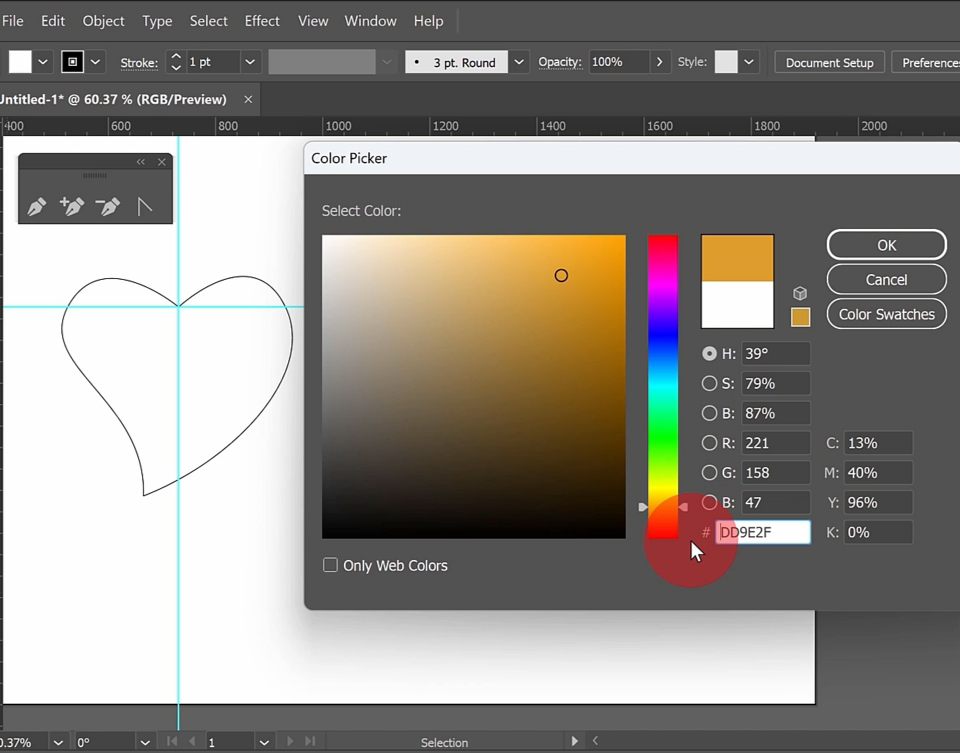
Filling the interior color with the fill tool
Adding line color with the stroke tool
Example of making a heart with the circle tool
Writing in Illustrator
Writing with the type tool
Setting the font size and font in the control panel
Specify text color
How to enter and use multiple lines of text in a box
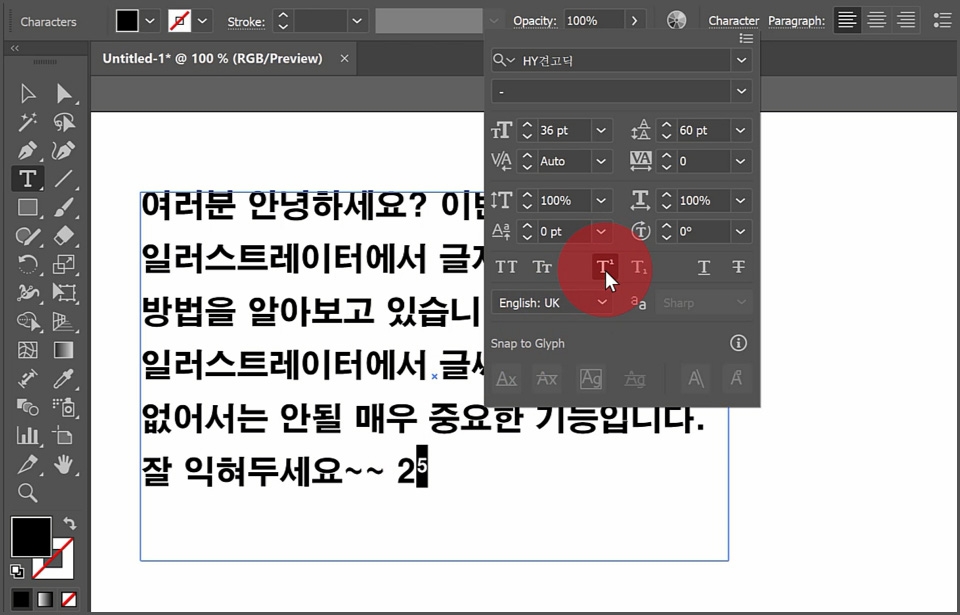
Character Palette Features - Size, Font, Line Spacing, Kerning, Long-Place, Font Height, etc.
Learn additional essential features of Illustrator
ruler and guide lines and snap, lock, hide
How to use and utilize the Smart Guide
Different ways to align objects in the align panel
Use the selection tool to place an object at precise coordinates
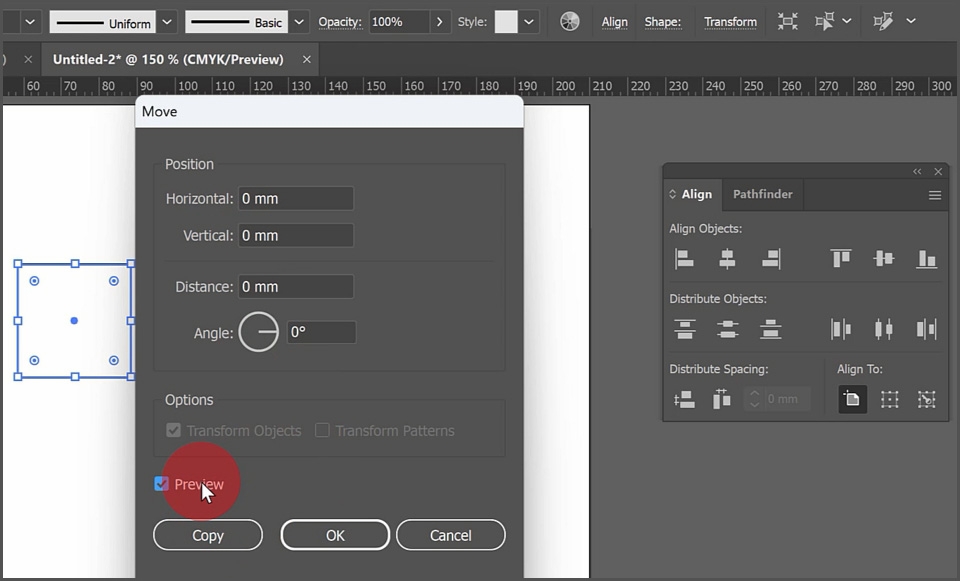
Move to an exact relative position in the Transform palette
Modification and utilization of objects made of passes
Connect two points using the join function
Aligning two points with the average function
Adjust line thickness with stroke value
outline stroke Separate object lines and interior
Move objects in or out using the offset path function
Reduce or expand
Add anchor points to existing objects with the add anchor points function.
Add points between points
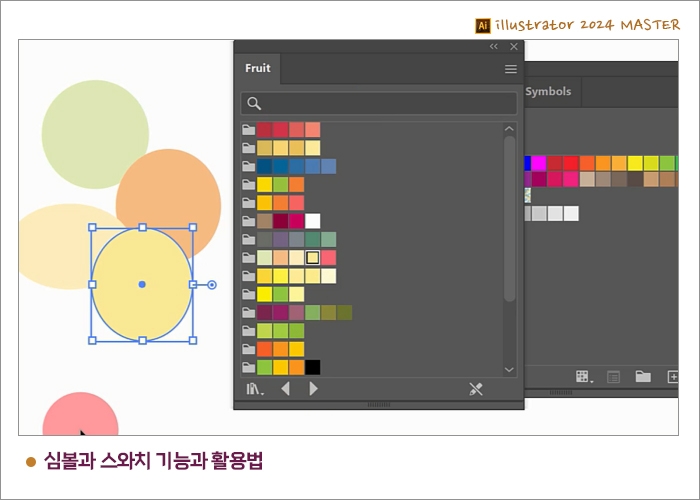
Symbols and Swatch Features and How to Use Them
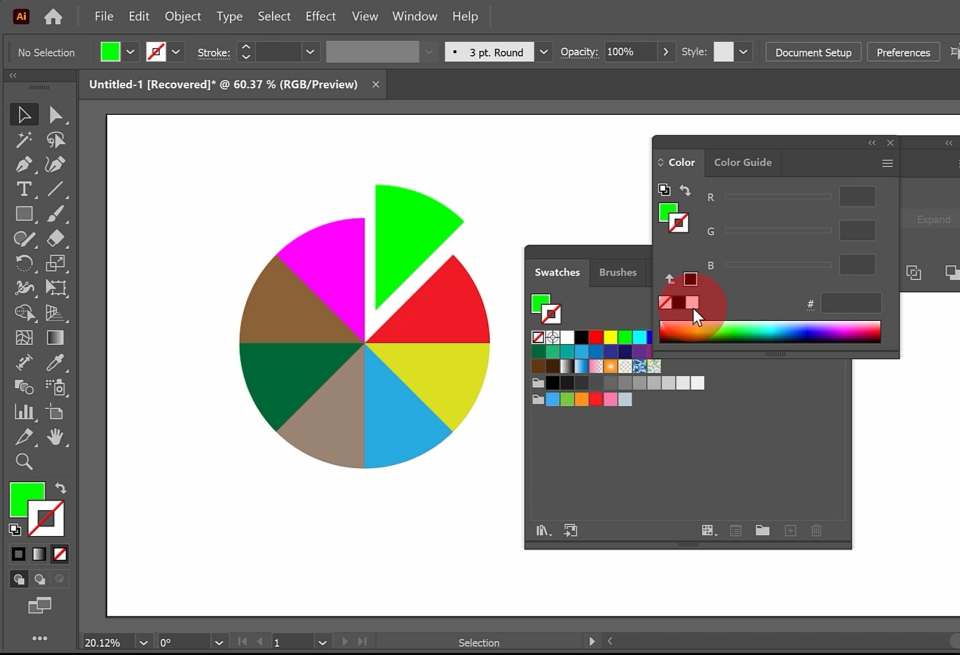
Open the swatches palette and use basic colors
Register a new color
Understanding RGB and CMYK
Using the swatches library
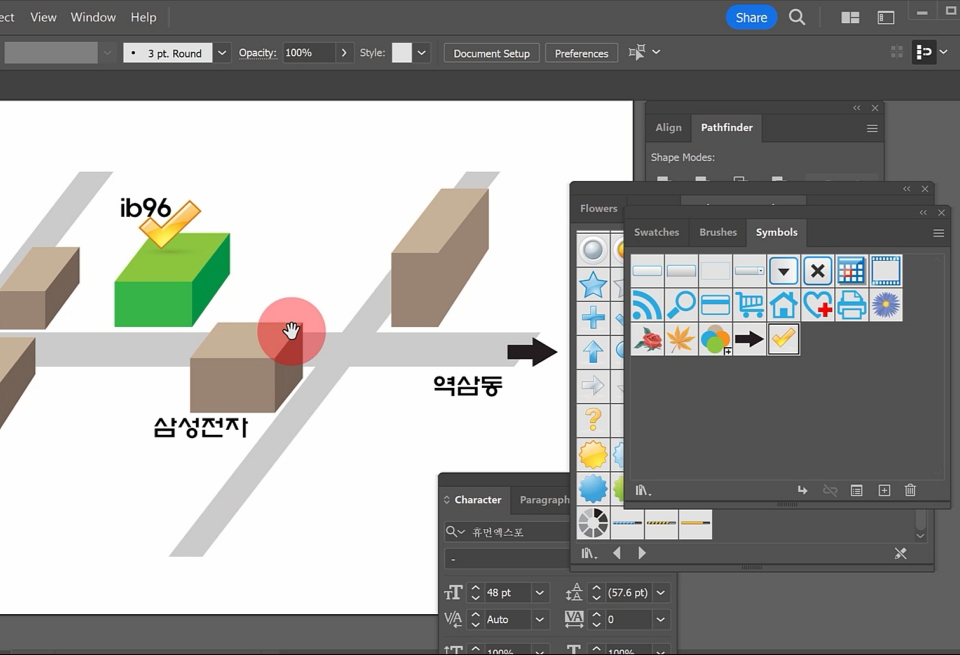
Open the symbols palette and use basic symbols
Using the symbols library
Registering a new symbol
The program can be practiced through subscription on the Adobe site.
Software Version: Illustrator 2024
Provide examples used in classes 4, 7, 8, 10, 11, 12 (AI file)
Who is this course right for?
People who need to learn graphics programs
Printing workers (banner production etc.)
Those who want to create illustration characters
Need to know before starting?
None
Career Verified
1,835
Learners
160
Reviews
4
Answers
4.8
Rating
35
Courses
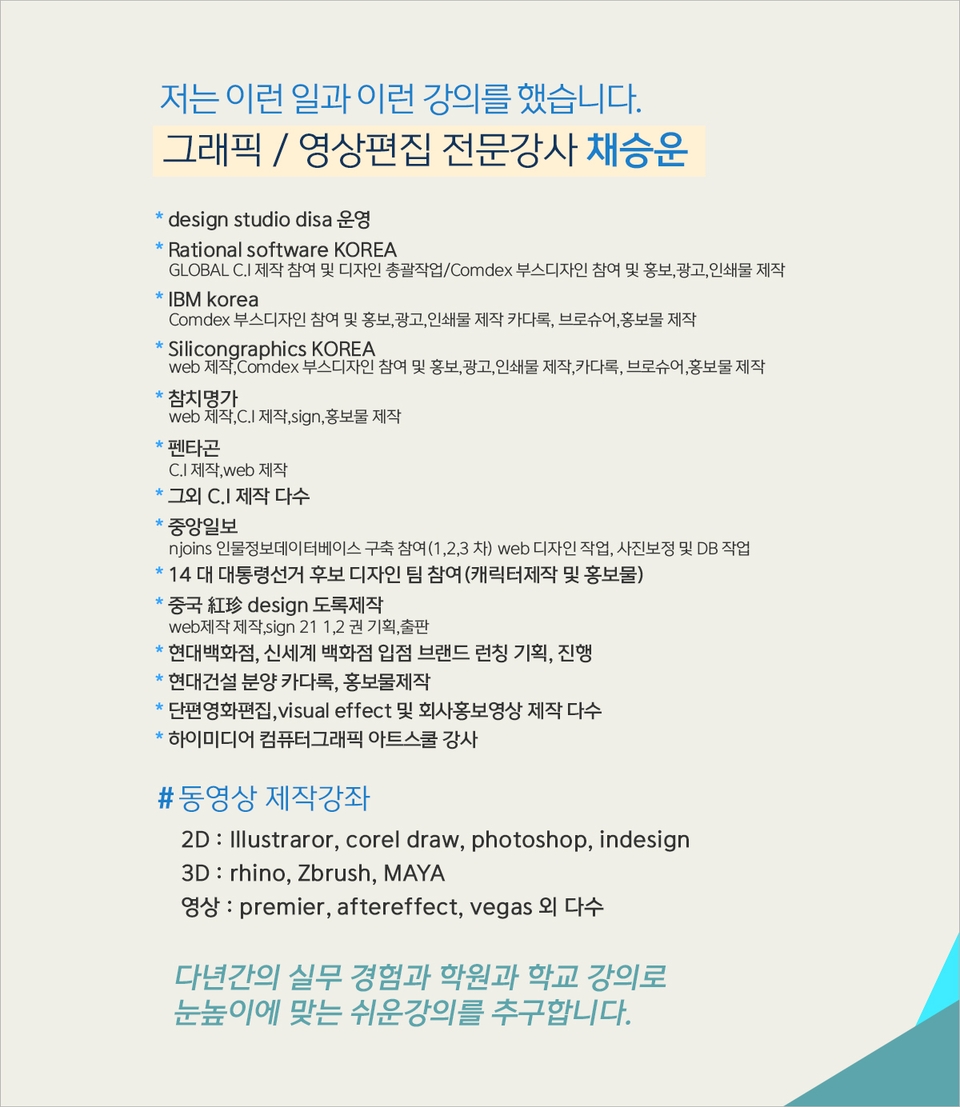
Back when Apple's MAC computers made it possible to design even better.
It's already been well over 25 years since I first started teaching Adobe Photoshop and Illustrator at the academy~~^^
I remember the days when, instead of calling the instructors Teacher Eom, Teacher Ha, and Teacher Gu, we used to call them Eom-T and Gu-T.
Together with those teachers, we started using ComTee as an abbreviation for Computer Teacher!
I will continue to be a "Computer Teacher" who works hard to share knowledge for all those who are learning.
Thank you!!
Thank you!!
Together with everyone, we've come to use "Com-T" as a shorthand for Computer Teacher! We will continue to be a Computer Teacher that works hard to share knowledge for all learners. Thank you!!

All
12 lectures ∙ (3hr 11min)
Course Materials:
All
1 reviews
3.0
1 reviews
Reviews 1
∙
Average Rating 3.0
3
In the Easy to Get Started Illustrator 2024 Basics - Symbols and Swatches Functions and Utilization, you explained that web colors are in binary. It is correct, hexadecimal. It seems that it needs to be corrected.
Yes, thank you for checking. We will check more carefully and correct any errors. Sorry for the inconvenience.
Check out other courses by the instructor!
Explore other courses in the same field!