Illustrator 2026 Core Mastery for Beginners
comt
Learn Illustrator, an attractive graphic design program, and start creating your own amazing designs~

Beginner
Illustrator
Learn the basics of using Photoshop 2024 and its amazing AI features.
Reviews from Early Learners
5.0
원종묵
It is explained step by step so that even beginners can easily understand. It was especially helpful to understand because there were subtitles. I think I will practice hard in the future and be able to use it well.
5.0
sj
The teacher teaches in a very detailed, easy, and friendly manner. The voice is also comfortable and pleasant to listen to. It was great to be able to learn the basics of Photoshop.
Photoshop 2024 Basic Environment
How to select and correct in Photoshop
How to use various filters in Photoshop 2024
Efficient synthesis through masks
How to use layer style effects
Artificial intelligence features and usage in Photoshop

New features and retouching methods in the latest version of Adobe Photoshop 2024 ,
You can learn image color adjustment and amazing artificial intelligence features.


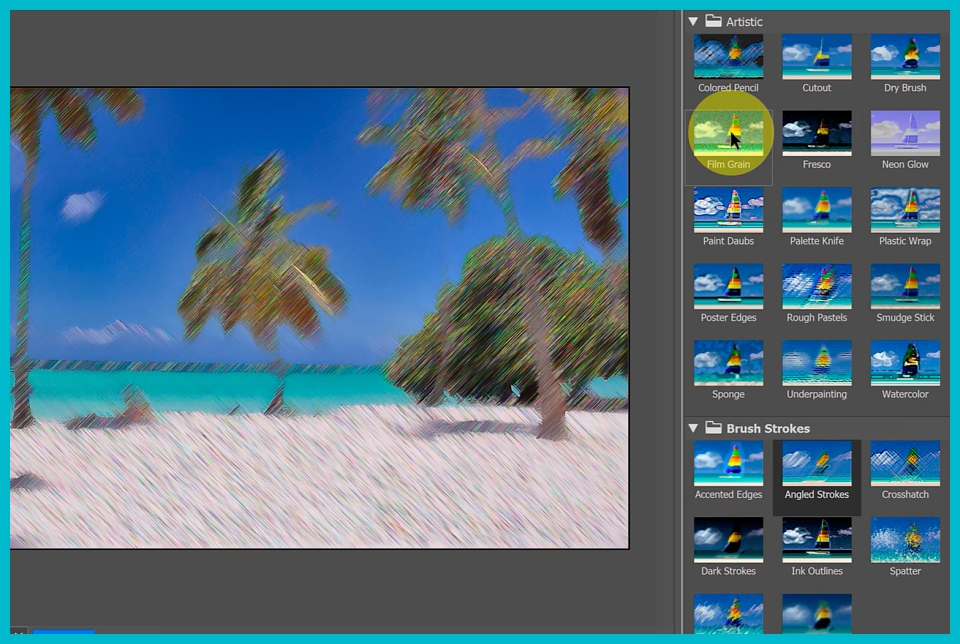
Blur, Gaussian Blur, Distort - Ripple, Shear,
Spherize, Twirl, Wave, ZigZag,
Noise - Add Noise, Pixelate - Crystallize,
Mosaic, Sharpen - Sharpen, Sharpen More,
Filter Gallery, Liquify
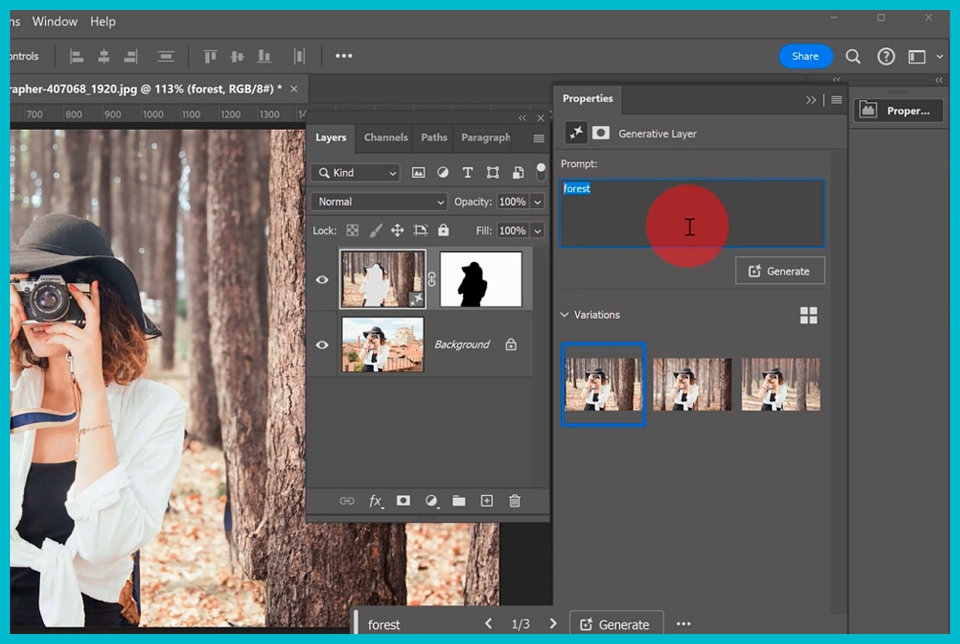
Automatic selection and selection area modification with Select Subject
Applying AI to Generative
Create images from text
Select the image created in the Properties window
Various ways to use Prompt
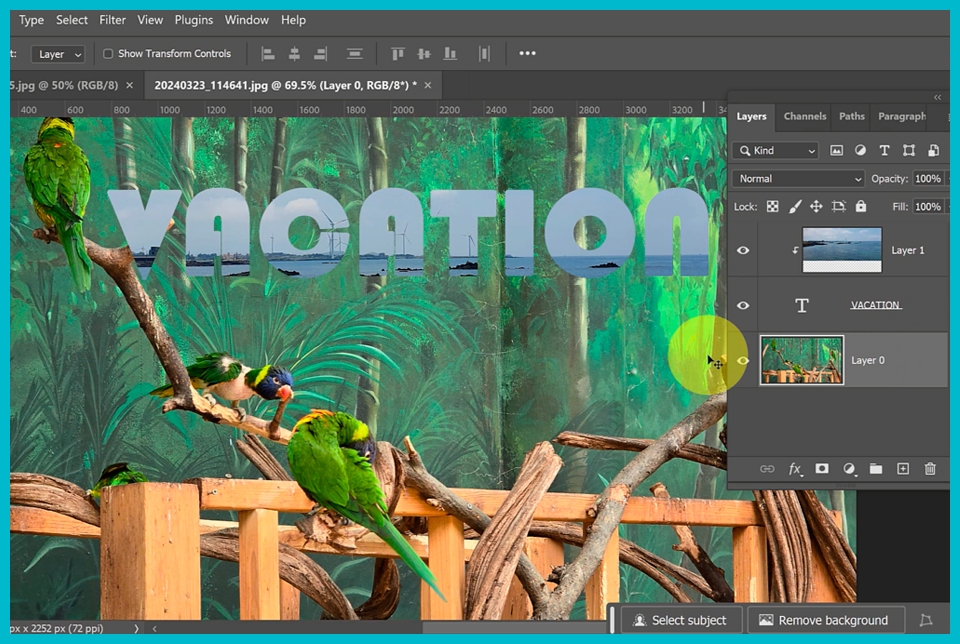
How to create a clipping mask - Creat Clipping MaskMove objects on a layer with a clipping mask applied
How to move the mask
How to use Auto Select Layer
Create a layer mask
Understanding and Using Layer Masks
Linking layers and layer masks
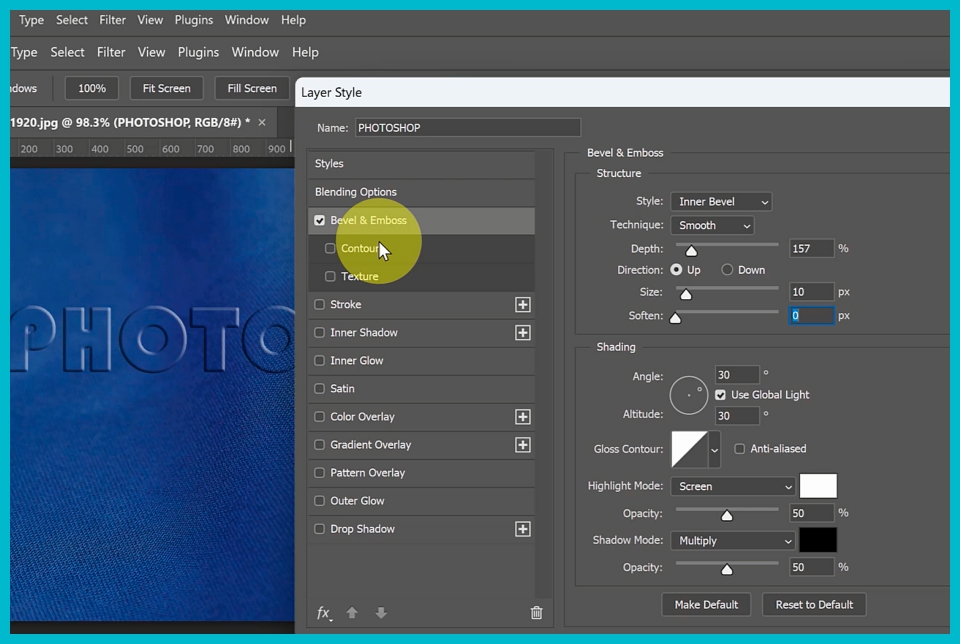
Bevel&Emboss - An effect that makes an object protrude
Stroke - An effect that creates a border line on an object.
Inner/ Drop Shadow - Effect that adds a shadow
Inner Glow - An effect that gives the impression of glowing light.
Color Overlay - Coloring effect
Gradient Overlay - An effect that applies a gradient color Outer Glow - An effect that expresses a glow on the outside
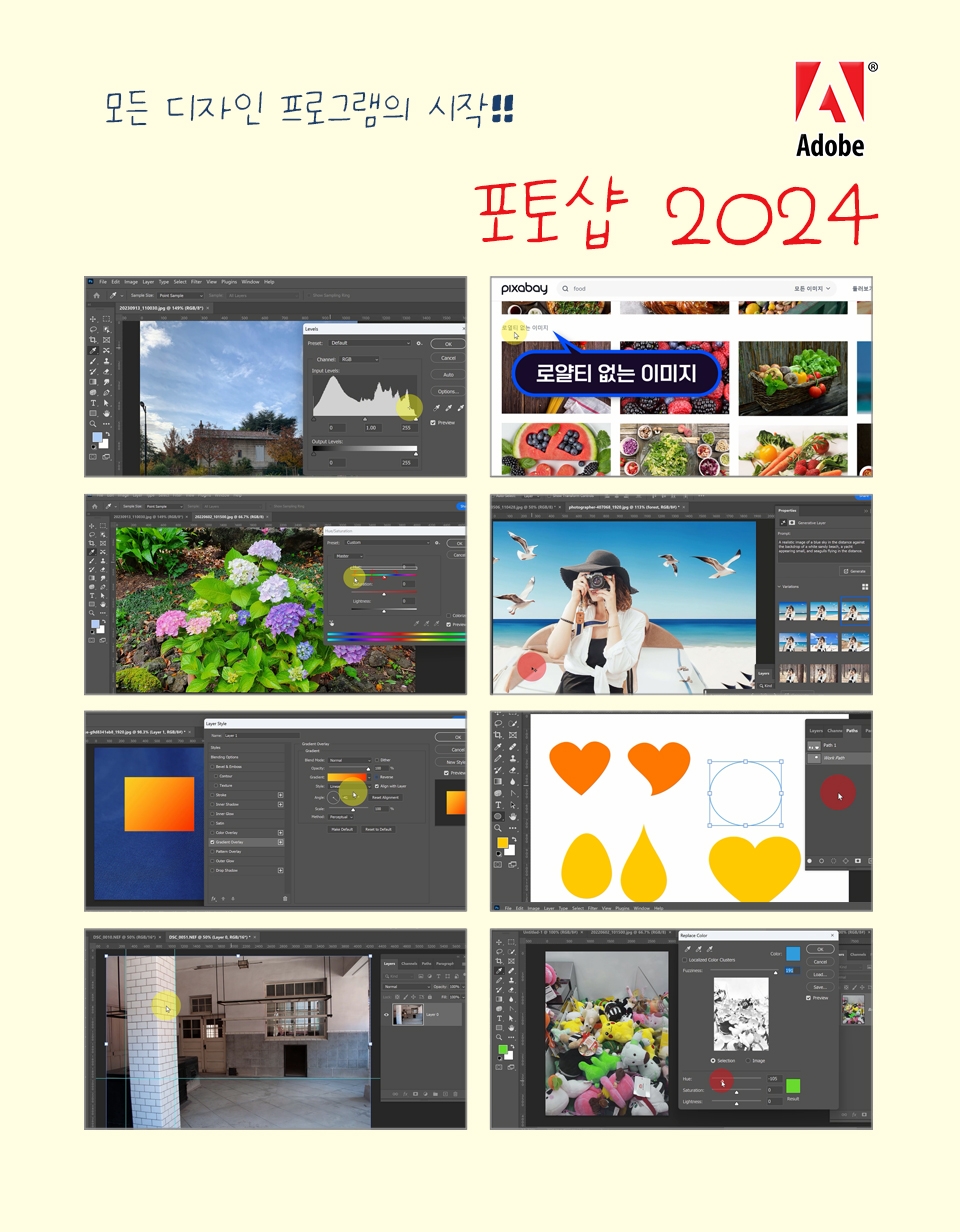
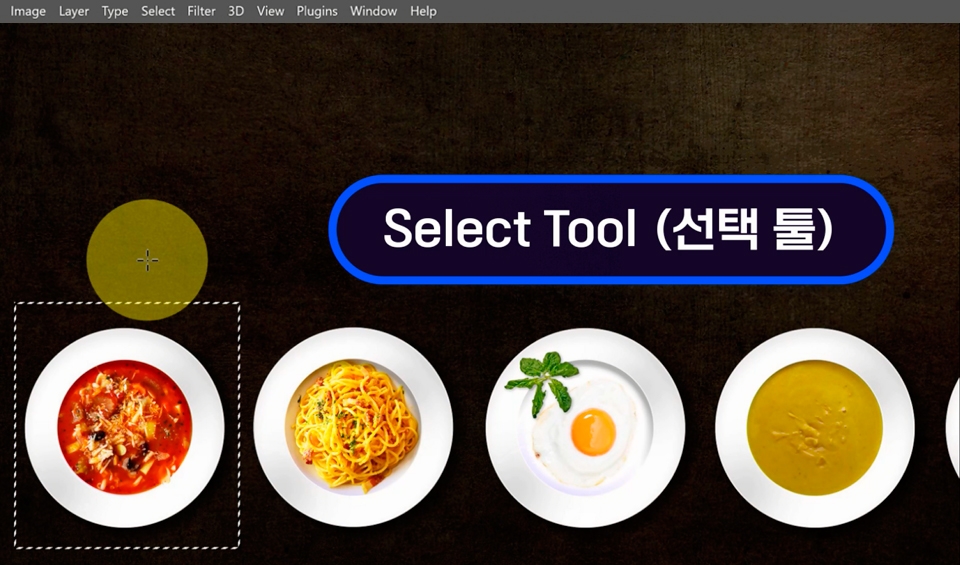
Photoshop 2024 lecture screen
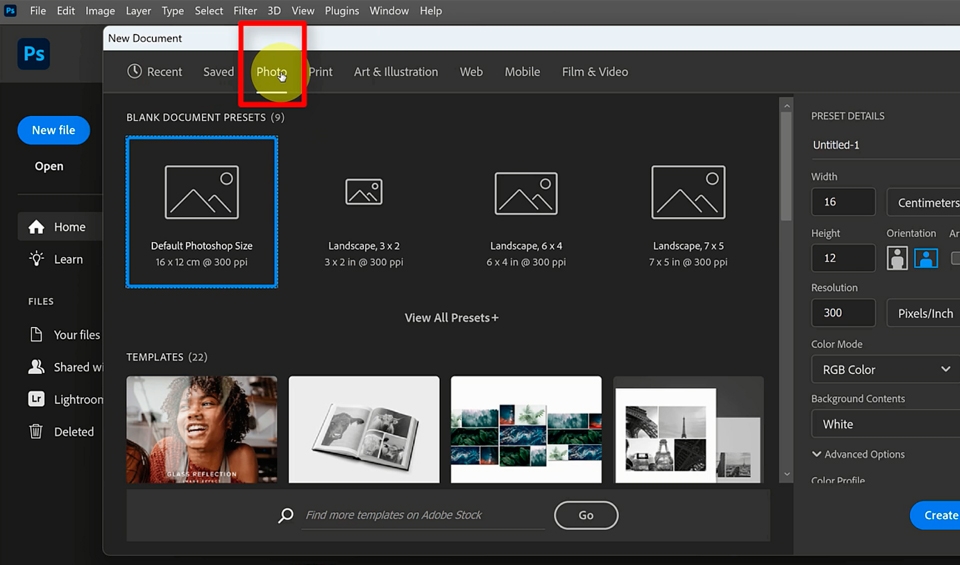
Photoshop's basic working environment and saving
How to specify the size of the work
Photoshop working environment
Basic usage and basic shortcuts
Extension and Save
Install Photoshop
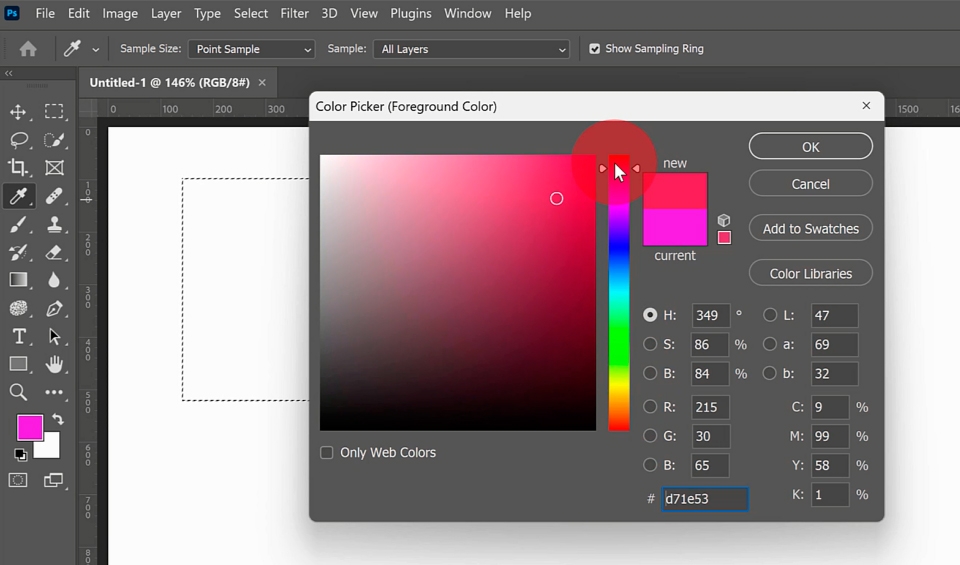
How to specify colors and use layers
How to set up a new worksheet when opening it
Foreground and background colors, color picker
Applying color with fill and shortcut keys
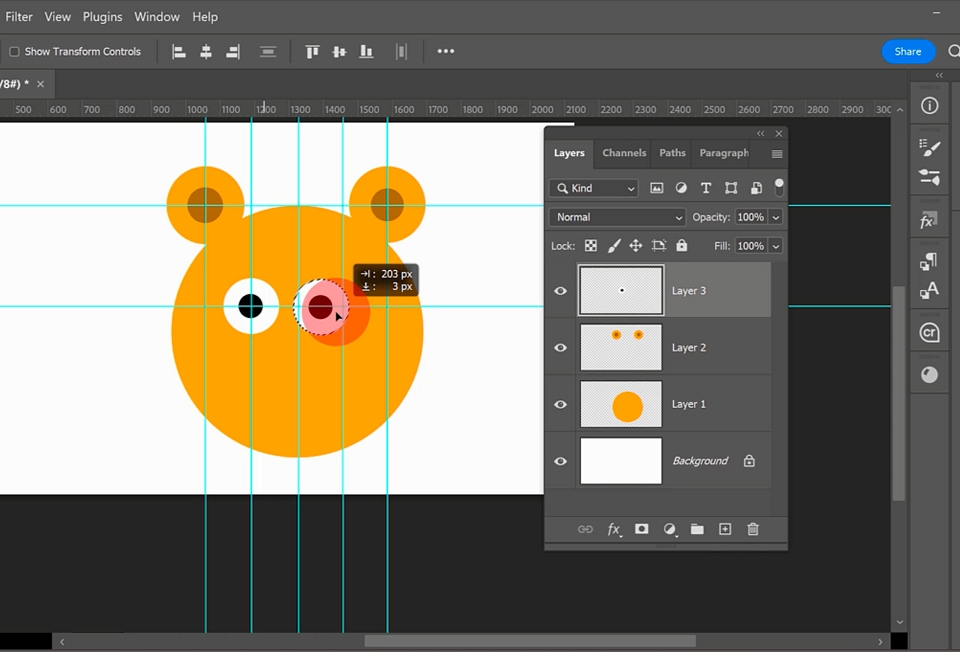
Concept and creation of layers
Move layers with the move tool, select layers, and erase them
Various ways to select with selection tools and shortcuts
Merge selection, subtract part from selection, select as a circle, shape growing from the center
Select as etc.
How to select using alt, ctrl, and shift shortcuts
How to remove ruler and guide lines
Composite images using selection
How to adjust the size of a layer object
Copy with shortcuts in the same layer
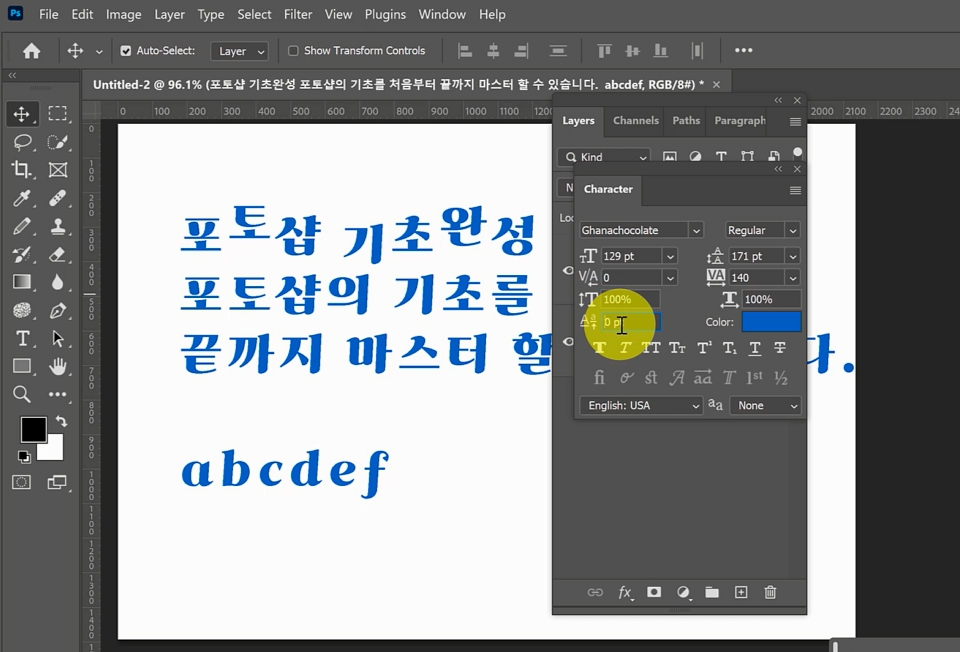
How to use Type Basics
How to input text
Type layer and movement of text
Basic font adjustments in the Control Palette
- Font, size, alignment, color
Adjust text borders
character palette
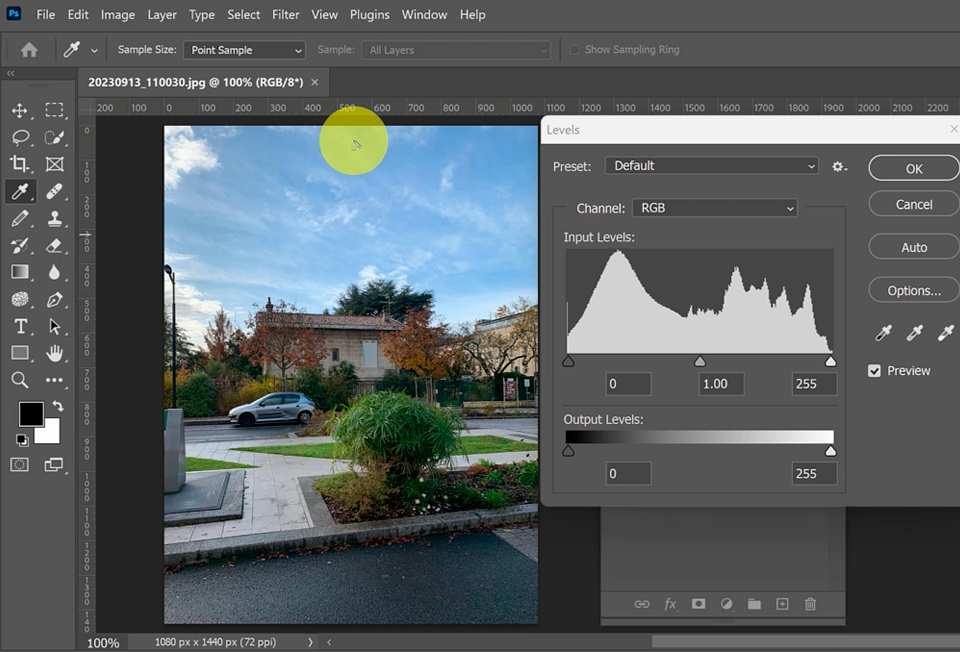
Understanding the basic principles of digital image correction
How to view the level graph and adjust brightness and darkness
How to view the graph of the curve and the brightness of the image
How to finely adjust the darkness
Hue/Saturation Hue Principles and Value Control
Adjusting the Saturation Value
Adjust the Lightness value
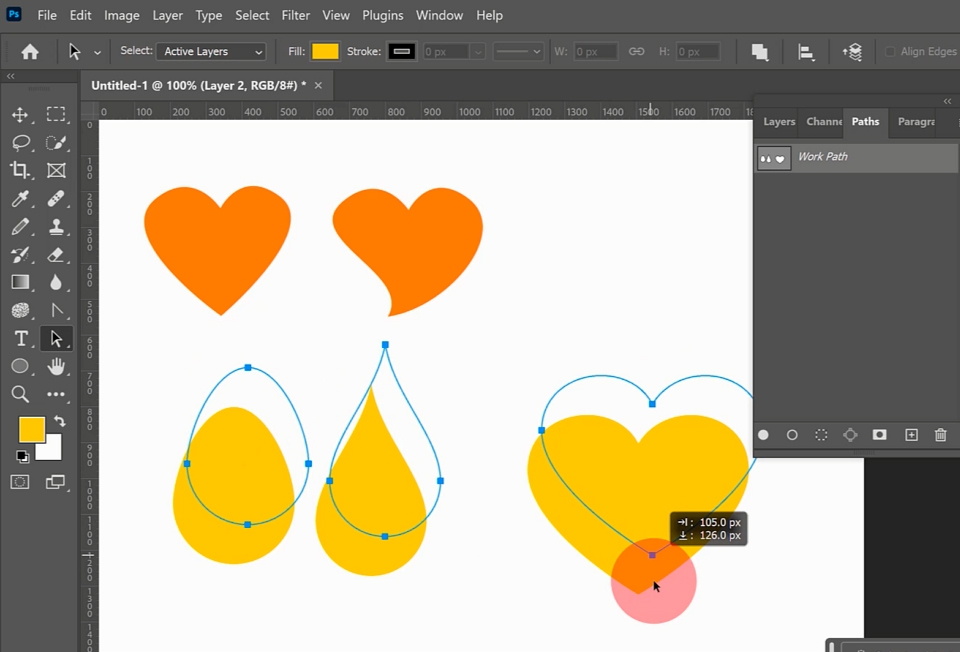
Basic and advanced usage of the Pen tool
Understanding vector and bitmap principles
Basic usage of the pen tool
Drawing straight lines and drawing curves
Draw a heart, draw an egg, draw a water drop
Point selection using the direct selection tool and
Move, handle adjustment
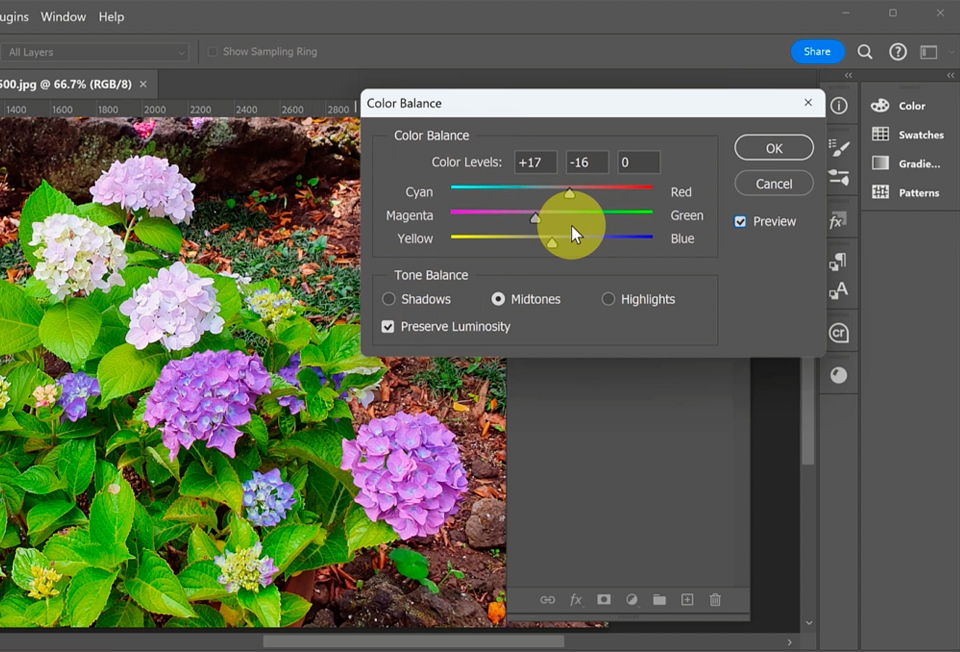
Various correction functions of Photoshop
Brightness/Contrast
Color Balance
Photo Filter
Posterize/Threshold
Shadows/Highlights
Replace Color
Using the correction tool
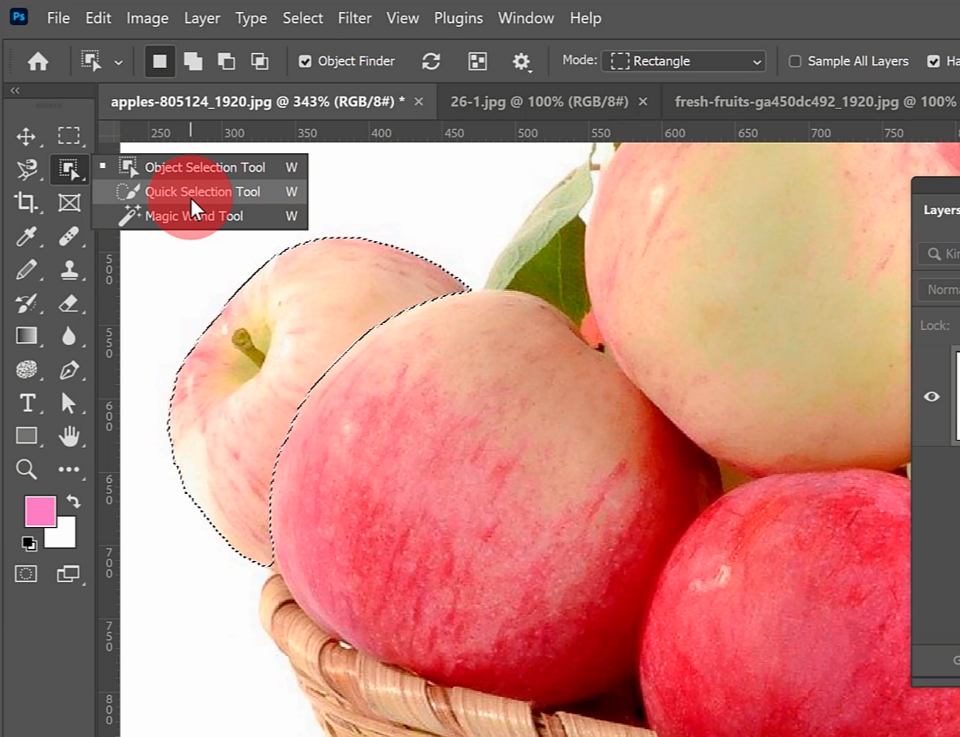
Photoshop's various selection functions
Lasso Tool
Polygonal Lasso Tool
Magnetic Lasso Tool
Object Selection Tool
Quick Selection Tool
Magic Wand Tool
How to use various selection tools
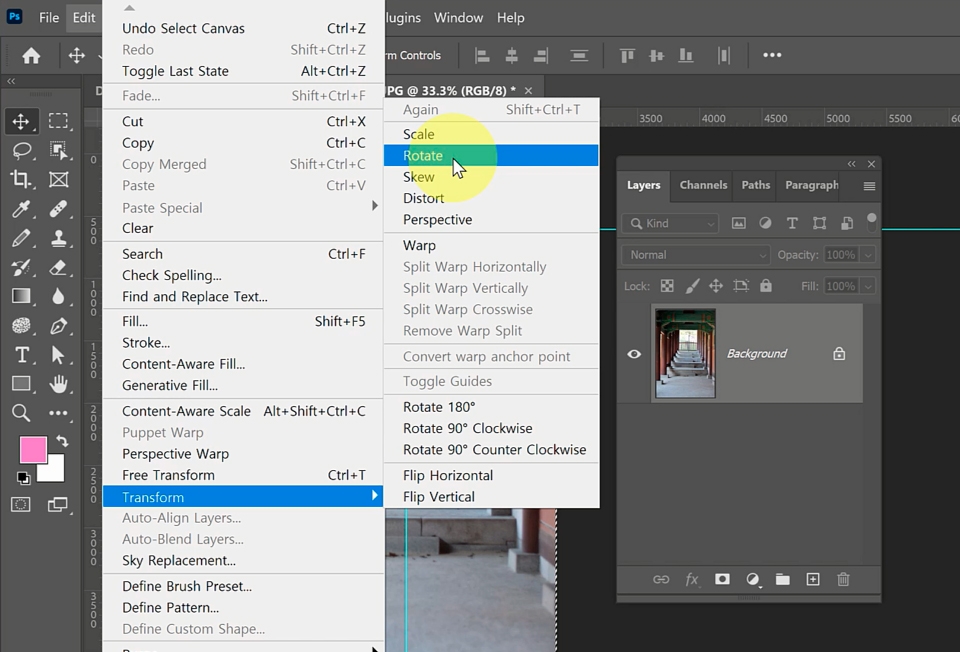
Master image distortion and transformation tools
Remove guide lines from ruler
Rotate an image with Image Rotation
Float the background layer as a layer
Crop an image with the Crop Tool
Correcting distorted images with Skew
Correcting a warped image with the Warp feature
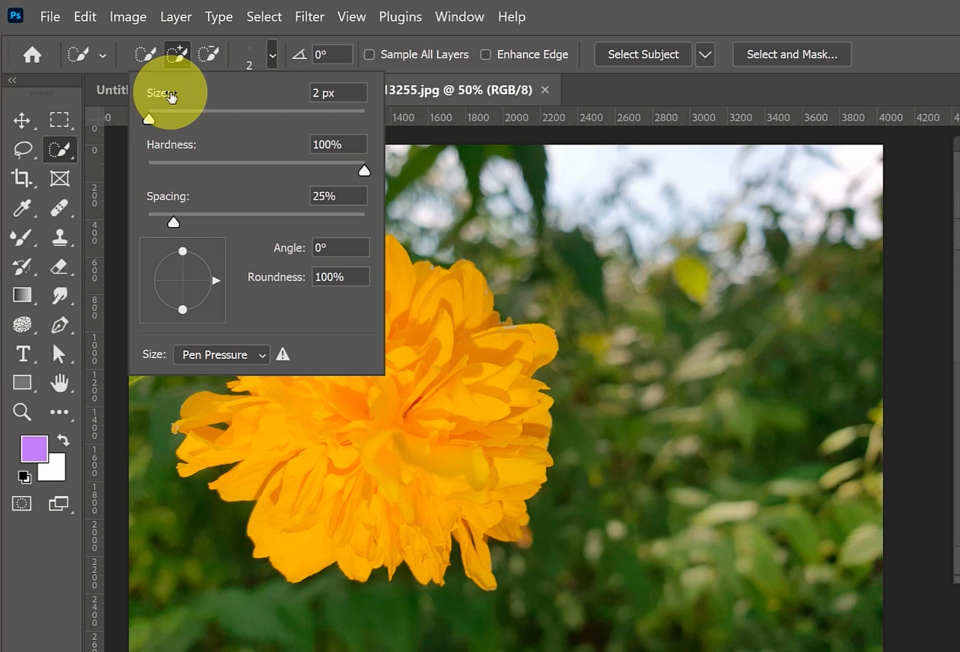
Various brush settings and usage methods
Set brush size, shape and color
Brush settings for Quick Selection
Blur, Sharpen, Smudge Tool
Dodge, Burn, Sponge Tool
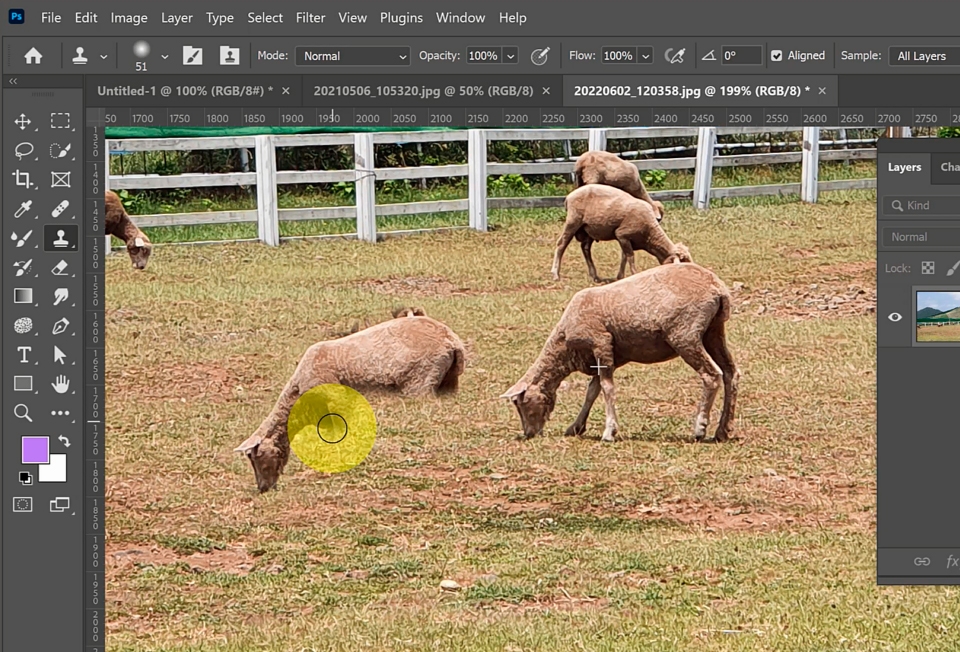
Learn the essential stamp tools and brush functions for photo compositing
How to use and utilize the Stamp Tool
Erase facial blemishes with Spot Healing Brush
Remove Tool,
Healing Brush,
Patch Tool
Content-Aware Move Tool
Filling images with Content-Aware Fill
Subtitles are also included to help beginners understand.
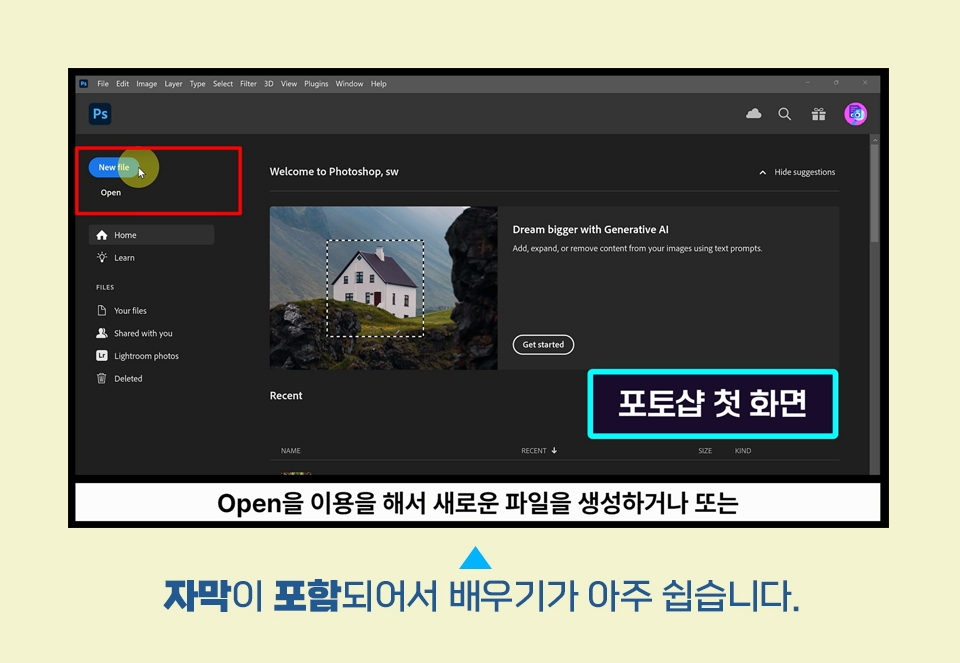
Includes lecture subtitles
Adobe Photoshop 2024 is available as a cloud-based subscription from the Adobe site.
https://www.adobe.com/kr/
The lecture sources can be found in Section 0.
All lesson materials shown in the video are provided (files not included in the example folder are not included)
You can find it by searching at www.pixabay.com.
Due to copyright issues, files downloaded from Pixabay cannot be redistributed.
You can find it by searching with the search terms listed below.
2. pixabay - food
10. pixabay - sneakers
11. pixabay - woman
12. pixabay - photographer tourist
13. pixabay - apples basket, pixabay - fresh fruits, pixabay - a book embossing
16. pixabay - handstand man
17. pixabay - beach travel vacation, pixabay - model face
18. pixabay - blue fabric tissue
20. pixabay - photographer tourist, pixabay - frame border desk
Who is this course right for?
For those who want to learn Photoshop
For those who want to use the latest AI in Photoshop
People who work in the photography industry
For those who want to learn essential design programs
Need to know before starting?
No, anyone can learn it right away.

Career Verified
1,937
Learners
172
Reviews
4
Answers
4.8
Rating
37
Courses
Back when Apple's MAC computers made it possible to design even better.
It's already been well over 25 years since I first started teaching Adobe Photoshop and Illustrator at the academy~~^^
I remember the days when, instead of calling the instructors Teacher Eom, Teacher Ha, and Teacher Gu, we used to call them Eom-T and Gu-T.
Together with those teachers, we started using ComTee as an abbreviation for Computer Teacher!
I will continue to be a "Computer Teacher" who works hard to share knowledge for all those who are learning.
Thank you!!
Thank you!!
Together with everyone, we've come to use "Com-T" as a shorthand for Computer Teacher! We will continue to be a Computer Teacher that works hard to share knowledge for all learners. Thank you!!
Together with everyone, we've come to use "Com-T" as a shorthand for Computer Teacher! We will continue to be a Computer Teacher that works hard to share knowledge for all learners. Thank you!!
All
20 lectures ∙ (5hr 18min)
Course Materials:
All
5 reviews
4.6
5 reviews

Reviews 1
∙
Average Rating 5.0
5
The teacher teaches in a very detailed, easy, and friendly manner. The voice is also comfortable and pleasant to listen to. It was great to be able to learn the basics of Photoshop.
Thank you for your review. Please watch it over and over again, try compositing it with your own photos, and especially apply filters once in a while to get a feel for them~
Reviews 1
∙
Average Rating 5.0
5
It is explained step by step so that even beginners can easily understand. It was especially helpful to understand because there were subtitles. I think I will practice hard in the future and be able to use it well.
Yes, thank you. No matter how good and numerous the functions of Photoshop are, they are useless if you don't use them. If you use filters and layer styles well, you can create high-quality results.
Reviews 1
∙
Average Rating 4.0
Reviews 4
∙
Average Rating 5.0
Reviews 4
∙
Average Rating 3.8
Check out other courses by the instructor!
Explore other courses in the same field!
Limited time deal ends in 4 days
$25.30
23%
$33.00


![InDesign 2024 Basics to Practical Use Master Course [Subtitles Included]Course Thumbnail](https://cdn.inflearn.com/public/courses/333362/cover/91faa49d-01d6-4fc6-90a0-d339c5dbfe65/333362.jpg?w=420)