inflearn logo

Project Management Using Microsoft 365 (List, Planner, Teams, Loop)

This is a hands-on course focused on systematically managing projects using Microsoft 365’s core collaboration tools (Lists, Planner, Teams, and Loop). You will learn step by step how to integrate scattered schedules and tasks into a single collaborative environment, get an overview of project status at a glance, and collaborate efficiently with team members.

1 learners are taking this course

Level Basic

Course period 3 months

Teams
Teams
project
project
issue-tracking
issue-tracking
microsoft365
microsoft365
collaboration
collaboration
Teams
Teams
project
project
issue-tracking
issue-tracking
microsoft365
microsoft365
collaboration
collaboration

What you will gain after the course

  • Establishing an Integrated Project Management System Using Microsoft 365 Tools

  • Designing a real-time project collaboration environment connecting Lists, Planner, Teams, and Loop

  • Implementation of a systematic process for tracking and managing schedules, responsible parties, issues, and deliverables


Can you see your scattered projects at a glance?

Project management isn’t about using a lot of tools;
it’s about connecting schedules, owners, issues, and deliverables in a single collaborative environment to create a workflow for execution.


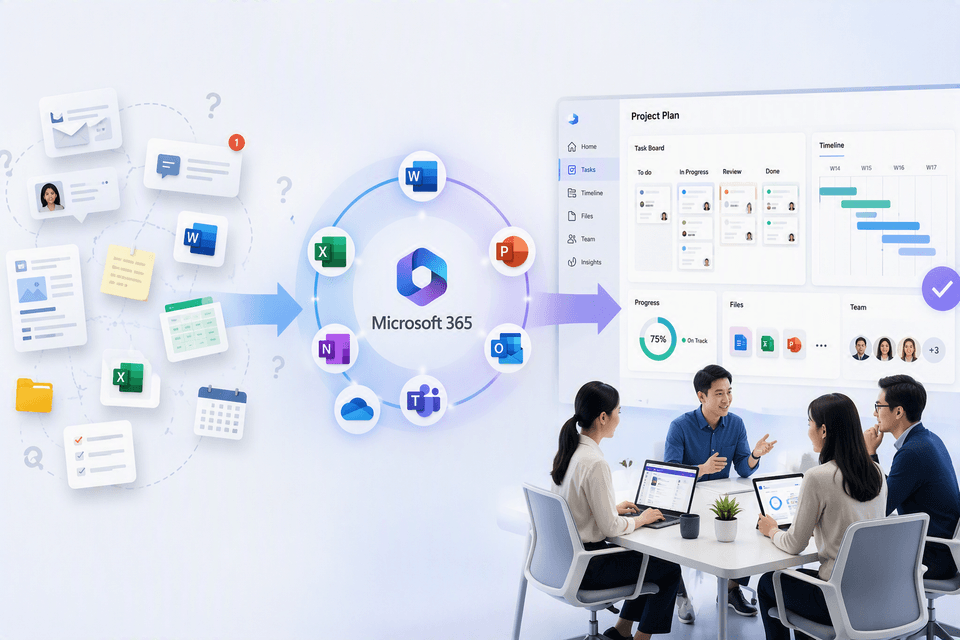
Budget and issue management scattered across Excel, email, and messaging apps
→ Track everything in one place with List

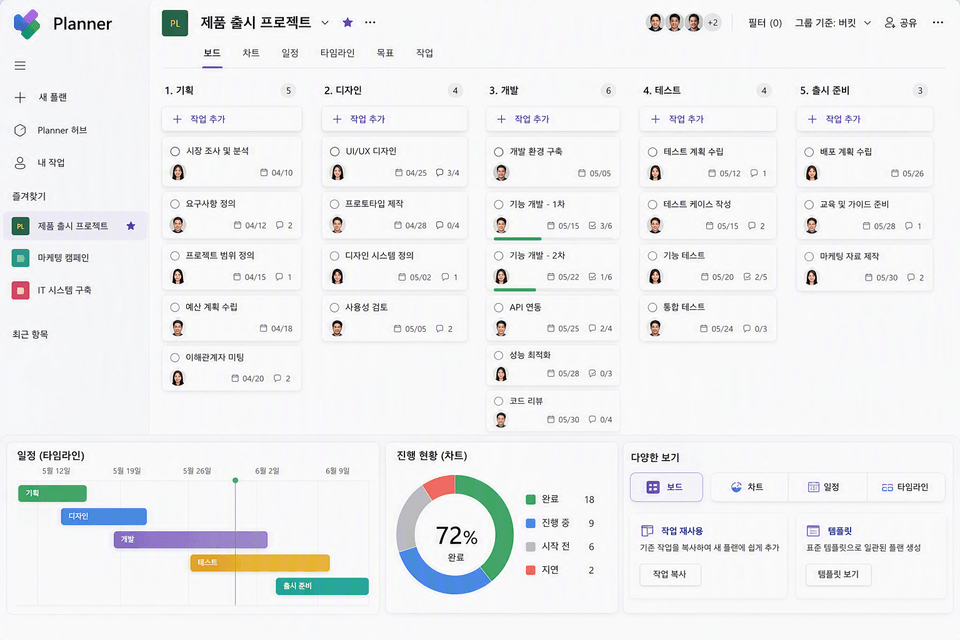
Project tasks, assignees, and schedules are difficult to see at a glance → Check progress in Planner

File sharing and follow-up tasks after meetings are
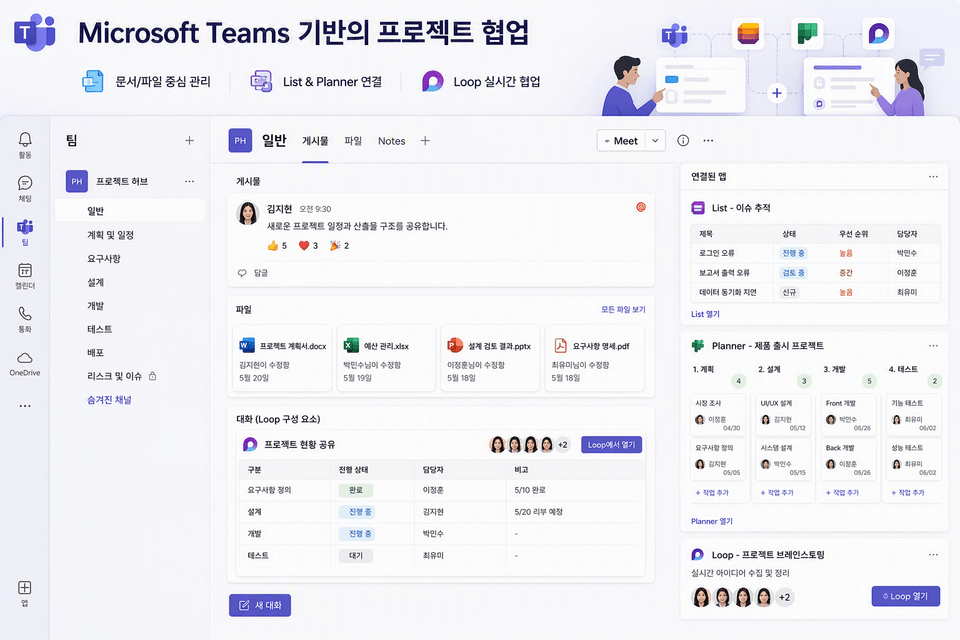
handled separately → Continue deliverables and collaboration with Teams and Loop

It’s okay if your project management approach feels complicated. By connecting Lists, Planner, Teams, and Loop step by step, you can build a system to manage schedules, tasks, issues, and deliverables yourself.


Use List, Planner, Teams, and Loop in Microsoft 365 to
connect your project schedule, tasks, issues, and deliverables in one place.

Move beyond conversations scattered across Excel, email, messengers, and elsewhere,
and grow into a leader who drives projects forward to the finish..

By the end of this course,


You can track and manage scattered project information within Microsoft 365.

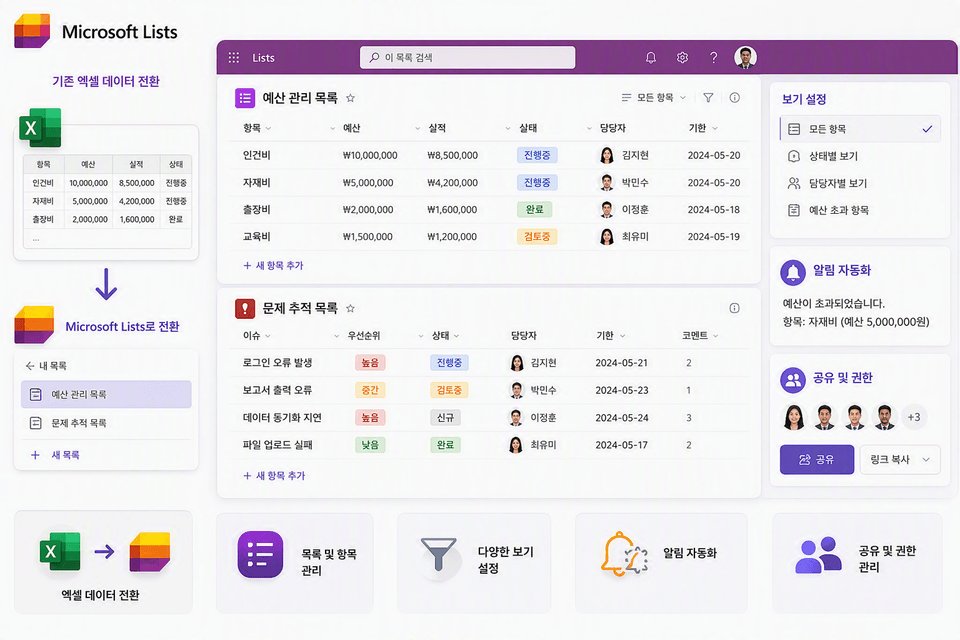
  • You can organize the budget, schedule, assignees, and progress status into lists, and also migrate existing spreadsheet data. By using view settings
    , you can select and check only the information you need, allowing you to quickly grasp the project status without rummaging through multiple files right before a meeting.


✔️

How to connect scattered project tasks into a single execution system

From lists to collaboration spaces
the process of establishing a project management workflow

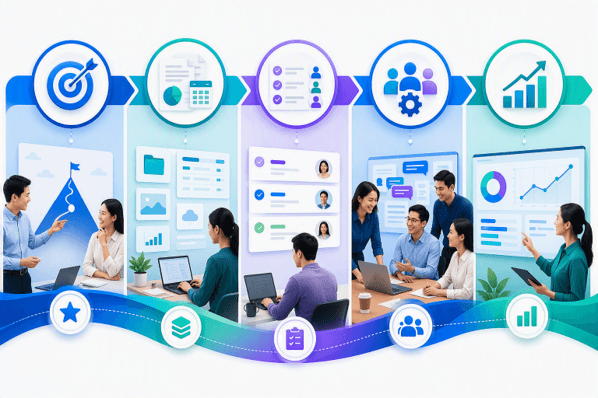
Structure the budget, schedule, assignees, issues, and deliverables as Lists, and manage Planner work plans and progress. Connect Teams and Loop to create a unified project operations workflow encompassing document collaboration and real-time communication.

Project management completed through real-world work scenarios

Create a budget management list yourself, convert existing Excel data into a List, and configure an issue-tracking list along with views and alerts. Use Planner’s various views, Teams channel lists and Planner, and meeting and task features to immediately monitor and execute project progress.

The management system and usage guidelines established in the course

We provide List formatting, view configuration, notification settings, Planner task structures, Teams channel operations, and Loop collaborative workspace design methods in a hands-on sequence. After completing the course, you will be able to determine how to organize schedules, assignees, issues, and deliverables in your own projects, and transition from Excel-centered work to a collaboration-centered system.


📚

Connect scattered schedules and tasks into a unified project management system

Section 1

Course Introduction and Project Management Basics

Learn how to use Microsoft 365’s various collaboration tools to connect scattered tasks to structured project execution. Understand the principles of effective project operations and the need for an integrated management environment.


Section 2

Project Management Using Microsoft Lists

Learn how to create a budget management list and an issue-tracking list in Lists, and how to migrate existing Excel data. Use view settings, notification automation, and sharing permissions to systematically manage schedules, issues, and tasks.


Section 3

Planning and executing work with Microsoft Planner

Use Planner’s buckets, tasks, assignees, deadlines, and various views to create project plans and see execution status at a glance. Learn how to improve project management efficiency through task reuse and standardization.


Section 4

Project collaboration based on Microsoft Teams

Learn how to systematically manage project deliverables in Teams with a focus on documents and files, and how to connect Lists and Planner to team channels. You will also use Loop to create a flexible, real-time collaborative workspace.


Section 5

Expanding Project Applications and Wrapping Up the Learning

Explore additional ways to connect Teams Meeting and To Do to enhance project execution. Review what you have learned and establish practical steps and sustainable learning habits for applying List and Planner to your own projects.


💡 We can help solve the challenges faced by people like these!

📌

Project Coordinator

Those who manage schedules and assigned tasks through Excel files and messenger conversations, only to miss the latest progress updates

You can organize budgets and issues with List and manage work status in one place using views and notifications.

📌

Project leader

If you manage multiple projects and tasks and have to check assignees, deadlines, and deliverable statuses separately every time,

you can build a management system with your team that tracks everything from project planning to execution status using Planner’s task structure and various views.

📌

Practical leaders preparing a collaboration system

For those who use Teams but whose file sharing and task assignments are scattered across channels, making it difficult to establish consistent project operation standards

you can connect Lists and Planner to Teams and include recurring tasks and post-meeting follow-ups in your collaboration workflow to design a project management environment tailored to your organization.

Notes Before Taking the Course


Practice environment

  • An internet connection is required.

  • Prepare Microsoft 365, Lists, Planner, Teams, and Loop.
    For smooth hands-on practice, a modern web browser and at least 8GB of memory are recommended.

Prerequisites and Important Notes

  • Not required.

    You can participate without any project management experience or coding knowledge.
    You will learn the basic concepts of Lists, Planner, and Teams and follow along with hands-on examples.

Recommended for
these people

Who is this course right for?

  • Team managers and project leaders managing multiple projects simultaneously

  • Practitioners looking to shift from Excel-centric management to a collaboration-focused system

  • Organization members who use Microsoft 365 but lack a project management framework

  • Professionals who want to manage schedules, track tasks, and share files in a more organized manner

Need to know before starting?

  • Not necessary. You can participate without project management experience or coding knowledge. You’ll learn the basic concepts of Lists, Planner, and Teams, then follow along with hands-on examples.

Hello
This is omas

Career Verified

2,864

Learners

331

Reviews

167

Answers

4.6

Rating

47

Courses

Nice to meet you! I am ""Omas"", a Microsoft 365 expert.
As a Microsoft 365 expert, I will help you work more easily and smartly.

Introducing Omas's instructors!!
 

Instructor Hyunjung Ko
Microsoft MVP (Microsoft 365 Apps&Services, 2016 ~ Present)
Microsoft Certified Trainer (Active)


Official Blog & Café


YouTube


Books 

  • Microsoft 365 Business for Users & Admins

  • My Smart Work using Office 365, OMAS

  • Office 365 Quick Series 1. Creating a SharePoint Site for Collaboration

  • Office 365 Quick & Easy Series 2. BI that business practitioners can apply to work immediately without expert help

  • Office 365 Quick & Easy Series 3. From Basics to Practical Use All at Once! OneDrive for Business

  • Office 365 Quick & Easy Series 4. Creating mobile apps your company needs with PowerApps

  • Office 365 in SMBs: My Smart Work Using Office 365

  • OneNote 2016 Utilization! - Basic Edition 

  • OneNote 2016 Tips & Tricks! - Advanced Guide

  • Female professionals, never do this! A cheerful and unconventional take on the secrets to success in the workplace.


Recognitions

  • MS-102 - Microsoft 365 Certified: Administrator Expert

  • MS-100 - Microsoft 365 Identity and Services

  • Teams Meetings and Meeting Rooms Technical Assessment

  • MS-700 - Microsoft 365 Certified: Teams Administrator Associate

  • MS-900 - Microsoft 365 Certified: Fundamentals

  • AZ-104 - MS Azure Administrator Associate

  • AZ-900 - Microsoft Certified: Azure Fundamentals

  • SC-900 - Microsoft Certified: Security, Compliance, and Identity Fundamentals

  • PL-900 - Microsoft Certified: Power Platform Fundamentals

  • Exam 347: Enabling Office 365 Services

  • Microsoft Office Specialist Word 2016 Expert

  • Microsoft Office Specialist PowerPoint 2016 Core

  • Certificate of Qualification. Presentation Speech 1st  Level

Other Qualifications

  • Presentation Speech 1st Level (Korea Vocational Competency Test Association, Ministry of Employment and Labor)

  • CS Instructor Level 1 (Korea Vocational Competency Assessment Association, Ministry of Trade, Industry and Energy)

  • e-Learning Master Consultant (Korea U-Learning Association)

  • e-Learning Instructor Level 2 (Korea U-Learning Association)

  • Computer Science Teacher Certification (Minister of Education)

  • Lifelong Education Specialist Level 2 (Seoul World University of Culture and Arts)

More
Published: 
Last updated: 

Reviews

Not enough reviews.
Please write a valuable review that helps everyone!

omas's other courses

Check out other courses by the instructor!

Similar courses

Explore other courses in the same field!

Limited time deal

$44,000.00

20%

$42.90