A must-have for office workers! Master Word from 2019 to the latest 2026 version, A to Z for practical business use.
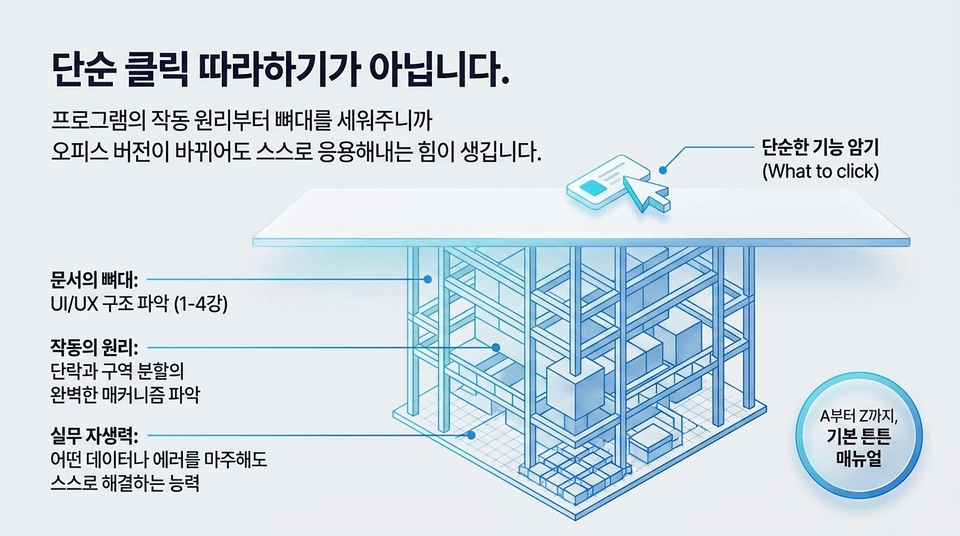
Stop doing patchwork tasks where you just change numbers in Word templates created by others! This course is a 'practical-optimized all-in-one condensed course' that helps you master the full menu manual from Word 2019 to the latest 2026 version from A to Z, building the self-sufficiency to perfectly handle any data analysis or document creation you encounter in the field.
Perfectly mastered all core menus and manuals from Word 2019 to the latest 2026 version.
The ability to process data and utilize essential practical functions that reduce simple repetitive tasks by 10 times.
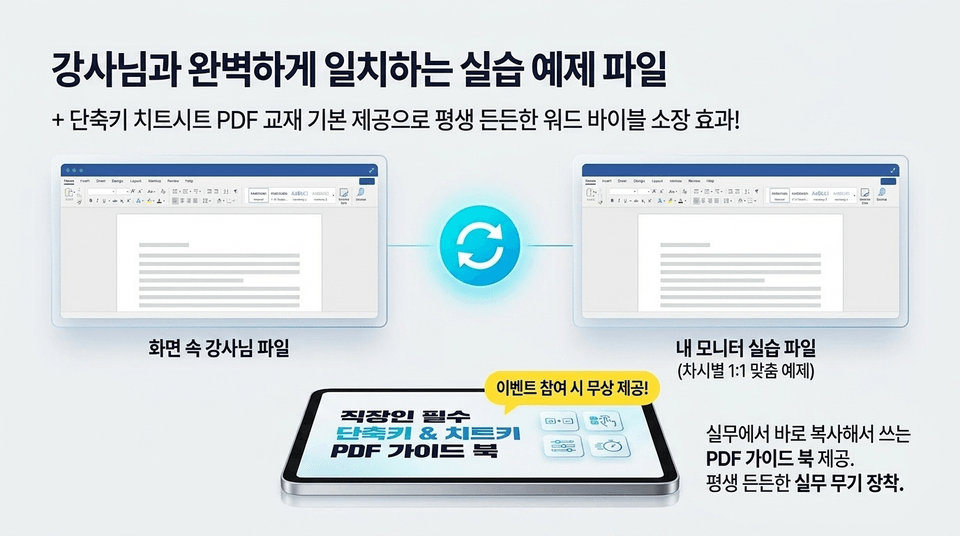
Practice exercises, study guides, and core shortcut key PDFs
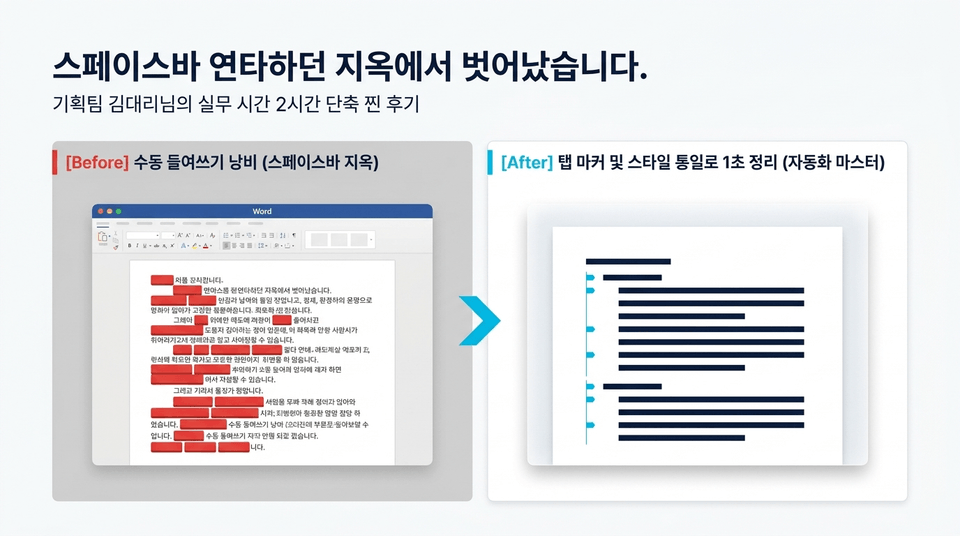
⏱️ From working overtime with spacebar manual labor to becoming a top-tier document planner who finishes work in just 3 minutes!
"From basics to document automation (macros), the ultimate Word productivity cheat sheet to master in a single course"
Are you still working overtime in front of your monitor, struggling with body text formatting that breaks every time and image anchors that jump all over the place ? It's time to put an end to this meaningless waste of time.
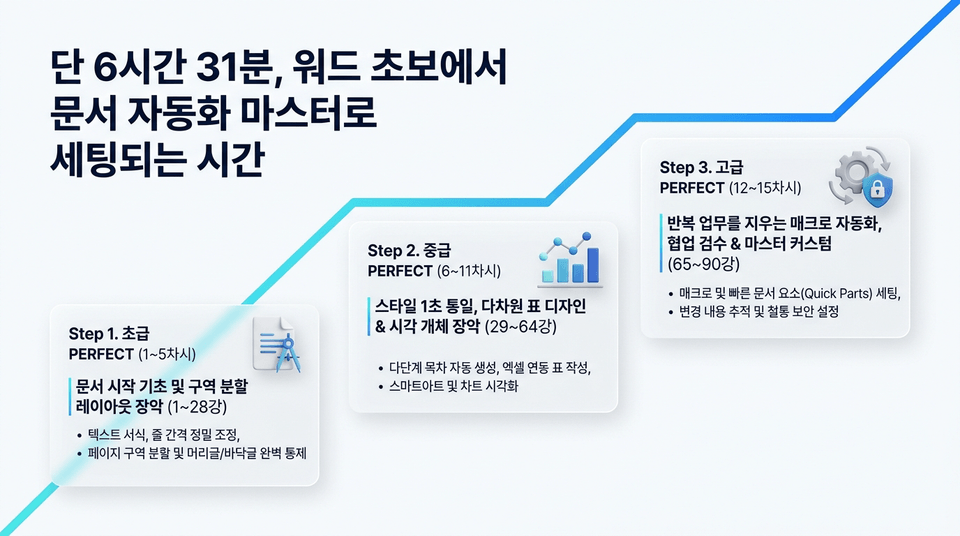
We have compressed all the field-proven know-how of a 15-year business MVP, verified by global corporations and major public institutions, into a single course . 📝 A flawless, comprehensive manual of 90 lessons in total 🗺️ A systematic build-up curriculum across 15 sessions ⏱️ An overwhelmingly condensed guide finished in just 6 hours and 31 minutes
From users of older Word versions to those who want to master batch style control, multi-level list construction, and macro automation cheat keys in the latest versions, I will instill a powerful 'practical self-sufficiency' that allows you to create perfect documents on your own, unshaken in any environment. Now, experience leaving work on time with confidence!
🎓 The one and only master who will save your time, Shin Eui-hyun, CEO of Edupick
"Who you learn from determines your self-sufficiency in Excel practice."
Experience the know-how of a true expert who has educated countless office workers and majors in proven fields such as global companies, public institutions, and university lecture halls.
- 🌐 Internationally Certified Trainer: Apple Authorized Trainer / Avid Certified Instructor - 🏛️ Public Institution & Large Corporation Lectures: KBS Training Center, Korea Creative Content Agency (KOCCA), POSCO ICT, Hyundai Home Shopping, RAPA, KOBACO, etc. - 🏫 Educational History at Leading Universities: Practical lecturer at Sejong University, Woosong University, Ajou University, Sangmyung University, Dongguk University Media Act, Chonbuk National University, Hanshin University, etc.
Rather than a lecture focused only on theory, we deliver only the 'truly useful practical techniques' refined through numerous field experiences and employee training.
⏱️ In just 6 hours and 31 minutes, the time it takes to go from a Word beginner to a document automation master We have designed the most efficient build-up roadmap for busy professionals, teachers, and university students . Instead of tedious, drawn-out lectures, we conquer practical work perfectly in just 15 sessions and a total of 90 lessons (average 5-10 minute micro-summary learning) by compressing only the essentials
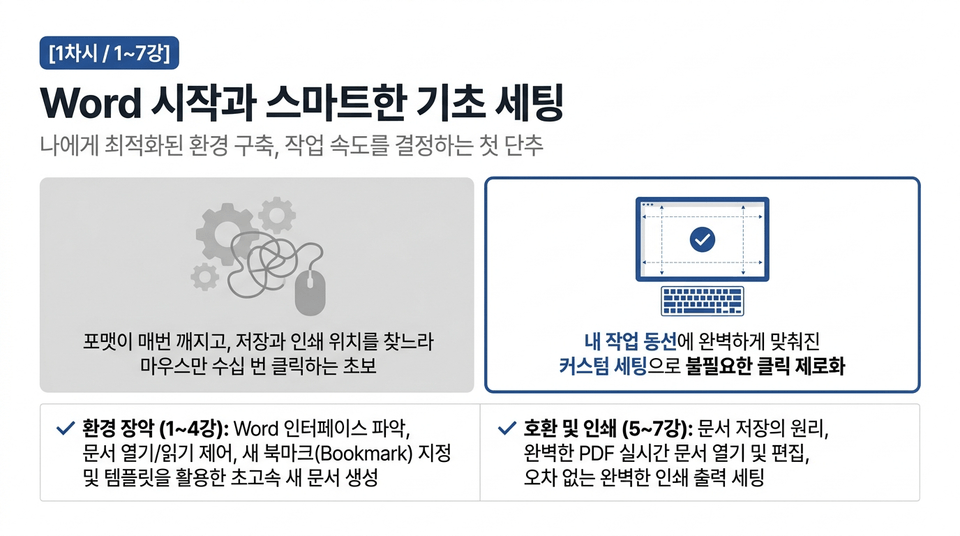
🛠️ [Session 1] Starting Word and Smart Basic Setup (Lessons 1–7)
Before ➡️ After: End the inefficiency of wandering with your mouse to find basic menus hidden here and there! Start with smart basic settings that equip you with a Word-optimized interface, allow you to import and edit PDF documents in their original form, and give you perfect control over printing.
- 📁 Mastering the Environment (Lessons 1-4): Analysis of the Word startup interface, controlling new bookmarks, and how to use templates optimized for practical work - 📑 Compatibility and Printing (Lessons 5-7): Intelligent document saving protocols, freely opening/editing PDF documents, and high-quality print settings
🖱️ [Session 2] High-Speed Editing Techniques and the Secrets of Fonts (Lessons 8–13)
Before ➡️ After: Were you suffering from carpal tunnel syndrome while manually dragging with your mouse to edit bulk document formatting every time? Master high-speed text control and establish font readability using mouse and keyboard shortcut specifications.
- 🖱️ Precision Text Control (Lessons 8–10): Smart text insertion techniques and protocols for precise cutting, copying, and pasting - ⚙️ High-Speed Editing Techniques (Lessons 11–13): Batch find/replace skills within documents, intelligent Undo/Redo, and mastering basic knowledge of high-readability fonts
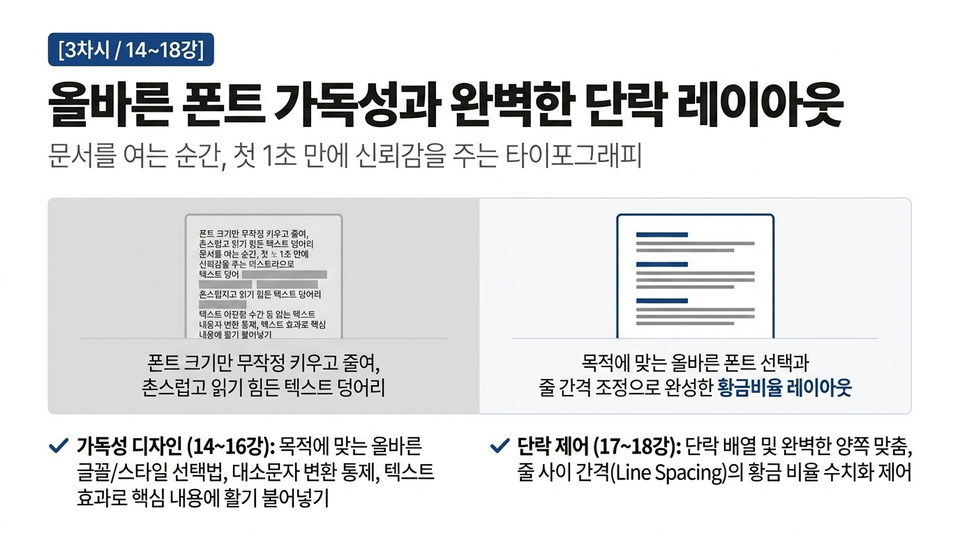
✨ [Session 3] Proper Font Readability and Perfect Paragraph Layout (Lessons 14–18)
Before ➡️ After: Alignment is what determines the first impression of a document. Master the principles of correct font matching suitable for university reports and government proposals, and refine line spacing and alignment neatly with just one click.
- ✒️ Readability Design (Lessons 14–16): How to choose the right fonts/styles for document standards, quick case conversion, and visual text effects - 📐 Paragraph Control (Lessons 17–18): Clean justified alignment techniques and the 1:1.15 line spacing optimization formula that determines readability
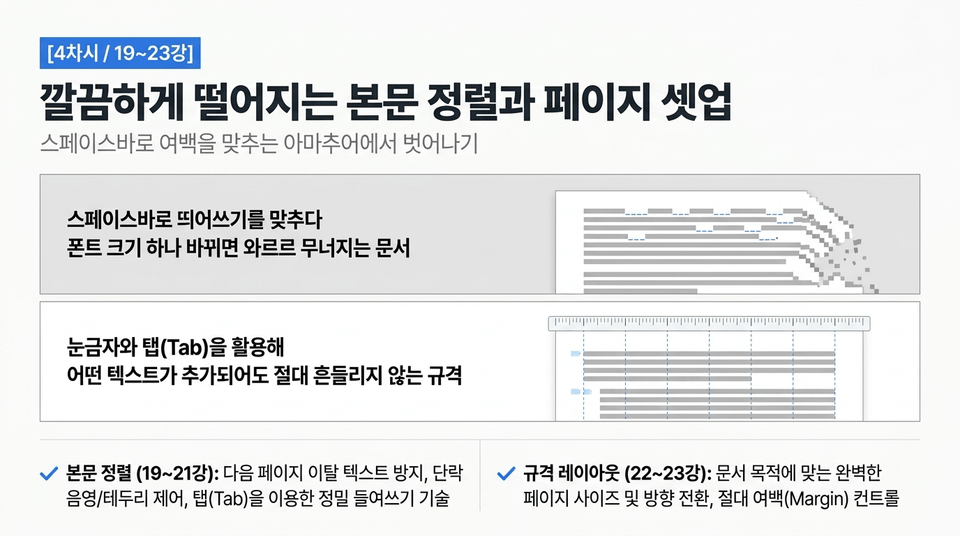
📐 [Session 4] Clean Body Text Alignment and Page Setup (Lessons 19–23)
Before ➡️ After: We've all had the experience of a document getting messed up because of a single line of text that annoyingly spilled over to the next page, right? We will perfectly control paragraph properties and design optimal margins so that the body text is organized without any errors.
- 📐 Body Text Alignment (Lessons 19–21): Techniques to prevent text from pushing to the next page, inserting sophisticated paragraph shading/borders, and zero-error indentation using Tabs - 🗺️ Standard Layout (Lessons 22–23): Paper size and orientation (portrait/landscape) switching techniques, and how to set optimal margins for printing
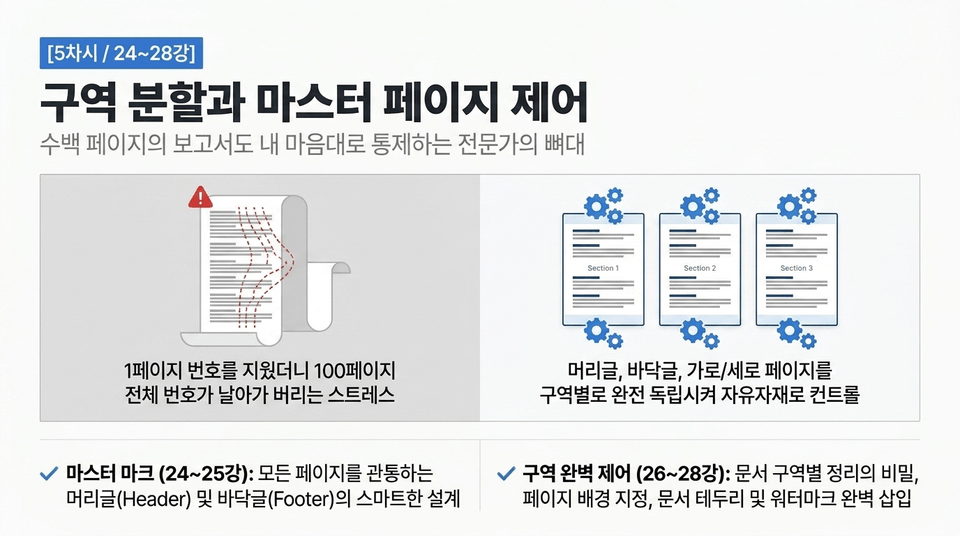
👥 [Session 5] Section Breaks and Master Page Control (Lessons 24–28)
Before ➡️ After: Did you just want to insert one table horizontally, but the entire document got messed up and the headers were all broken? By completely dividing document sections within a single file, you can freely handle mixed portrait/landscape orientations as well as individual master backgrounds.
- 👥 Master Marks (Lessons 24-25): Techniques for optimal placement of headers and footers by section to enhance document quality - 🛡️ Perfect Section Control (Lessons 26-28): Sophisticated document organization by section (Section breaks), custom page background tuning, and insertion of anti-forgery watermarks
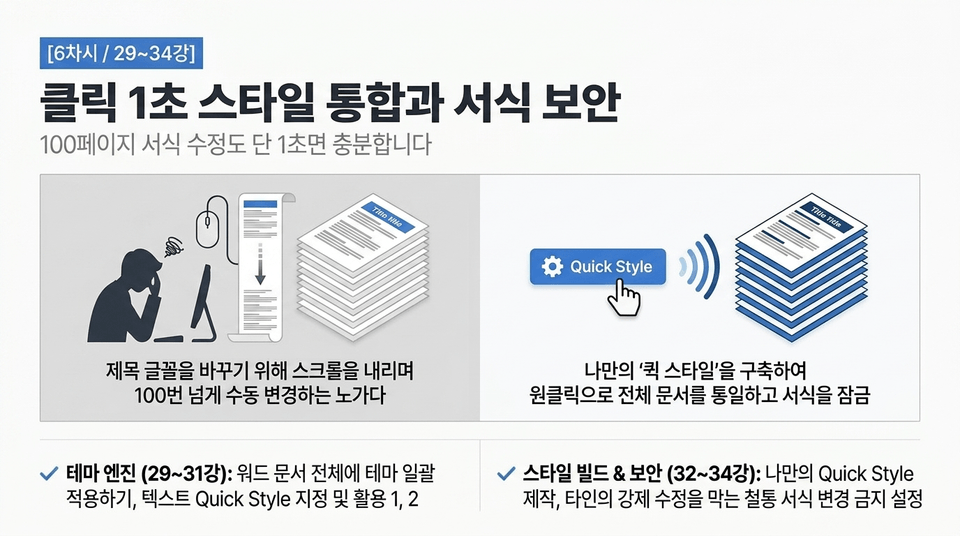
Before ➡️ After: How long will you continue to manually edit "patchwork" documents where fonts, letter spacing, and sizes modified by different people are all tangled together? Set up your own 'Quick Style' database to perfectly align formatting with a single click and fundamentally block any changes.
- ✨ Theme Engine (Lessons 29-31): Applying themes that control the overall mood of the document and perfect application of Quick Styles - 🔒 Style Build & Security (Lessons 32-34): Creating your own unique Quick Styles and setting formatting restrictions to fundamentally prevent editing mistakes by others
🔓 Step 2. Intermediate PERFECT: Complete Mastery of Styles, Tables, and Visual Objects (Lessons 29~64)
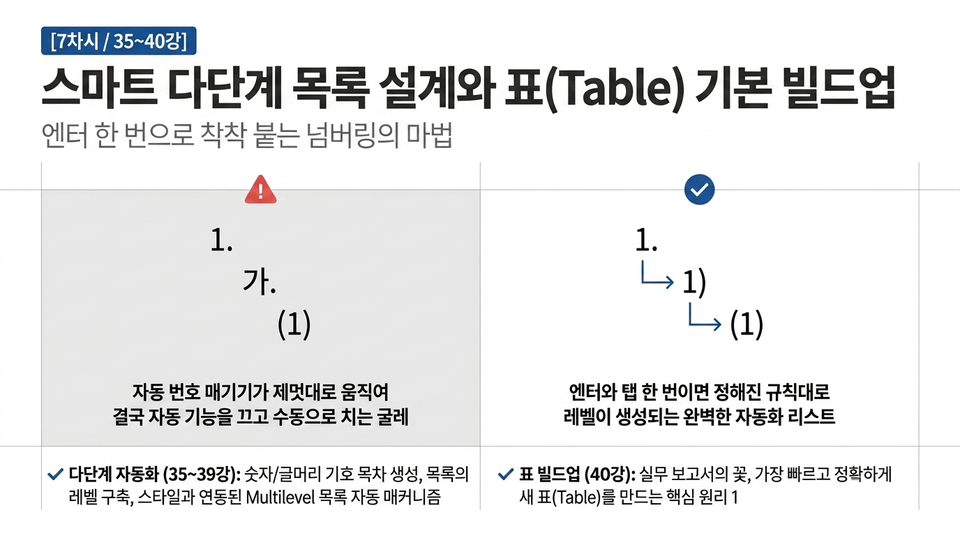
🧮 [Session 7] Smart Multi-level List Design and Basic Table Build-up (Lessons 35~40)
Before ➡️ After: Stop stressing over distorted formatting and indentation from manually typing list numbers like "1. -> a. -> 1)". Learn how to perfectly link list structures with styles for automatic numbering and how to create tables, one of Word's most powerful tools.
- 🧮 Multilevel Automation (Lessons 35–39): Rule-based numbering/bulleted TOC generation, list level design, and style-based Multilevel list linking techniques - 🏗️ Table Build-up (Lesson 40): Drawing sophisticated new tables to organize data statistics at a glance and configuring basic structures
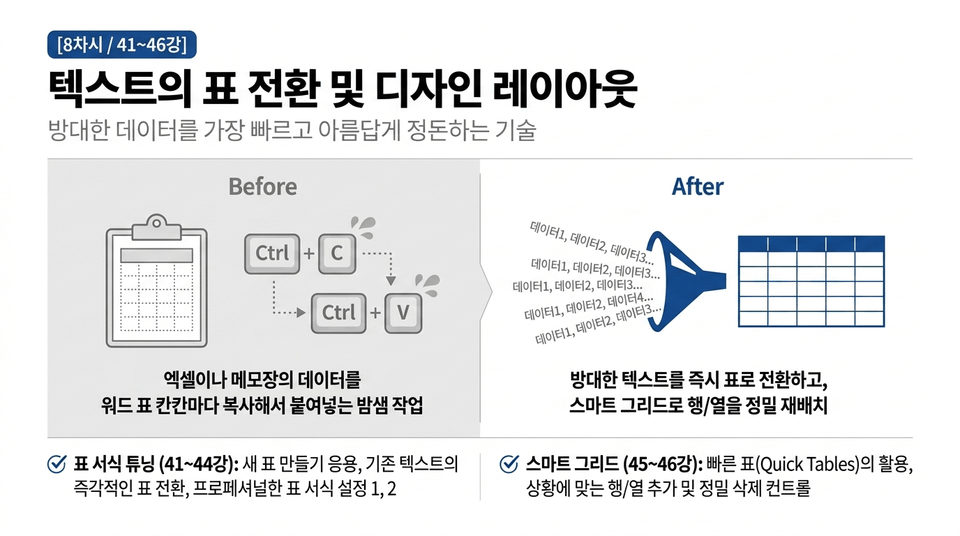
📊 [Session 8] Text-to-Table Conversion and Design Layout (Lessons 41–46)
Before ➡️ After: Have you been repeating the tedious labor of copying and pasting to turn massive amounts of typed text data into a table? Automatically convert text into a table in just one second and apply a high-quality dedicated template.
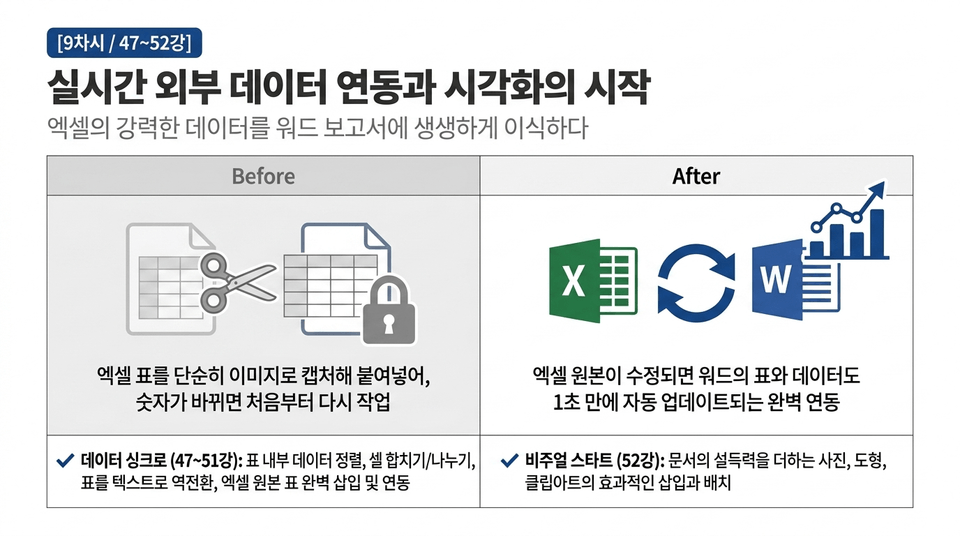
🔗 [Session 9] Real-time External Data Integration and the Beginning of Visualization (Lessons 47–52)
Before ➡️ After: Have you been wearing yourself out capturing and adjusting images every time an Excel table formula changes? By linking the original Excel sheet formatting in real-time, you can achieve 100% synchronization of data formulas within the Word body.
- 🔗 Data Synchronization (Lessons 47–51): Techniques for aligning data within tables, sophisticated cell merging/splitting, and inserting real-time linked Excel tables - 🖼️ Visual Start (Lesson 52): Structural understanding of photos, shapes, and clipart objects that breathe visibility into documents
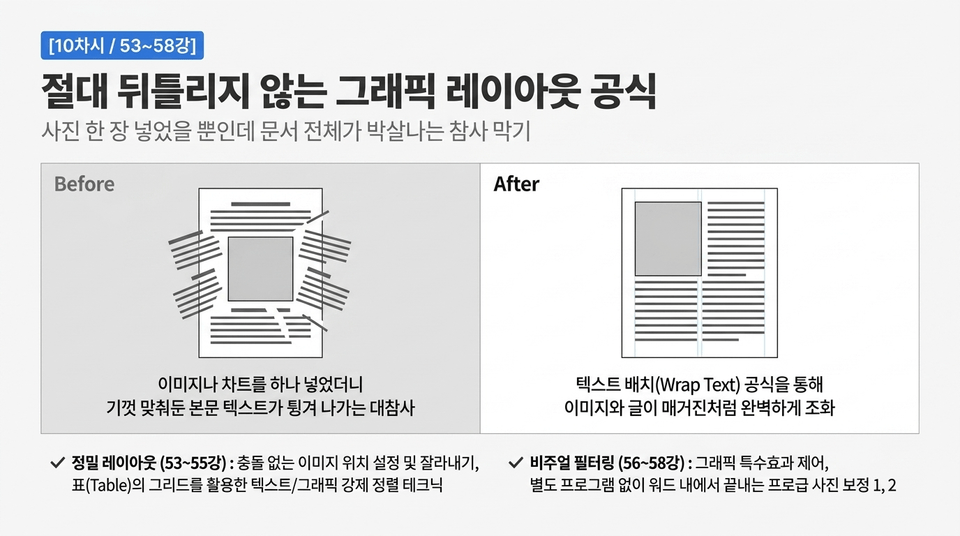
🖼️ [Session 10] The Formula for Graphic Layouts That Never Break (Lessons 53–58)
Before ➡️ After: Did your paragraphs and tables scatter in all directions the moment you clicked and moved a single image? Gain complete control over text wrapping and anchor (fix) icons—the image placement formulas that ensure your formatting never breaks.
- 🖼️ Precision Layout (Lessons 53-55): Adjusting image size and precision cropping, perfectly combining text/graphics using tables, and controlling anchor marks - ✨ Visual Filtering (Lessons 56-58): Creating graphic special effects and precision correction formulas for high-quality photos inserted into the body text
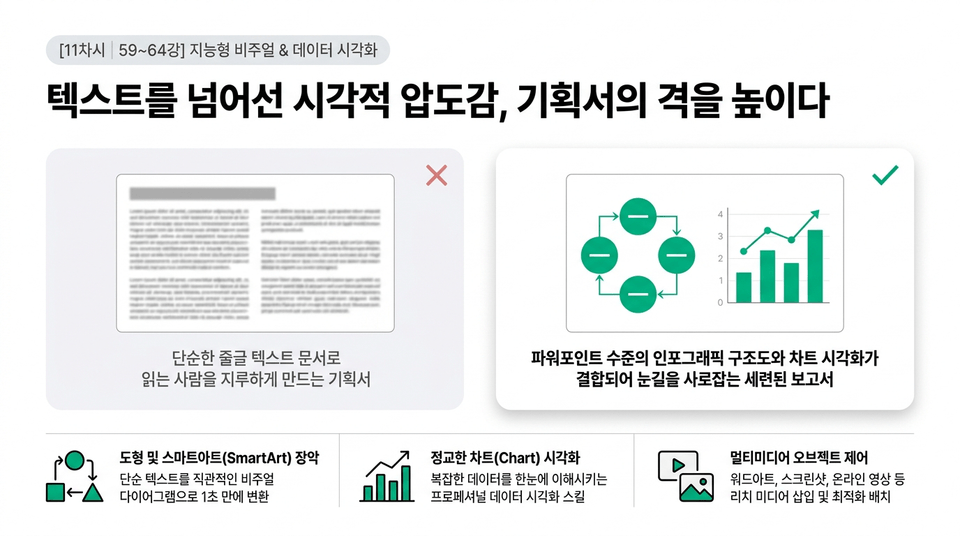
📈 [Module 11] Mastering Professional Diagrams and Sophisticated Charts (Lessons 59–64)
Before ➡️ After: Instantly create PowerPoint-level infographic structures and sophisticated analytical charts within Word with just a few clicks. We will equip you with the advanced skill set to transform simple text documents into captivating visual reports.
- 📊 Intelligent Visuals (Lessons 59-63): Mastering WordArt, online video insertion, and SmartArt for flowcharts/organizational charts - 📈 Data Visualization (Lesson 64): Designing precision charts to visualize data statistics and advanced attribute customization
⚙️ [Session 12] The 1-Second Miracle: Macros and Building Block Automated Quick Parts (Lessons 65–71)
Before ➡️ After: How long will you continue to manually labor with your eyes and fingers on table styling that you set repeatedly every time, or standardized official document formats that you write every morning? Build a macro and boilerplate storage engine that batch-processes complex behavioral patterns with a single shortcut key.
- ⚙️ Automation Magnetic (Lessons 65~68): Final advancement of chart formatting, working principles of Macros, and precise execution/editing methods without errors - 📁 Smart AutoText (Lessons 69~71): Designing Building Blocks to save complex layouts and text formats in their entirety for 1-second recall, and mastering rapid document elements
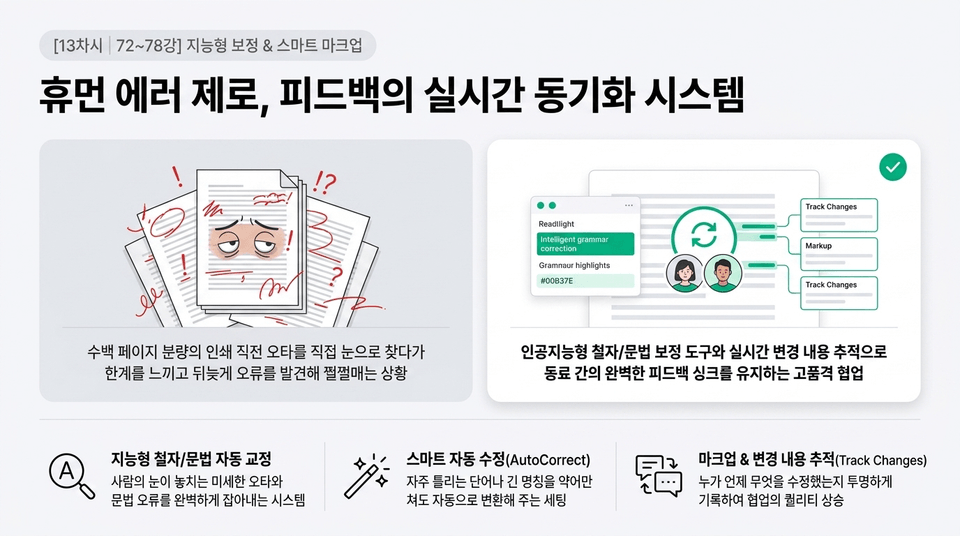
⚙️ [Session 13] Intelligent Proofreading and Perfect Collaborative Markup System (Lectures 72~78)
Before ➡️ After: Haven't you spent all night manually searching for typos in hundreds of pages, only to despair when you find them after printing? Build a system for perfect feedback delivery and change tracking between colleagues, along with intelligent auto-correction tools.
- ⚙️ Intelligent Correction (Lessons 72–75): Advanced Quick Parts and auto-correct features for spelling and grammar that eliminate practical proofreading waste - 👥 Smart Markup (Lessons 76–78): Utilizing thesaurus and real-time translation tools, mastering basic Comment functions and Track Changes
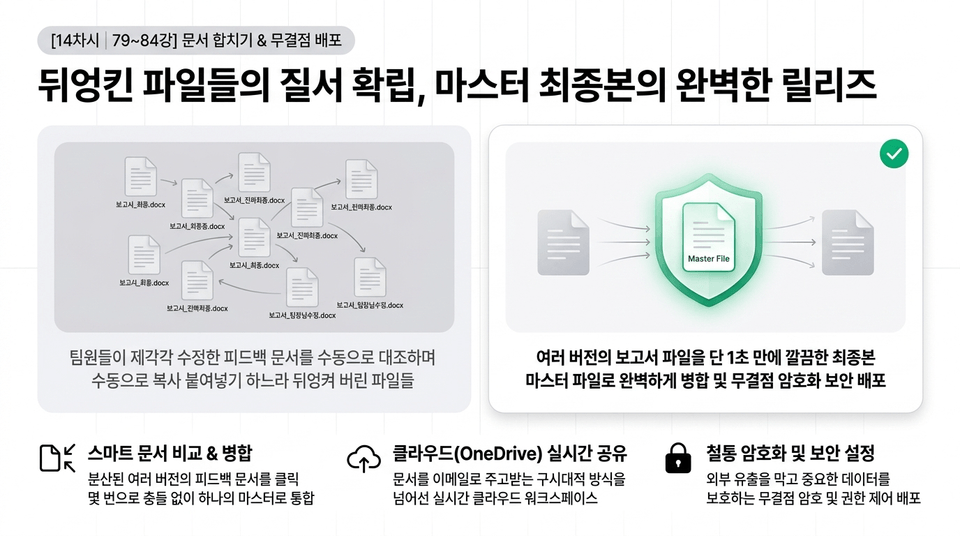
Before ➡️ After: Precisely integrate multiple versions of report files, each edited with red lines by various colleagues, into a single clean final version. Additionally, completely block any concerns regarding personal information leakage during final distribution and apply password protection.
- 👥 Merging Documents (Lessons 79-80): Accepting tracked changes feedback, 1-second comparison and cross-merging techniques to combine multiple reviewed versions into a single master copy - 🛡️ Flawless Distribution (Lessons 81-84): Batch searching/removing risks of personal information and hidden data leaks (preparing for sharing), direct email transmission, and ironclad password security
Before ➡️ After: Are you going to let the contract formats or templates you stayed up all night to perfect be ruined in an instant due to a colleague's lack of knowledge? We conclude the master course with editing restrictions that fundamentally block unauthorized edits, and ribbon tab/QAT tuning to create a "0-second shortcut path" customized just for you.
- 🛡️ Block Unauthorized Modification (Lectures 85-86): Precision editing restriction features that allow modifications only in specific areas, and real-time collaborative saving methods using Cloud OneDrive - 🎛️ Core Master Tuning (Lectures 87-90): Mastering advanced Word settings, creating your own one-click ribbon tabs, and custom settings for the Quick Access Toolbar to eliminate wasted movement
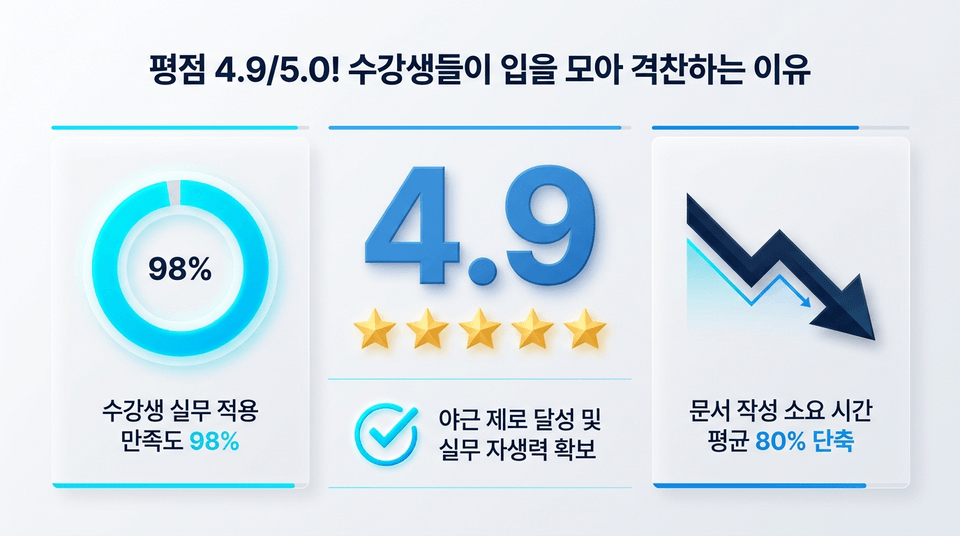
👑 Edupick's overwhelming course satisfaction, already proven by countless professionals Edupick aims for optimal practical education that goes beyond simple functional delivery, enabling students to achieve immediate results in the field.
💬 Real endorsements from seniors: Unrivaled reliability proven by verified student reviews, covering everything from escaping spacebar manual labor to building flawless multi-level lists, 1-second style unification, and macro automation.
In addition to this [MS Word Masterclass: Principle-Centered Document Automation All-in-One] course presented on Inflearn, various business practical contents provided by Edupick have already received overwhelming satisfaction and high praise from numerous junior employees, faculty members, and managers.
📝 Hands-on practical examples: Not just simple feature imitation or a list of shortcuts, but 100% practical, work-customized example files (.docx) provided for all sessions to be used immediately in your actual reports and planning documents ⏱️ Unrivaled efficiency: A clear and compact ultra-compressed micro-learning guide of 90 lessons totaling 6 hours and 31 minutes, saving time for busy professionals and teachers
The 'miracle of leaving on time' and document standardization routines experienced by countless professionals can now be directly transplanted into your environment. With Edupick's proven training, transform into a top-tier document planner where not a single line of formatting is out of place!
Recommended for these people
Who is this course right for?
Office workers who want to systematically master all manuals, starting from the basic menu.
Those who want to handle documents freely regardless of the Word version















![[Master] Solid Fundamentals PowerPoint CourseCourse Thumbnail](https://cdn.inflearn.com/public/courses/330000/cover/19ad29a7-7db7-4a4d-830d-e579c9044c79/330000.png?w=420)
![[Master] Basic and Solid Illustrator Conquer CourseCourse Thumbnail](https://cdn.inflearn.com/public/courses/329341/cover/216064dd-742e-416b-8e29-863ef43ec2db/329341.png?w=420)
![[Master] Basic and Solid InDesign Conquer CourseCourse Thumbnail](https://cdn.inflearn.com/public/courses/328566/cover/b73386b5-3c6e-4182-bb48-6c32d7384353/328566.png?w=420)

![[Master] After Effects CC: Building a Solid Foundation CourseCourse Thumbnail](https://cdn.inflearn.com/public/courses/333257/cover/2e365cbe-6ec2-49d3-98fb-73733422e4db/333257.png?w=420)
![[Master] Basic and Strong Premiere Pro Conquer CourseCourse Thumbnail](https://cdn.inflearn.com/public/courses/328934/cover/70ec442d-5829-4096-bfe0-8ff9593dad04/328934.png?w=420)
![[Master] Basic and Strong Final Cut Pro X CourseCourse Thumbnail](https://cdn.inflearn.com/public/courses/328720/cover/d98b81f5-001e-4ab1-840b-a151cbe889dd/328720.png?w=420)
![[Master] Mastering Vegas Pro: Building a Solid Foundation CourseCourse Thumbnail](https://cdn.inflearn.com/public/courses/333400/cover/8c977d98-4ade-4399-a43f-5242dcdf3abc/333400.png?w=420)
![[Master] Logic Pro X Fundamentals CourseCourse Thumbnail](https://cdn.inflearn.com/public/courses/333265/cover/c2abe6f9-5ed2-49a9-99de-b2d15085b52d/333265.png?w=420)
![[Master] Basic Sturdy Audition CourseCourse Thumbnail](https://cdn.inflearn.com/public/courses/333264/cover/a3d399a6-6aa3-4c70-814b-1718876c6170/333264.png?w=420)
![[Master] Basic Sturdy Cinema 4D CourseCourse Thumbnail](https://cdn.inflearn.com/public/courses/333255/cover/1eb2a41f-6185-49cf-9981-1bda1d85725d/333255.png?w=420)
![[Master] Basic Strong Motion 5 Conquering CourseCourse Thumbnail](https://cdn.inflearn.com/public/courses/329588/cover/b6f491b5-34d8-48f4-8b94-73c22cc0bcf0/329588.png?w=420)
![[Master] Basic Strong Cubase Conquering CourseCourse Thumbnail](https://cdn.inflearn.com/public/courses/328633/cover/788fb022-34ce-4708-922b-93ef45644a61/328633.png?w=420)
![[Master] Follow along with 101 basic and solid Premiere Pro effectsCourse Thumbnail](https://cdn.inflearn.com/public/courses/330105/cover/cd958f98-bb07-438c-a623-8be198a61ac2/330105.png?w=420)
![[Advanced] Mastering Excel: Building a Solid Foundation CourseCourse Thumbnail](https://cdn.inflearn.com/public/files/courses/330004/cover/01m04tf9hsr0m5gzxrskce1nja?w=420)
![[Intermediate] Mastering Excel with a Solid Foundation CourseCourse Thumbnail](https://cdn.inflearn.com/public/files/courses/330003/cover/01m04pa6n703t49hn2dmwpy0ct?w=420)
![[Beginner] Mastering Excel with a Solid Foundation CourseCourse Thumbnail](https://cdn.inflearn.com/public/files/courses/330002/cover/01m01nqapy9skgs8gsn4geedyp?w=420)
![[Advanced] Mastering Basic Solid Vocabulary CourseCourse Thumbnail](https://cdn.inflearn.com/public/files/courses/329993/cover/01m05r0fqknfxtp3x8z47xe9wv?w=420)
![[Intermediate] Mastering Basic Vocabulary with a Solid Foundation CourseCourse Thumbnail](https://cdn.inflearn.com/public/files/courses/329992/cover/01m05qy1cw6ff6j32fmydcqjrb?w=420)


![[The Ultimate Manufacturing DX] AI Practical Application Strategy Master Class for 7 Major IndustriesCourse Thumbnail](https://cdn.inflearn.com/public/files/courses/342169/cover/ai/2/e0850074-3049-4f98-b6db-611d07ea5083.png?w=420)
![[Suminjeongeum] Basic Mathematics for AI - An Introduction to Mathematics Starting from ConceptsCourse Thumbnail](https://cdn.inflearn.com/public/files/courses/342179/cover/01krw77g9yv13wy852v9na3fq1?w=420)

![[2026 AI Trends] A Completely Different Generative AI: How Individuals and Corporations Will Coexist with AICourse Thumbnail](https://cdn.inflearn.com/public/files/courses/341884/cover/ai/2/9c616b32-aa40-411a-8805-b95cb53ba57a.png?w=420)