We invite you to become a ‘Top-Tier Enterprise AI Systems Architect’
Do not remain a micro-level technician (Prompt Writer) who merely assembles libraries created by others or polishes prompt sentences.
From mathematical first principles to runtime control-loop kernels and autonomous recovery infrastructure — through 40 years of practical engineering insight that has driven industrial operations in South Korea, I will firmly guide you to become a top-level ‘Enterprise AI Systems Architect’ who protects your company’s business and digital sovereignty.
Now, begin the great journey of transforming uncontrollable AI into a perfect industrial core.
“Why does an AI that ran perfectly in a demo start spouting strange nonsense or bring the pipeline to a halt as soon as it is deployed to production?” “Why do AI projects that so many companies launch with great enthusiasm ultimately fail to escape the ‘PoC (Proof of Concept) swamp’ and get abandoned?”
These are the most desperate questions that countless developers and systems architects I have met in the field have asked me.
Hello. I am Hongjip Kim, who spent more than 40 years in the powertrain R&D division of the South Korean automotive industry (including 17 years as an executive in Hyundai Motor Group R&D), led the export of engine and drivetrain technologies worth 130 billion won, and commanded operations as the CEO/CTO of a listed mid-sized manufacturing company.
From the perspective of an engineer who has spent decades in mechanical engineering and precision-control environments, a ‘risk of fatal uncertainty’ lurks behind today’s frenzy to adopt generative AI. In mission-critical industrial environments where even a mere 0.1% error or mistake can directly result in the destruction of physical equipment worth hundreds of millions of won and an enterprise-wide shutdown, integrating a probabilistic chatbot that simply relies on probability to generate plausible text directly into a service is like carrying a ticking time bomb into a fire.
This course was designed to impart the “practical engineering methodology for training uncontrollable probabilistic AI into the most robust industrial control core, one that allows not even 0.000% of syntax errors.”
1. The 3 Major Fatal Bottlenecks You Face in the Field (Problem)
Many engineers attempt to challenge production environments using an approach limited to one-off prompt tuning (Vibe Prompting), only to become frustrated when they encounter the following 3 structural defects:
Finite Context and ‘Lost in the Middle’: As conversations or multistep executions grow longer, critical system instructions are pushed aside and the context window is exhausted, causing the system to lose its memory and amplifying hallucinations.
Nondeterministic Outputs and Cascading Pipeline Collapse: Tiny probabilistic fluctuations, such as one missing closing bracket in JSON or an incorrect type, can paralyze legacy ERP/CRM API calls and destroy data integrity.
Untrusted Code Execution and Infrastructure Security Bankruptcy: When scripts autonomously generated by an agent run in a non-isolated host OS environment, they create risks such as kernel escapes and sensitive-data leakage.
As such, AI malfunctions in industrial environments are not merely quantitative accuracy problems; they become a massive financial disaster in the form of asymmetric business loss (Asymmetric Business Loss).
2. ‘How’ to Solve These Problems Perfectly (Solution)
This course differs fundamentally from commercial courses that teach only how to use fragmented off-the-shelf tools. By combining 40 years of hands-on field expertise with computer systems engineering, it delivers 3 hardcore architectures for vertically integrated, system-level control of probabilistic AI:
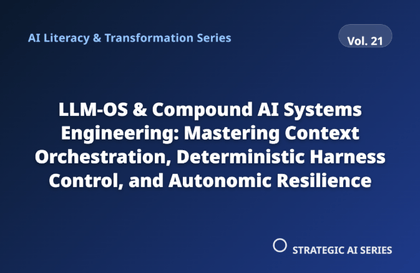
① Move Beyond Prompting to ‘LLM-OS & Context Orchestration’
Following Andrej Karpathy’s paradigm, redefine the LLM not as a conversational respondent but as the central computational core (CPU) of a computer.
Systematically organize the context window as ultra-low-latency volatile RAM, the internal vector DB as Disk, and external APIs as an I/O bus.
Through MemGPT hierarchical virtual-memory paging, preserve critical state without saturation even during infinite conversations, while scaling a dynamic agent network through MCP-based Liquid Swarm MAS, minimizing token costs.
② ‘Deterministic Harness Engineering’ That Constrains Probabilistic Hallucinations to 0.000%
Leave the language model’s creative flexibility open only during the Reasoning phase, while firmly confining the physical output layer that interacts with external systems using mathematical Boolean algebra and compilers.
Apply EBNF / XGrammar-based CUDA logit masking to forcibly block the generation probability of invalid tokens at P = 0.000%.
Form a physical security isolation ring so that code generated by agents runs only once inside a Firecracker MicroVM micro-virtualization sandbox with 5ms snapshot restoration capability.
③ ‘High-Reliability MLOps·LLMOps Autonomous Recovery Infrastructure’ Without Wasting GPU Resources
Build vLLM PagedAttention and S-LoRA hot-swapping to suppress idle VRAM waste to below 4%.
When a multi-agent API fails, restore data consistency 100% through SagaLLM reverse compensation transactions.
Through an OpenTelemetry/Langfuse distributed observability network, defend system availability by executing an unmanned automatic canary rollback whenever a decline in the RAGAS faithfulness score (Data Drift) is detected.
3. Practical Value That Drives Spiral Growth (Pedagogy & ROI)
This course is systematically designed according to the 5 levels of Bloom's Taxonomy. Starting from simple theoretical recall (Remember), learners directly code and validate a 5-stage debugging pipeline (analyzing deceptive baseline trap source code ➔ deconstructing adversarial engineering ➔ establishing a Robust integrity pipeline ➔ calculating the TEI ROI formula ➔ SOTIF/ISO 42001 governance).
Going beyond the intuitive satisfaction of simply “working well,” I will apply the Forrester TEI (Total Economic Impact) financial model to visualize, from an executive perspective, how much the AI system you build reduces your company’s rework cost (Rework Cost), avoids failure risks worth hundreds of millions of won, and proves an ROI of more than 200%.