

inflearn logo

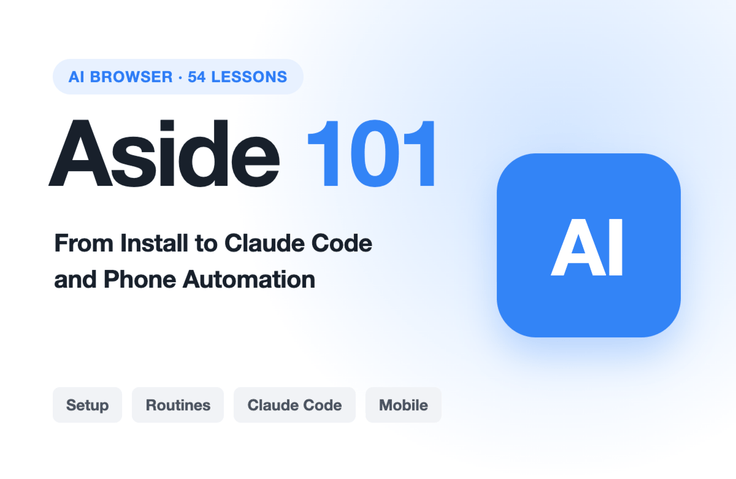
Getting Started with A-Side — From Installing the AI Browser to Automation

Install the AI browser assistant and connect your Claude and ChatGPT subscriptions to create a routine that runs at a set time. Connect it to Claude Code to receive the results as Excel or CSV files. Finally, use Pickle, your phone’s AI assistant, to assign tasks to the assistant on your home computer and get the results on your phone.

3 learners are taking this course

Level Beginner

Course period Unlimited

ChatGPT
ChatGPT
AI Agent
AI Agent
claude
claude
ChatGPT
ChatGPT
AI Agent
AI Agent
claude
claude

What you will gain after the course

  • Install Aside on my computer and connect my Claude and ChatGPT subscriptions.

  • The user gives the tool tasks using four criteria: where, what, in what form, and what not to do.

  • I create, edit, and stop routines like a daily morning briefing.

  • I build everyday and work automations like price comparisons, organizing announcements, and drafting replies to inquiries.

  • I delegate tasks to Aside in Claude Code and receive the results as files.

  • Securely set up the password vault, 12-word recovery key, permissions, memory, and privacy immediately after installation.

  • Learn five safety checks that make you pause before a payment or transfer and verify the result through the original link.

  • I use the mobile AI assistant Pickle to assign tasks to my home computer, Aside, and receive the results on my phone.

Are you still doing your daily browser tasks by hand?

When you get to work, you skim a few news articles, compare prices across three shopping sites, and look up grant announcements to note down their deadlines. Each task takes just five minutes, but they add up to a significant amount of time every day.

The AI browser “Aside” takes care of tasks like these for you. Instead of just giving you answers like an AI chat, it opens and reads pages directly in your browser and organizes the information into tables. You can also set up “routines” that run automatically at scheduled times. In this introductory course, you’ll follow along with real on-screen demonstrations, from installation to practical automation, connecting Claude Code, and linking the Pickle AI assistant on your phone.

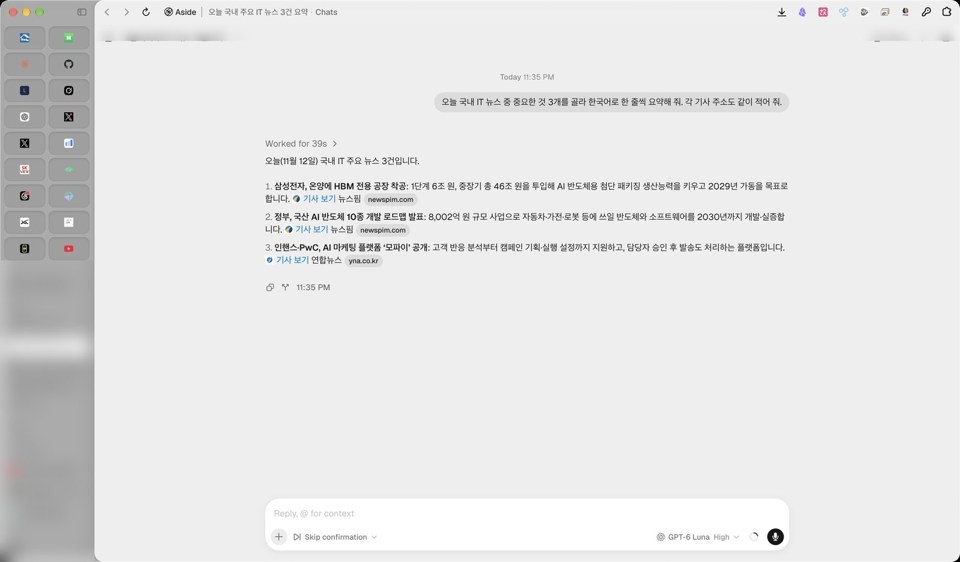
The actual result screen generated by a one-line request to summarize three domestic IT news stories in Korean today (4-1)

A Table Is Created with a One-Line Request

First, follow the screens to complete the installation, connect your subscription, and configure permissions, memory, and privacy settings one step at a time. Then, in Part 4, you’ll learn a formula for getting AI to work effectively: include just four things—“where + what + in what format + what not to do”—and you’ll get much more accurate results from the same AI.

You’ll put this formula to work right away in Parts 6 and 7. You’ll create a comparison table of prices and shipping costs from three online stores, and organize government grant announcements into a table. You’ll also learn how to ask AI to stop just before taking actions that are hard to undo, such as making a payment or sending money, so you can make the final decision yourself.

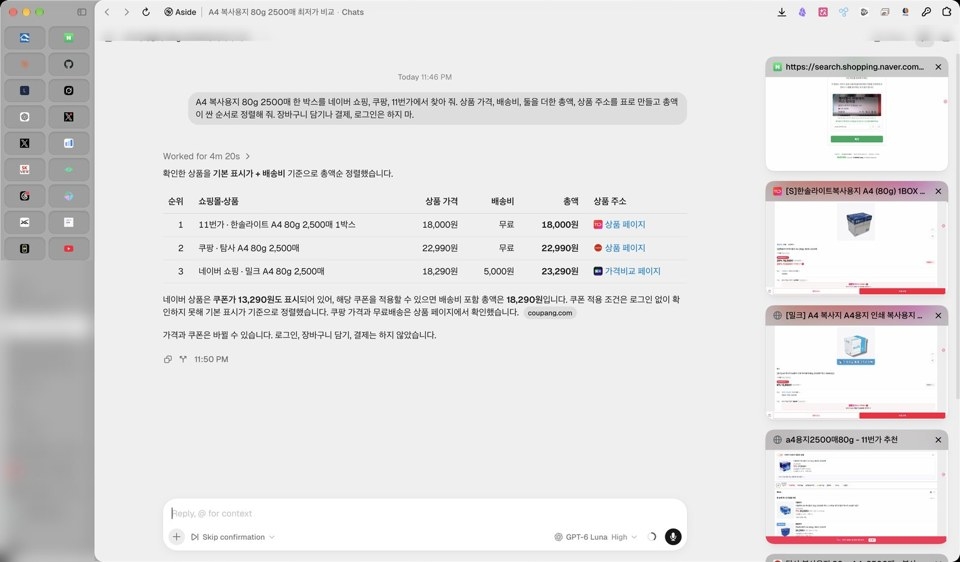
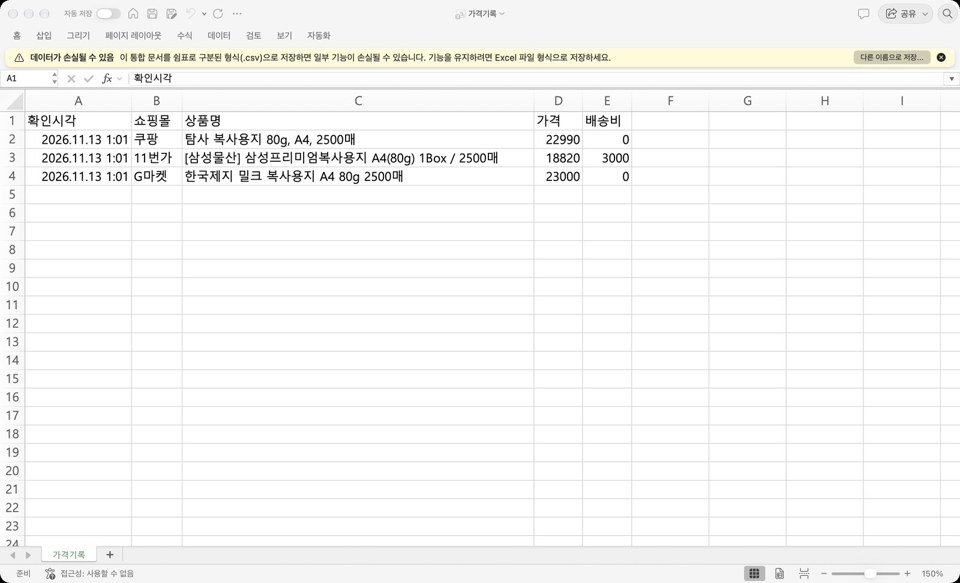
Price and shipping cost comparison table for three online shopping malls — actual screen stopped right before payment (6-1)

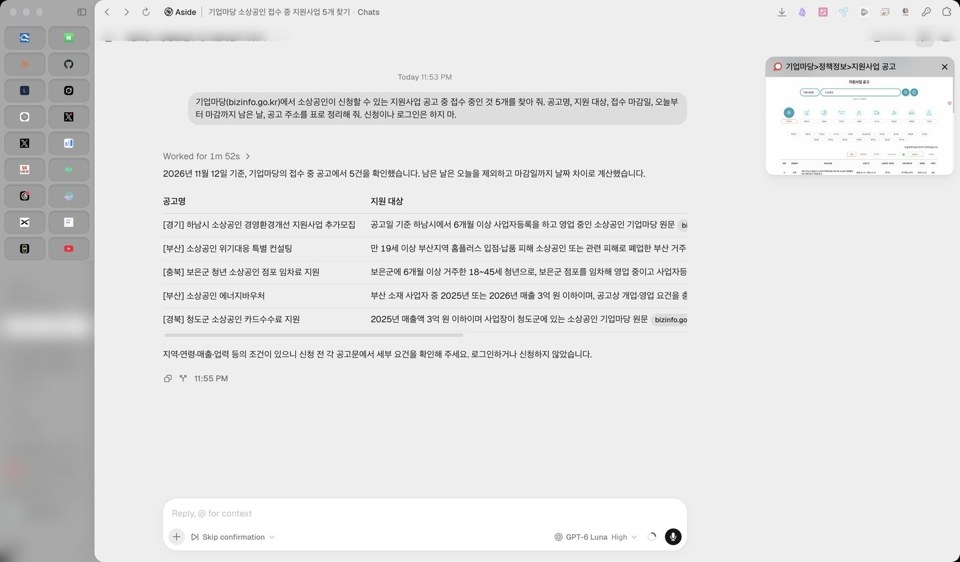
Actual screen of support program announcements organized in a table (7-1)

An AI that shows up to work on its own at a set time: routines

In Part 5, you’ll build a routine that puts together a news briefing every morning at 8. You’ll learn how to edit and stop a routine, check it right away with “Run now,” and choose from three free routines. We’ll also cover common issues you’re bound to run into when you first get started, such as routines not running when your computer is off, not remembering past results, and disappearing when you delete the conversation.

In Parts 6–7, we’ll build everyday automations anyone can use, along with work automations for business owners and office workers.

  • Price and Shipping Comparison Table for Three Online Stores (Stops Before Checkout)

  • Find local cafes and restaurants that meet your criteria

  • A reminder routine one day before an automatic subscription payment goes through

  • Find that page I saw last week again.

  • Find the cheapest flight and take it right up to the payment step

  • Business Support Program Announcements and Days Until the Deadline

  • Collect blog and café posts that mention the name of our shop or company.

  • Draft a reply to a customer inquiry (I’ll send it myself)

  • Set up a weekly Monday routine to research 10 blog keywords.

  • Download attachments, organize their filenames, and create an inventory list.

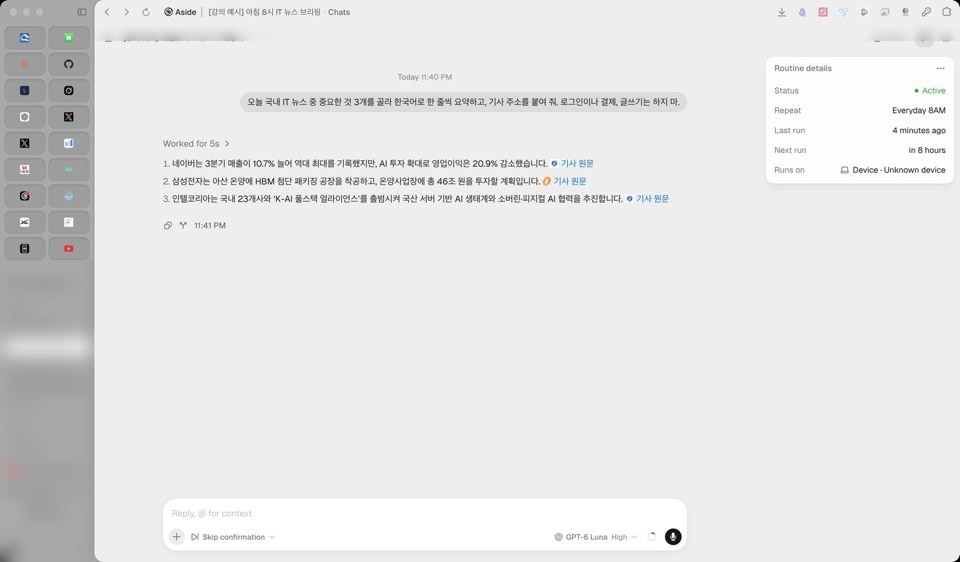
The results screen from the daily 8 a.m. briefing routine — the recurrence interval and most recent run time are shown on the right (Part 5)

Build up results in files by connecting Claude Code

In Parts 8–9, we’ll connect Claude Code and Aside. Claude Code is good at working with files on your computer, while Aside is good at gathering information from the web. Connect the two, and all you have to do is ask Claude Code in plain Korean; Aside will browse the web and gather information, and the results will be saved as Excel or CSV files on your computer.

  • Connect: Install the command-line tool and skill under Aside Settings > Developer

  • Price tracker: Add each check to one file (solves the problem of routines not remembering previous results)

  • Multiple Job Postings in One-Page Summary Document

  • Inspect my website: Capture screenshots of the pages and find anything broken

You don’t need to memorize commands. We’ll show you the exact phrases to use so you can follow along even if you don’t know how to code.

Give It Tasks and Get Results on Your Phone — Connecting Pickle (Part 11)

In the final Part 11, we move to phones. Aside works on your computer, so you have to be at your desk to see the results. Connect the mobile AI assistant Pickle to Aside on your home computer, and you can assign tasks from your phone while you’re away and receive the results there, too. Your login information stays on your home computer; Pickle only sends requests and receives results.

  • Four steps to connect: Turn on remote control → Send a connection request → Approve the code → Test the setup

  • A One-Page Briefing for Your Commute

  • Support Program Announcements → Deadlines and Phone Inquiries

  • Price monitoring → Notification right before checkout

  • Customer inquiry → Approve the reply on your phone

Even in these cases, a person presses the final button for actions like making a payment or sending something. Part 11 requires the free Pickle app, and remote control that lets you summon Aside on your home computer from your phone is available with the Aside Pro plan ($20/month). Parts 0–10 can be followed without Pickle.

Claude Code’s results screen showing shopping mall prices collected using Aside and stored in a CSV file (Parts 8–9)

Course structure — 13 parts, 54 lessons, approximately 180 minutes

0. Introduction

  • Course Introduction: Mornings That Are Already Taken Care Of Before You Leave for Work (Preview)

  • See the Finished Product First: 10 Automations You’ll Build in This Course (Preview)

  • What You’ll Need and How to Take the Course

Part 1. What Is Aside?

  • How Are AI Chatbots Different from AI Browsers? (Preview)

  • Plans and Credits: How Far Can You Go for Free?

  • Tasks You Can Entrust to It—and Tasks You Shouldn’t

Part 2. Installation

  • Download and Installation (Windows)

  • What’s Different on Mac

  • First launch: Sign in, import Chrome history and bookmarks

  • The Password Vault and 12-Word Recovery Key: Be Sure to Write Them Down

Part 2.5. Connect Your Subscription — Use It Without Worrying About Credits

  • Why connect first: Connecting your subscription means your credits won’t go down.

  • How to Connect Your Claude Subscription

  • Follow the steps to connect your ChatGPT subscription

  • Verify the connection and choose a work model

Part 3. Basic Setup

  • Explore the Screen: Work Area, Side Panel, and Vertical Tabs

  • Three Permission Options and Asking First

  • Turn On and Manage Memory

  • 5-Minute Privacy Check

Part 4. Giving It Its First Task

  • First task: Summarize three news stories in Korean today

  • The formula for giving effective instructions: where + what + in what format + what not to do

  • Side panel: Explain the article you’re viewing in plain language or translate it.

  • Habit for checking results: ask for a link to the original source as well

Part 5. Routines — An AI That Shows Up for Work at a Set Time

  • What Is a Routine?

  • Creating Your First Routine: An 8 A.M. Briefing Every Morning

  • Edit, pause, run now, and how to choose three free ones

  • When a Routine Doesn’t Run

Part 6. Everyday Automation — For Everyone

  • Price and shipping cost comparison table for three online stores

  • Finding nearby cafes and restaurants that meet your criteria

  • Subscription Auto-Payment Reminder Routine: One Day Before Renewal

  • Find that page I saw last week again.

  • Travel: Find the cheapest flights, right up to the point of payment

Part 7. Automating Work — Business Owners and Office Workers

  • Support program announcements in a table + days remaining until the deadline

  • Collect blog and online community posts that mention our store or company’s name

  • Draft replies to customer inquiries (I’ll send them myself)

  • Research 10 blog keywords → a Monday routine every week

  • Download the attachments, organize their names, and create a list.

Part 8. Connecting with Claude Code

  • What Is Claude Code, and Why Use It Together?

  • Connect: Install the Aside command-line tool and skills

  • Giving Airside Tasks in Claude Code

  • Download the results as a file on your computer (Excel or CSV)

Part 9. Claude Code + Aside in Practice

  • Price Tracking Sheet: Keep Adding to One File Each Time You Check

  • Multiple job postings → One-page summary document

  • Check My Website: Gather Page Screenshots to Find Broken Areas

Part 10. Conclusion

  • 5 Essential Safety Boundaries

  • Finding Your Own Automation: Worksheet and Next Steps

Part 11. Pickle + Aside — Automations You Can Start on Your Phone and See Through to the End

  • Why Combine the Two: A Desk Assistant and a Pocket Assistant

  • Getting Started with Pickle: Installation, Sign-Up, and Connecting Email and Calendar

  • The Bridge Between the Two Assistants: Using Pickle to Give Your Home Computer, Aside, Tasks

  • Hands-on ① A One-Page Briefing for the Commute

  • Practical Example ② Grant Announcement → Deadline Schedule and Phone Inquiry

  • Practical Example 3: Price Monitoring → Alerts Right Before Checkout

  • Hands-on Example ④ Customer Inquiry → Approve the Reply on Your Phone

  • When Delegating from Outside: What Works and What Doesn’t

  • Safety Boundaries and Costs of the Two Assistants

Ideal for people like these

  • Office workers who have tried AI chat and want to automate their daily web searches and organizing tasks.

  • Business owners with lots of repetitive tasks, such as checking grant announcements, comparing prices, and researching blogs.

  • People who want to try using Claude Code and an AI browser together, even without knowing how to code.

  • Those who want to delegate tasks and receive the results on their phone, even when they’re away from their computer (Part 11, using the Pickle app)

What You’ll Need

  • A Windows or Mac computer (the instructions are based on Windows; differences on Mac are covered separately in section 2-2)

  • You can get started with a free Aside account. If you subscribe to Claude or ChatGPT, you can connect it in Part 2.5 and use it without worrying about credits.

  • Claude Code in Parts 8–9 requires a paid Claude plan.

  • Part 11 requires the Pickle app, a free AI assistant for your phone. Remote control is available with the Aside Pro plan ($20/month). Your home computer and Aside must be on to receive tasks.

This is how it works.

Each lesson is broken into short 2–4 minute segments. Watch one, try it on your own screen, then move on to the next. In the settings screens, numbered steps and highlighted boxes show you where to click, and at the end of each lesson, there’s a one-line summary of what to remember. Starting in Part 6, we show you exactly what to type to give the AI a task, then check the results on screen. You can follow the examples as written or adapt them to your own work. The Pickle screen in Part 11 shows the Pickle app running on a Mac with the same account as on the phone.

Important Things to Know

  • For actions that are difficult to undo, such as making payments, transferring money, or logging in, we teach you not to leave everything to AI and how to stop just before completing the payment.

  • We also build the habit of checking AI-generated summaries against the original links.

  • The prices and menus shown on screen reflect what was available when filmed in November 2026 and may change afterward.

  • The lecture narration was created using AI voice synthesis (ElevenLabs) trained on the instructor’s own voice, and personal information on screen has been blurred.

Course materials

I’ve included the complete lecture slide PDF (318 pages) for all 11 sections in the first lesson (0-1).

Cancellations are not allowed after downloading the course materials. Course materials may not be distributed or shared without permission.

Let AI handle the preparation; you make the decisions. Pick one task you repeat and try making it part of your routine today.

Recommended for
these people

Who is this course right for?

  • A professional who has tried AI chat and wants to automate the web research and organizing they do every day

  • Business owners with lots of repetitive tasks, such as checking business support program announcements, comparing prices, and researching blogs.

  • For those who don’t know how to code but want to try using Claude Code and an AI browser together.

  • People who spend time finding and organizing news and industry updates themselves every morning.

  • People who have installed Aside but can’t use it properly because they’re stuck on linking their subscription and setting up permissions.

  • People who want to assign tasks and review the results on their phone while out (Part 11: Using the Pickle app)

Need to know before starting?

  • You just need to know how to use an internet browser (no coding knowledge required).

Hello
This is sangsu09160857

I’m Lee Sang-soo, CEO of Lbiz Partners. For over 20 years, I have provided management consulting to small and medium-sized businesses, delivering training and advisory services to around 1,000 companies. More recently, I have worked with over 500 graduates through AI utilization training. I am the author of “Successful Companies Clearly Have a Special Reason” and “Management Consulting Is Over,” and I hold international lead auditor qualifications for three ISO standards. I make it easy for frontline salespeople and business owners to learn practical ways to use AI that they can put to work starting tomorrow.

More

Curriculum

All

54 lectures ∙ (2hr 59min)

Course Materials:

Lecture resources
Published: 
Last updated: 

Reviews

Not enough reviews.
Please write a valuable review that helps everyone!

sangsu09160857's other courses

Check out other courses by the instructor!

Similar courses

Explore other courses in the same field!

25% off for new members

$64.70

25%

$84.70