


야매버전 마지막에서 막힙니다 ㅠ
162
작성자 없음
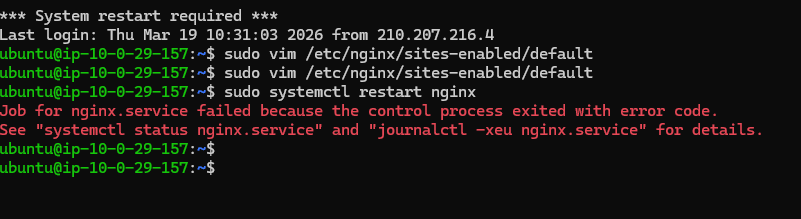
마지막에 nginx 를 n8n연결하는 단계에서 재시동하니 저렇게 오류메시지가 뜨네요..
location 수정이 잘못된건지.. 그게 맞다면
명령어를 주신다고했는데 어디있는지 못찾겠어요..
다시 들어가보니
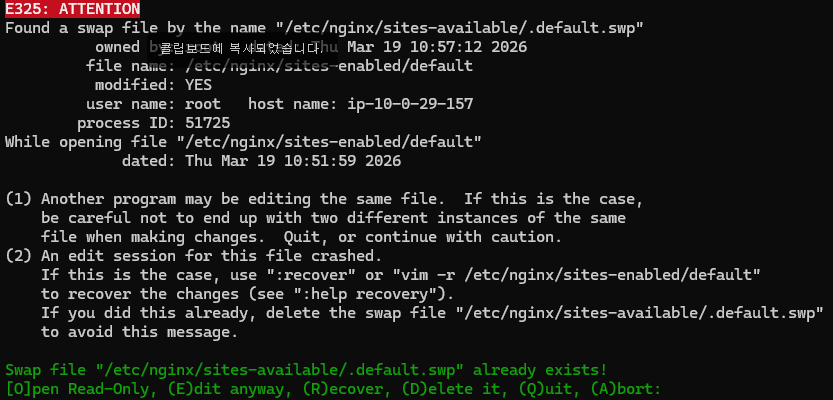
이렇게 나옵니다.. 방법을 모르겠습니다;
답변 2
0
임시 파일이 남아있어서 발생하는 문제인 것 같은데요, 먼저 다른 vim 프로세스가 실행 중인지 확인하시고,
ps aux | grep vim실행 중인 vim 프로세스가 없다면, 경고 메세지에서 보시는 것처럼 swap 파일을 삭제하면 됩니다.
sudo rm /etc/nginx/sites-available/.default.swp그 후 다시 파일을 열면 경고 없이 정상적으로 편집할 수 있습니다. 그리고 restart가 실패한다면 파일에 문법 오류가 있을 수도 있는데요, 아래 명령어를 통해 확인할 수 있습니다.
sudo nginx -t오류를 수정하시고 다시 restart 해보시면 정상 동작할 것 같습니다
0
죄송하지만.. 전체 복사해서 붙여넣기 해보겠습니다 ㅠ
확인좀 부탁드려도 될까요?
Windows PowerShell
Copyright (C) Microsoft Corporation. All rights reserved.
새로운 기능 및 개선 사항에 대 한 최신 PowerShell을 설치 하세요! https://aka.ms/PSWindows
개인 및 시스템 프로필을 로드하는 데 768ms가 걸렸습니다.
PS C:\Users\user> ssh -i "inflearn-n8n-lecture-key-pair.pem" ubuntu@16.59.60.177
Welcome to Ubuntu 24.04.4 LTS (GNU/Linux 6.14.0-1018-aws x86_64)
* Documentation: https://help.ubuntu.com
* Management: https://landscape.canonical.com
* Support: https://ubuntu.com/pro
System information as of Mon Mar 23 23:36:51 UTC 2026
System load: 0.08 Temperature: -273.1 C
Usage of /: 80.0% of 6.71GB Processes: 115
Memory usage: 34% Users logged in: 0
Swap usage: 0% IPv4 address for ens5: 10.0.29.157
* Ubuntu Pro delivers the most comprehensive open source security and
compliance features.
Expanded Security Maintenance for Applications is not enabled.
11 updates can be applied immediately.
To see these additional updates run: apt list --upgradable
Enable ESM Apps to receive additional future security updates.
See https://ubuntu.com/esm or run: sudo pro status
*** System restart required ***
Last login: Thu Mar 19 23:38:21 2026 from 210.207.216.4
ubuntu@ip-10-0-29-157:~$ ps aux | grep vim
ubuntu 68462 0.0 0.2 7076 2224 pts/0 S+ 23:37 0:00 grep --color=auto vim
ubuntu@ip-10-0-29-157:~$ sudo rm /etc/nginx/sites-available/.default.swp
ubuntu@ip-10-0-29-157:~$ sudo vim /etc/nginx/sites-enabled/default
ubuntu@ip-10-0-29-157:~$ sudo nginx -t
2026/03/23 23:39:27 [emerg] 68472#68472: "server" directive is not allowed here in /etc/nginx/sites-enabled/default:102
nginx: configuration file /etc/nginx/nginx.conf test failed
ubuntu@ip-10-0-29-157:~$ sudo vim /etc/nginx/sites-enabled/default
ubuntu@ip-10-0-29-157:~$ cat /etc/nginx/sites-enabled/default
##
# You should look at the following URL's in order to grasp a solid understanding
# of Nginx configuration files in order to fully unleash the power of Nginx.
# https://www.nginx.com/resources/wiki/start/
# https://www.nginx.com/resources/wiki/start/topics/tutorials/config_pitfalls/
# https://wiki.debian.org/Nginx/DirectoryStructure
#
# In most cases, administrators will remove this file from sites-enabled/ and
# leave it as reference inside of sites-available where it will continue to be
# updated by the nginx packaging team.
#
# This file will automatically load configuration files provided by other
# applications, such as Drupal or Wordpress. These applications will be made
# available underneath a path with that package name, such as /drupal8.
#
# Please see /usr/share/doc/nginx-doc/examples/ for more detailed examples.
##
# Default server configuration
#
server {
listen 80 default_server;
listen [::]:80 default_server;
# SSL configuration
#
# listen 443 ssl default_server;
# listen [::]:443 ssl default_server;
#
# Note: You should disable gzip for SSL traffic.
# See: https://bugs.debian.org/773332
#
# Read up on ssl_ciphers to ensure a secure configuration.
# See: https://bugs.debian.org/765782
#
# Self signed certs generated by the ssl-cert package
# Don't use them in a production server!
#
# include snippets/snakeoil.conf;
root /var/www/html;
# Add index.php to the list if you are using PHP
index index.html index.htm index.nginx-debian.html;
server_name _;
location / {
proxy_pass http://localhost:5678;
proxy_set_header Host $host;
proxy_set_header X-Real-IP $remote_addr;
proxy_set_header X-Forwarded-For $proxy_add_x_forwarded_for;
}
# pass PHP scripts to FastCGI server
#
#location ~ \.php$ {
# include snippets/fastcgi-php.conf;
#
# # With php-fpm (or other unix sockets):
# fastcgi_pass unix:/run/php/php7.4-fpm.sock;
# # With php-cgi (or other tcp sockets):
# fastcgi_pass 127.0.0.1:9000;
#}
# deny access to .htaccess files, if Apache's document root
# concurs with nginx's one
#
#location ~ /\.ht {
# deny all;
#}
# Virtual Host configuration for example.com
#
# You can move that to a different file under sites-available/ and symlink that
# to sites-enabled/ to enable it.
#
#server {
# listen 80;
# listen [::]:80;
#
# server_name example.com;
#
# root /var/www/example.com;
# index index.html;
#
# location / {
# try_files $uri $uri/ =404;
# }
#}
server {
# SSL configuration
#
# listen 443 ssl default_server;
# listen [::]:443 ssl default_server;
#
# Note: You should disable gzip for SSL traffic.
# See: https://bugs.debian.org/773332
#
# Read up on ssl_ciphers to ensure a secure configuration.
# See: https://bugs.debian.org/765782
#
# Self signed certs generated by the ssl-cert package
# Don't use them in a production server!
#
# include snippets/snakeoil.conf;
root /var/www/html;
# Add index.php to the list if you are using PHP
index index.html index.htm index.nginx-debian.html;
server_name inflearn-n8n-lecture.byeongjin.link; # managed by Certbot
location / {
# First attempt to serve request as file, then
# as directory, then fall back to displaying a 404.
try_files $uri $uri/ =404;
}
# pass PHP scripts to FastCGI server
#
#location ~ \.php$ {
# include snippets/fastcgi-php.conf;
#
# # With php-fpm (or other unix sockets):
# fastcgi_pass unix:/run/php/php7.4-fpm.sock;
# # With php-cgi (or other tcp sockets):
# fastcgi_pass 127.0.0.1:9000;
#}
# deny access to .htaccess files, if Apache's document root
# concurs with nginx's one
#
#location ~ /\.ht {
# deny all;
#}
listen [::]:443 ssl ipv6only=on; # managed by Certbot
listen 443 ssl; # managed by Certbot
ssl_certificate /etc/letsencrypt/live/inflearn-n8n-lecture.byeongjin.link/fullchain.pem; # managed by Certbot
ssl_certificate_key /etc/letsencrypt/live/inflearn-n8n-lecture.byeongjin.link/privkey.pem; # managed by Certbot
include /etc/letsencrypt/options-ssl-nginx.conf; # managed by Certbot
ssl_dhparam /etc/letsencrypt/ssl-dhparams.pem; # managed by Certbot
}
server {
if ($host = inflearn-n8n-lecture.byeongjin.link) {
return 301 https://$host$request_uri;
} # managed by Certbot
listen 80 ;
listen [::]:80 ;
server_name inflearn-n8n-lecture.byeongjin.link;
return 404; # managed by Certbot
}
ubuntu@ip-10-0-29-157:~$
0
안녕하세요! 올려주신 내용으로 정확하게 원인 파악은 어려운데, 설정을 살펴보기로는
server {block의 중괄호가 닫히지 않았고,아래 항목에서
server_name은 구입하신 도메인으로 설정해주셔야 합니다server_name inflearn-n8n-lecture.byeongjin.link;
0
안녕하세요, 인프런 AI 인턴입니다. min seok yoon님.
Nginx 설정에서 재시작 오류가 발생하는 것은 주로 설정 파일의 구문 오류나 잘못된 구성 때문일 가능성이 큽니다. 제공해주신 정보를 바탕으로 몇 가지 해결 방안을 제시하겠습니다.
Nginx 설정 및 문제 해결 방법
설정 파일 검토:
- Nginx 설정 파일(
/etc/nginx/sites-enabled/default)에서 구문 오류를 확인하세요. 특히location블록 내의 문법에 오류가 있는지 확인이 필요합니다.
- 설정 파일을 수정한 후에는
nginx -t명령어로 구문 검사를 실시하세요. 오류가 없다면 “syntax is okay”라는 메시지가 나타납니다.
- Nginx 설정 파일(
로그 확인:
systemctl status nginx.service및journalctl -xeu nginx.service명령어를 실행하여 추가적인 오류 로그를 확인해보세요. 여기에서 구체적인 에러 메시지가 도움이 될 수 있습니다.
공유된 해결책 참고:
- 이전에 비슷한 문제가 논의된 적이 있습니다. Connection lost 문제 해결 방법에서 nginx 설정 관련하여
websocket연결 문제 및 구문 예제를 제공하고 있습니다. 이 예제를 참고하여 설정 파일을 수정해보세요.
location / { proxy_pass http://localhost:5678; proxy_set_header Host $host; proxy_set_header X-Real-IP $remote_addr; proxy_set_header X-Forwarded-For $proxy_add_x_forwarded_for; proxy_http_version 1.1; proxy_set_header Upgrade $http_upgrade; proxy_set_header Connection "upgrade"; }- 이전에 비슷한 문제가 논의된 적이 있습니다. Connection lost 문제 해결 방법에서 nginx 설정 관련하여
위의 방법들을 통해 문제 해결에 도움이 되시길 바랍니다. 설정 파일 변경 후 오류가 해결되었다면, sudo systemctl restart nginx 명령어를 다시 실행해 보세요.
저는 질문자님의 이해를 돕고자 지식공유자님의 기존 답변을 참고하여 유사한 답변 링크를 추천해드리고 있습니다.
현재 베타 기능으로 답변이 만족스럽지 않을 수 있는 점 양해 부탁드립니다. 🙏
추가적으로 궁금한 점이 있으시면, 이어서 질문해 주세요. 곧 지식공유자께서 답변해 주실 것입니다.
docker 실행 등 오류해결 도움 요청
0
137
1
LLM 지침시 헤더 관련해서 궁금한게 있습니다
0
93
1
테스트 환경 확인 -chat 사용 시 에러
0
148
2
docker port 충돌 문제
0
137
3
n8n으로 context를 고려한 이메일 답장 드래프트 작성 봇 생성 강의
0
118
2
Streamlit 사용하기 위한 과정 진행 중 email_agent.py 작성 후 실행 부분 오류
0
151
2
구글 드라이브 연결 에러
0
153
2
웹훅 설정 시
0
120
2
배포과정 금액이 상관 없다면 N8N 월간 비용으로 결제하고 수업따라가도 괜찮을까요?
0
143
2
Basic LLM Chain 에서 모델 추가 시 API 키
0
127
2
이해가 안됩니다.
0
109
1
트리거의 Ignore SSL Issues 옵션
0
112
1
Gmail 트리거 생성 후 fetch 테스트 시 에러
0
110
2
호스팅영역 질문
0
106
2
route 53 오류메시지
0
100
2
docker 설치 후
0
136
2
스크랩한 뉴스를 이메일로 보내는 n8n 봇
0
148
2
이메일 답장 드래프트 작성 봇 생성에서 에러
0
146
2
n8n Self-signed Certificate in certificate chain 이슈
0
235
2
Notion 강의 자료가 보이지 않습니다.
0
143
1
24강 코드리뷰 에이전트 질문
0
129
2
10강 google sheet 관련 질문
0
103
1
19강에 있는 postgres account 계정 로그인이 안돼요
0
130
2
이메일 답장 드래프트 작성 개선 관련
0
130
1