


inflearn logo

Claude Cowork Workflow Automation for Non-Developers: An AI Assistant That Keeps Working After You Hand Off Tasks From Your Phone and Head Home

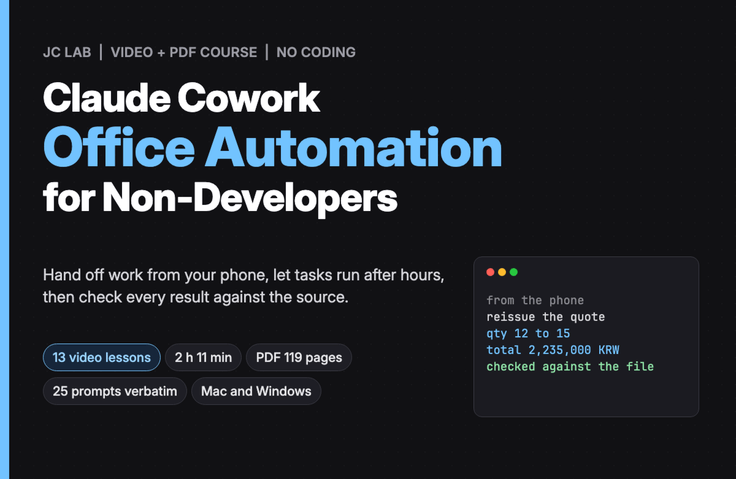
This course teaches you to delegate everyday manual office tasks—such as organizing received emails, preparing performance reports, creating web comparison tables, and entering data into internal systems—to Cowork in the Claude desktop app, using Korean. You’ll try phone instructions, scheduled tasks, and skills in the order of a typical day, from before you leave for work until the next morning, and learn how to catch Claude’s actual mistakes by checking them against the originals.

1 learners are taking this course

Level Beginner

Course period Unlimited

claude
claude
Business Productivity
AI
AI
AI Agent
AI Agent
No-code
No-code
claude
claude
Business Productivity
AI
AI
AI Agent
AI Agent
No-code
No-code

What you will gain after the course

  • Getting Ready to Use Cowork Safely: How to Connect Only a Practice Folder, Read and Respond to Permission Prompts and Approval Cards, and Set Memory and Instructions

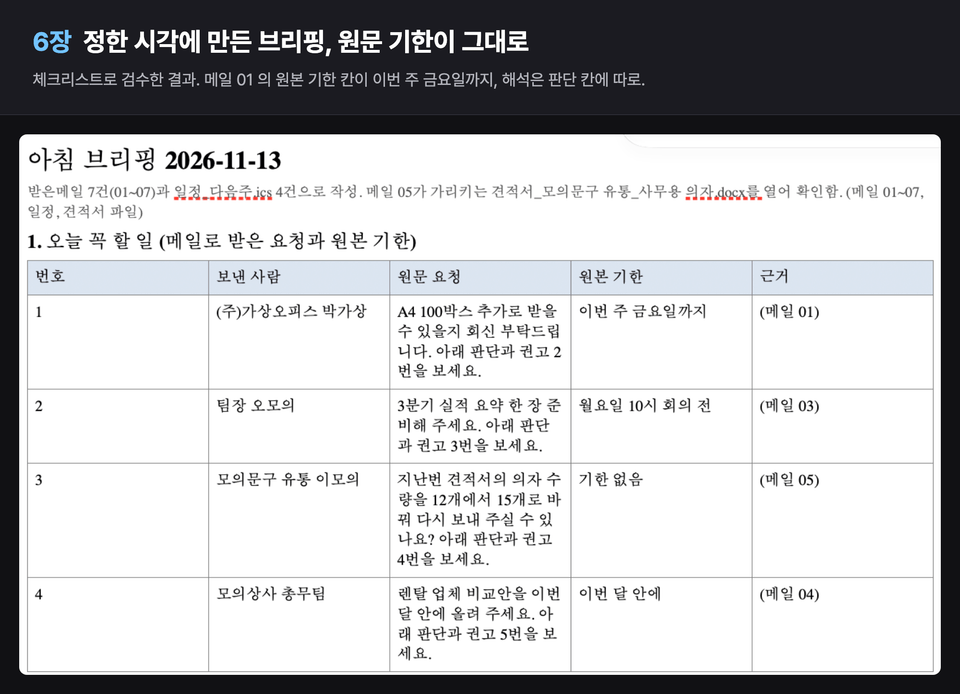
  • How to Create a One-Page Morning Briefing from Emails and Calendar Files, and Verify Every Line Against the Source to Weed Out Unsupported Content

  • How to create a presentation slide with charts, a company-formatted Word report, and a one-page summary PDF from a single Excel file of results—and open them in the recipient’s software to check them

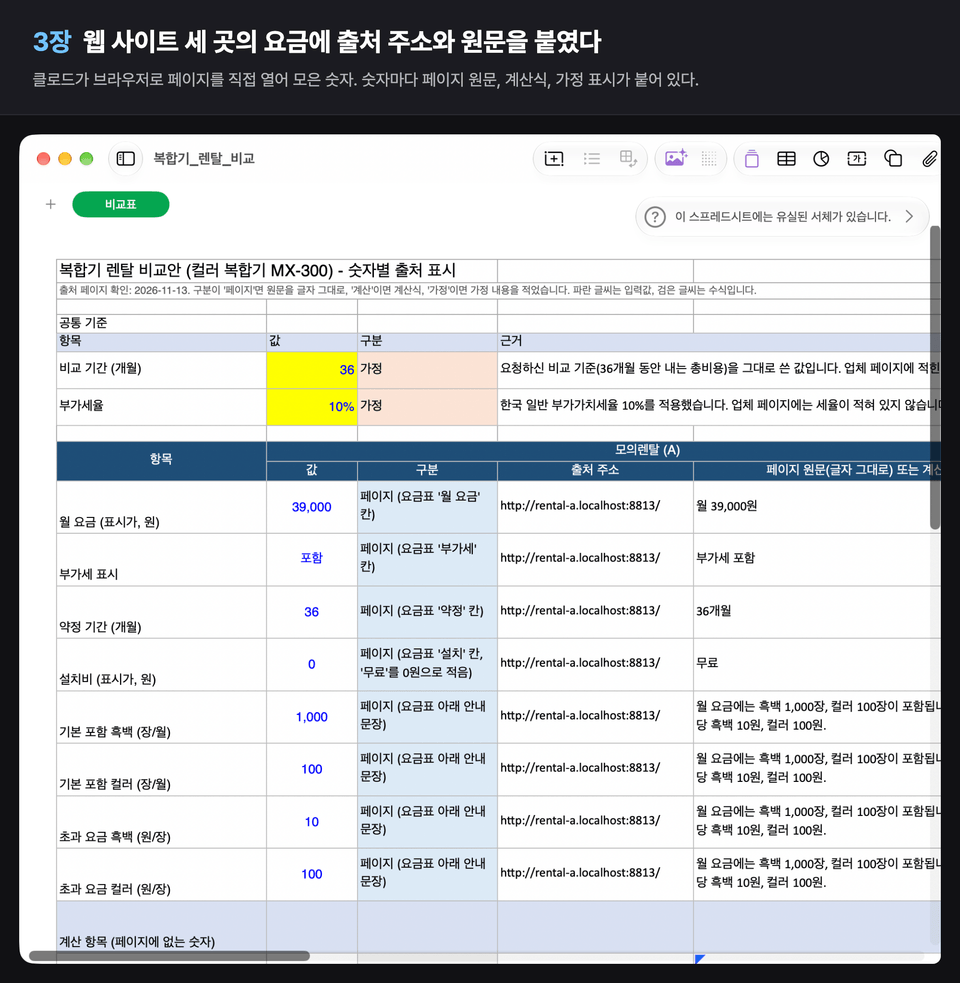
  • How to have Claude read three websites in a browser, create a comparison table with sources, and transfer the table contents to an internal data-entry screen, saving them as a draft only

  • How to Delegate While You’re Away: Give Instructions from Your Phone, Schedule Tasks to Run at the Same Time Each Week, and Save Successful Work as Skills to Share with Colleagues

  • How to review overnight results against the originals in five minutes the next morning, and decide when to hand off tasks Cowork can’t handle to an AI employee in the Code tab

A Cowork AI assistant that works from your phone, even after you leave work

Open your email and organize today’s tasks, create presentation materials and reports from performance spreadsheets, visit three vendor websites and fill in a comparison table, and enter vendor details into the company system one line at a time. In this course, you’ll learn how to delegate these kinds of office tasks in Korean to Cowork in the Claude desktop app to boost your productivity. It’s a no-code approach: connect the folder containing your work files, describe what you want done in a sentence, and open and review the files Claude creates.

  • From the morning briefing before work to the review the next morning, we’ll follow Assistant Manager Kim’s day in order.

  • We’ll see the actual screens for features you can delegate while you’re away, such as phone commands, scheduled tasks, browser control, and skills.

  • It shows Claude making an actual mistake without hiding it, and how to catch it by comparing it with the original.

Recommended for these kinds of people

Office workers who repeat administrative tasks by hand every day

Office workers and solo entrepreneurs who manually handle emails, reports, spreadsheets, and internal system entries every day

For those who want work to keep running even when they’re away

Those who want routine tasks to run automatically even when they’re out of the office or after work

If you’re unsure whether you can trust AI-generated results

Those who paste materials into a chat, transfer the answers back into files, and then, unsure whether the results are accurate, end up reviewing everything from scratch.

After completing the course, you can

  • You can connect your work folders and give instructions in Korean to create morning briefings, presentation slides, company-formatted reports, and comparison tables with sources.

  • You can delegate tasks from your phone to your office computer and save them as scheduled tasks that run at a set time each week, or as skills you can call up again.

  • Instead of relying on Claude’s report, you can compare the created file against the original to catch errors and prevent the same mistakes with rules.

  • You can draw a clear line by having a person click the Delete, Send, Submit, and Approve buttons, while delegating the rest of the work.

  • You can establish criteria for dividing tasks between AI and those that people should handle themselves.

Features of This Course

In the order of your day, including tasks while you’re away, exactly as they went wrong in real life.

Cowork is an AI agent that does more than just answer questions in a chat: it opens and creates files in connected folders and even works with your browser. As a follow-up to the previous course, “Building a Claude Code AI Employee for Non-Developers,” Assistant Manager Kim from the same fictional company returns. You’ll spend a full day working with Cowork, from the morning briefing before work and morning report materials to afternoon web tasks, phone instructions while you’re out, scheduled tasks after work, and a review the next morning. You can follow along from the beginning even if you haven’t taken the previous course.

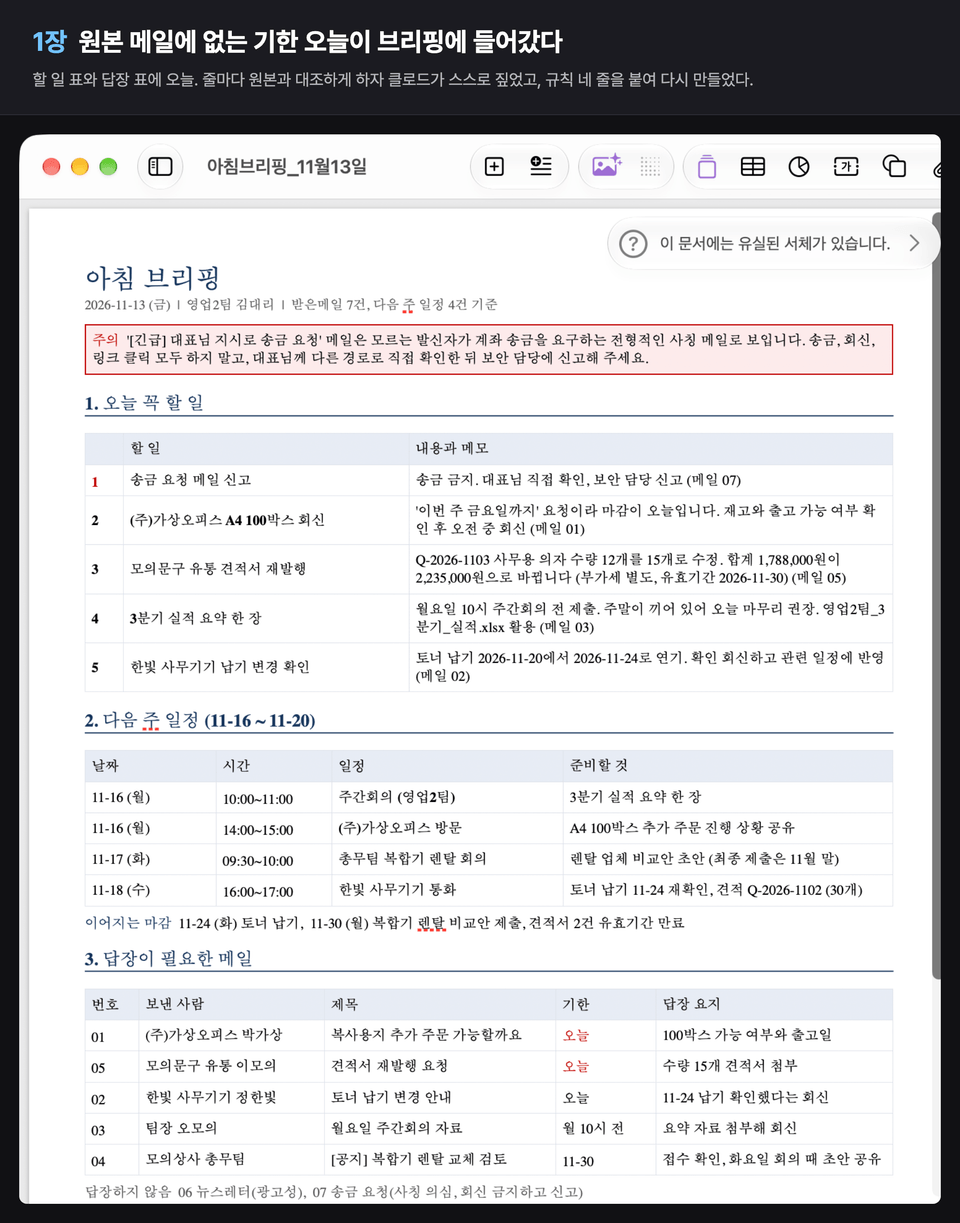
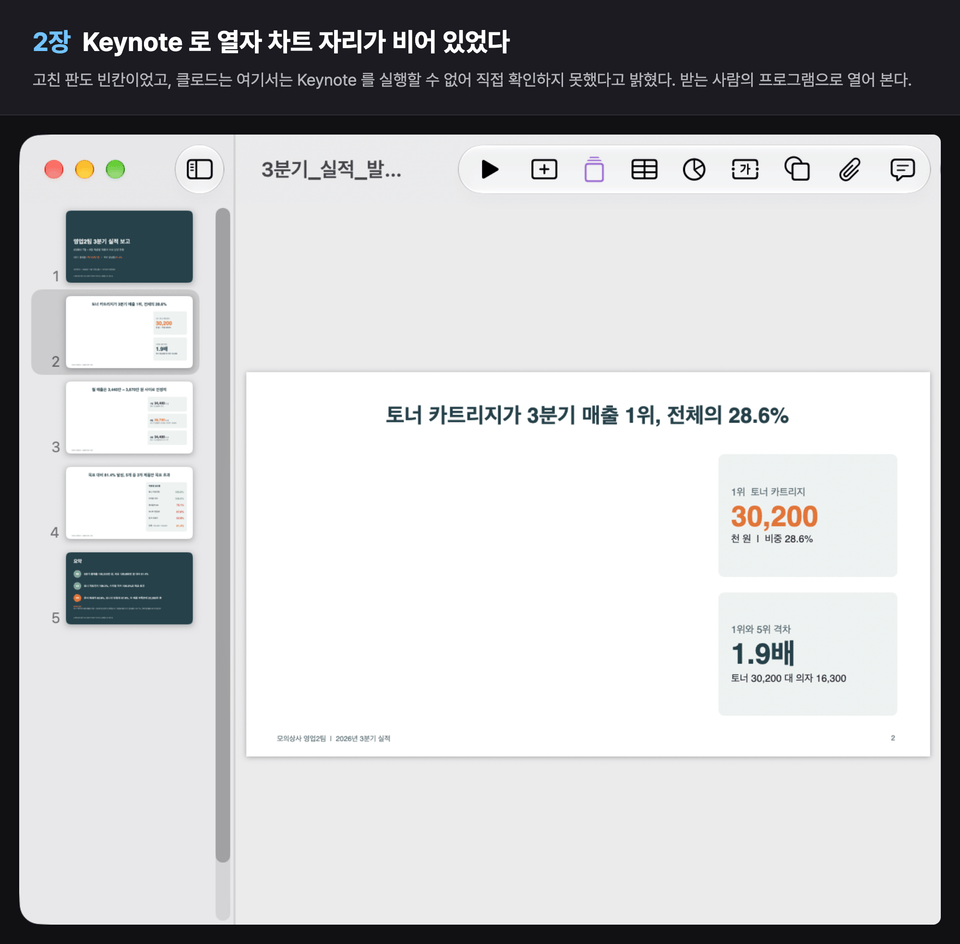
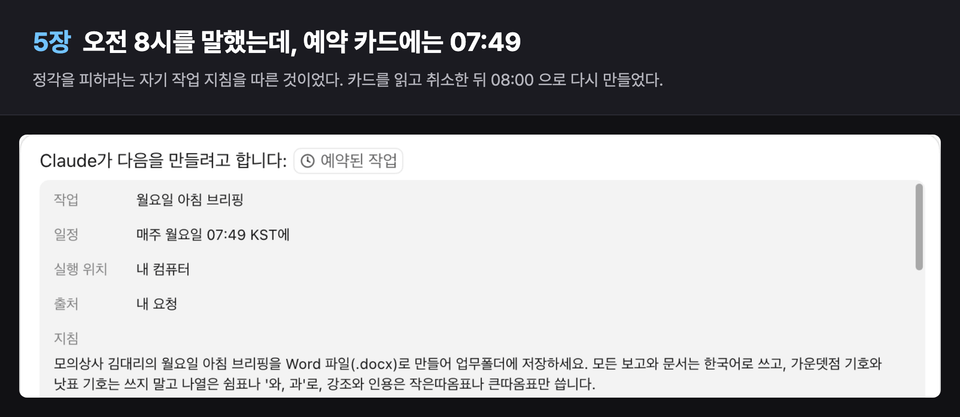
While creating the course, Claude completed tasks from start to finish, but made several mistakes. It inserted a deadline, 'today', into the briefing even though it wasn’t in the original email; reported that it had 'fixed' a slide with a blank chart in Keynote; and made up the author of the company report and the plan for next quarter on its own. When told to set it for 8:00, it also created a scheduled task for 7:49. We show these scenes as they happened and explain how to check the results against the originals, along with rules to prevent the same mistakes.

01-hero

Delegate from your phone, and it keeps working after you leave

The office computer processes instructions sent from your phone while you’re out, and scheduled tasks run at set times, continuing to work after you’ve left for the day. Scheduled tasks that use work folders run only while the computer is on and the app is open.

Preview a run without anyone clicking

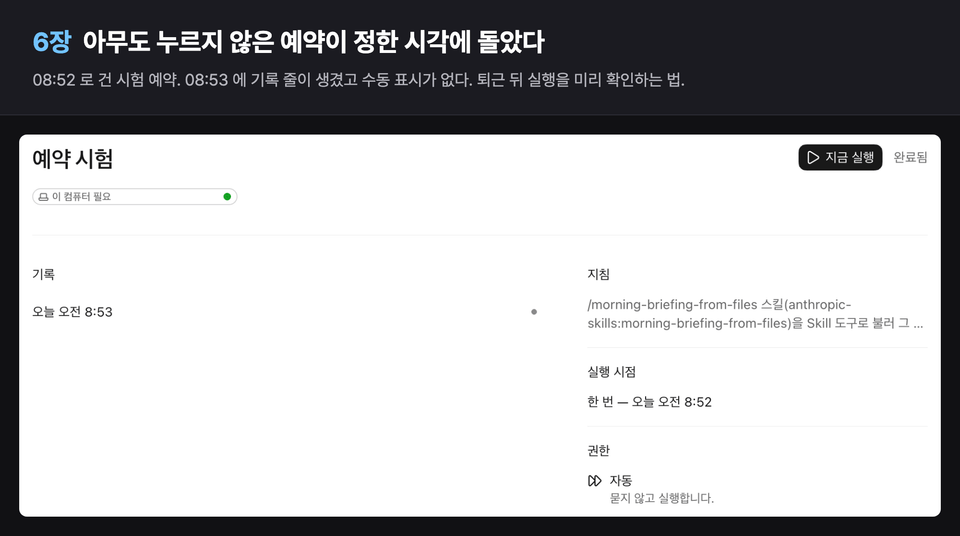
The test scheduled for 08:52 ran at 08:53 without anyone touching it, leaving a log entry and a results file. Before leaving work, run it in advance like this and compare the results with the original.

What You’ll Learn

Chapter 0: Getting Started with Cowork: Preparing to Delegate Safely

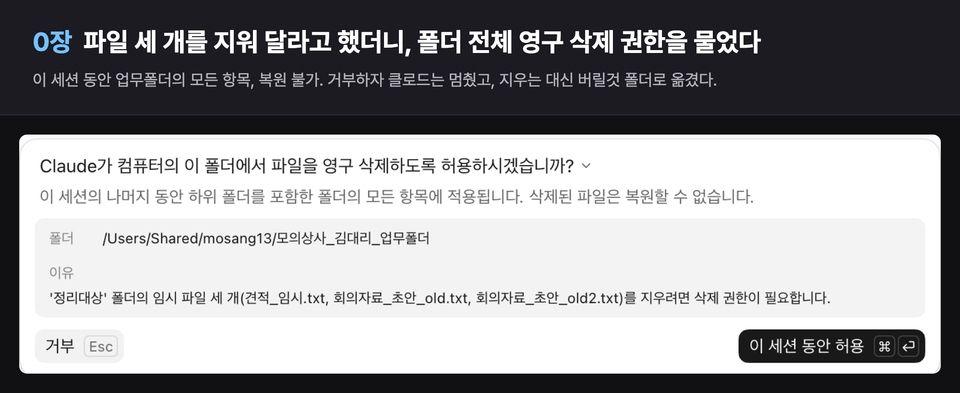
We look at how Cowork differs from chat and the Code tab, then get ready by connecting only the practice folder, turning off memory, and reading the approval prompts. When a request to delete three files brings up a prompt asking permission to delete the entire folder, we reject it and move the files instead.

Chapter 1 Before Work: A One-Page Morning Briefing

Create a morning briefing from the inbox folder and calendar file, and check each line against the source. After seeing that the deadline 'today' had been added even though it wasn’t in the original email, add four rules and recreate it.

Two Documents for the Morning: Slides and Reports

Create presentation slides with charts, a company-template Word report, and a one-page summary PDF from a single performance spreadsheet. Open them in the recipients’ programs to catch slides with blank charts in Keynote and a report that includes next-quarter plans not found in the original.

Chapter 3: Afternoon Web Work—Working in a Browser

Claude opens three websites in a browser, creates a comparison table with a source listed for every figure, and transfers the table contents to the internal entry screen, saving them as a draft only. A person submits it for approval.

Chapter 4: While Out of the Office: Hand It Off from Your Phone

Use the Claude app on your phone to delegate work in the task folder on your office computer. Read the approval prompt that comes to your phone in detail, and instead of relying on the initial report, have it send back exactly what’s written in the file and compare it with the original.

Chapter 5: After Work: Scheduled Tasks and Skills

Create a scheduled task that runs at a set time every week, and read and correct the schedule card that was set for 07:49 when you said 8 o’clock. Save successful work as a skill, call it up again with a one-line name, and share it with your colleagues.

Chapter 6: The Next Morning—A 5-Minute Review

Compare the overnight results with the original using a checklist and review them in under five minutes. Set up a test run a few dozen minutes later to verify in advance that the task runs at the scheduled time without anyone clicking anything.

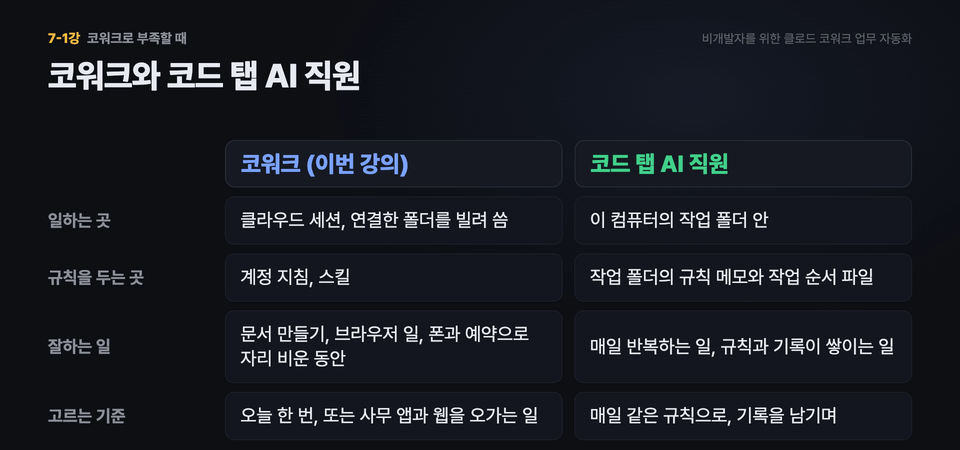
Chapter 7 Wrap-Up: When Cowork Isn’t Enough

Summarize the kinds of tasks that are difficult to delegate to Cowork, and use a table to set criteria for when to switch to the Code tab AI employee from the previous lesson. Then sort your own tasks into those to delegate to Cowork and those to hand over to the Code tab.

The person who created this course

  • JC Lab is a company that puts Claude Desktop’s Code tab and Cowork to work on real office tasks.

  • The mistakes shown in the course are ones we actually encountered while creating it, and we’ve included exactly how we caught them and the rules we changed to fix them.

  • I teach courses on Inflearn, including “Building Claude Code AI Employees for Non-Developers,” “Claude Code Harness in Practice,” and “Obsidian x Claude Code: Building an LLM Wiki in Practice.”

Do you have any questions?

We’ve gathered some of the most frequently asked questions before enrollment.

Q. Is it really okay if I don’t know how to code?

Yes. Students simply give instructions to Cowork in Korean and open and review the files Claude creates.

Q. Can I take this course without taking the previous course (Build a Claude Code AI Employee for Non-Developers)?

It’s the same Assistant Manager Kim, but this course uses only Cowork from start to finish. We’ll explain how it differs from the Code tab in the previous course in Lessons 0-1 and 7-1.

Q. Will scheduled tasks run if I turn off my computer before leaving work?

Scheduled tasks that use a work folder on your computer, like the one created in this lesson, run only when your computer is on and the app is open. The scheduled task screen displays “Requires this computer.” Lesson 5-1 covers this label and how to check it.

Notes Before the Course

Practice Environment

  • Operating system: Mac or Windows. The video shows a Mac, and Windows uses Cowork in the same Claude desktop app.

  • Claude Desktop app (free to install) and a paid Claude Pro plan or higher. The subscription fee is separate from the course fee, and the free plan does not include Cowork.

  • Chapter 4 uses the Claude app on your phone (free to install; sign in with the same account).

  • Programs for opening the results: Word, Excel, PowerPoint, or their free web versions; Keynote; Numbers

Learning Materials

  • 13 videos (2 hours and 11 minutes total)

  • Course PDF: 8 PDFs by chapter and a 119-page combined version. It includes the 25 instructions sent during the lessons verbatim, along with 99 screenshots.

  • Practice files are not provided separately. Demonstrations use materials from a fictional company, “Mock Trading Company,” and in each class, you’ll follow along with “Try it with your own materials,” using copies of your work files.

Prerequisites and Notes

  • No coding knowledge is required. Basic computer skills, like putting files in a folder and opening them, are enough.

  • Before uploading company materials, check your company’s policies on using external AI services, and upload a copy with personal information redacted.

  • Claude’s pricing and features may change.

  • The videos, course materials, PDF, and screenshots in this course may only be used by the purchaser for personal learning. You may not share them with others, post them publicly, or resell them.

Recommended for
these people

Who is this course right for?

  • Office workers and solo business owners who manually handle emails, reports, spreadsheets, and internal system entries every day.

  • People who repeatedly paste materials into chat and transfer the answers back into files

  • For those who want scheduled tasks to run automatically while they’re away or after work.

  • For those who felt uneasy about trusting AI-generated results as-is

Need to know before starting?

  • No coding knowledge is needed. You just need to know how to use a computer well enough to put files in a folder and open them.

  • A paid Claude Pro plan or higher is required (the subscription fee is separate from the course fee). Cowork isn’t available on the free plan.

Hello
This is jclab

Career Verified

32

Learners

5

Reviews

4.2

Rating

4

Courses

I’m a developer who builds and operates services.

I’m sharing what I experienced using Claude Code in real-world work and the rules that emerged from it. I’ll talk through actual incidents and original code rather than theory.

I build and use whatever I need, from development and operations to data and automation.

More

Curriculum

All

13 lectures ∙ (2hr 11min)

Course Materials:

Lecture resources
Published: 
Last updated: 

Reviews

Not enough reviews.
Please write a valuable review that helps everyone!

jclab's other courses

Check out other courses by the instructor!

Similar courses

Explore other courses in the same field!

Limited time deal

$97,350.00

25%

$100.10