

Unity VR that can be used for a long time
This is an introductory VR development course that teaches you how to connect VR equipment and develop VR content using Unity. Since the marketability and prospects of VR can already be found in many contents, we have not covered them and have only extracted the core elements needed for actual development. If you want to learn how to develop VR in an easy and fast way that you can use for a long time, come here!
XR Interaction Toolkit 2.0.1 Version Announcement
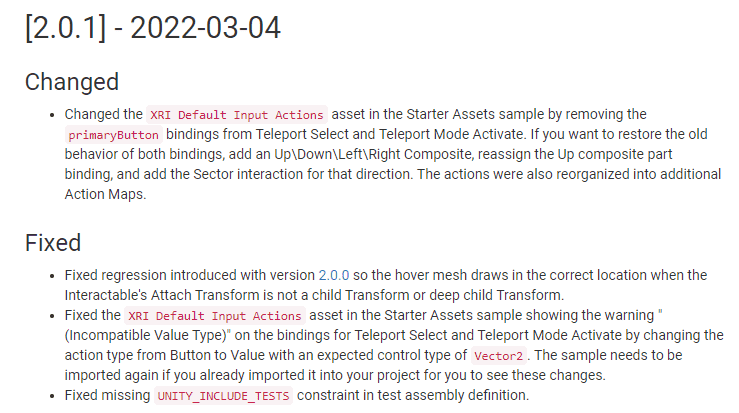
With the update of XR Interaction Toolkit to 2.0.1, the XRI Default Input Actions have changed.
As for teleportation, primartButton was set by default and I used that, but that part has been removed.
There are two parts of the lecture where teleportation is used.
Section 3-5-2. Teleportation Basic and Section 2-7. Teleportation . If you want to proceed in the same way as the video, you can manually add a Button action and connect it. Please set the action by following the steps below.
0. If you are using the existing XR IT 2.0.0 and want to follow along, update to 2.0.1 in Package Manager, delete the existing samples, and re-import the updated samples. If you follow along now, it will be installed automatically as version 2.0.1.
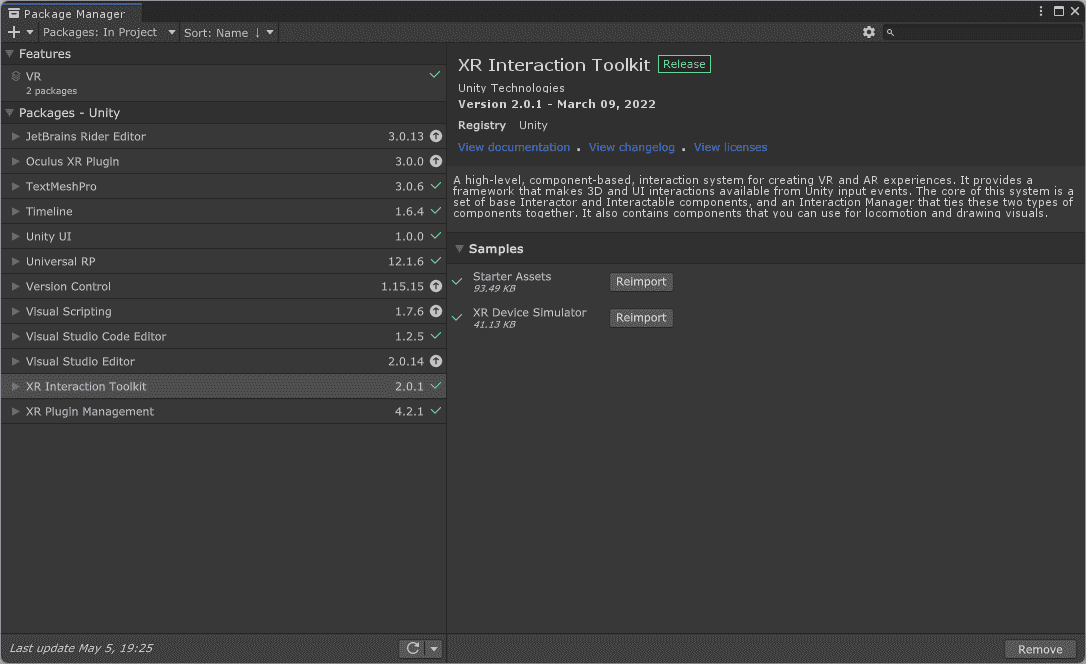
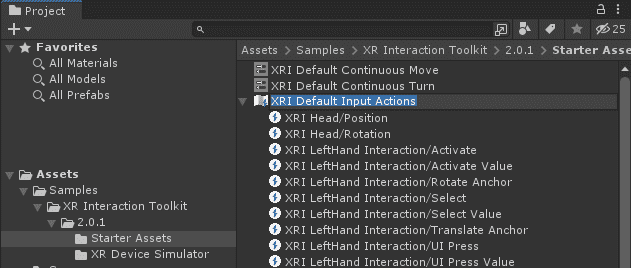
1. Double-click the newly updated 2.0.1 version XRI Default Input Actions asset to open its settings window.
2. You can add one binding directly by looking at the screenshot below, or press Ctrl+C to paste the code below, then right-click in the Actions tab in the settings window below and paste to add one Teleport Select (Button) action, and save it.
(Name doesn't matter)
INPUTASSET ActionTreeItem {"m_Name":"Teleport Select (Button)","m_Type":1,"m_ExpectedControlType":"Button","m_Id":"28ecac93-4109-4841-bf97-5c4b ef1e1f83","m_Processors":"","m_Interactions":"","m_SingletonActionBindings":[],"m_Flags":0} BindingTreeItem {"m_Name":"","m_Id":"3bbd2cd5-17c1-43f7-a7ff-72ff772d2a1e","m_Path":"
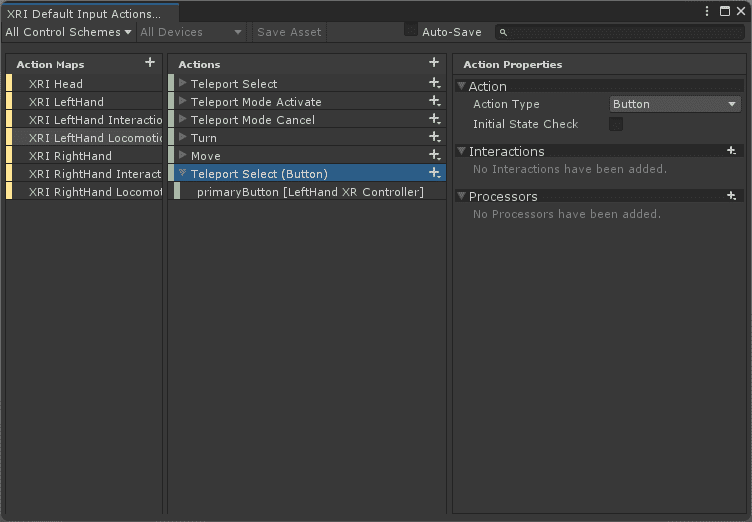
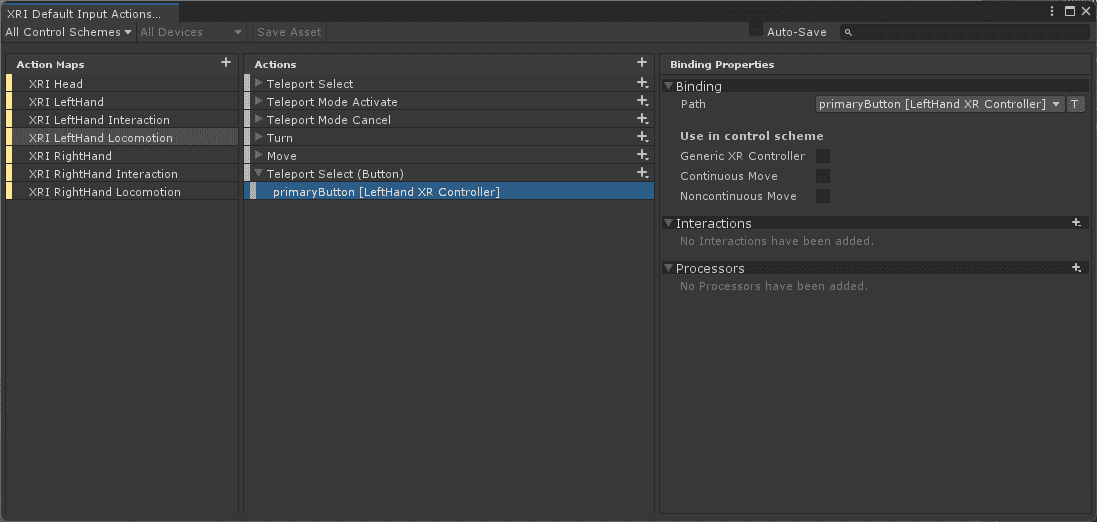
3. Connect the XRI LeftHand Locomotion/Teleport Select (Button) action you just created to the Select Action of the XR Controller on which you want to use the teleportation function.
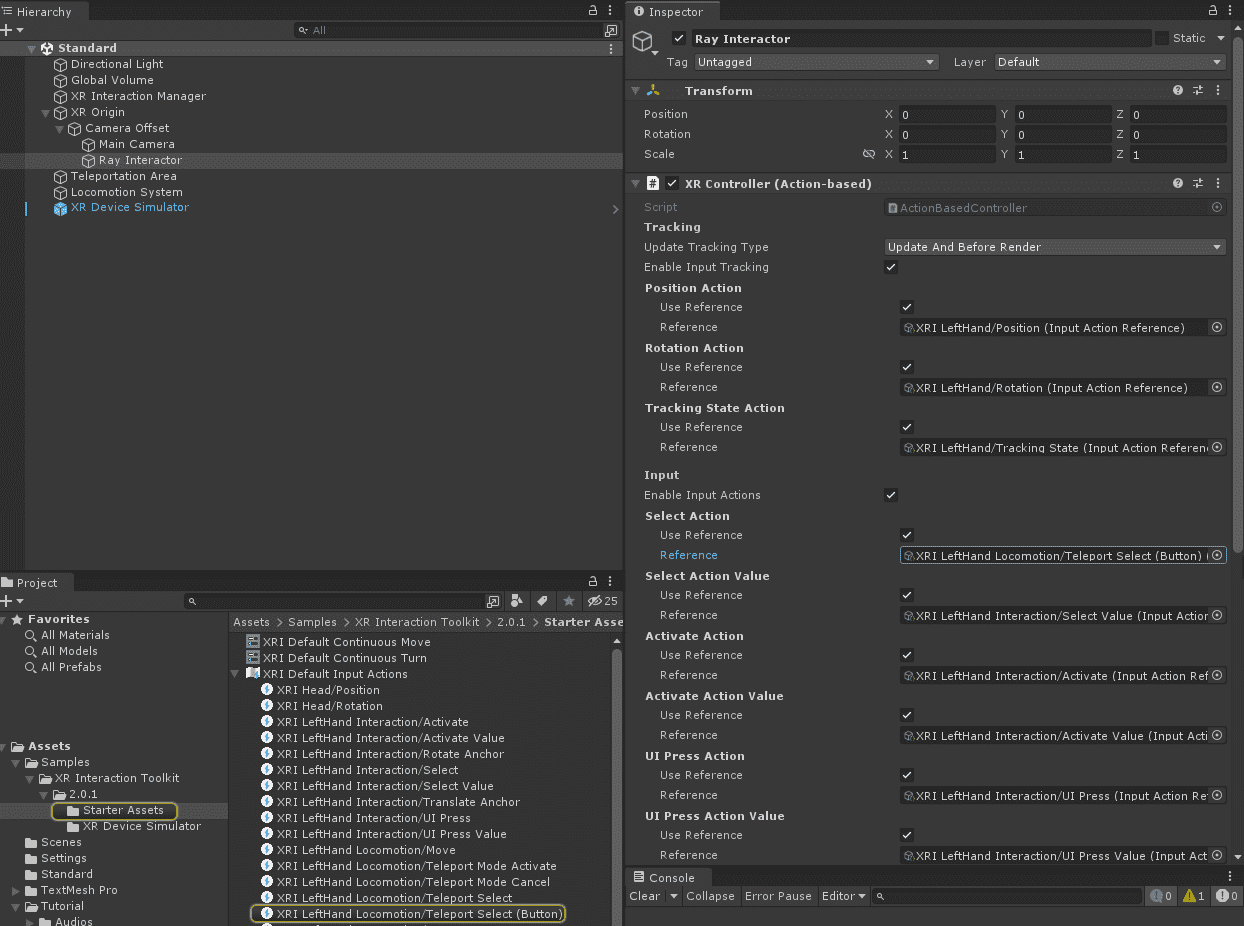
If you set it in the above order, teleportation can be done with the B key as in practice, and Snap Turn works by manipulating the stick as before.
thank you

