
inflearn logo

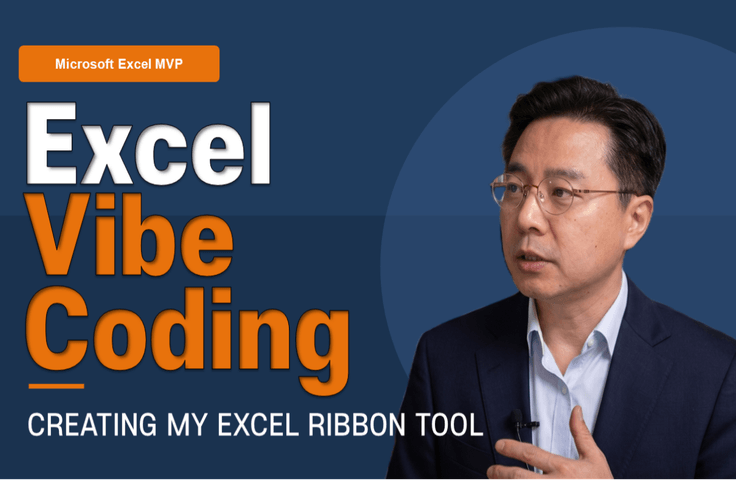
Excel Vibe Coding: Automate Ribbon Menus with AI Without Knowing VBA [Power Tools Masterclass]

Complete 'Your Own Excel Add-in' by Giving AI Verbal Instructions Instead of Using VBA Syntax - Get started without coding knowledge · AI writes the code - Create your own tab and buttons in the Excel ribbon and distribute it as an XLAM - Preview the first lesson for free before payment · Lifetime access

5 learners are taking this course

Level Basic

Course period Unlimited

Excel
Excel
MS-Office
MS-Office
VBA
VBA
Business Productivity
add-ins
add-ins
Excel
Excel
MS-Office
MS-Office
VBA
VBA
Business Productivity
add-ins
add-ins

What you will gain after the course

  • The ability to complete VBA code through conversations with AI alone: “Excel vibe coding”

  • How to Create Your Own Tabs and Buttons Directly in the Excel Ribbon Menu

  • My Own Actually Working Excel Automation Add-in (XLAM) Tool — Everything from Creation to Distribution Explained

  • A 75-page 'study notes' PDF provided along with the lecture videos — for optimal learning effectiveness


Excel ribbon menus,
Now create them yourself with AI!

Leave repetitive tasks to AI
and solve them with your own Excel tools.


For repetitive Excel tasks, even when you ask the IT department to develop a macro, the answer is always "next month."

Did you finally buy a VBA book, only for it to become a bookshelf decoration after just a few days when faced with unfamiliar English commands?

Even after painstakingly completing a macro, have you ever opened a new file only to find that the button has vanished without a trace?

Stop waiting for someone else’s help.
Anyone can become an Excel automation expert
who creates the features they want themselves.

This course is conducted using the 'Excel Vibe Coding' approach. Instead of memorizing VBA syntax, simply describe the desired functionality to AI in words, and the code will be completed. Once you learn the R·C·T (Role·Context·Task) conversation formula, you too can get started right away today.


Complete VBA code in an instant by chatting with AI,
and create your own Excel add-in yourself.


We’ll turn professionals exhausted by repetitive tasks into Excel automation experts,
creating a more convenient and smarter work environment for you.

From creating your own tab in the Excel ribbon menu to completing cell, sheet, and workbook automation features one by one, and finally distributing your finished tool as an xlam file—you can simply follow this complete pipeline across 4 chapters and 15 lessons.


By the end of this course, you will be able to


You can create Excel VBA code yourself by talking with AI and implement your own tab.

  • You no longer need to feel overwhelmed by complex VBA syntax. Through natural conversations with AI, you can obtain VBA code that implements the features you want and use it to complete your own Excel add-in (xlam). You’ll gain the experience of creating your own tools to automate repetitive tasks.


You can design and place your own tabs and buttons directly on the Excel Ribbon.

  • You will learn how to use an XML framework template to create tabs and groups, and customize button names and icons to your liking. You will develop the ability to systematically organize menus by type of task, such as cells/ranges, worksheets, and workbooks.


You can complete your own fully functional Excel automation add-in.

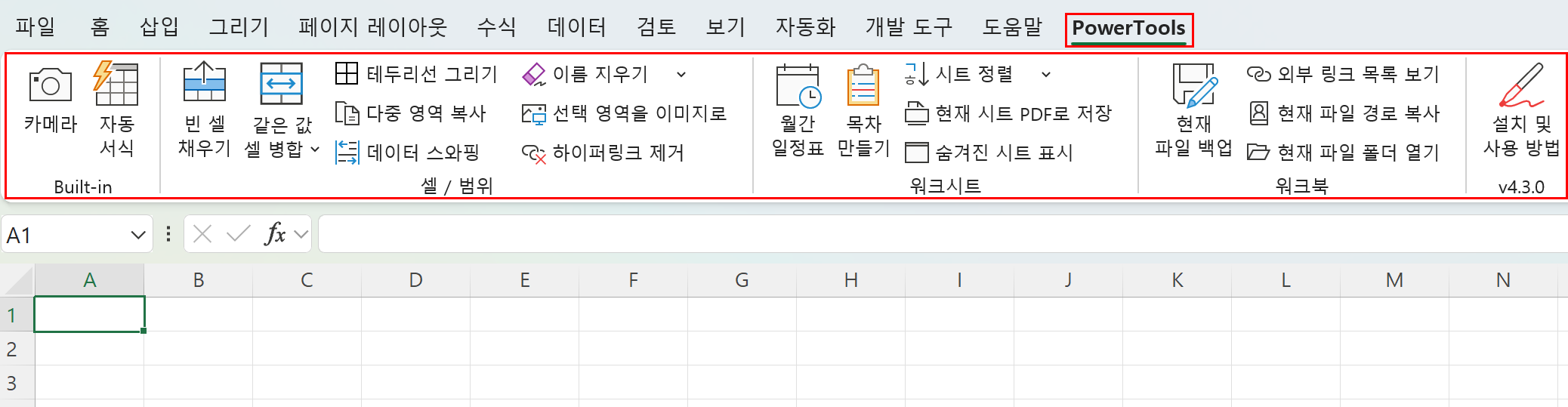
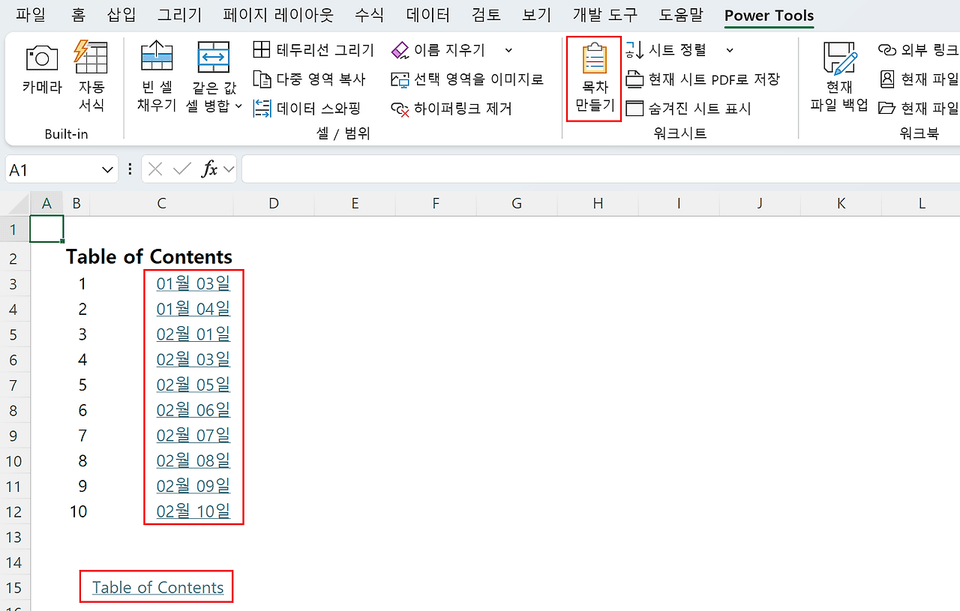
  • You will directly implement buttons that complete the tasks you perform every day, such as filling empty cells, automatically generating tables of contents, and batch-saving PDFs, with just one click. Rather than theory, these are practical exercises based on the actual commercial add-in 'PowerTools', so the moment the course ends, real tools will be in place on your Ribbon menu as well.


You can safely distribute and continuously manage the tools you have built.

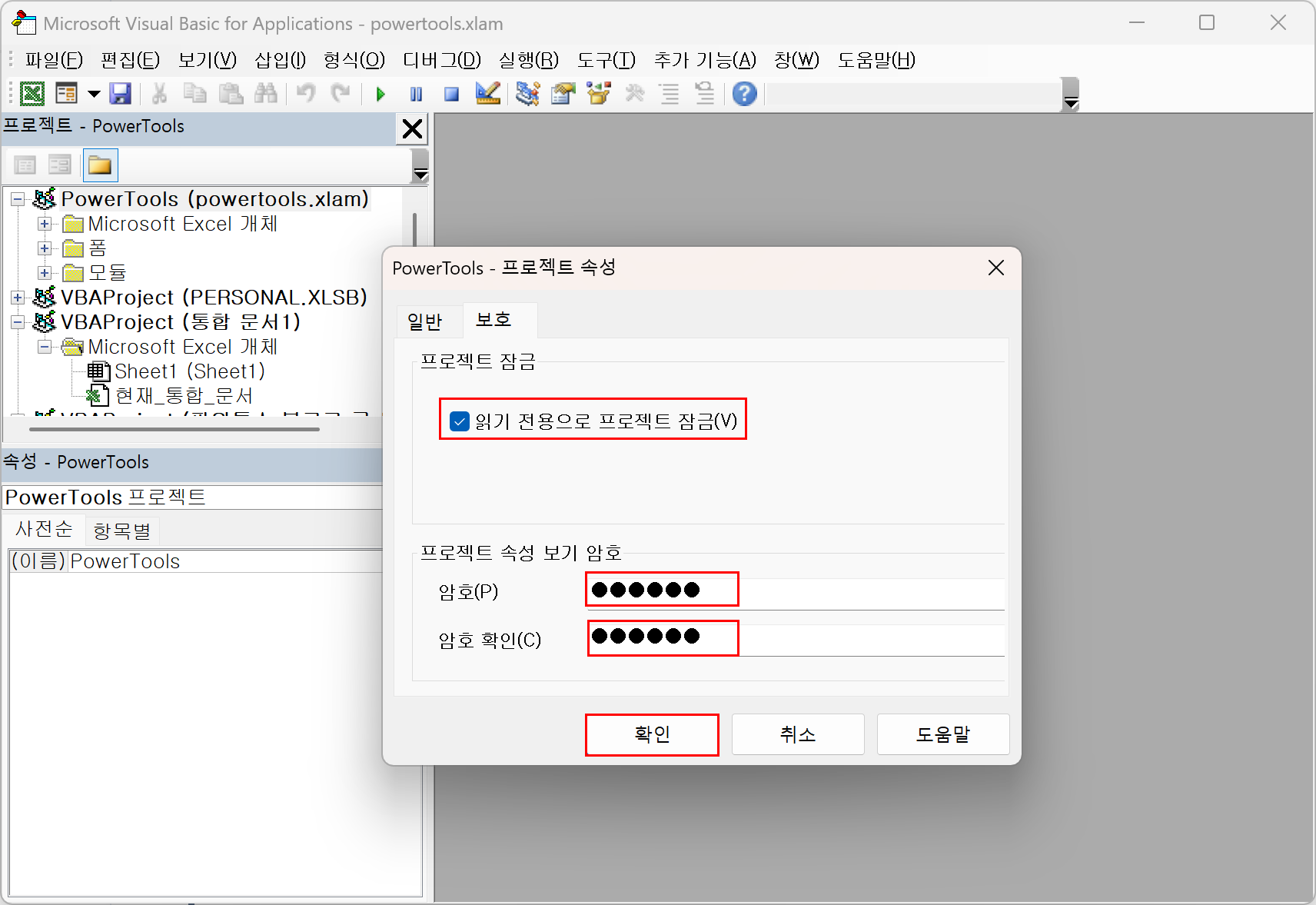
  • You’ll learn how to protect your VBA code with a password and package it in xlam format for installation on your colleagues’ PCs. You’ll also learn how to manage versions and add automatic update notifications, allowing you to operate your software sustainably rather than simply creating it once and moving on.

✔️

Excel vibe coding, the one solution that will revolutionize your work

No coding experience? No problem. Simply by conversing with AI, your Excel becomes an entirely new tool.

Create your own Excel automation with AI

Solve repetitive Excel tasks simply by chatting with AI. Complete the macro/VBA code you need, and create your own Excel add-in (xlam) with custom tabs and buttons. With 25 years of experience, instructor Kwon Hyun-wook (Exceller)—a Microsoft Excel MVP and CEO of iExceller—will open up a whole new world of Excel for you.

"This is the result you will create.

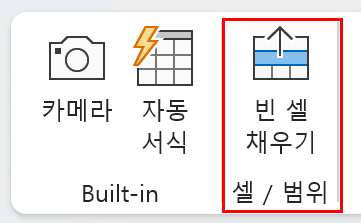
From camera setup, filling blank cells, creating tables of contents, saving as PDFs, to backing up files, by the end of the course, these work automation tools will be available in your Excel’s ribbon menu.

This isn’t theory. You’ll complete, with your own hands, automation tools that you’ll use every day in your actual work.

Build Practical, Customized
Automation Tools

Following the instructions of Kwon Hyun-wook (Exceler), representative of the iExceler site, operator of the YouTube channel 'ExcelerTV', and a Microsoft Excel MVP, you will learn the practical process of establishing the ribbon menu framework through copy and paste and linking macros to buttons. Implement cell/range, worksheet, and workbook automation features yourself to boost your workplace efficiency by 200%.

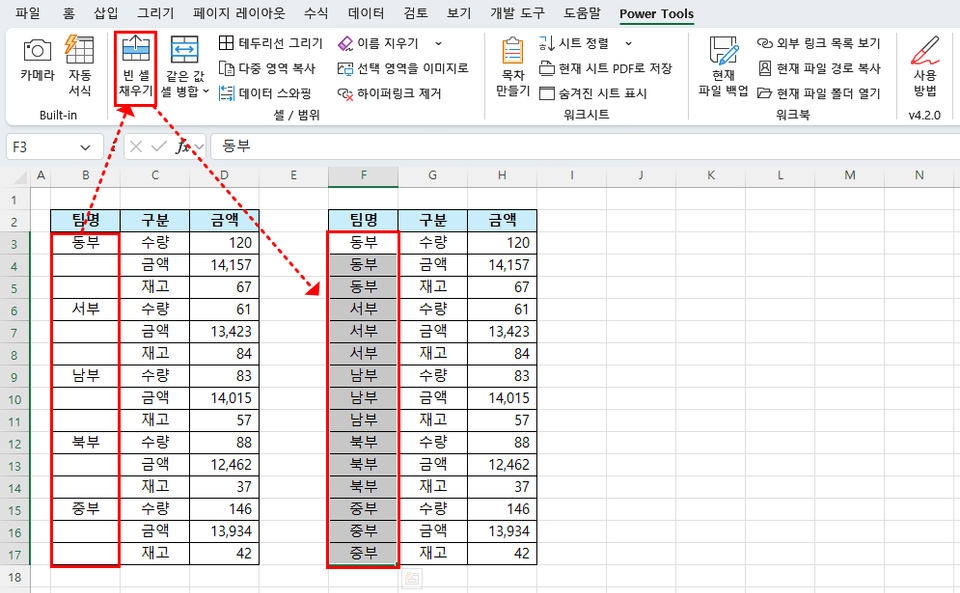
Fill Empty Cells
Complete the multi-step 'Fill Empty Cells' task with just one click. Automatically fill empty cells with team names that are entered only in the first row using a single button. Sorting and filtering are no longer a problem.

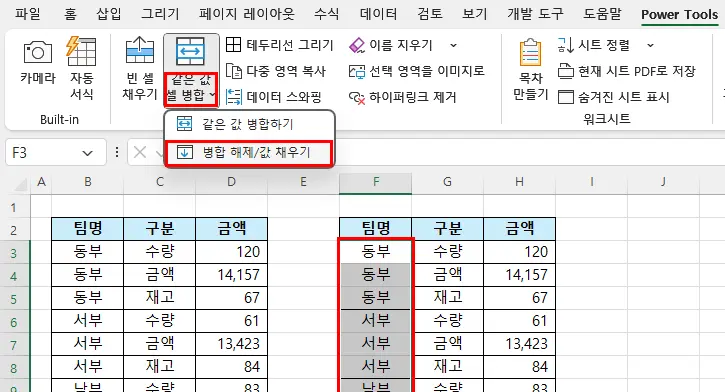
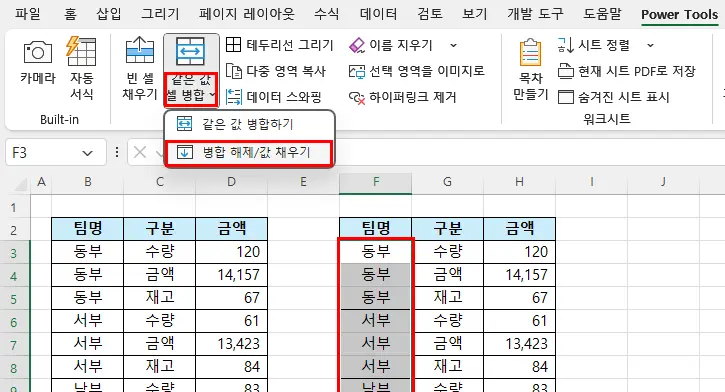
Merge cells with identical values
Neatly merge repeated team names with a single button. Your reports’ readability will instantly improve. You can merge only cells with the same values, or conversely, automatically fill blank cells while unmerging merged cells.

It doesn’t end with simply creating it. Like real software, you’ll learn how to protect, share, and carry it forward.

Develop and Distribute Your Own Excel Power Tools

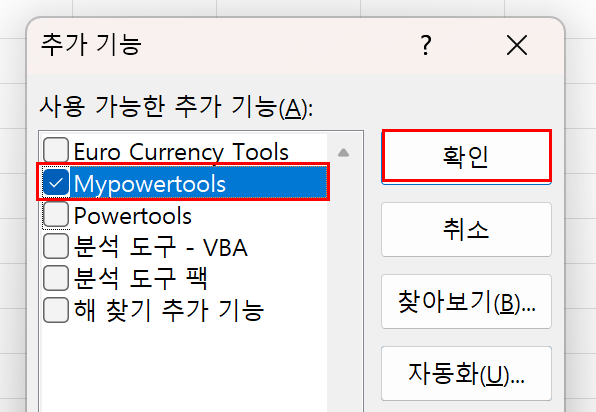
From the formula for conversing with AI to leveraging Excel’s hidden powerful features, we’ll guide you in detail through creating and distributing XLAM files to safely protect VBA code and install your power tools in any Excel environment. This is your opportunity to share your own Excel automation tool with the world.

Password-protect your VBA code, package it as an XLAM, and even install it directly on your colleagues’ PCs. This is the moment your tool becomes a real 'product'.

Once you’ve protected and distributed the code, your Power Tools become complete software that works anywhere.


📚

Create Your Own Excel Tool with AI

Section 1

Customize the Ribbon Menu and Link Buttons

Generate the basic structure of the Ribbon menu through simple copy-and-paste, and customize the names and icons of its buttons. Learn how to successfully link the created buttons to VBA macros to implement personalized functionality.


Section 2

Generating VBA Code with AI and Implementing Automation

Learn techniques for generating the VBA code you want through effective conversations with AI. Implement core practical features such as automating cells, ranges, worksheets, and workbooks, and complete an add-in that includes help and version management features.


Section 4

Excel Add-in (XLAM) Distribution and Code Protection

Learn how to prevent unauthorized modifications to the VBA code you have written, and convert it to the XLAM format so it can be distributed across all Excel environments. Finally, you will proceed with the steps to release and utilize the Power Tools you developed with actual users.


Does this situation feel familiar? It could be your story.

We can solve the challenges faced by people like these!


📌

Professionals tired of repetitive tasks
- Those who waste time manually repeating the same Excel tasks every time and feel frustrated because it is difficult to ask the IT department to develop macros

📌

Those who have given up every time when faced with VBA
-
Those who recognize the need for Excel macros but find writing VBA code themselves daunting, or who have tried several times but ultimately given up


📌

Users who want their own custom features
- Those who feel that Excel's existing features are not enough and want to maximize work efficiency by adding their own customized tabs and buttons to the ribbon menu


If any of these apply to you, this course is exactly the answer you’re looking for.


Notes Before Taking the Course


Practice Environment

  • Operating system: Windows 10 or later recommended

  • Required program: Microsoft Excel (version 2016 or later)

  • Recommended specifications: 4GB of RAM or more, and at least 10GB of storage space

Prerequisite Knowledge and Notes

  • Those who need to automate repetitive tasks

  • No prior experience with Excel macros is required.

  • You should be able to have natural conversations with AI.

Learning Materials

  • Learning notes PDF provided

  • Practice example files and AI code templates provided

  • Conduct Q&A sessions based on the course content


Recommended for
these people

Who is this course right for?

  • A hands-on employee frustrated because there’s no one in the IT department to ask for a repetitive-task macro.

  • Excel users who understand the need for macros but haven’t been able to get started, or who have tried several times and given up partway through

Need to know before starting?

  • It's okay if you have no coding experience at all. As long as you know how to use Excel at a basic level, that's sufficient.

Hello
This is iexceller

Career Verified

355

Learners

79

Reviews

2

Answers

4.7

Rating

4

Courses

Nice to meet you. I am Hyun-wook Kwon (Exceler).

I will become a solution provider for everyone who aims for work efficiency.


  • Current: CEO of iExceller.com

  • Current: Excel Programmer • Solution Provider • Author

  • Current: YouTube Creator Channel Name: Exceller TV

  • Current: Microsoft Excel MVP

  • Former: Amorepacific Group Strategy Team Leader, Innovation Team Leader, Planning Team Manager

  • Former: Skinfood Chief Financial Officer (CFO, Managing Director), Director of Management Support

  • Former: Professor at Korea National Open University | Department of Industrial Engineering, Prime College

  • Previous: Samsung SDS Multi Campus Tutor

  • Former: Tutor and Inspection Committee Member at the Korea Agency for Digital Opportunity and Promotion 'Baeum-Nara'

More

Reviews

Not enough reviews.
Please write a valuable review that helps everyone!

iexceller's other courses

Check out other courses by the instructor!

Similar courses

Explore other courses in the same field!

25% off for new members

$80.00

25%

$110.00