
inflearn logo

Building a CI/CD Pipeline using Jenkins

This course covers CI (Continuous Integration) and CD (Continuous Deployment) pipelines, which are one of the four core elements (MSA, CI/CD, DevOps, Container) that make up cloud native applications. Through this course, you can understand and practice the processes needed to build and deploy your own automated pipeline in both local and cloud environments using Jenkins, a CI/CD tool.

(4.7) 256 reviews

4,881 learners

Level Basic

Course period Unlimited

Jenkins
Jenkins
CI/CD
CI/CD
Ansible
Ansible
Kubernetes
Kubernetes
SonarQube
SonarQube
Jenkins
Jenkins
CI/CD
CI/CD
Ansible
Ansible
Kubernetes
Kubernetes
SonarQube
SonarQube

News

8 articles

  • kenneth님의 프로필 이미지

    Hello. We’ve added a new supplemental lecture to the Practical LLM Service Development for Spring Developers (Part 1) course. In this approximately one-hour lecture, you’ll learn how to integrate TypeSafe AI’s recently released decision model, Jev, into a Spring Boot application.

    Why was it added?
    In Section 4, we covered how to use entity() to receive an LLM response as a Java object, as well as the practical pitfall of parsing breaking when the model wraps JSON in code fences. Whether you ask through a prompt or automate it with entity(), the limitation remains that you are ultimately "asking" the LLM to follow a particular format.
    Jev takes a different approach. Instead of writing text, it chooses an answer from a predefined set of options and returns it along with its probability. In other words, the format is structurally guaranteed. Processing the same input in both ways makes it much clearer what to consider when designing "structured output." That is why we organized this content as an extension of Section 4.

    What will you learn?

    1. The Concept of Jev and System One Models: What It Means to Return a “Typed Decision” Instead of Text

    2. The difference between LLMs and Jev: descriptive answers vs. multiple-choice answers, and what each does well and poorly

    3. Three question types (choice · score · noul) and the /v1/systemone request structure

    4. Calling from Spring: Call the Jev API with RestClient and use a Java enum to create choices and convert the response in a type-safe manner.

    5. Comparison demonstration: Analyze the same movie review using entity() and Jev, then compare speed, format errors, confidence, and consistency.

    Updated materials included

    • Section 4 Example Code (ch4): Two Review Analysis APIs (/api/movies/review/llm, /api/movies/review/jev) and the Addition of JevClient

    • Supplementary lecture slides and course materials

    • Comparison test scripts: review-compare.sh for macOS and review-compare.ps1 for Windows

    Things to know in advance

    • Jev is not a feature of Spring AI, but rather a separate external service provided by TypeSafe AI. In the course, it is called directly using Spring AI's RestClient, not its ChatClient.

    • Jev is currently in the early access stage, so there may be a wait to obtain an API key. Jev is disabled by default in the example code (jev.enabled=false), so you can proceed with the existing exercises as usual even without a key. If you don't have a key, watch the demonstration in the video and follow along with a focus on the concepts and code.

    • As this service has just been launched, its pricing or API may change later. If any changes occur, we will notify you again through a new announcement.

    📌 Go directly to the course: https://inf.run/VVpnV

    If you have any questions while taking the newly added lessons or get stuck during the hands-on exercises, feel free to leave a comment. We’ll continue to regularly add content that you can use right away in your work.

    0
  • kenneth님의 프로필 이미지

    Hello, I’m Lee Do-won.


    "I’ve created Jenkins pipelines, but I’ve only heard of ArgoCD and GitOps as concepts."

    "I’m at a loss as to how to design deployments for each dev, staging, and production environment."


    For those facing these challenges, we have opened the “Practical GitOps CI/CD with Jenkins and ArgoCD” course on Inflearn.


    Here’s what sets this course apart


    • Beyond traditional Jenkins-based CI/CD, we also cover ArgoCD-based GitOps.

    • We directly compare the Push (Jenkins) and Pull (ArgoCD) approaches on the same cluster. When someone makes a manual change with kubectl, you can see firsthand how one remains unchanged while the other automatically recovers, and experience the differences in how rollbacks and deployment histories are reviewed.

    • Combine the two approaches to build a hybrid deployment pipeline from start to finish, with Jenkins Push for dev·staging and ArgoCD Pull (manual Sync approval) for production.

    • You will practice essential deployment techniques needed for operations, including canary deployments, blue-green deployments, RBAC, approval procedures, incident response, and automatic rollbacks.


    Practice Environment

    We’ll proceed using just Docker Desktop. It works on both Windows and macOS, and you don’t need a cloud account such as AWS or any additional fees.


    Recommended for


    • Backend and infrastructure engineers who have used Jenkins but are new to ArgoCD/GitOps

    • Those who want to move Kubernetes deployments from manual kubectl apply to automation

    • DevOps and SRE professionals concerned with operational requirements such as deployment approvals, rollbacks, and audit trails


    The total runtime is approximately 10–11 hours, and hands-on materials and a troubleshooting guide are also included.


    👉 View the course: https://inf.run/dEjZE

    If you have any questions, feel free to leave them in the comments or in the course Q&A!

    0
  • kenneth님의 프로필 이미지

    We have newly launched the Practical LLM Service Development for Spring Developers (Part 1) course. Although it may feel a little overdue, this course covers what you need to learn to develop LLM applications using the Spring framework, which is familiar to Java developers. We hope you will take a great interest in it.


    Why did I create this course?

    These days, keywords like RAG, vector search, and AI agents can be found everywhere, but there aren’t many resources that address, at a practical level, “how to integrate them with a Spring Boot backend.”

    This course incorporates into its curriculum the problems I encountered while debugging an actual RAG recommendation endpoint—including how chunking documents by token broke their semantic units and degraded search quality, and how I solved the problem by switching to paragraph-based chunking. Rather than simply showing you the correct code like a tutorial, we’ll follow along together to understand “why it doesn’t work → how to diagnose it → how to fix it.”


    Recommended for the following people

    • Backend developers with Spring Boot experience who are new to developing LLM/AI services

    • Developers who want to apply RAG and vector search at the level of real-world projects, not just tutorials

    • Professionals who need to directly implement internal AI features (chatbots, document search, recommendations, etc.) using Spring.

    Experience creating REST APIs with Spring Boot is all you need. No prior knowledge of AI/LLMs is required.


    What will you learn?

    1. Spring AI Core Fundamentals Basic usage of ChatClient, structured output, and streaming response implementation

    2. Building a RAG Pipeline Vector store integration, comparison of document chunking strategies and hands-on troubleshooting, search quality improvement, and prompt design

    3. Tool and Multimodal Expansion Integrating external tools using MCP (Model Context Protocol), processing multimodal inputs such as images, and integrating with Dify

    4. Service Stabilization and Real-World Projects Applying guardrails, designing reliable services, and a mini project that integrates everything you have learned so far

    The appendix also covers how to use AI coding tools and Ollama.


    Series Guide

    This release is Part 1 of the full series. Parts 2 and 3 will cover more advanced architectures and real-world cases, and once the entire series is released, we plan to offer a discount on the full package.


    📌 Go to the course: https://inf.run/VVpnV

    Feel free to leave any questions or inquiries about the curriculum in the comments. Through Part 1, I hope to take the first step with you toward integrating an LLM into your Spring service.

    0
  • kenneth님의 프로필 이미지

    Hello, this is Lee Do-won.

    In the lectures "Building a CI/CD Pipeline Using Jenkins" and "Docker Virtualization Technology for DevOps (Private Harbor Registry)", examples are run by building a practice environment using the DinD (Docker in Docker) method to ensure smooth execution of Docker containers.

    However, the Windows and MacOS environments are different, and in the case of MacOS, the Docker image that needs to be configured is different depending on the Intel chip and Apple chip. The image is configured to have the SSH server and Docker engine installed, so that it is easy to use when multiple Docker containers are needed during practice, but it is true that it is difficult to produce it to fit all the students' environments. However, we are trying to update the Docker image so that practice can be done without difficulty in the most general environment.

    Recently, when practicing using the docker-server:m1 image used on MacOS Apple chips, errors such as the following were found that prevented practice.

     exec /docker-entrypoint.sh: invalid argument

    I checked and fixed it through various routes, but it seems that the error occurred in the DinD method that installs the Docker engine in the Docker container and uses it on the arm64 architecture used in MacOS Apple chips. (It is difficult to find the cause because there is no error message or log.)

    As it was determined that it was difficult to resolve with the image in question, we rebuilt and distributed a version that installed the SSH + Docker engine on the Ubuntu base as shown below.

    https://hub.docker.com/repository/docker/edowon0623/docker-server/general

    We have confirmed that all the problems that occurred above have been resolved. In Ubuntu, to start the Docker service, first run the command below and then practice.

     service start docker

    We will continue to provide an updated practice environment as issues related to practice, such as DinD problems, are identified.

    Next week is a holiday. 2024 was a year of many hardships for me personally, but I will start the new year with a new mindset. I will visit you often with better lectures this year. Happy New Year .

    thank you

    0
  • kenneth님의 프로필 이미지

    ** Reference for testing with K8s on Windows from ansible-server

    If you are testing by connecting to Kubernetes of docker-desktop installed on Windows using ansible-server, please check the following.

    When trying to copy the contents of the id_rsa.pub key file to Windows using the ssh-copy-id command in ansible-server, the string ECHO~ may be inserted instead of the normal contents of the key file. In this case, you must directly copy the contents of the id_rsa.pub key file and use them instead of the ssh-copy-id command. Whichever method you use, the contents of the id_rsa.pub key file generated by ansible-server should be stored in the authorized_keys file in the .ssh folder of Windows. Please note that the account used to log in to ansible-server and the account used to log in to the Windows server must match, and the account must have administrator privileges in Windows to avoid errors when using commands such as docker or kubectl. In summary, you must create an ansible-server account with the same account name as the account used to log in to Windows, and then copy the key. If you find this process cumbersome, you can use the ssh-copy-id command to connect without authentication when connecting with ssh. Proceed with this part by entering the password as it is, and in ansible-playbook, record the Windows connection information in ansible's hosts file and use it. Then, you can proceed without any problems when running the playbook.

    Please see below for a description of the execution process.

    • Windows OS (docker-desktop installed, Kubernetes running, IP: 192.168.0.7)

    • docker-server (Docker container, IP: 172.17.0.3)

    • ansible-server (Docker container, Ansible installation, IP: 172.17.0.4)

    1. First, copy the id_rsa.pub key generated by ansible-server to docker-server using the ssh-copy-id command. You can also copy the key of docker-server and check that ssh can connect without a password.
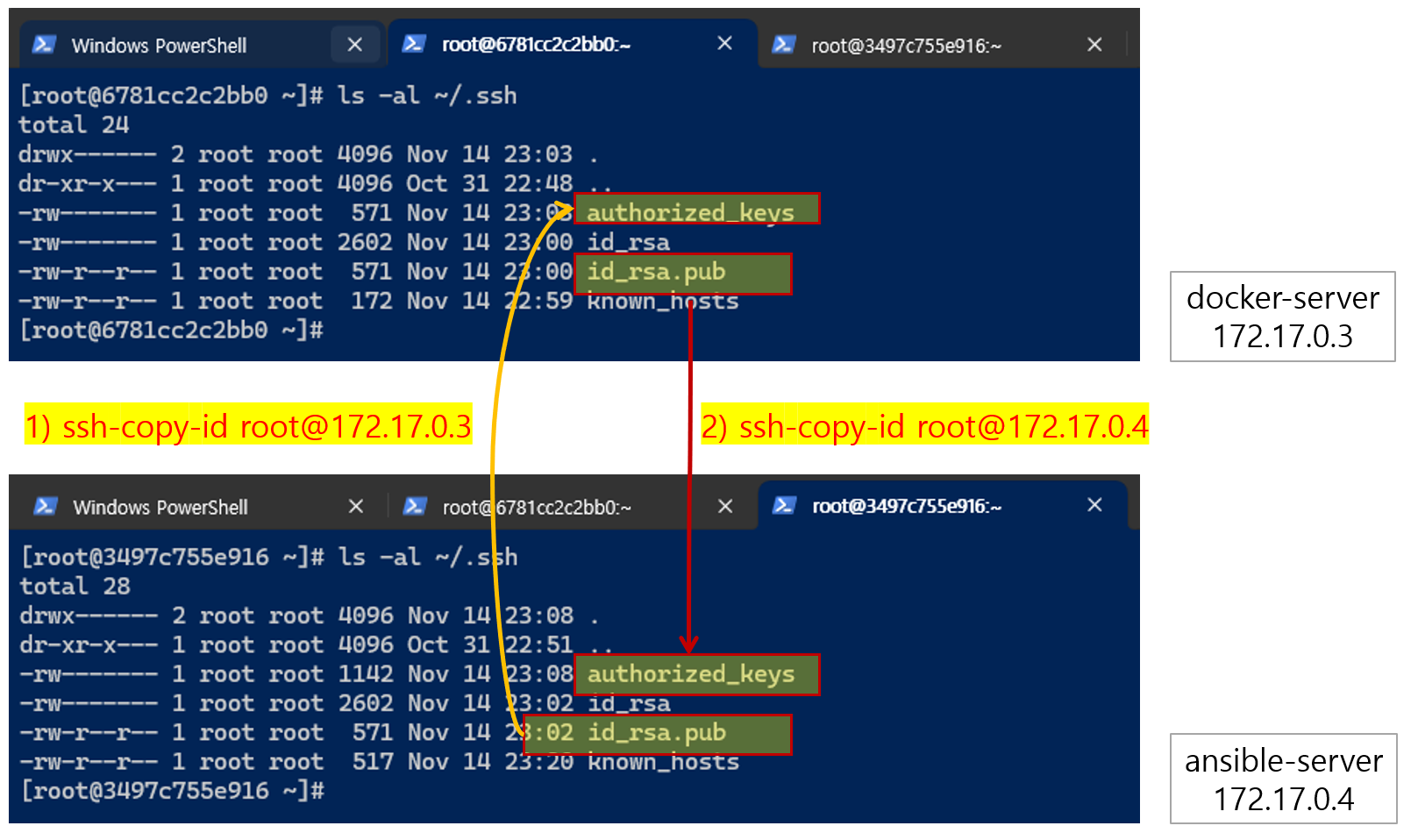
    windows_ansible_step1.png


    1. Copy the id_rsa.pub key of ansible-server to the Windows server. (The image below shows docker-server, but you can proceed with ansible-server.) However, the account used to create the id_rsa.pub key and the account used to access Windows openssh must be the same, and the Windows account must have administrator rights to execute docker or kubectl commands. At this time, if you try to copy the id_rsa.pub key using the ssh-copy-id command, the contents of the id_rsa.pub key may not be copied to the Windows authorized_keys file, but rather the string ECHO~ may be copied. In this case, you can copy the key directly to the Windows authorized_keys file using the COPY-PASTE method. (If the authorized_keys file does not exist in Windows, you can create the file yourself.)
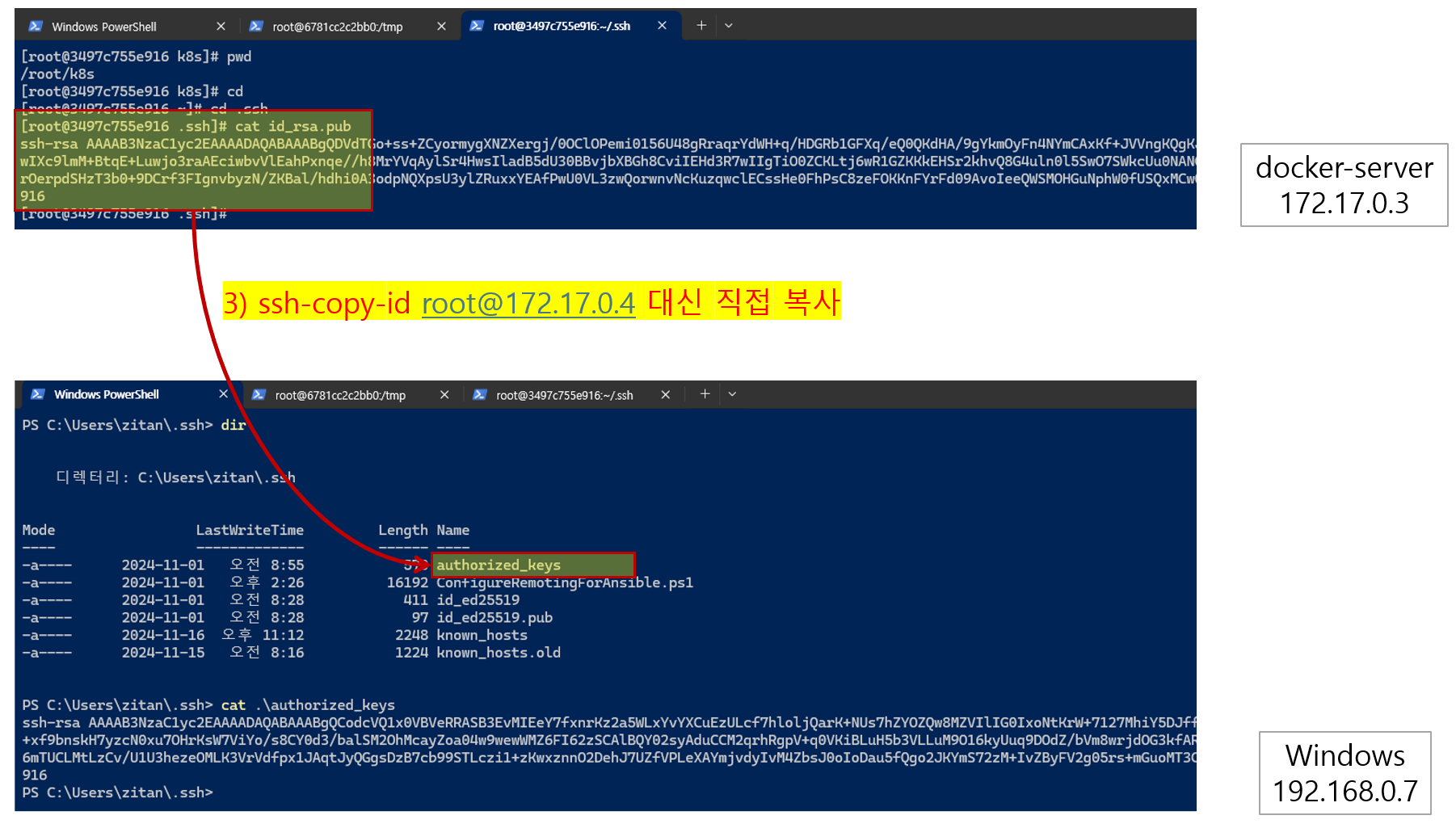
    windows_ansible_step2.png


    1. Before copying the id_rsa.pub key, check whether you can connect to the Windows server using the ssh command in Windows as in 4) below. (If openssh is not installed, install it.)
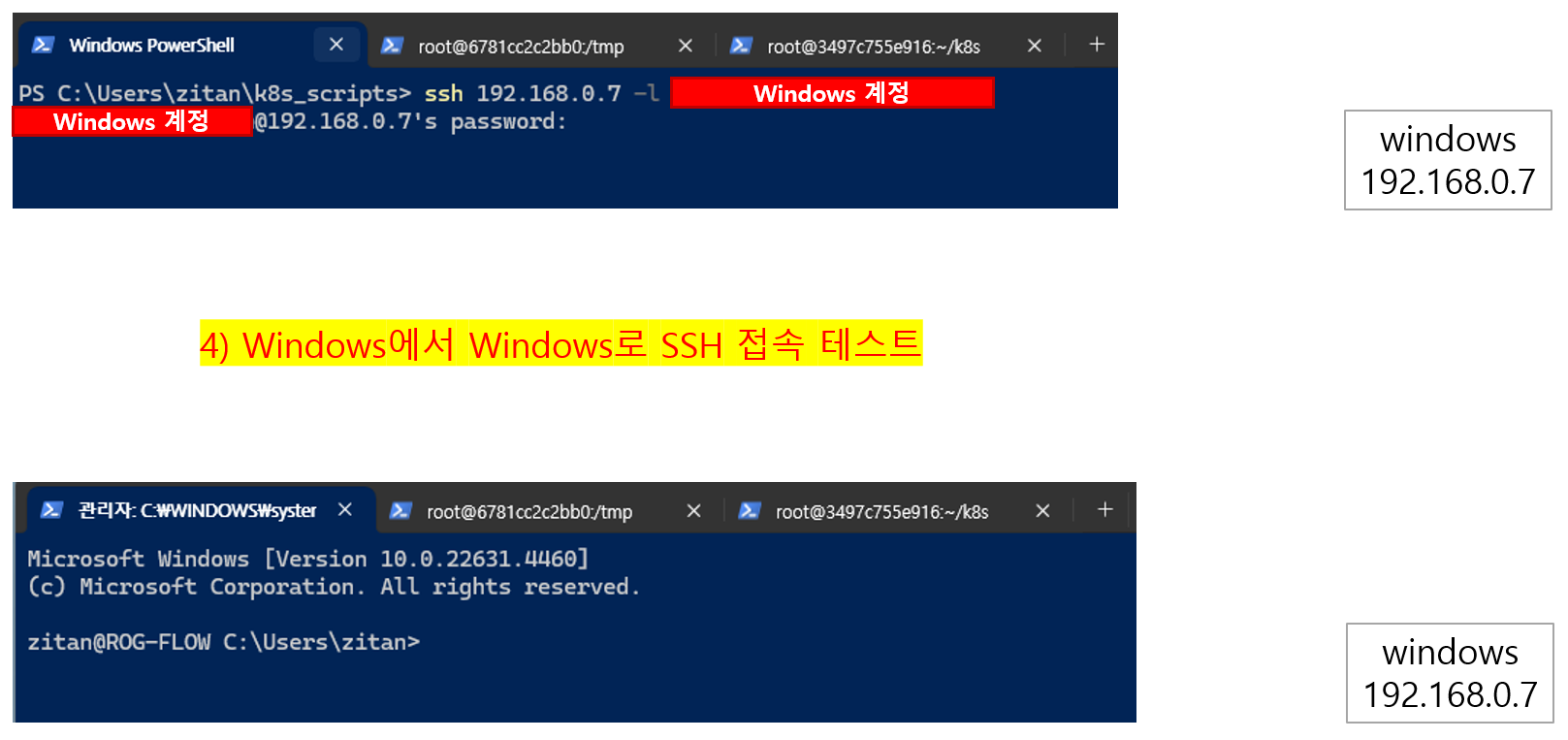
    windows_ansible_step3.png


    1. This time, please test connecting to the Windows openssh server using the ssh command directly from ansible-server.
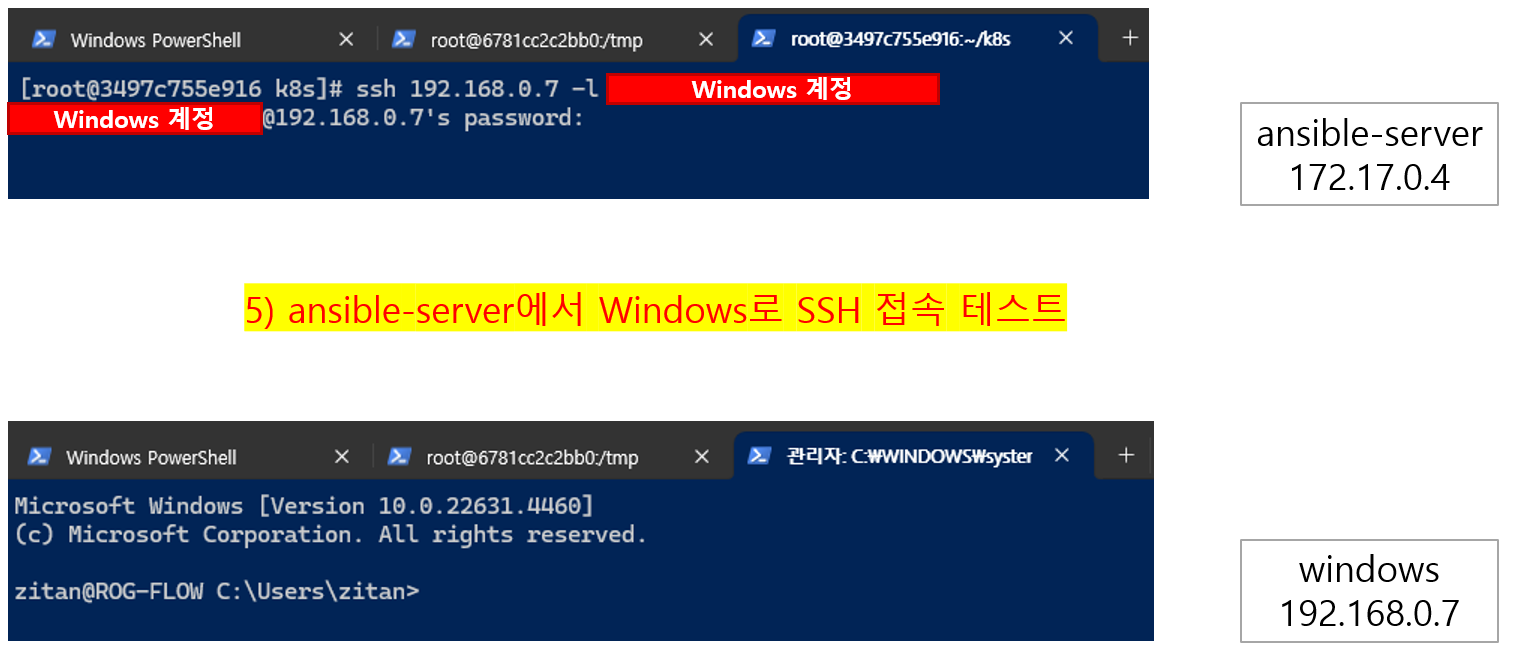
    windows_ansible_step4.png


    1. As explained in number 2 above, when copying the id_rsa.pub key, the id_rsa.pub key must be created with the same account as the Windows account. If this process is cumbersome, we recommend that you record the Windows connection information in the ansible hosts file and use it, as shown below. Since you will be processing using the ansible command more often than attempting to connect directly using the ssh command anyway, we will store the connection information directly in the ansible hosts file and use it without performing the ssh-copy-id task. In this section, you can store the Windows connection account information (I entered the information and password of a user account with administrator rights) in the ansible_user and ansible_password items. Once you have completed the ansible hosts file information, use the following ansible command to check whether the ping module is running normally.

      • ansible windows -m in_ping -u [windows account]
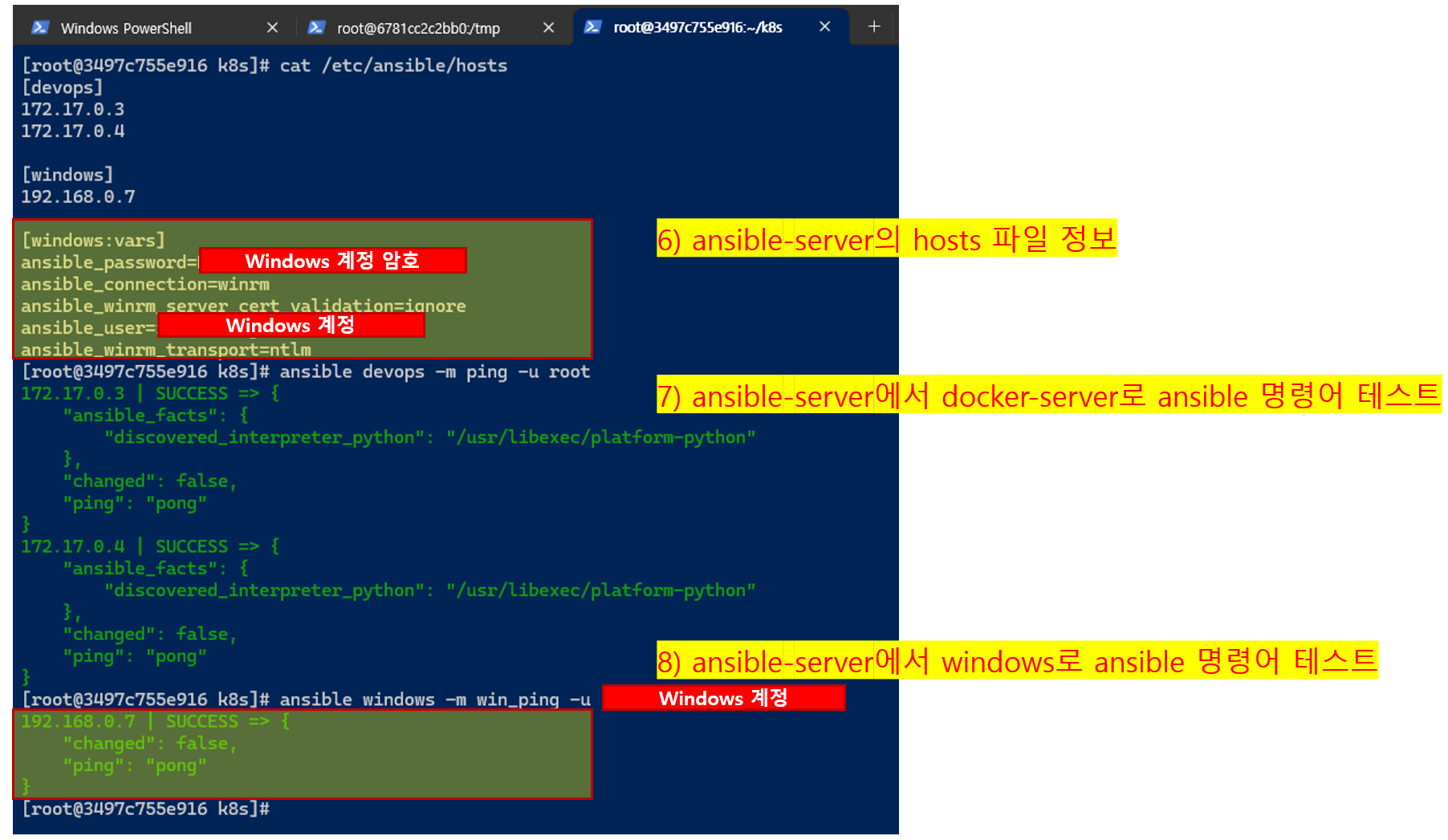
    windows_ansible_step5.png


    1. Before running ansible-playbook, check the location where the K8s manifest file is stored on Windows, and check the Kubernetes resources using the kubectl command. In the example below, the K8s Service list is checked, and it is confirmed that the services created by the user other than the services created by default are not visible.
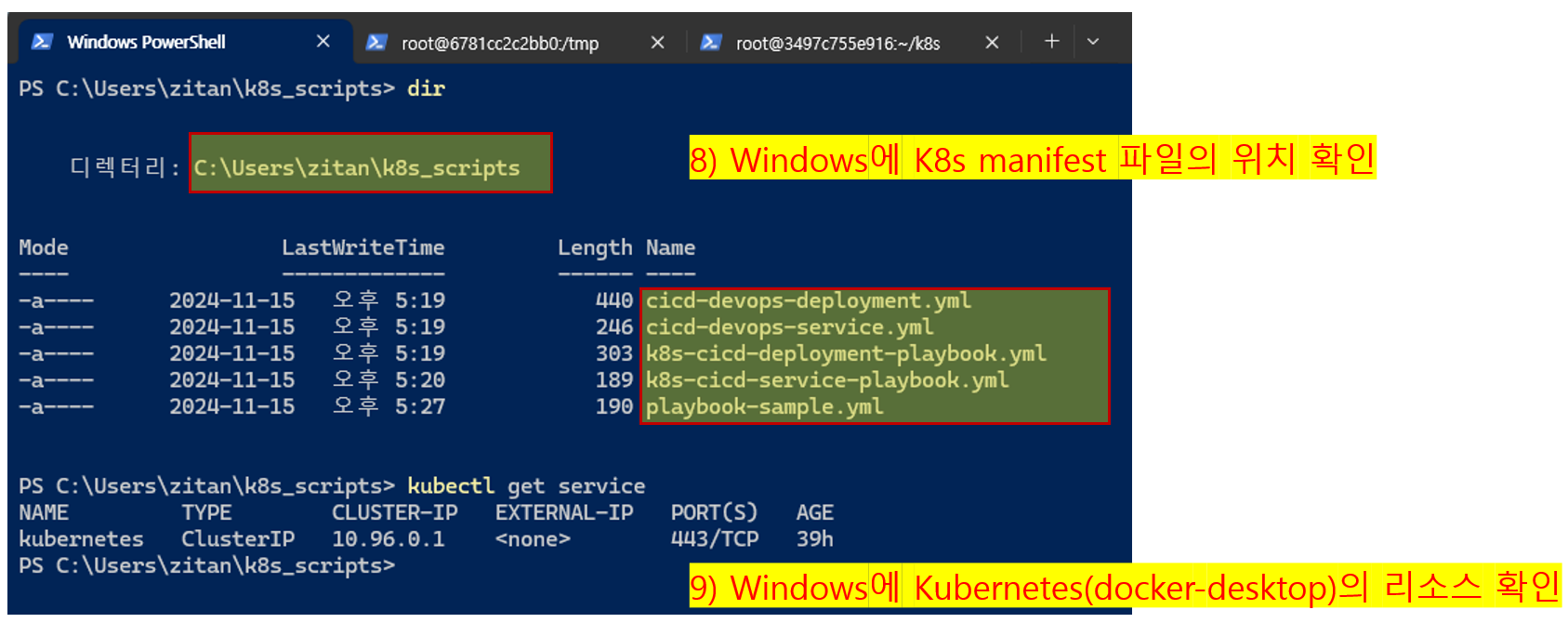
    windows_ansible_step6.png


    1. Check the contents of the playbook file in ansible-server. Since we will be passing the command to Windows, we will use the win_command command as in the example below (use the command command for MacOS) and specify the absolute path to the manifest file you want to run. You can run the playbook file and check the execution result.
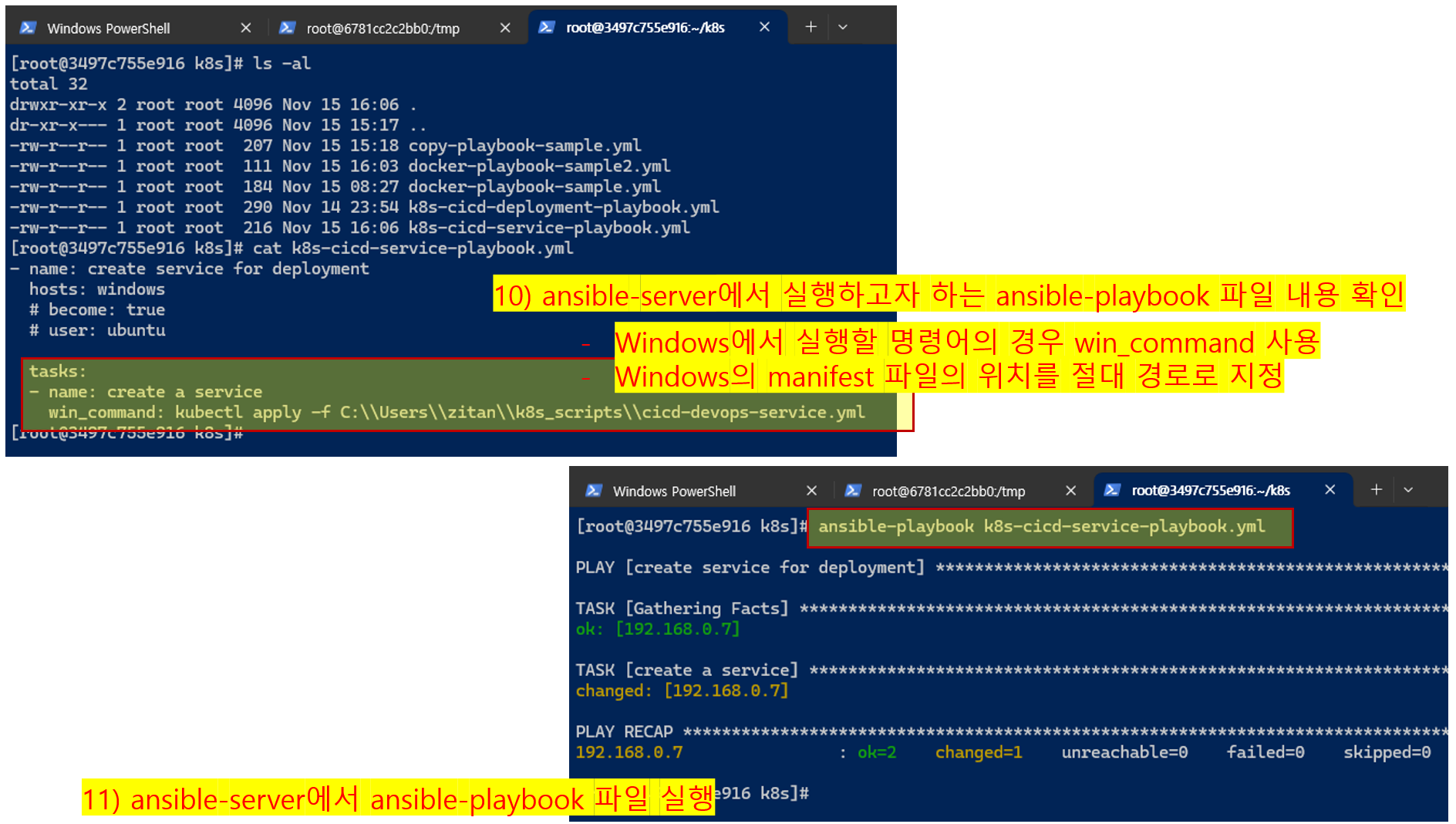
    windows_ansible_step7.png


    1. Finally, you can check whether the resources executed on Windows are reflected normally using the kubectl command.
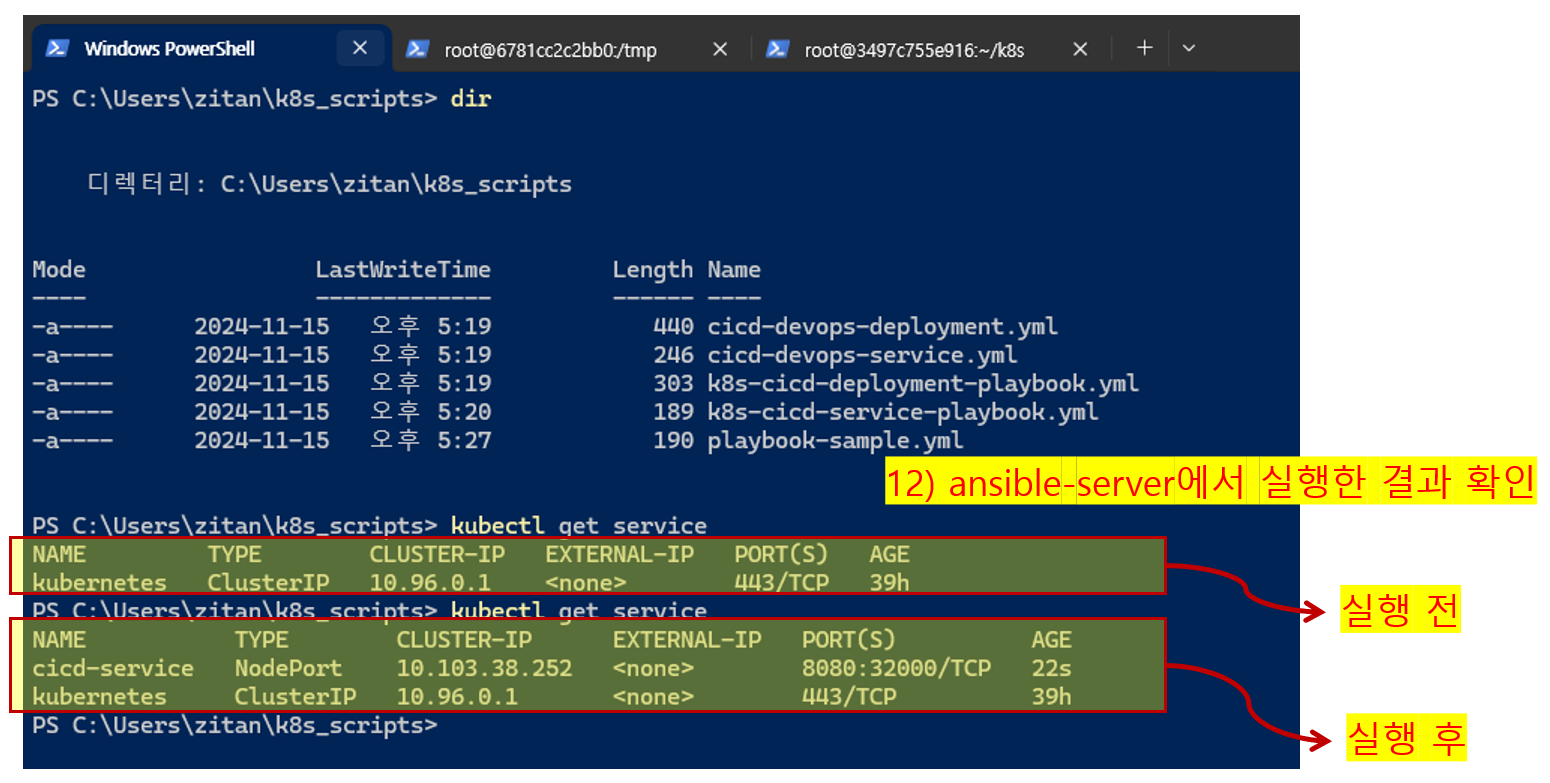
    windows_ansible_step8.png


    If you have any additional questions about the above, please post them on the Q&A board.

    I hope this helps anyone who was struggling with this issue.

    thank you

    0
  • kenneth님의 프로필 이미지

    Hello, this is Lee Do-won.

    While conducting the "Building a CI/CD Pipeline Using Jenkins" lecture, many people had difficulties in setting up the practice environment, so I created and shared a separate lecture on handling environment setting with VM. The practice environment was set up using VirtualBox instead of the existing Docker + SSH environment for Windows and MacOS (Intell chip) users. Please refer to it as I have set up the practice environment a little more easily by using Docker installed on the VM.

    thank you

    0
  • kenneth님의 프로필 이미지

    Hello, this is Lee Do-won.

    First of all, I would like to thank those who attended the lecture.

    This course is one that requires hands-on practice. In particular, we recommend that you install and practice Jenkins, Tomcat, or Docker servers yourself.

    Unfortunately, some students (especially Windows students) have written that they are having difficulty setting up the environment required for the practical training. We have not tested all environments, but we have prepared and tested several environments that can be set up, and shared related resources and scripts. We apologize to students who have not been able to resolve the issue.

    We have provided a practical guide for Windows + SSH + Dokcer environment through Q&A and additional videos that we shared earlier, but we would like to share some additional information that we have confirmed.

    • Windows) SSH server (with Docker) execution command (Method 1)

      • docker run --privileged --name docker-server -itd -p 10022:22 -p 8081:8080 -e container=docker -v /sys/fs/cgroup:/sys/fs/cgroup edowon0623/docker:latest /usr/sbin/init

    • Windows) SSH server (with Docker) execution command (Method 2, if it does not run with the above command)

      • docker run -itd --name docker-server -p 10022:22 -e container=docker --tmpfs /run --tmpfs /tmp -v /sys/fs/cgroup:/sys/fs/cgroup:ro -v /var/run/docker.sock:/var/run/docker.sock edowon0623/docker:latest /usr/sbin/init

    On some Windows PCs we tested, all of the practical methods below worked normally, but we recently confirmed that there was an error in practical 1 on a Windows PC we purchased (with WSL2 installed). The cause of the error we have currently identified was that the following error occurred during the iptables creation process in WSL2. We looked up various information and tried to solve it, but it did not work properly in the image we created, so we temporarily created an image with the iptables function excluded and tested it. As of now, we have determined that the practical training is possible without any major issues, so we are sharing the image and Dockerfile with you.

    https://hub.docker.com/r/edowon0623/docker/tags -> docker pull edowon0623/docker:no_iptables

    https://github.com/joneconsulting/docker-files

    Therefore, if the Docker server is not started in the Windows environment using the Dind method (Practical Scribe Method 1), try practicing using the command below.

    • Windows) SSH server (with Docker) execution command (method 3)

      • docker run --privileged --name docker-server -itd -p 10022:22 -p 8081:8080 -e container=docker -v /sys/fs/cgroup:/sys/fs/cgroup edowon0623/docker:no_iptables /usr/sbin/init

    Of course, after starting the Docker container, you must connect via SSH and run the systemctl start docker command to start the Docker server.

    Once again, thank you for your interest in the lecture. We will prepare new lectures with better content.

    thank you

    0
  • kenneth님의 프로필 이미지

    Hello, this is Lee Do-won.

    In the lecture on building a CI/CD pipeline using Jenkins, we have added lecture materials on how to deploy applications written in Nodejs. You have requested this content since last September, but even though it is not much, we are uploading it now. We apologize for uploading the material so late.

    This explains how to start a Nodejs application through a Process Manager called PM2, and how to deploy and run it as a Docker image. Although it is insufficient, I hope it will be of some help to those who need it. If you have any additional questions, please leave a message on the bulletin board. I haven't been able to check it right away due to the recent project deadline, but I will check it and respond as soon as possible.

    https://www.inflearn.com/course/%EC%A0%A0%ED%82%A8%EC%8A%A4-ci-cd-%ED%8C%8C%EC%9D%B4%ED% 94%84%EB%9D%BC%EC%9D%B8/unit/138551

    I hope you finish the rest of 2022 safely and achieve success in everything you do.

    Thank you.

    1

$68.20