


** Reference for testing with K8s on Windows from ansible-server
If you are testing by connecting to Kubernetes of docker-desktop installed on Windows using ansible-server, please check the following.
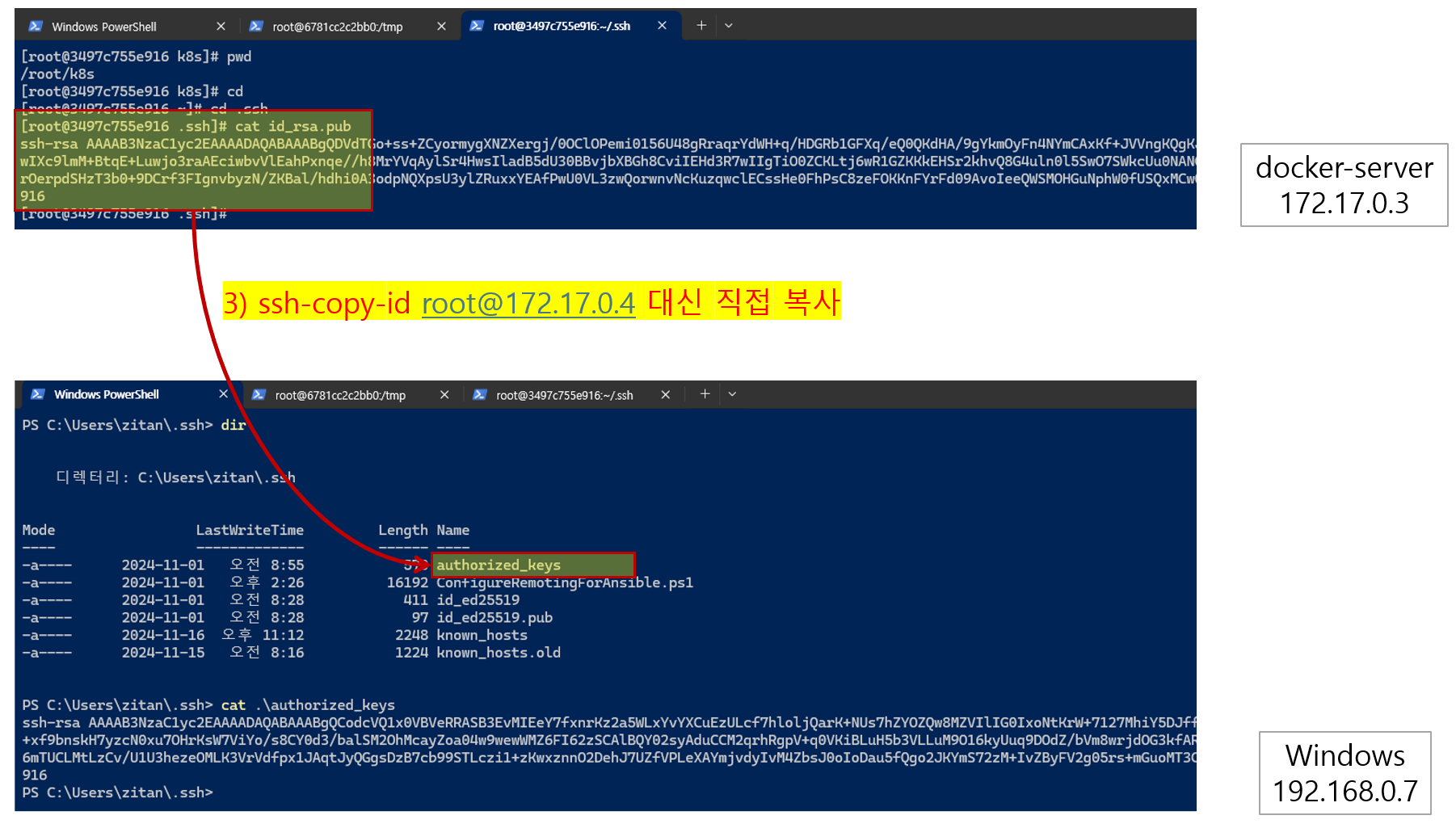
When trying to copy the contents of the id_rsa.pub key file to Windows using the ssh-copy-id command in ansible-server, the string ECHO~ may be inserted instead of the normal contents of the key file. In this case, you must directly copy the contents of the id_rsa.pub key file and use them instead of the ssh-copy-id command. Whichever method you use, the contents of the id_rsa.pub key file generated by ansible-server should be stored in the authorized_keys file in the .ssh folder of Windows. Please note that the account used to log in to ansible-server and the account used to log in to the Windows server must match, and the account must have administrator privileges in Windows to avoid errors when using commands such as docker or kubectl. In summary, you must create an ansible-server account with the same account name as the account used to log in to Windows, and then copy the key. If you find this process cumbersome, you can use the ssh-copy-id command to connect without authentication when connecting with ssh. Proceed with this part by entering the password as it is, and in ansible-playbook, record the Windows connection information in ansible's hosts file and use it. Then, you can proceed without any problems when running the playbook.
Please see below for a description of the execution process.
Windows OS (docker-desktop installed, Kubernetes running, IP: 192.168.0.7)
docker-server (Docker container, IP: 172.17.0.3)
ansible-server (Docker container, Ansible installation, IP: 172.17.0.4)
First, copy the id_rsa.pub key generated by ansible-server to docker-server using the ssh-copy-id command. You can also copy the key of docker-server and check that ssh can connect without a password.
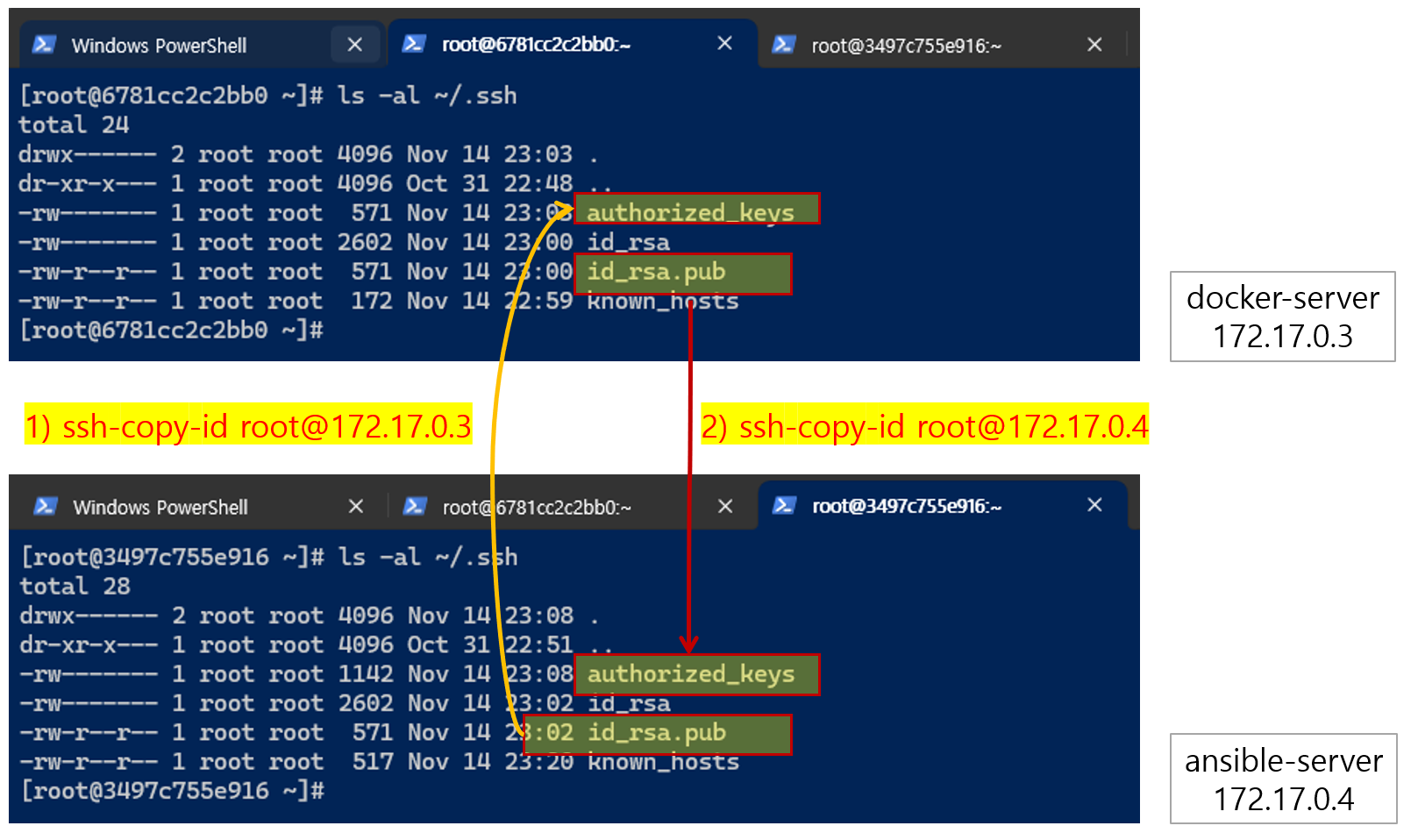
Copy the id_rsa.pub key of ansible-server to the Windows server. (The image below shows docker-server, but you can proceed with ansible-server.) However, the account used to create the id_rsa.pub key and the account used to access Windows openssh must be the same, and the Windows account must have administrator rights to execute docker or kubectl commands. At this time, if you try to copy the id_rsa.pub key using the ssh-copy-id command, the contents of the id_rsa.pub key may not be copied to the Windows authorized_keys file, but rather the string ECHO~ may be copied. In this case, you can copy the key directly to the Windows authorized_keys file using the COPY-PASTE method. (If the authorized_keys file does not exist in Windows, you can create the file yourself.)
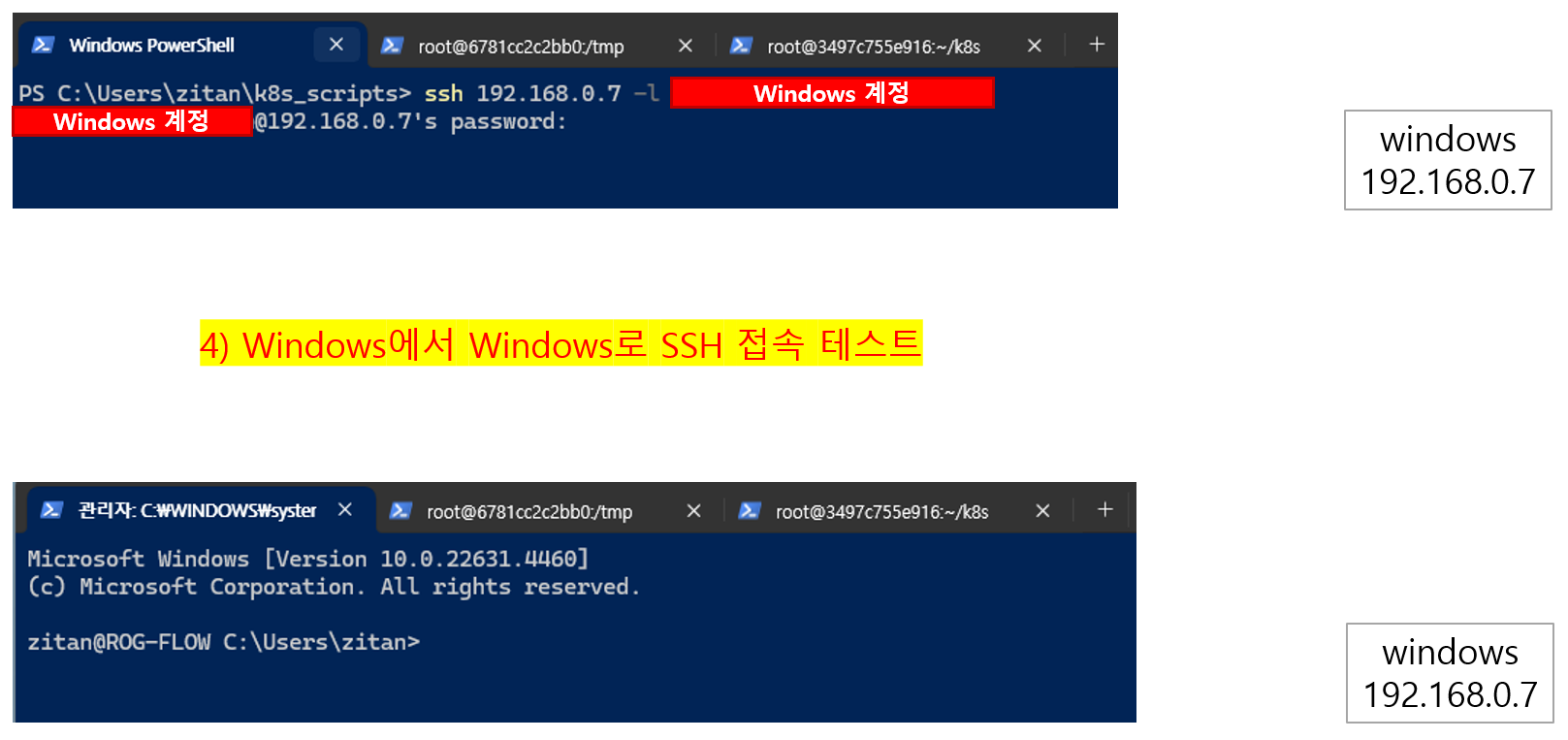
Before copying the id_rsa.pub key, check whether you can connect to the Windows server using the ssh command in Windows as in 4) below. (If openssh is not installed, install it.)
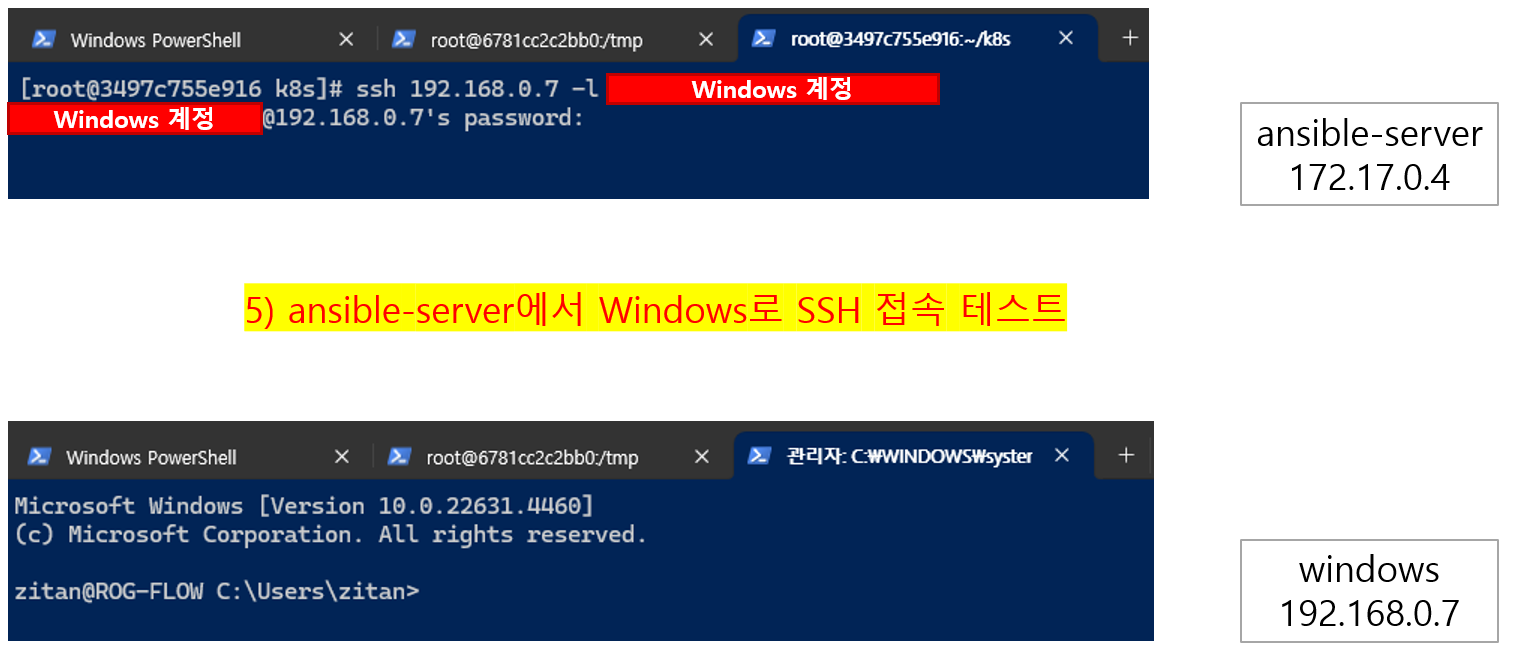
This time, please test connecting to the Windows openssh server using the ssh command directly from ansible-server.
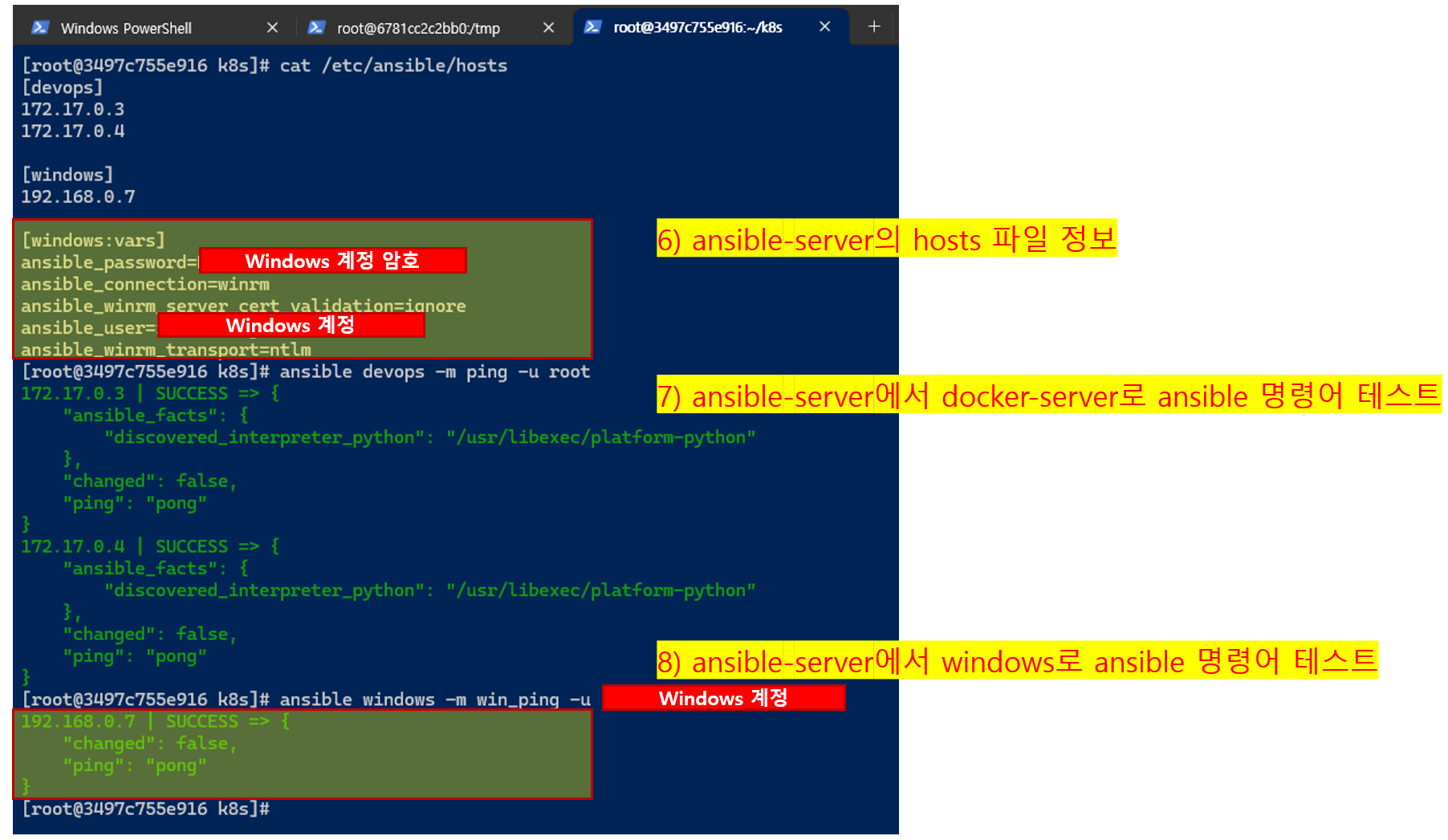
As explained in number 2 above, when copying the id_rsa.pub key, the id_rsa.pub key must be created with the same account as the Windows account. If this process is cumbersome, we recommend that you record the Windows connection information in the ansible hosts file and use it, as shown below. Since you will be processing using the ansible command more often than attempting to connect directly using the ssh command anyway, we will store the connection information directly in the ansible hosts file and use it without performing the ssh-copy-id task. In this section, you can store the Windows connection account information (I entered the information and password of a user account with administrator rights) in the ansible_user and ansible_password items. Once you have completed the ansible hosts file information, use the following ansible command to check whether the ping module is running normally.
ansible windows -m in_ping -u [windows account]
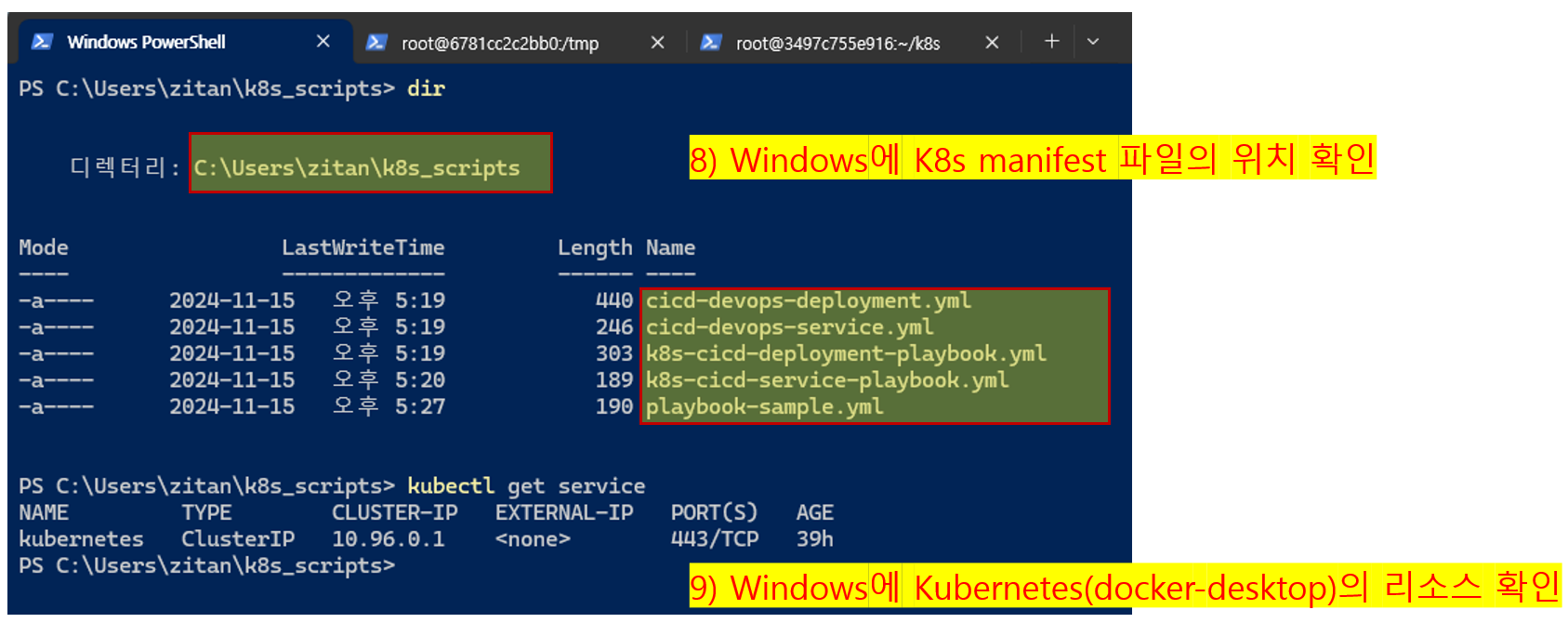
Before running ansible-playbook, check the location where the K8s manifest file is stored on Windows, and check the Kubernetes resources using the kubectl command. In the example below, the K8s Service list is checked, and it is confirmed that the services created by the user other than the services created by default are not visible.
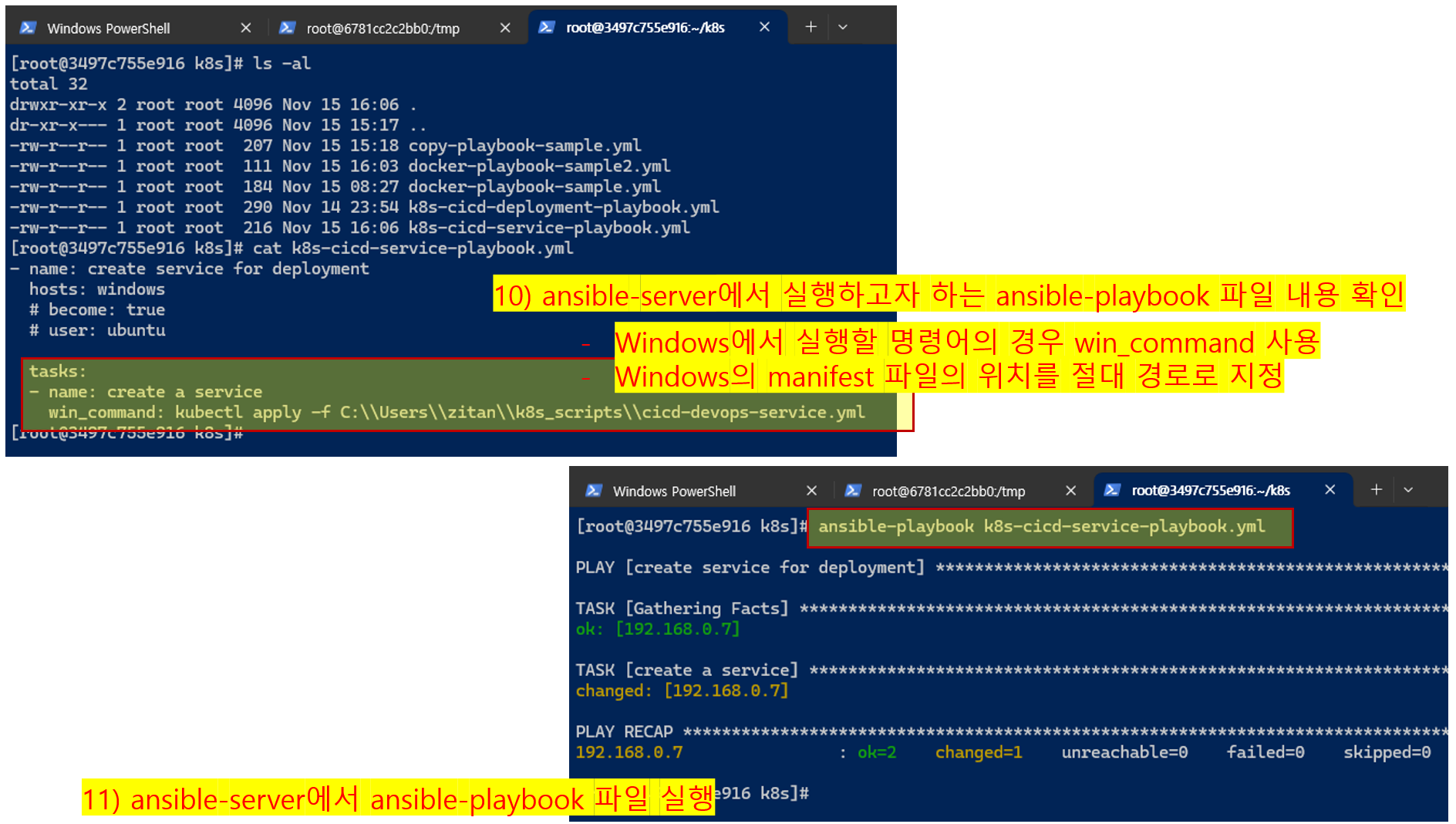
Check the contents of the playbook file in ansible-server. Since we will be passing the command to Windows, we will use the win_command command as in the example below (use the command command for MacOS) and specify the absolute path to the manifest file you want to run. You can run the playbook file and check the execution result.
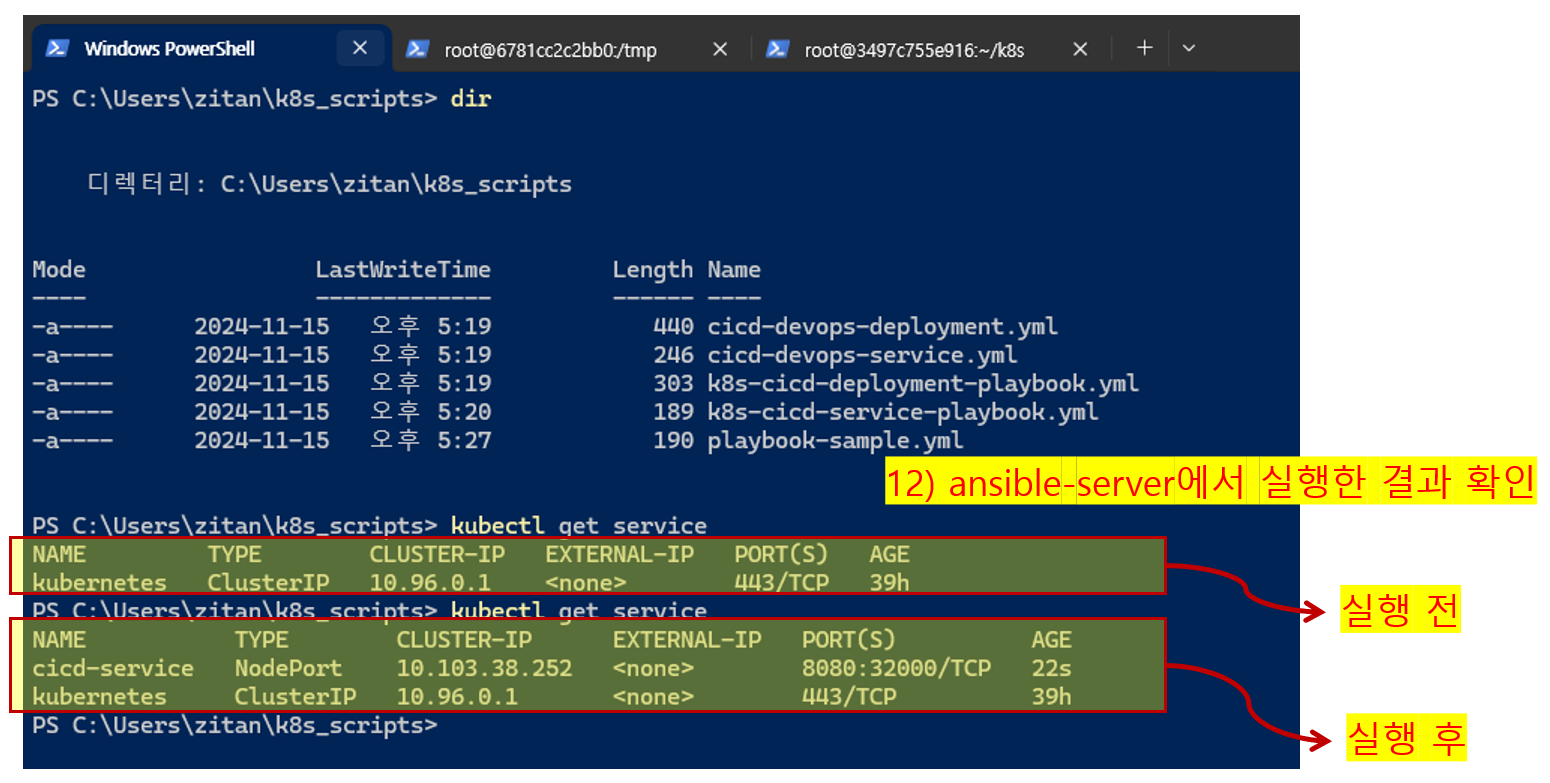
Finally, you can check whether the resources executed on Windows are reflected normally using the kubectl command.
If you have any additional questions about the above, please post them on the Q&A board.
I hope this helps anyone who was struggling with this issue.
thank you